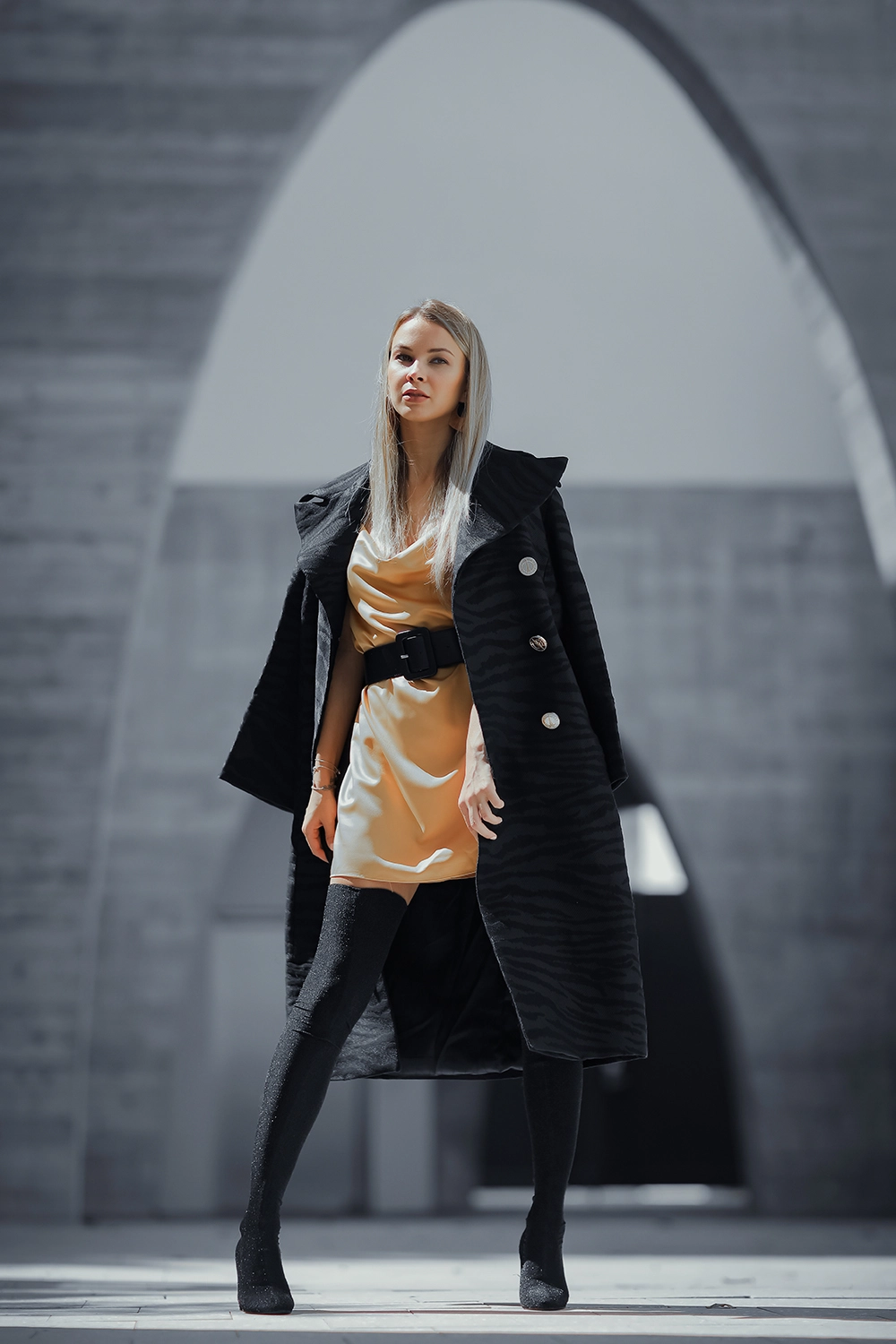
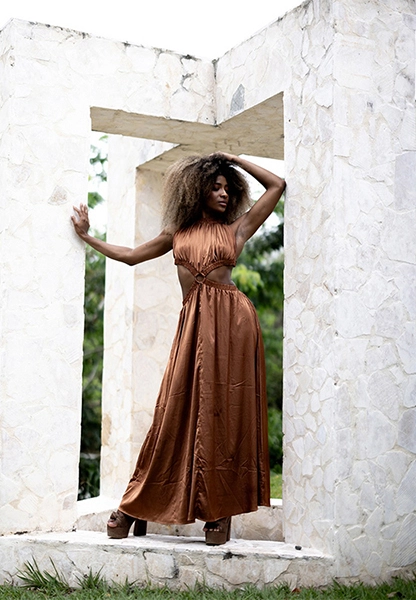
LR | Color Correction

Perfect Color Correction made easy for photographer with our Lightroom service

No Membership

$0.19 | Per Image

Pro Membership

$0.15 | Per Image

Basic Membership

$0.17 | Per Image

What We Do in LR

Exposure Balance

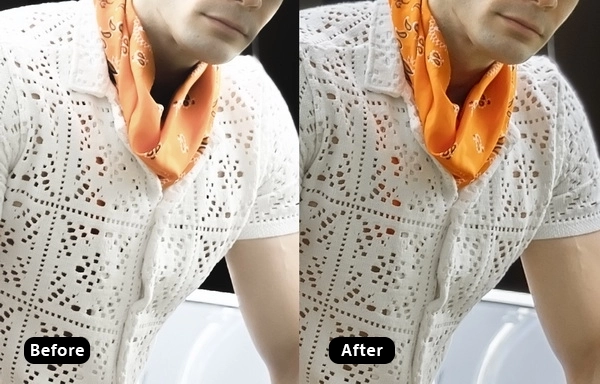
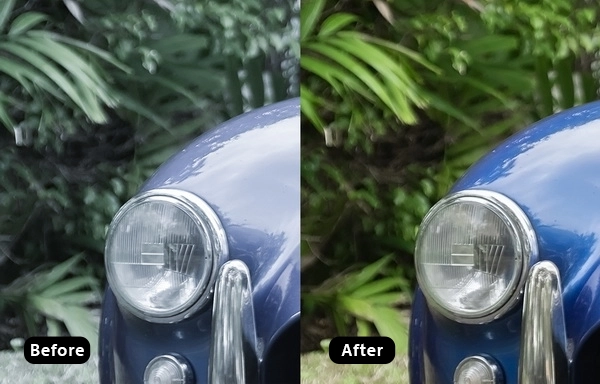
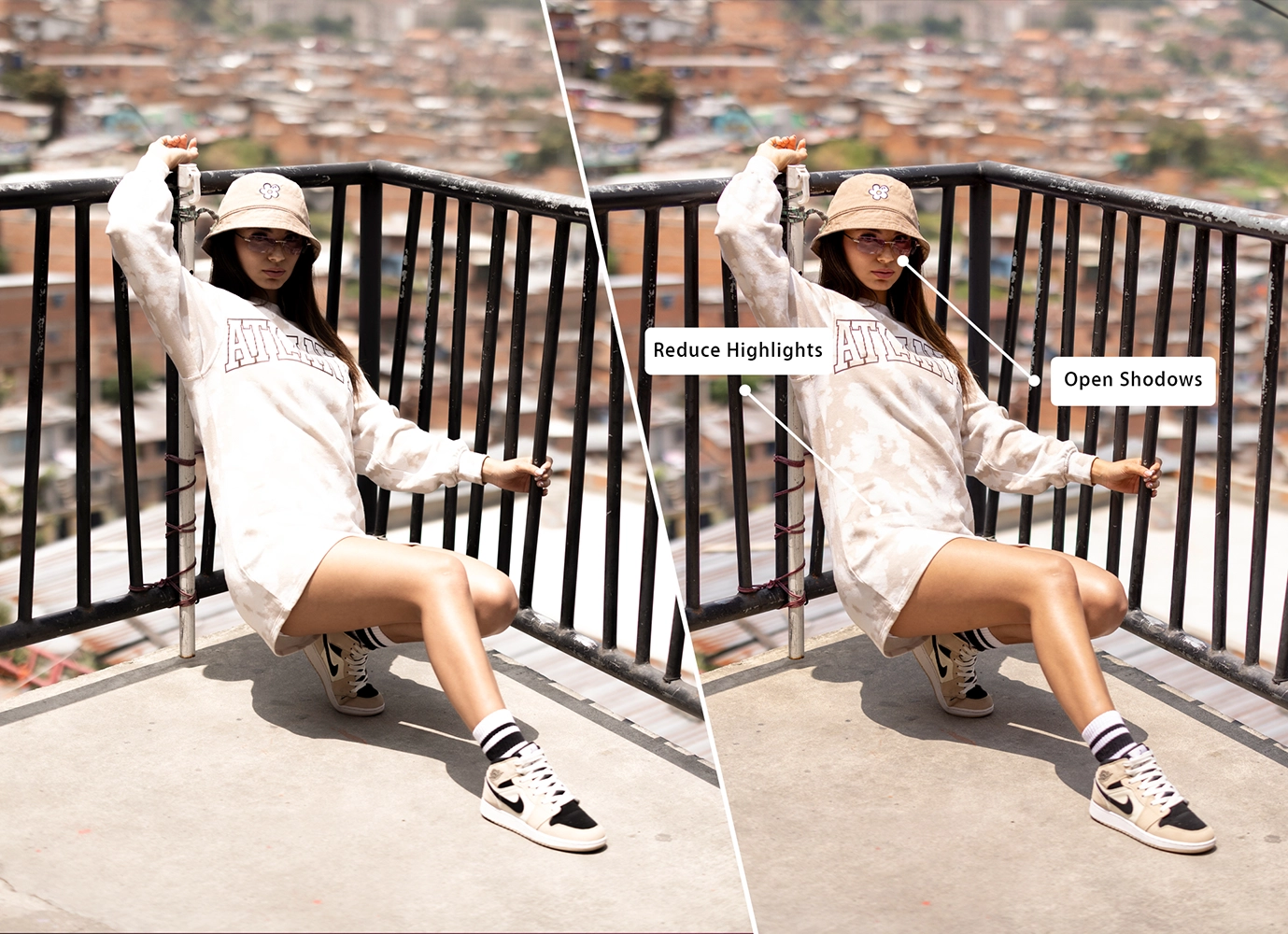
Exposure Balance is essential for adjusting the darkness, brightness, and overall tone of your photo. This allows you to fine-tune how light or dark different areas of the image appear, ensuring that the photo has the right level of contrast and highlights. By carefully balancing these settings, you can enhance the mood, depth, and clarity of the image, whether you’re aiming for a bright, airy feel or a more dramatic, shadowy effect. The combination of these adjustments determines the optimal light level, helping you achieve a well-exposed and visually appealing photograph that aligns with your creative vision.

what we do in Lr Basic Light

Color Adjustment

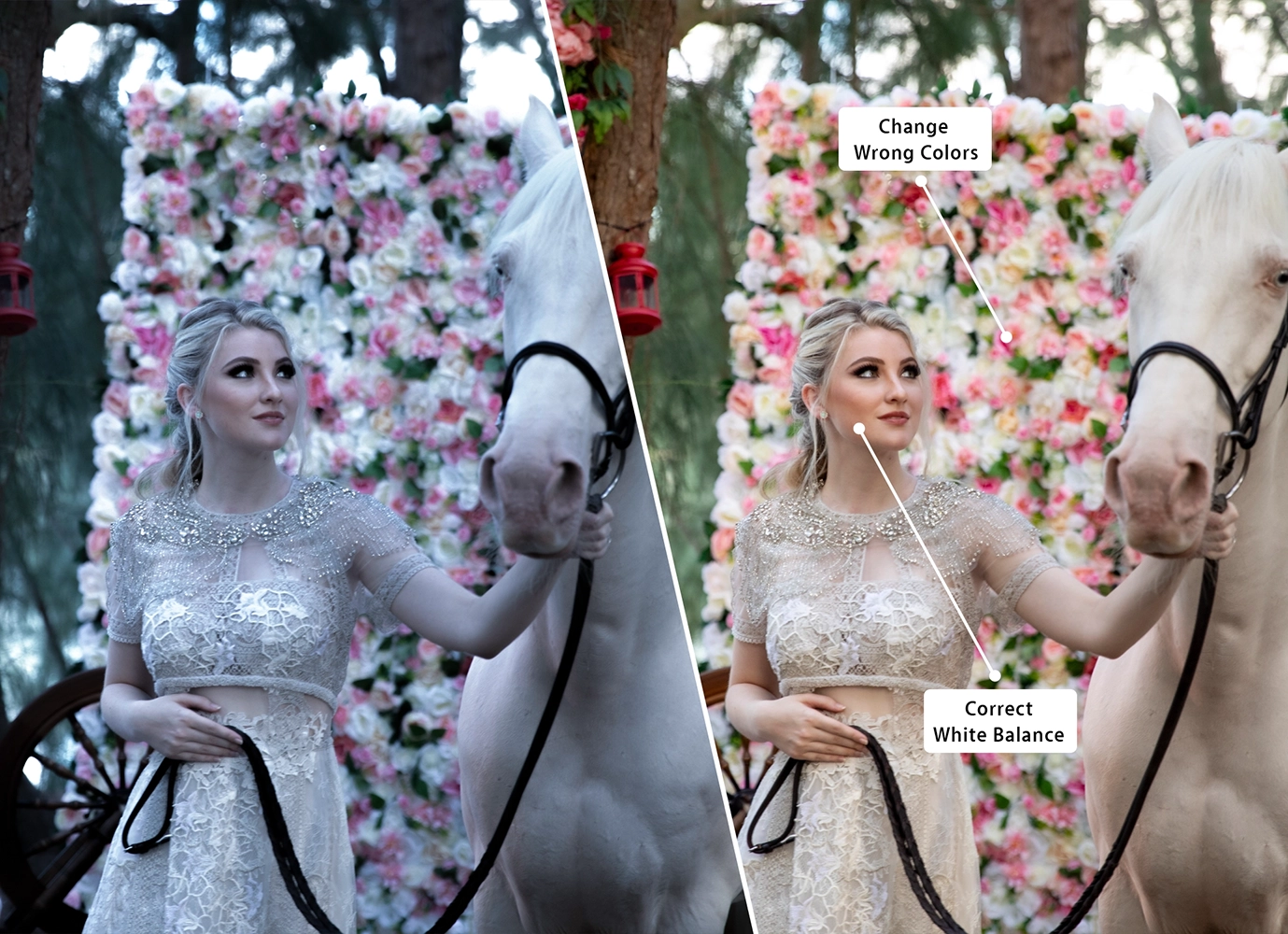
Color Adjustment is crucial for refining the overall color palette of your photo. This includes adjustments to the photo’s white balance, which controls the temperature and tint, ensuring that whites appear true and other colors are accurate under different lighting conditions. You can modify the color intensity or saturation, which affects how intense the colors will be. When these settings are combined, they create a balanced, and natural result, making sure the photo accurately reflects the intended mood and atmosphere.

Noise Reduction

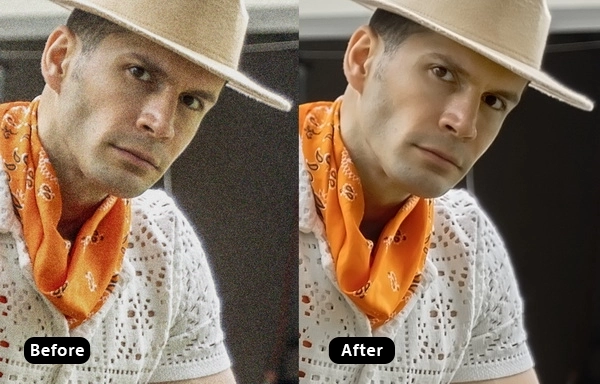
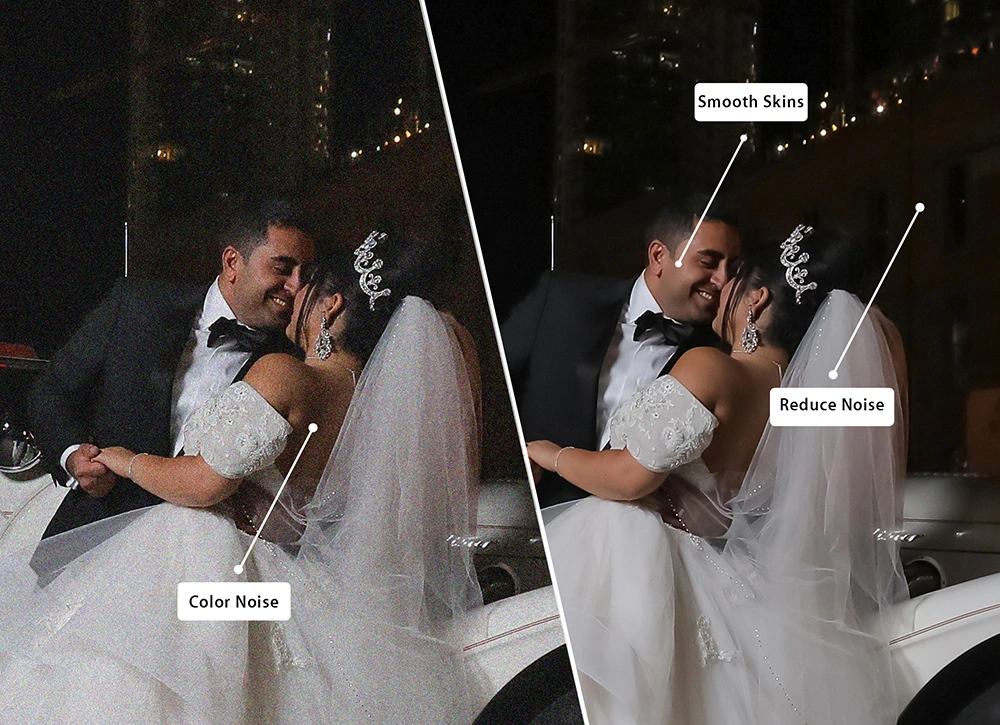
Noise Reduction focuses on reducing noise and sharpening the photo to enhance its clarity and detail. Noise reduction is crucial for minimizing graininess, especially in low-light images, while sharpening enhances the edges and fine details to make the photo appear more crisply. Depending on the exposure and the amount of noise present in each photo, these adjustments can be fine-tuned to achieve a clean, polished image that maintains its visual integrity.

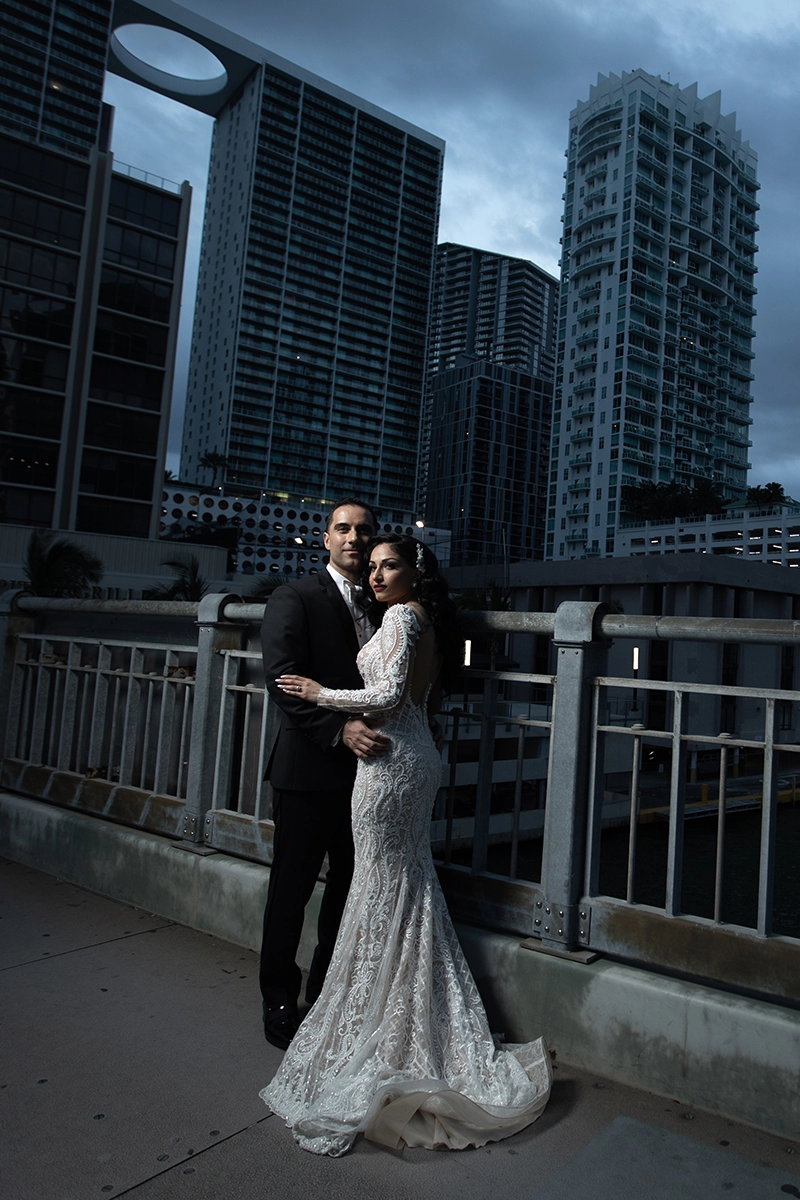
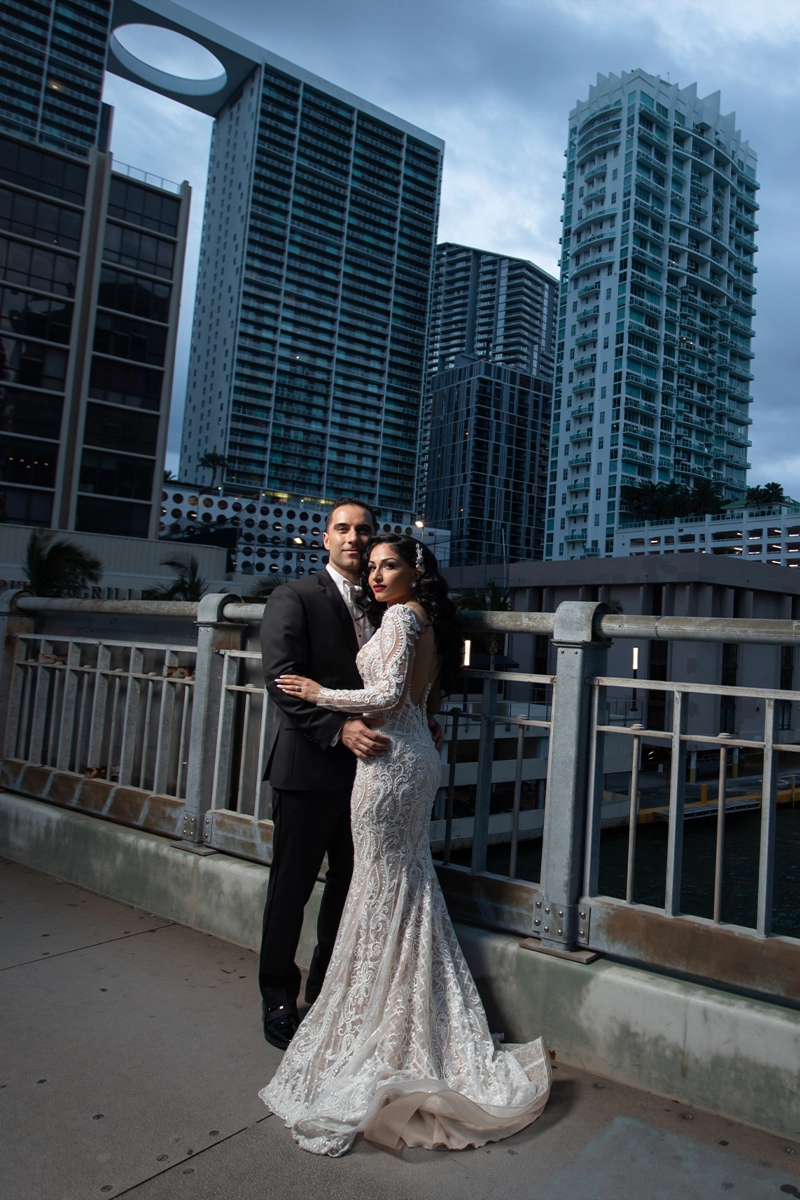
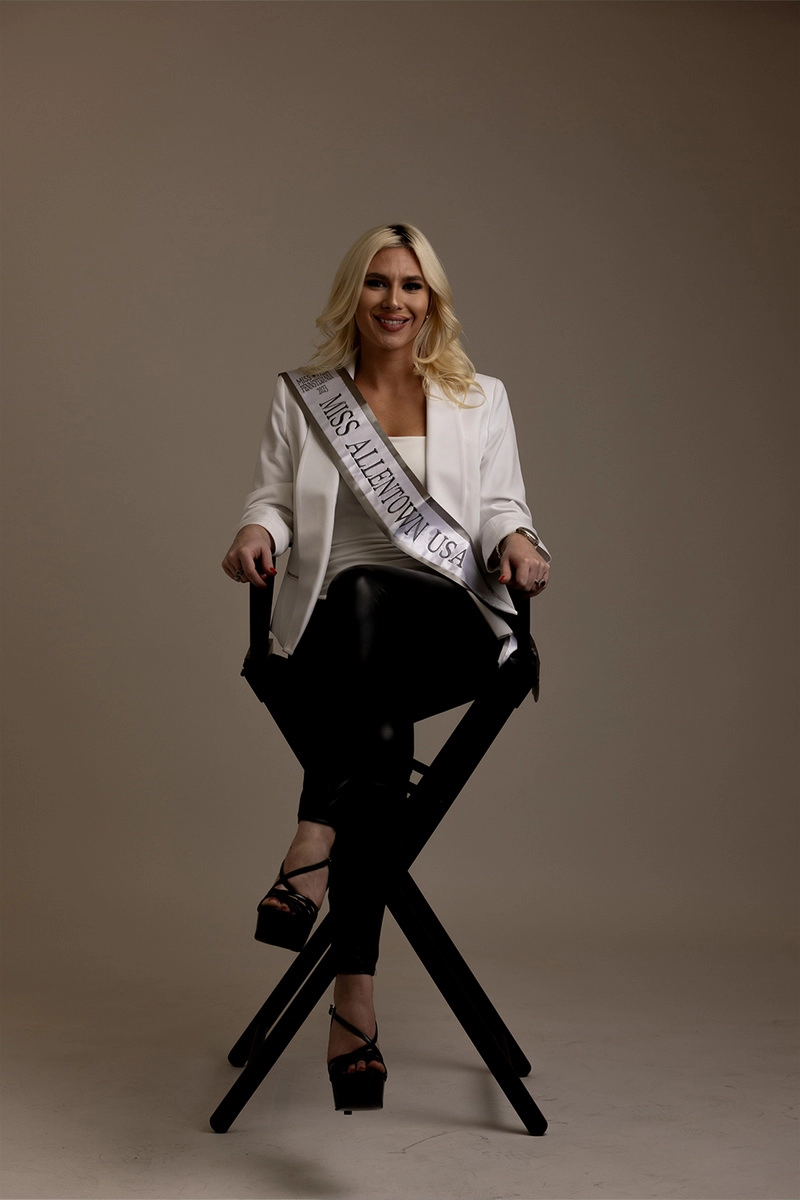
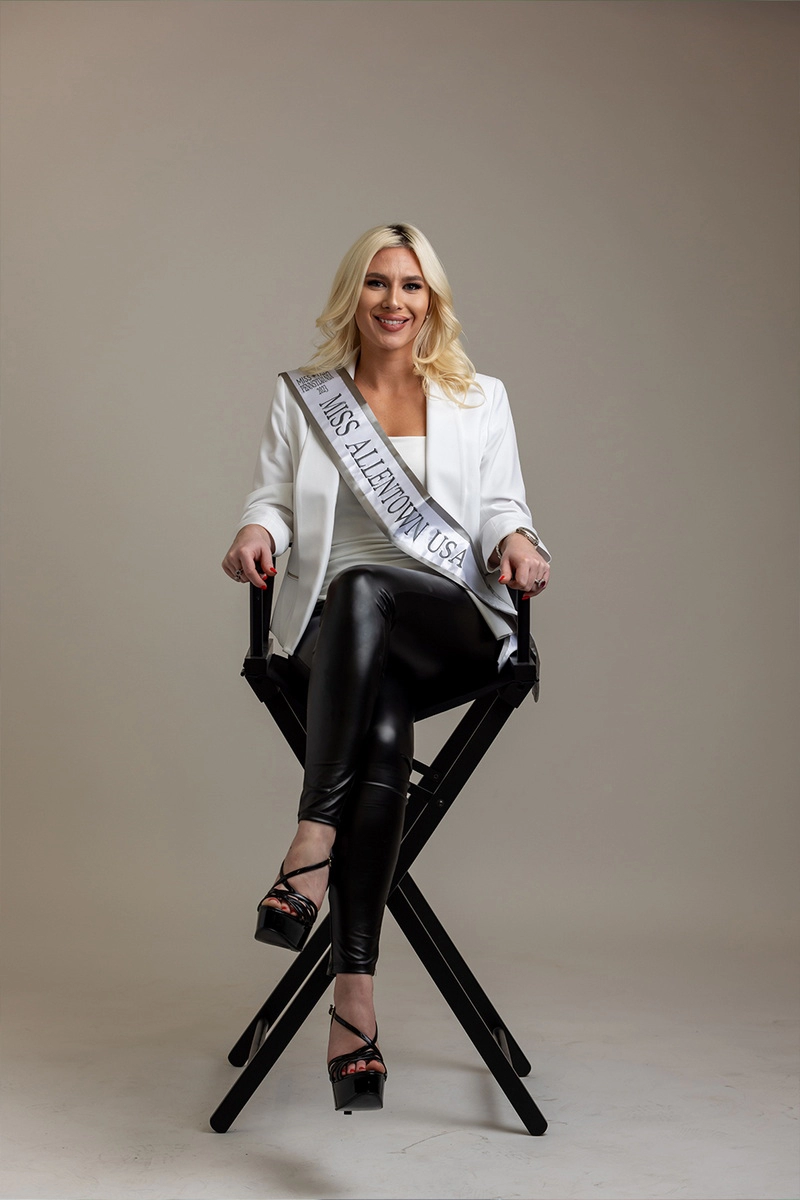
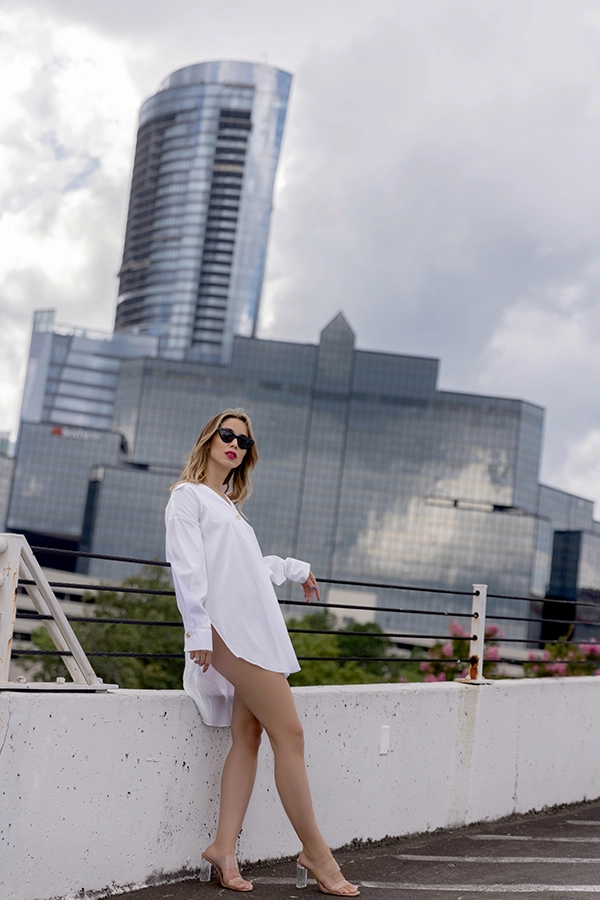
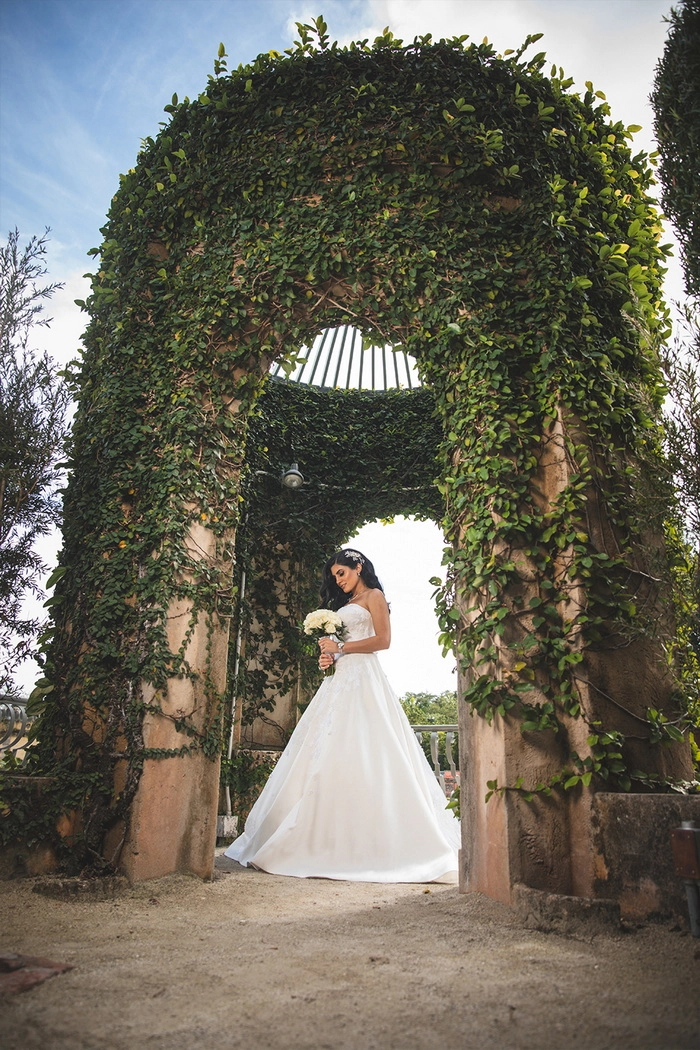
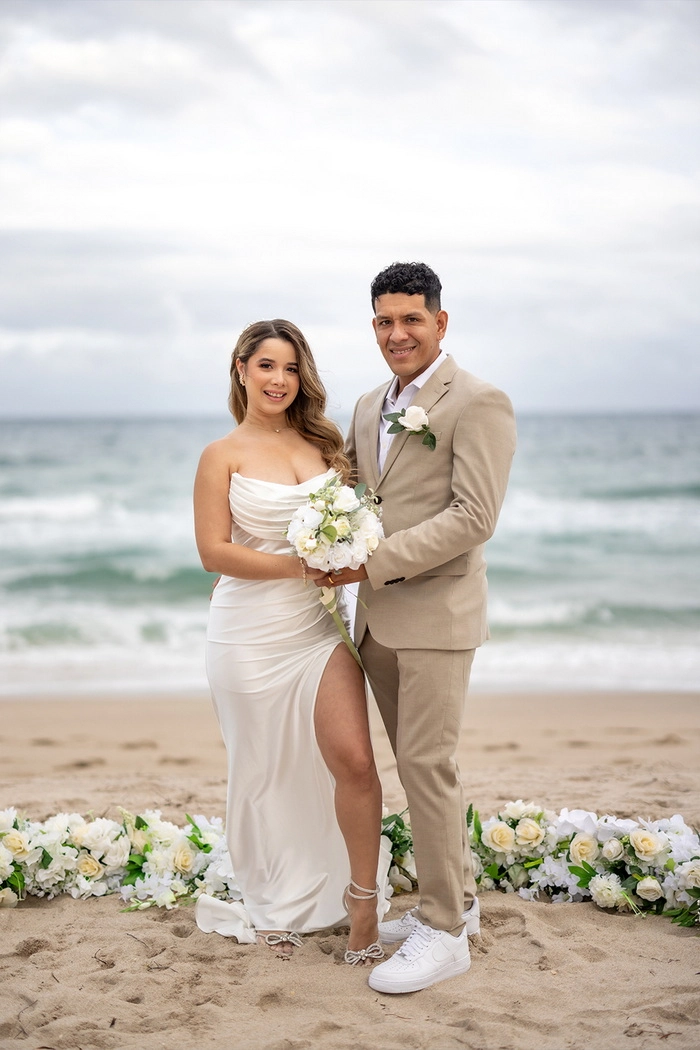
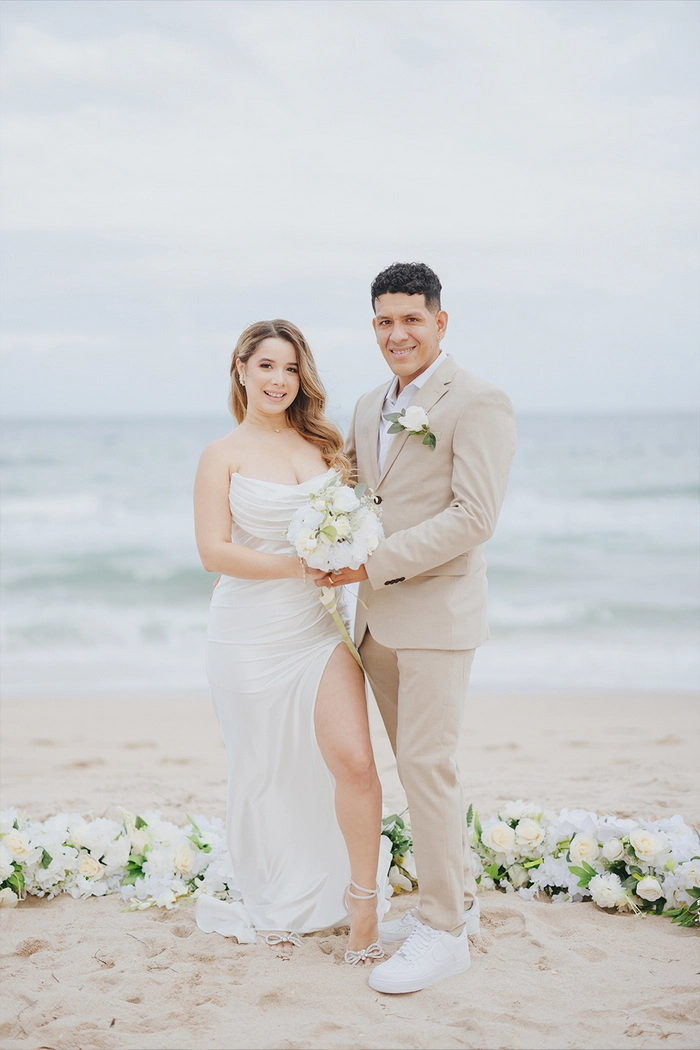
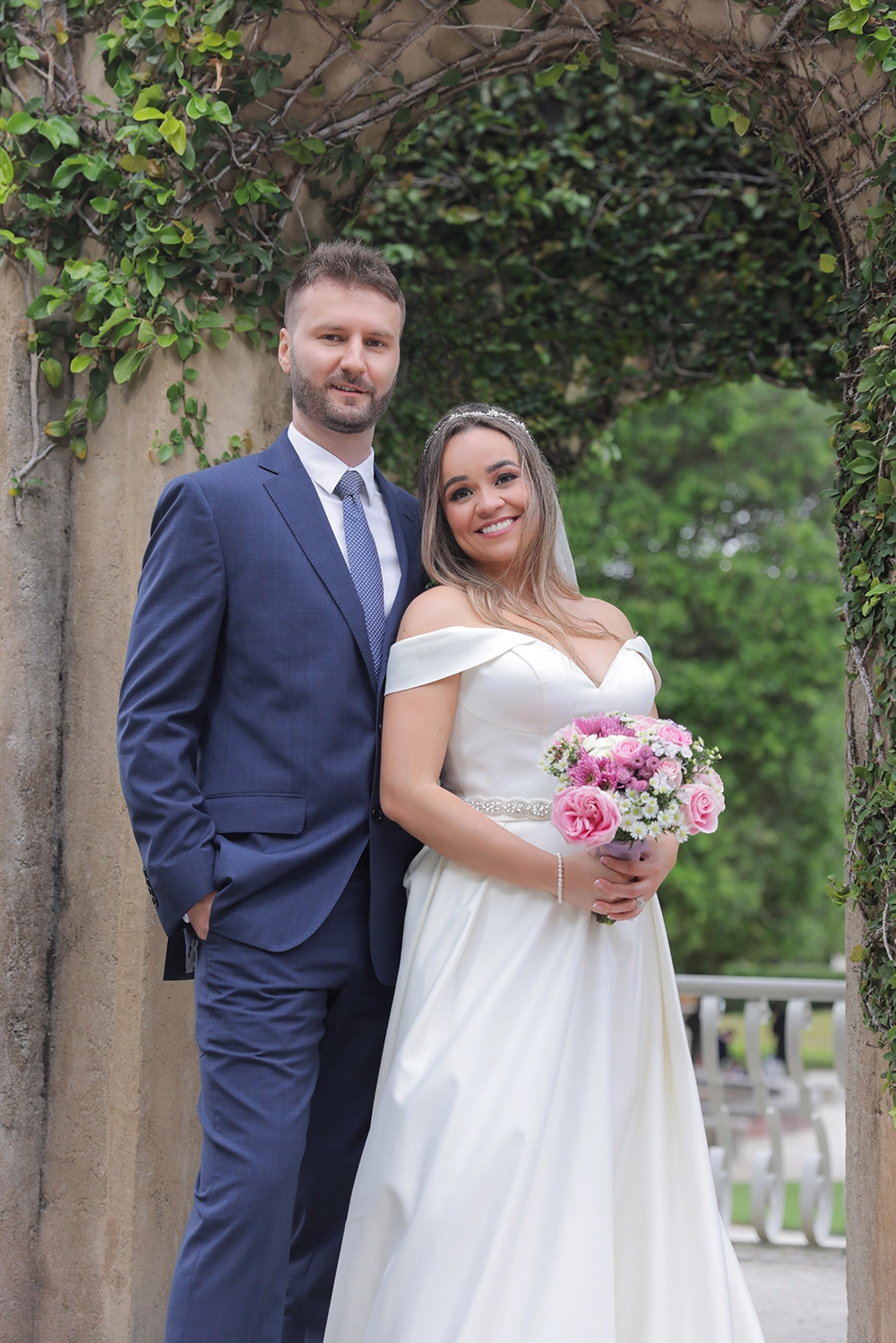
See Some LR Samples

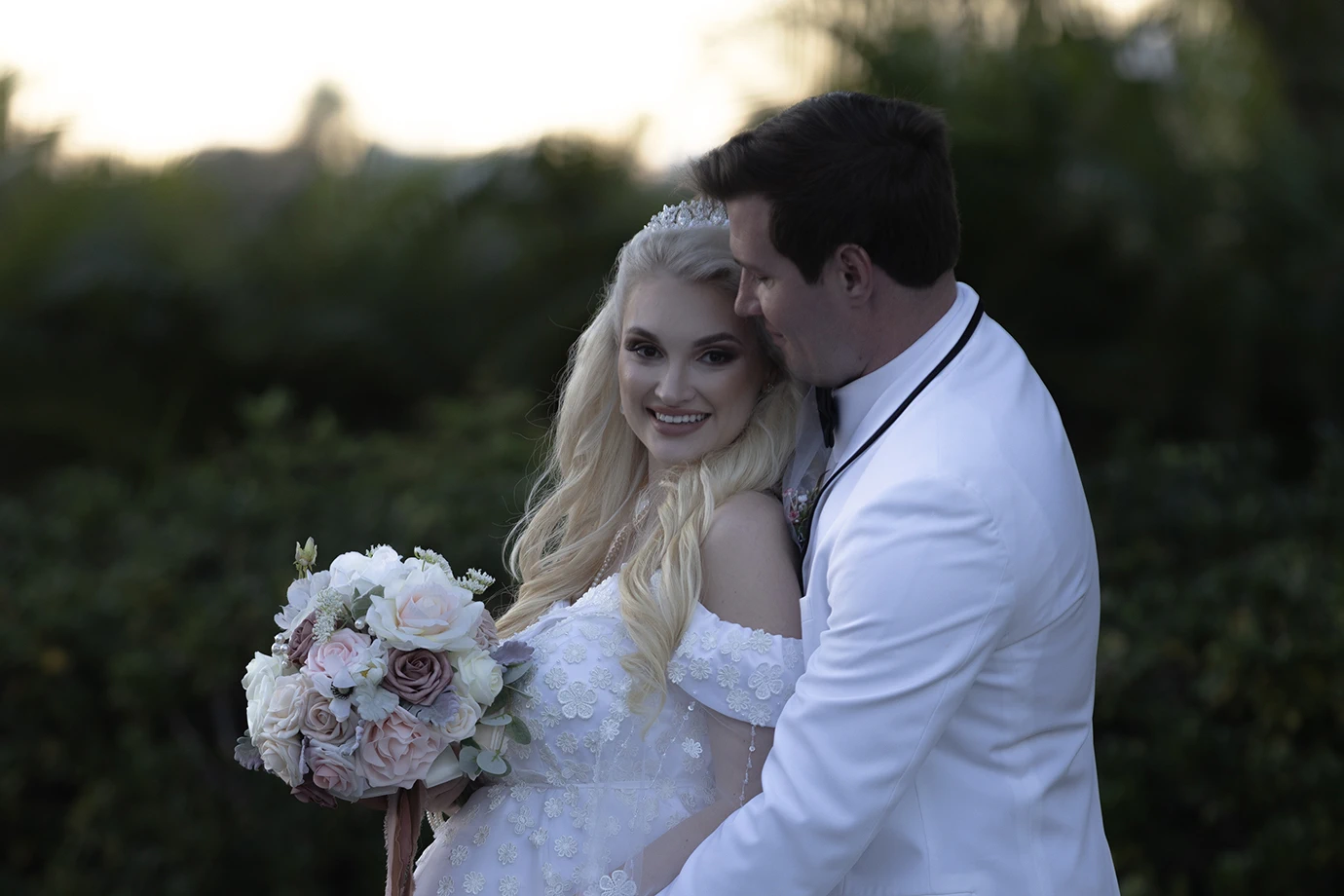
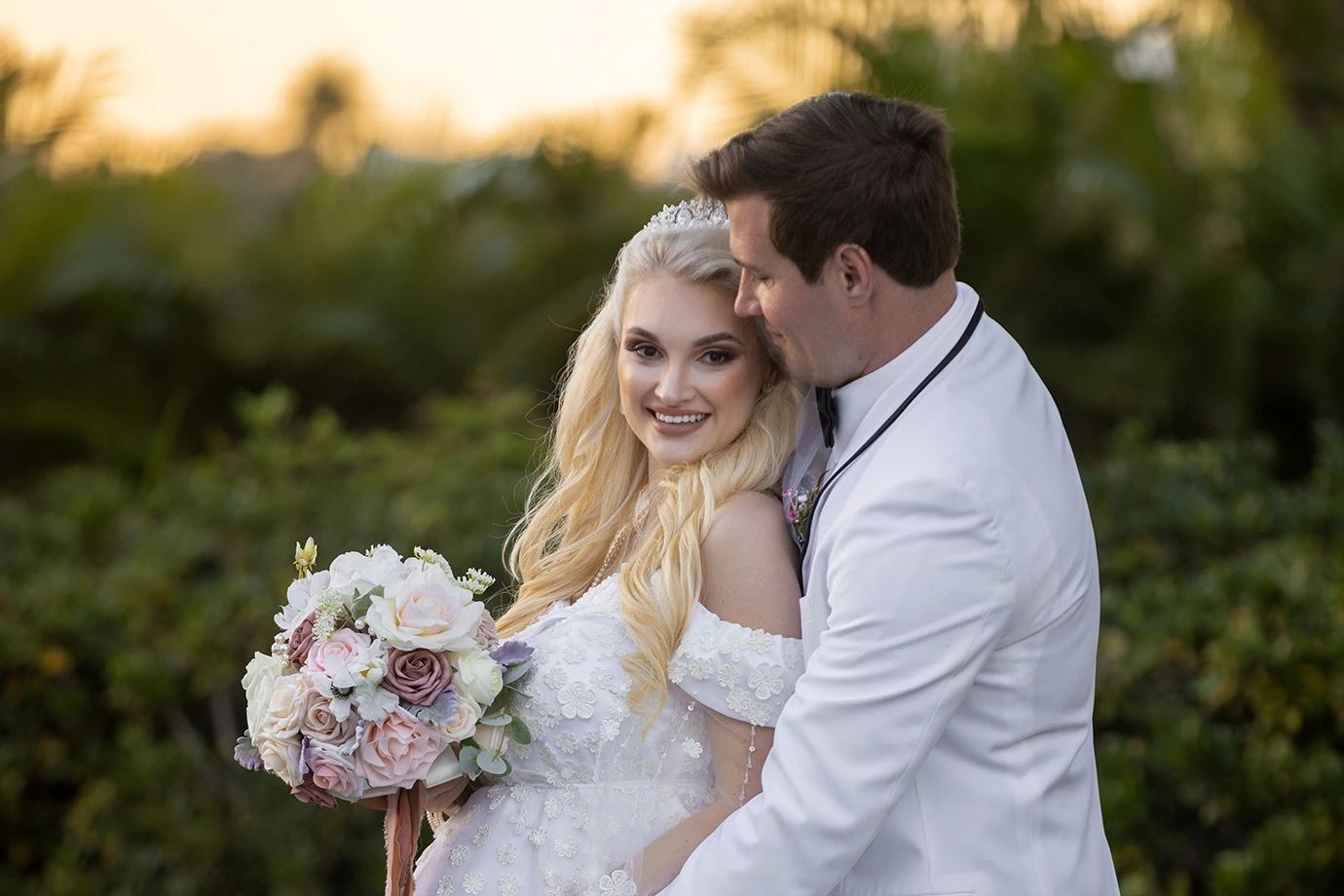
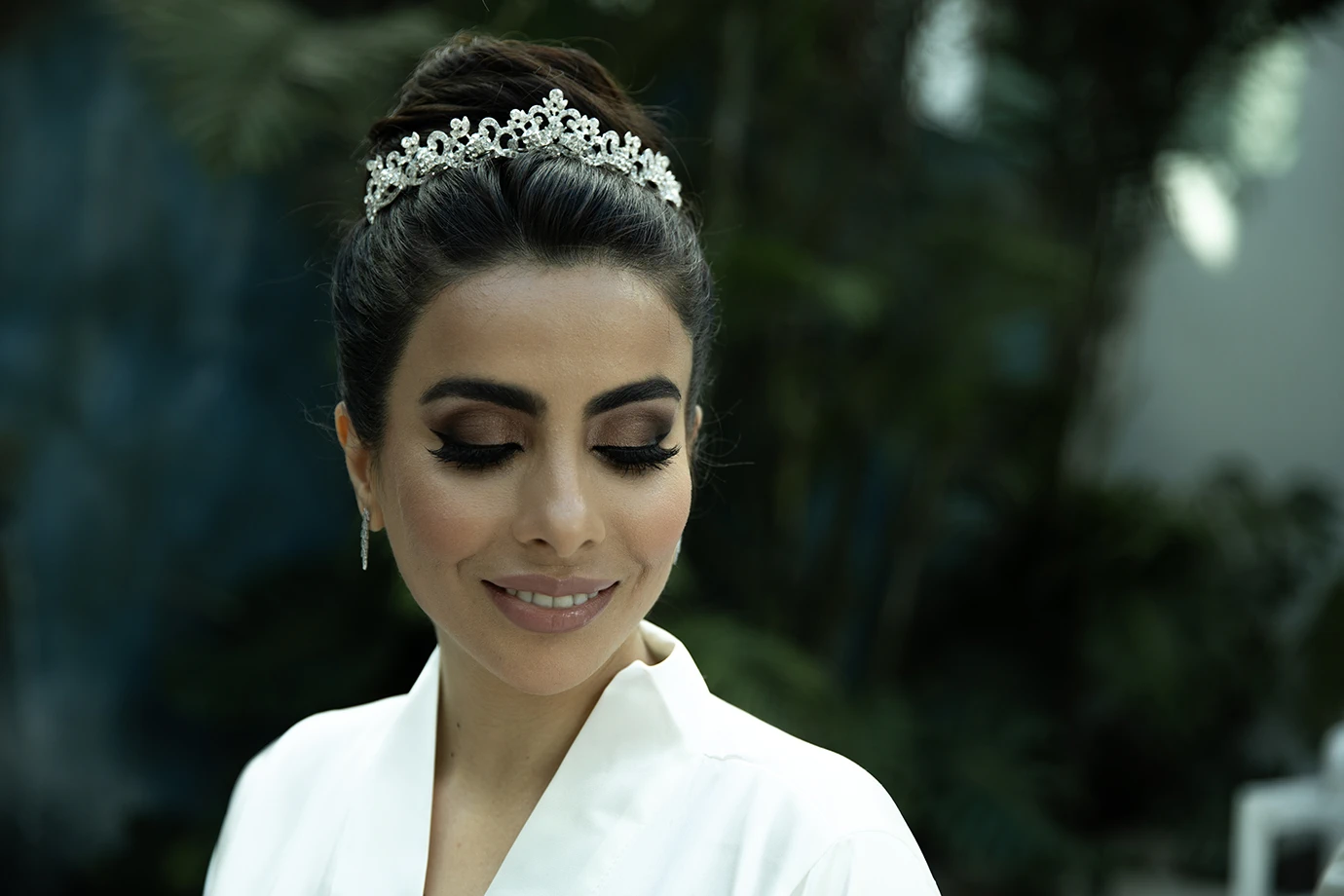
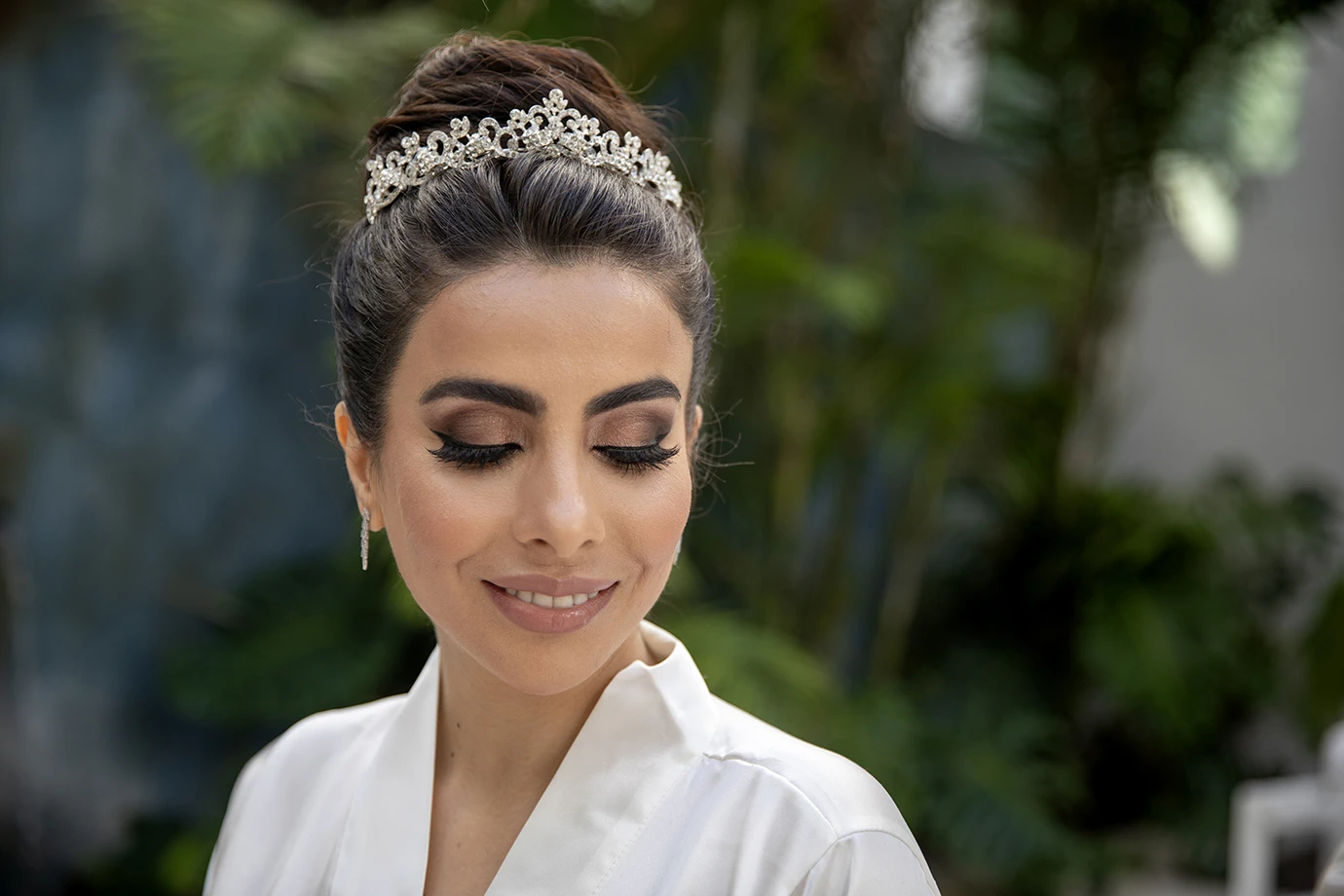
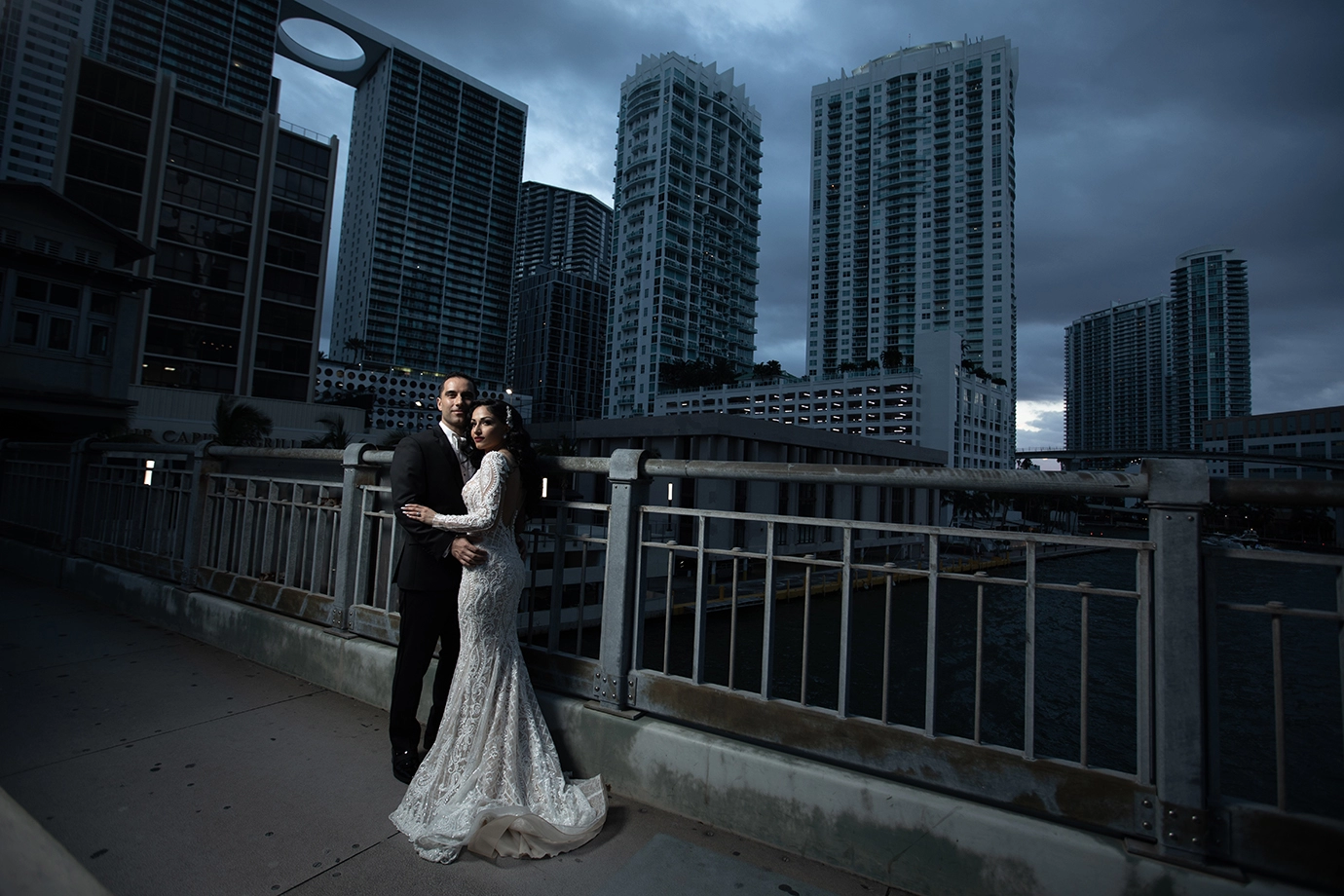
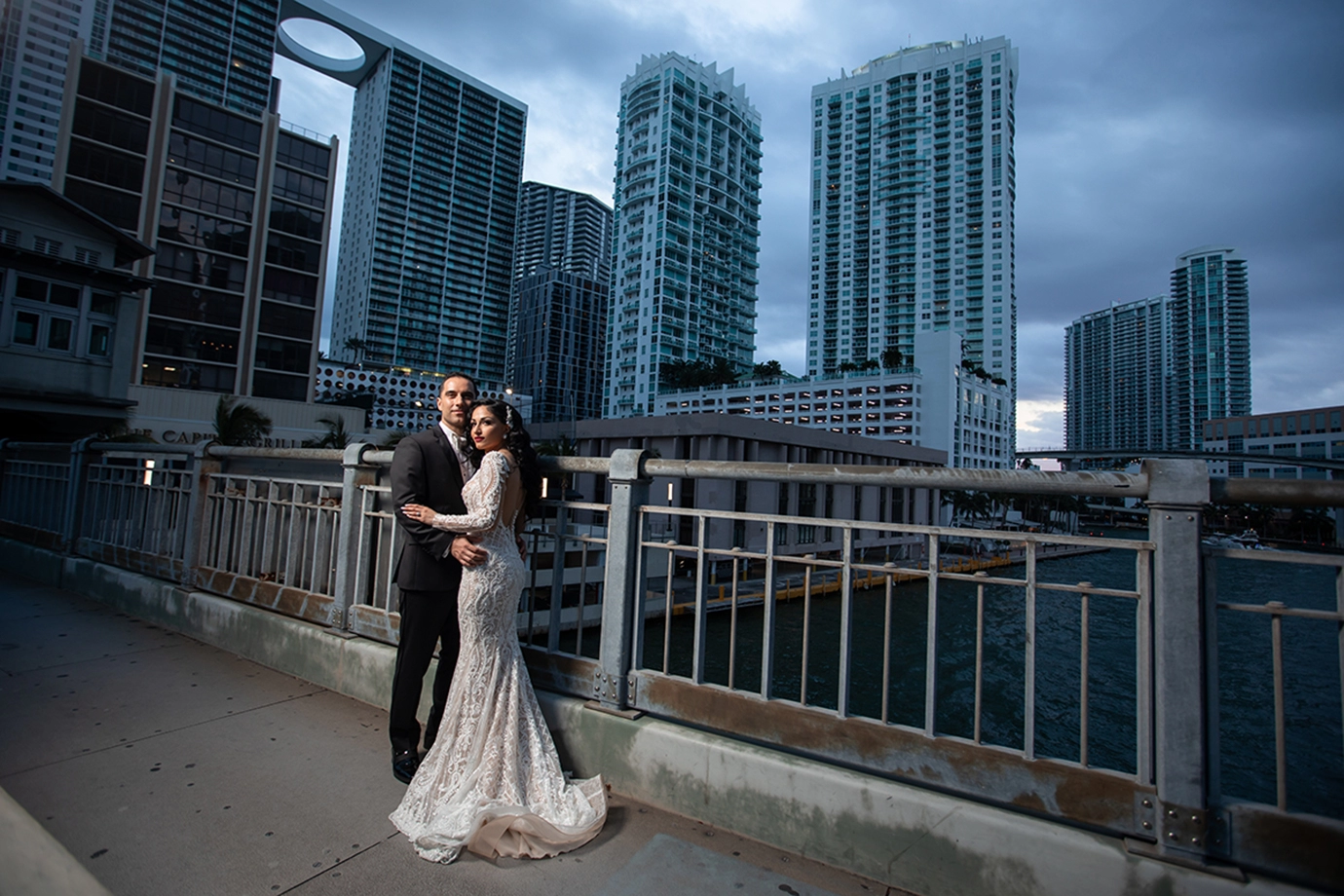
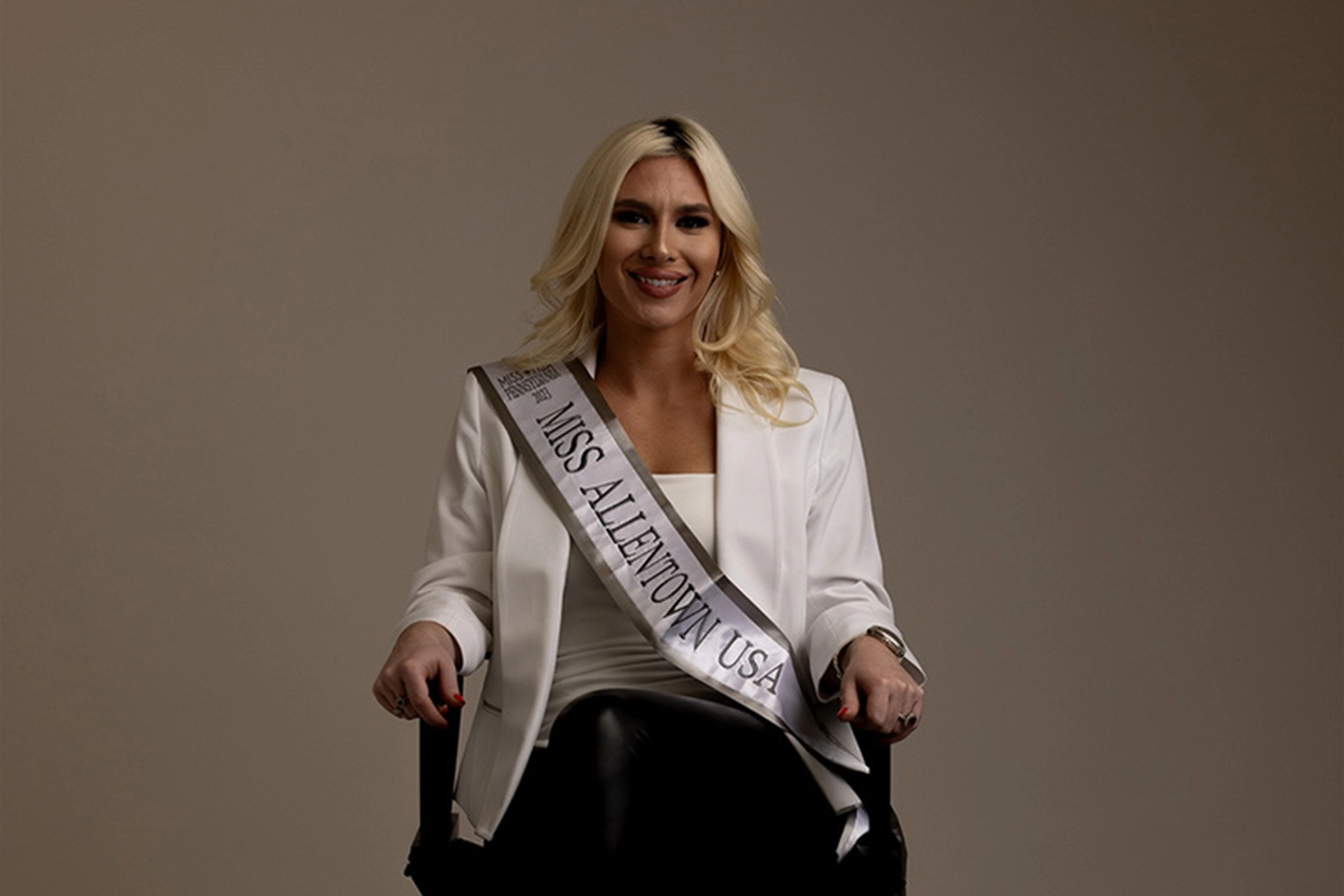
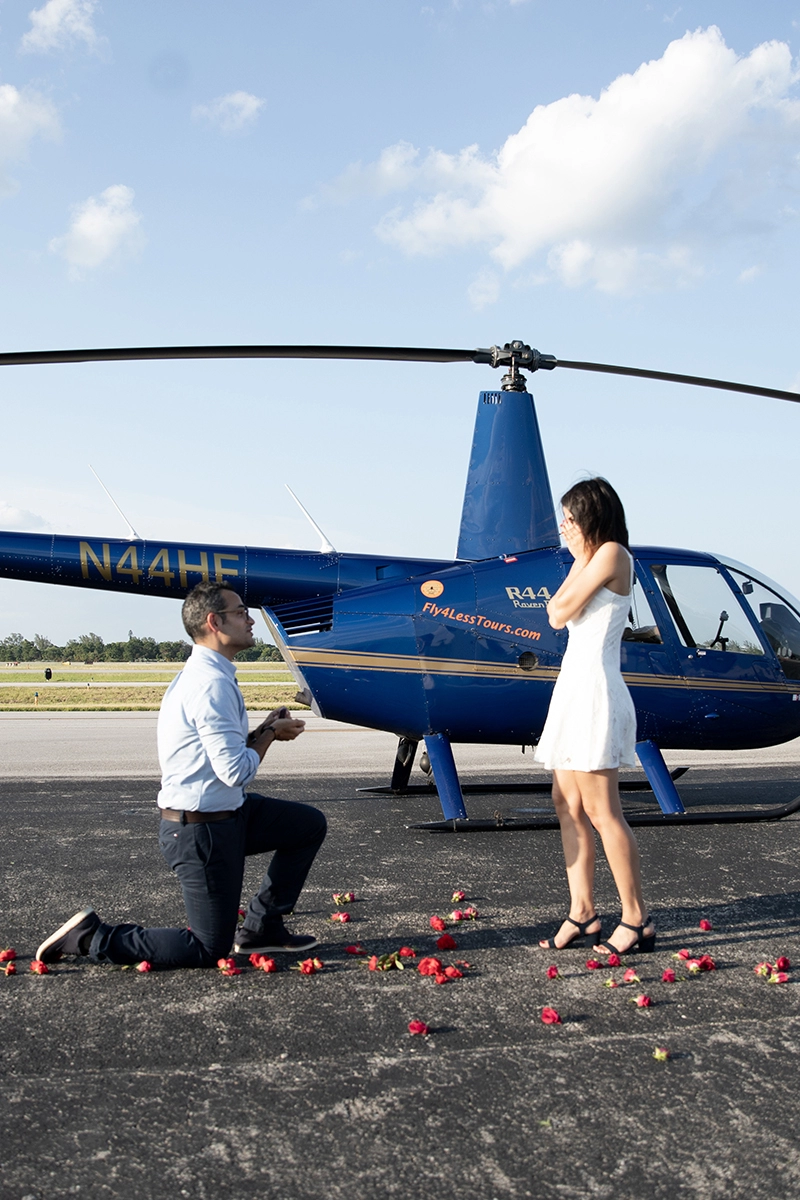
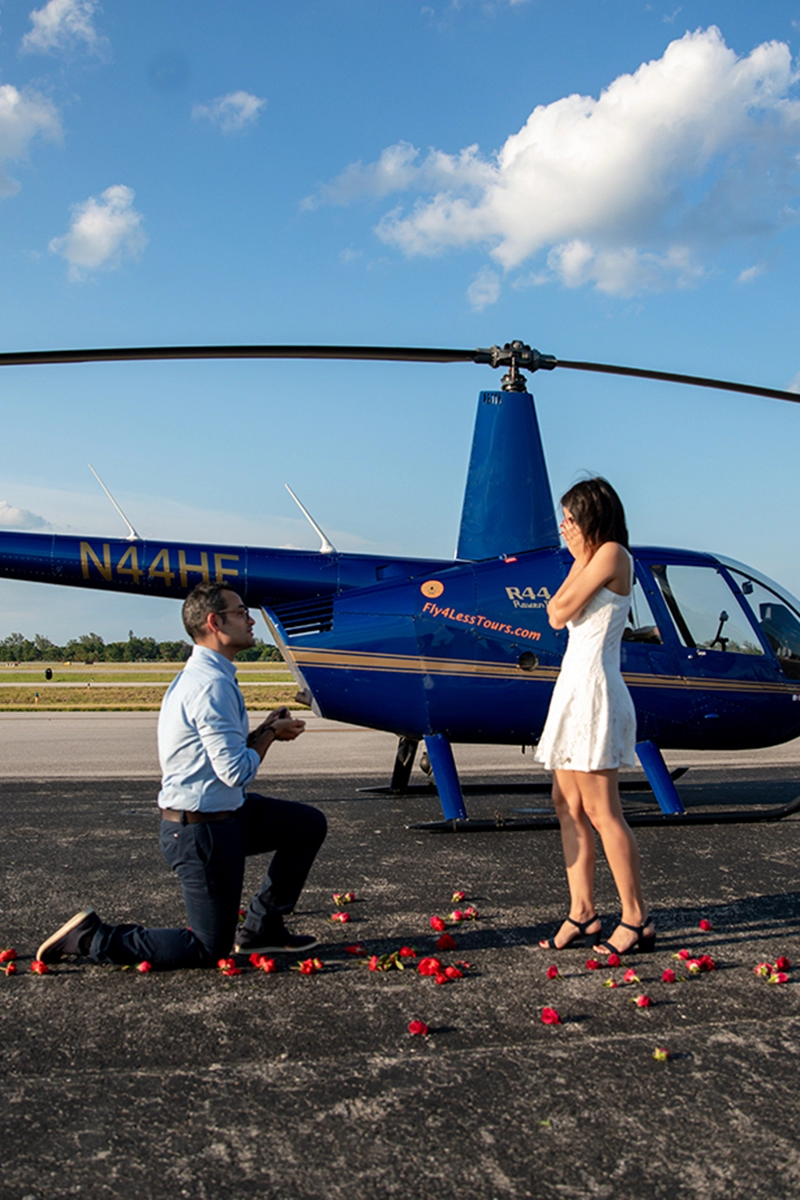
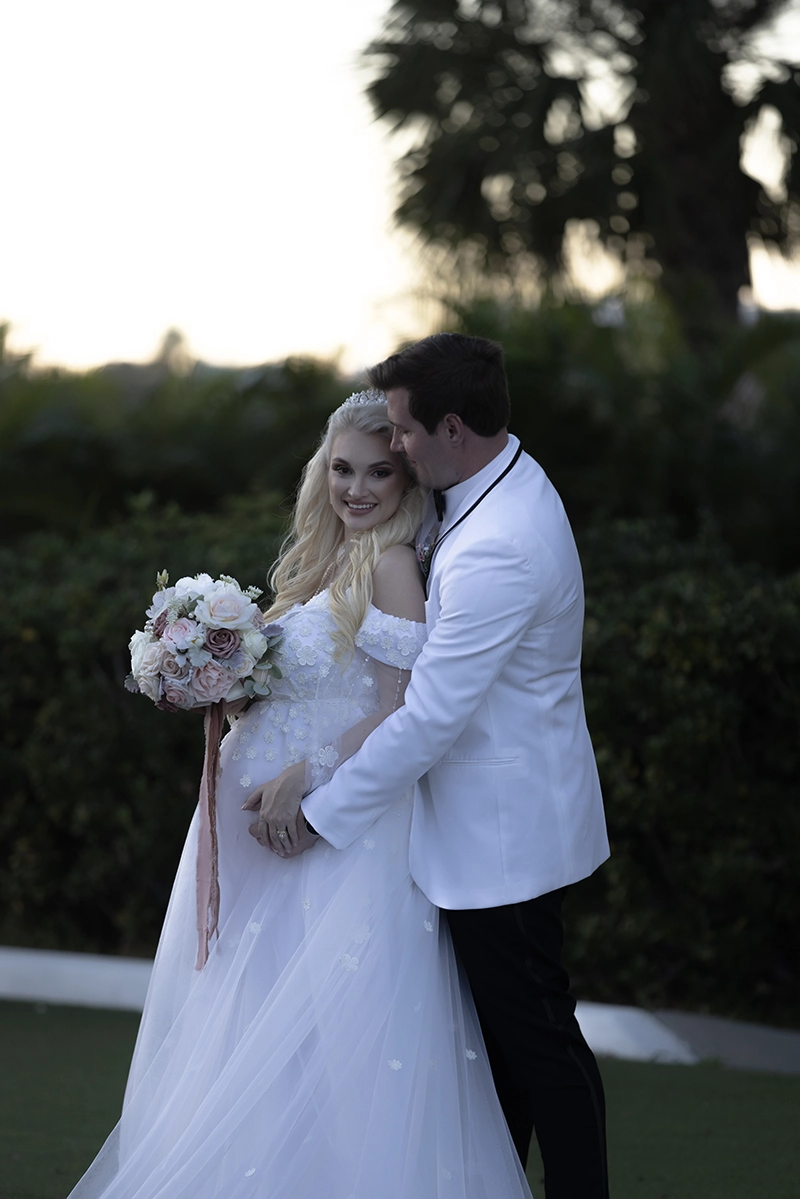
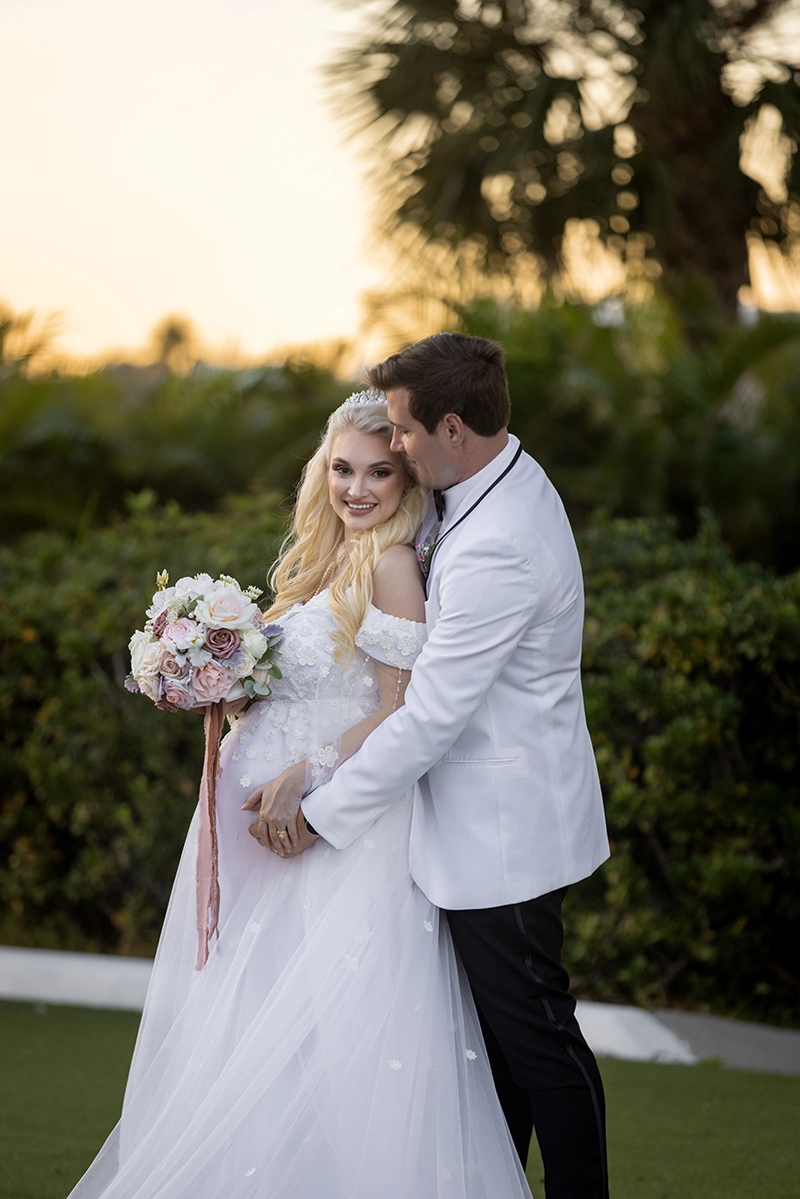
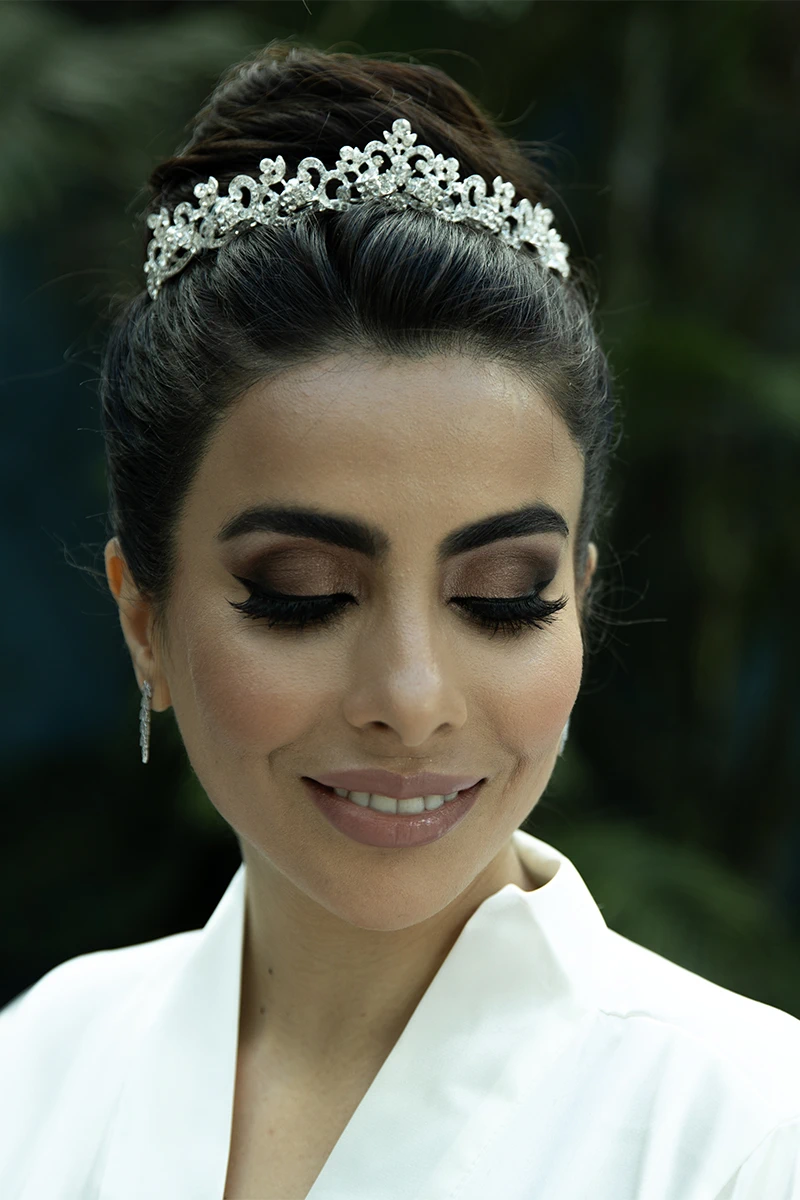
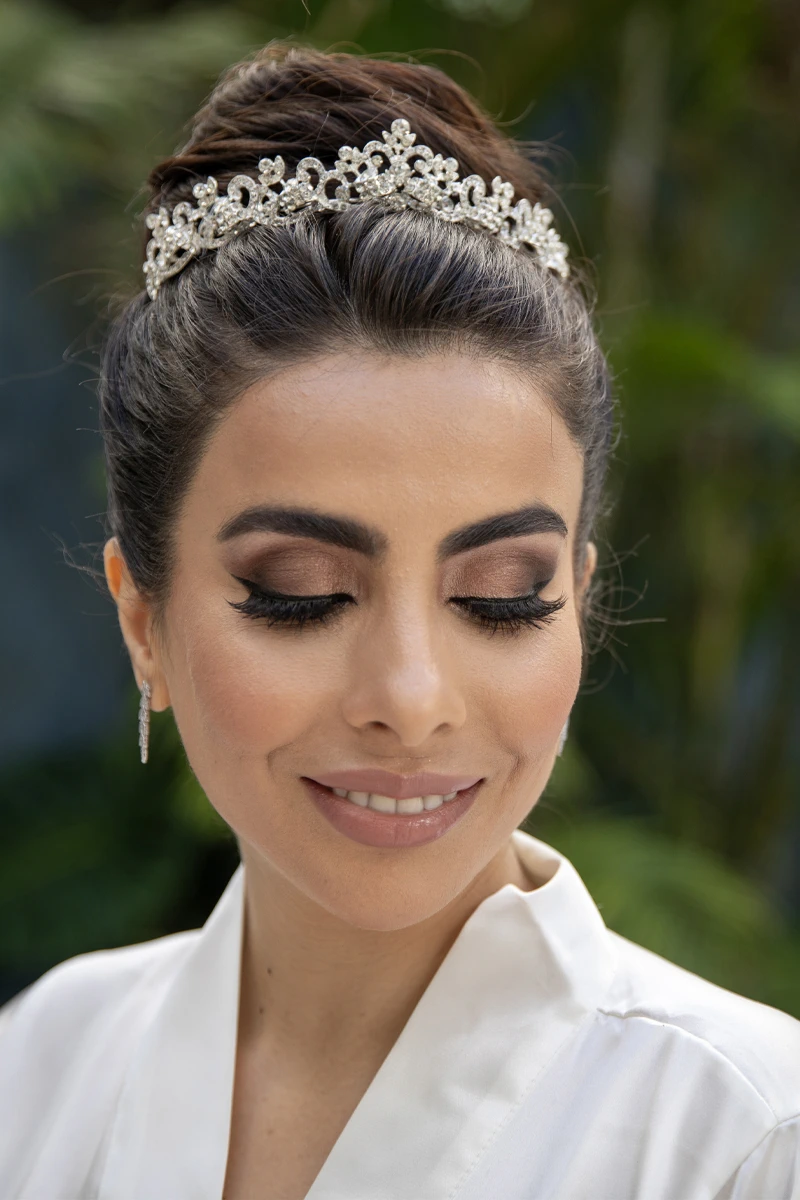
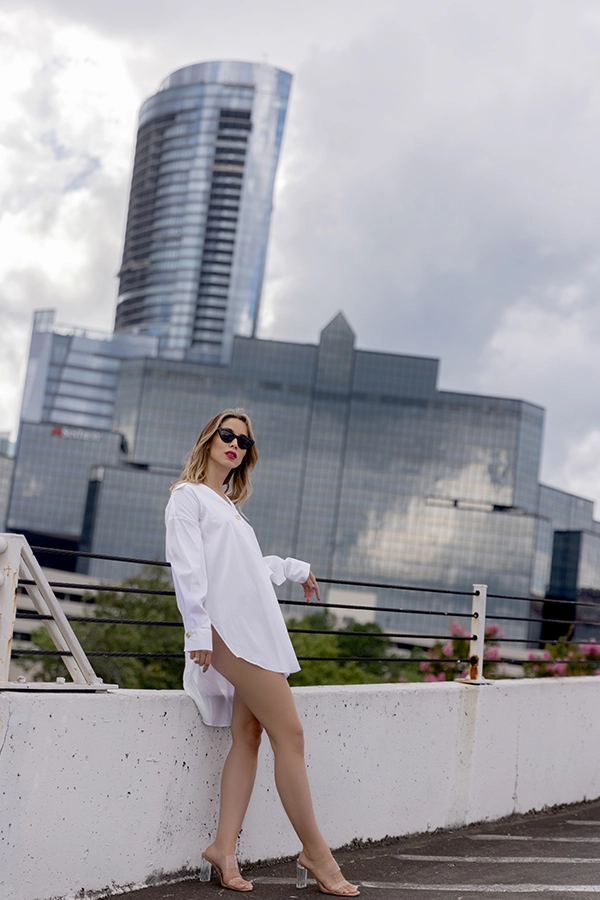
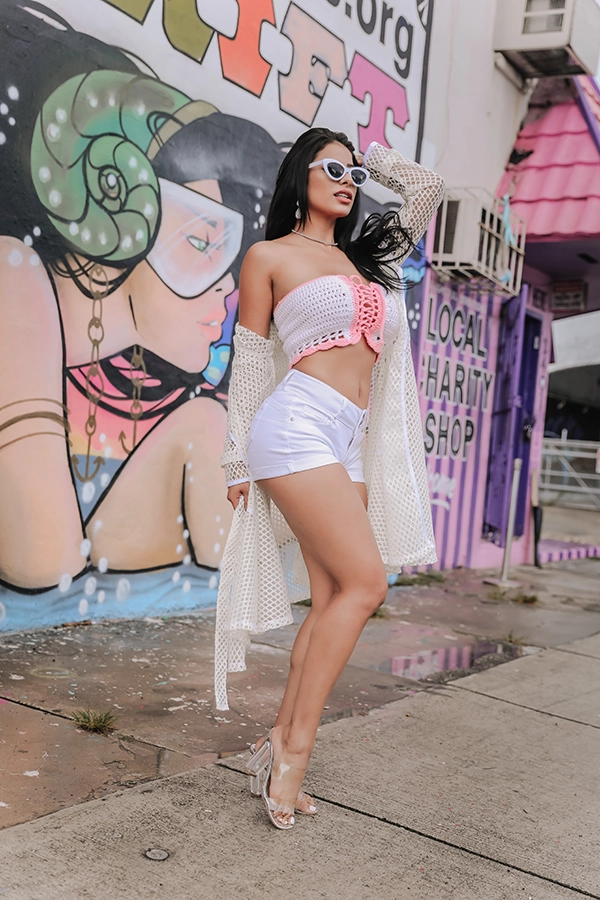
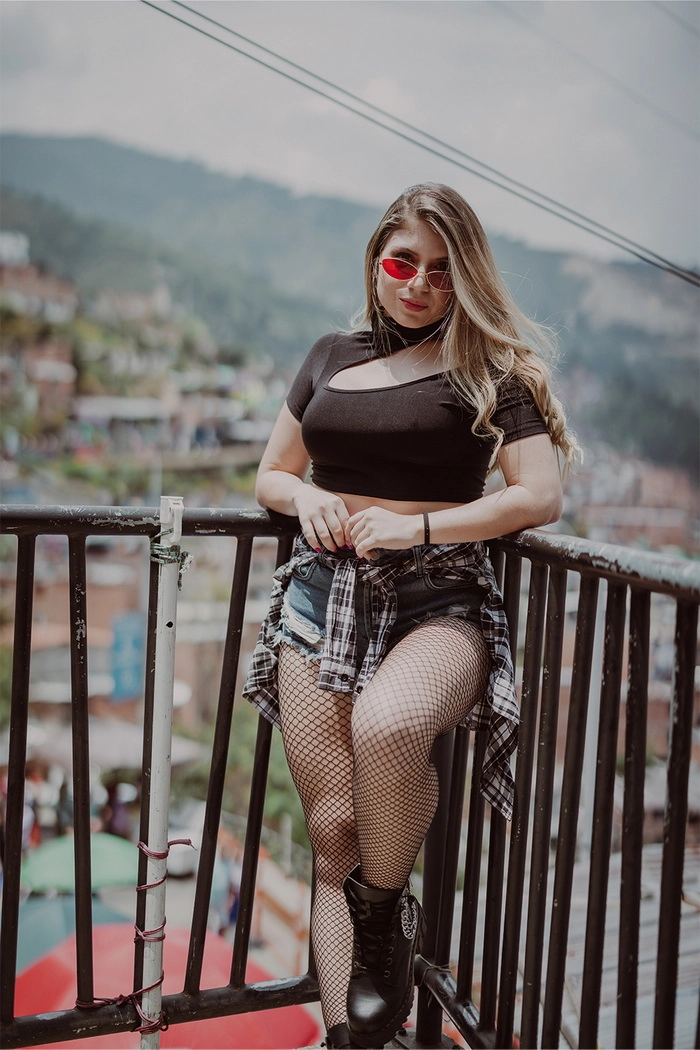
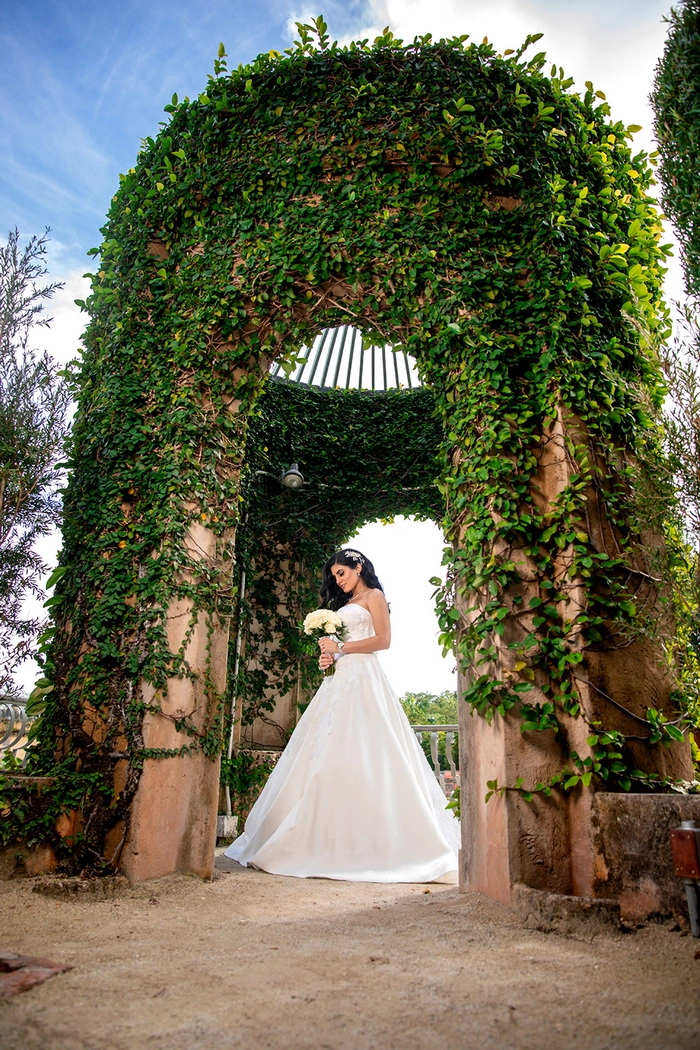
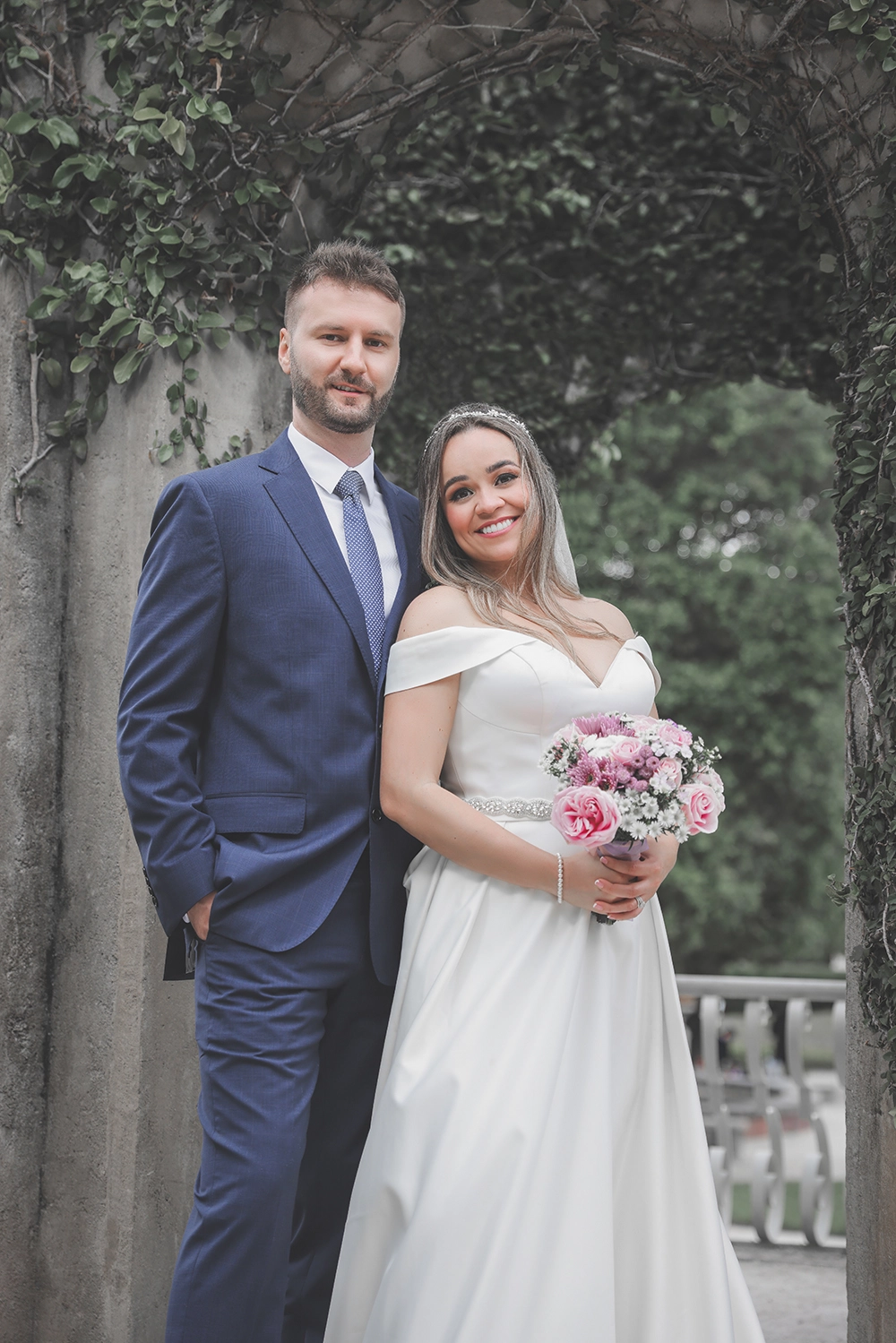
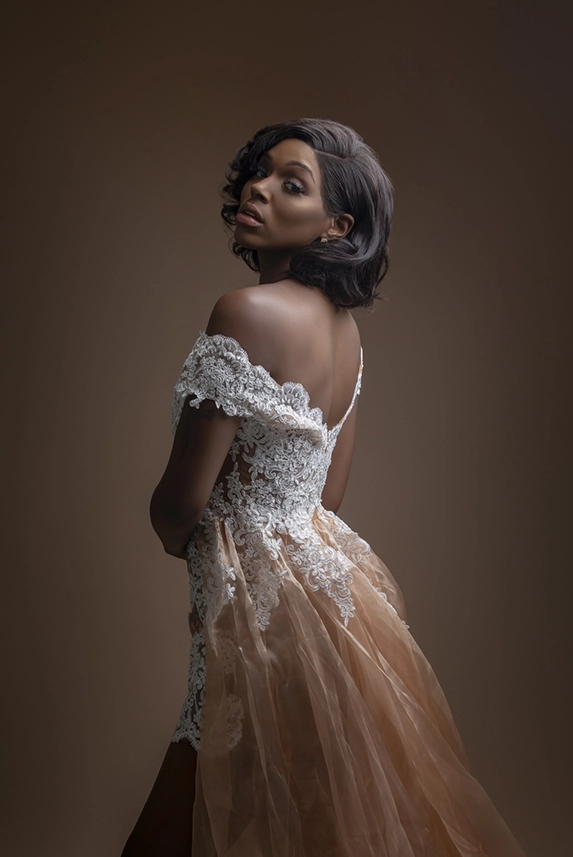
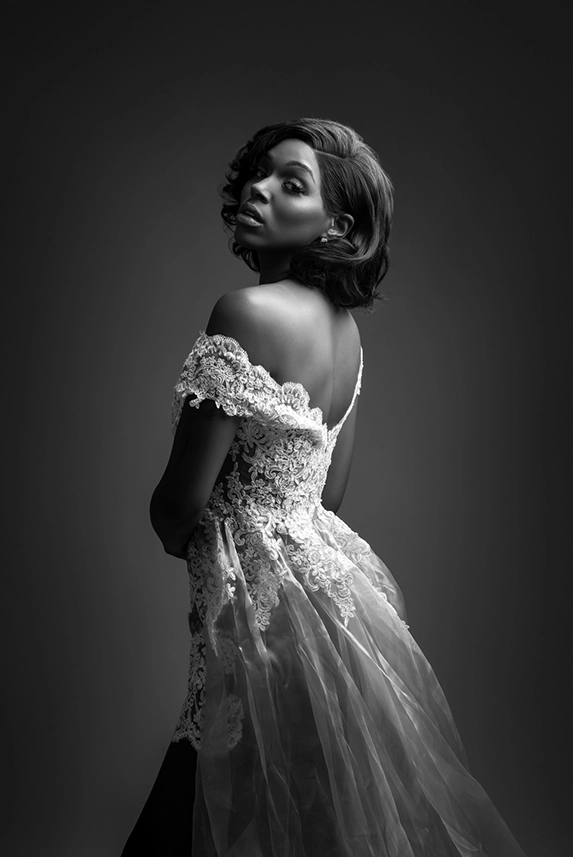
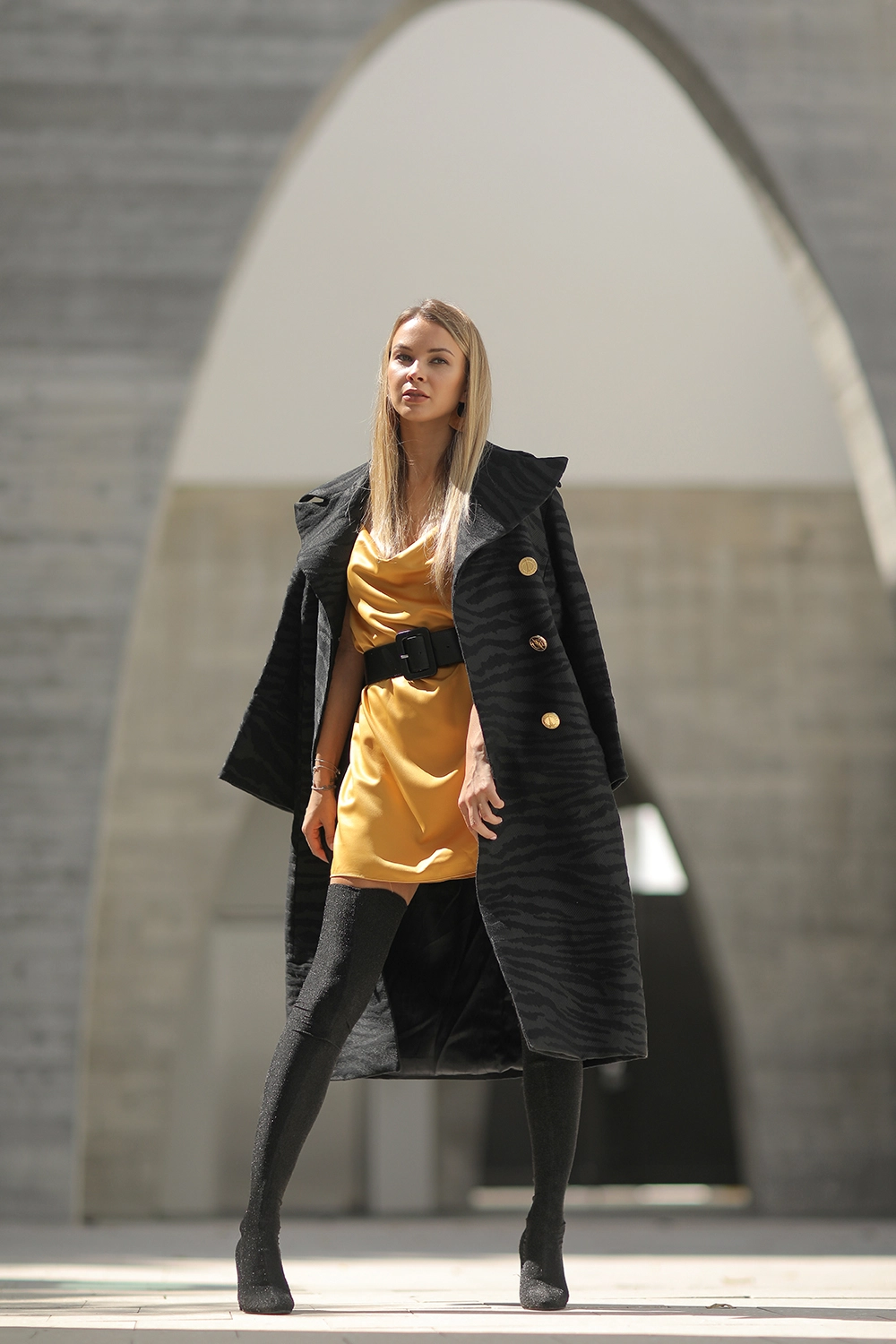
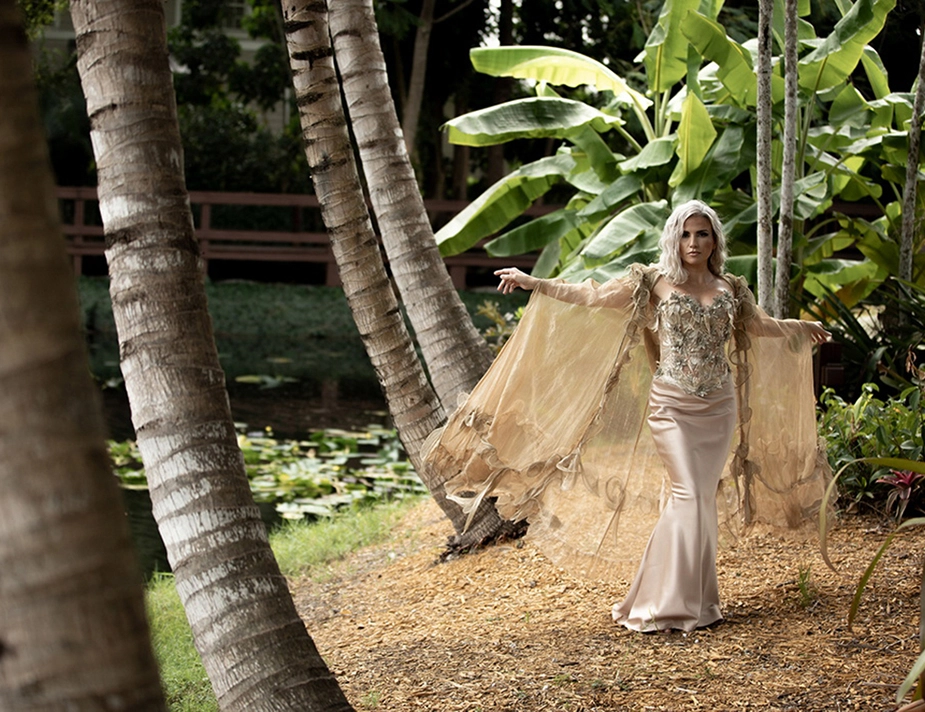
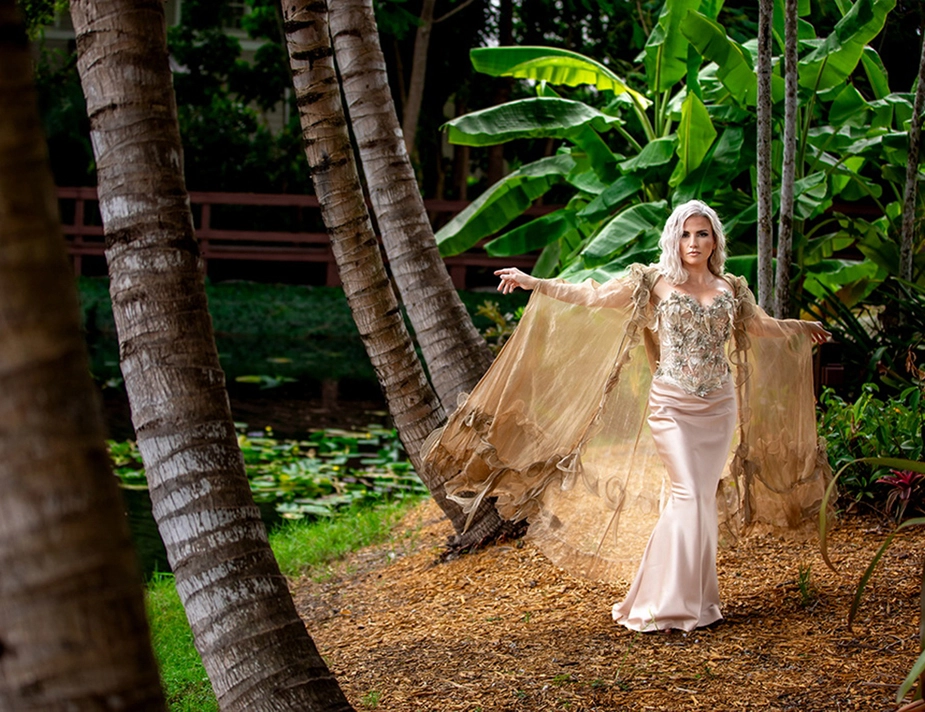
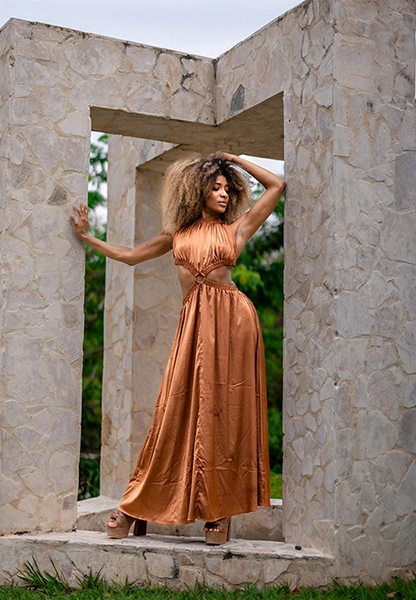
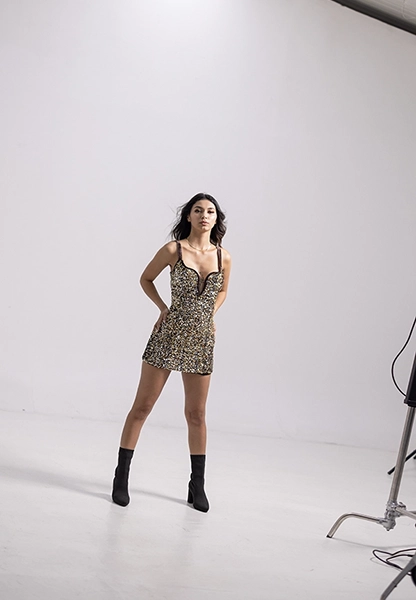
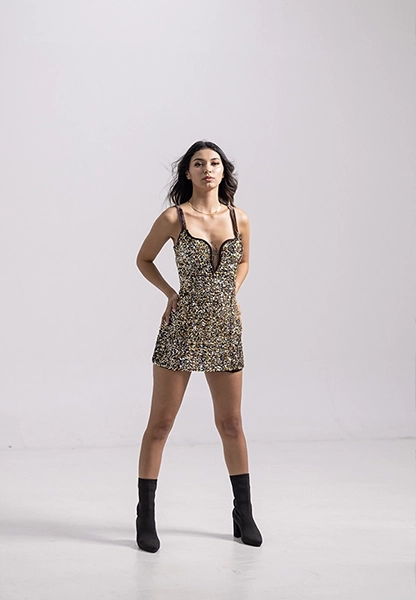
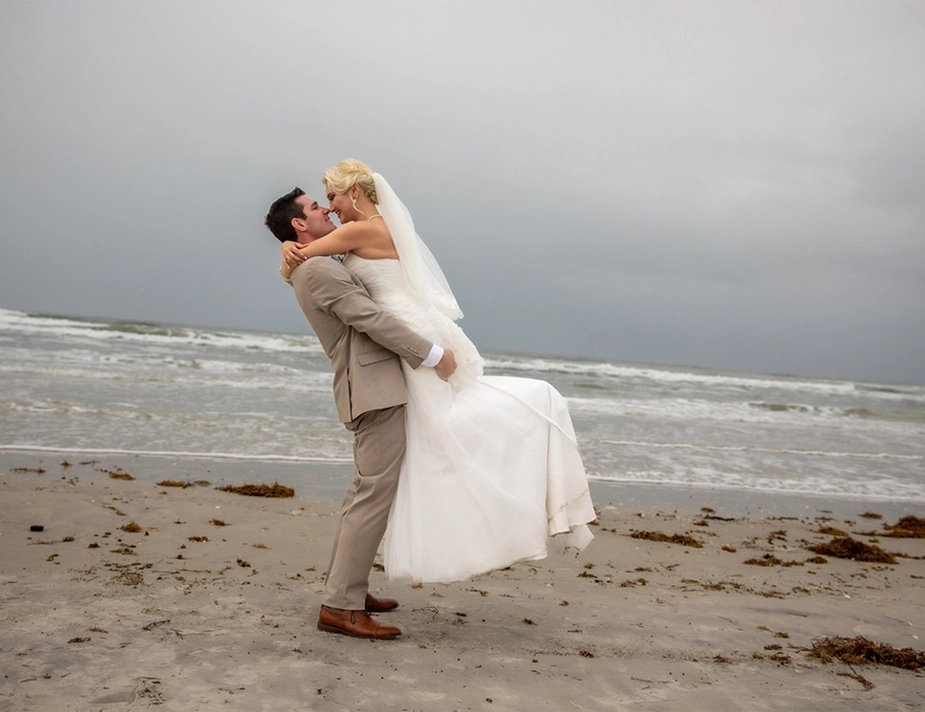
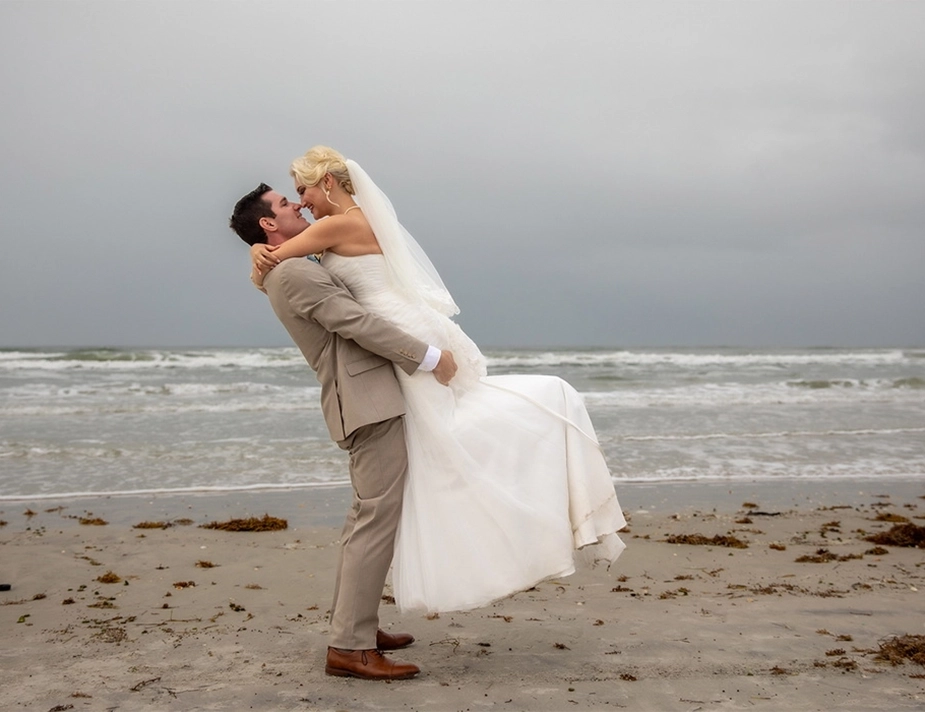
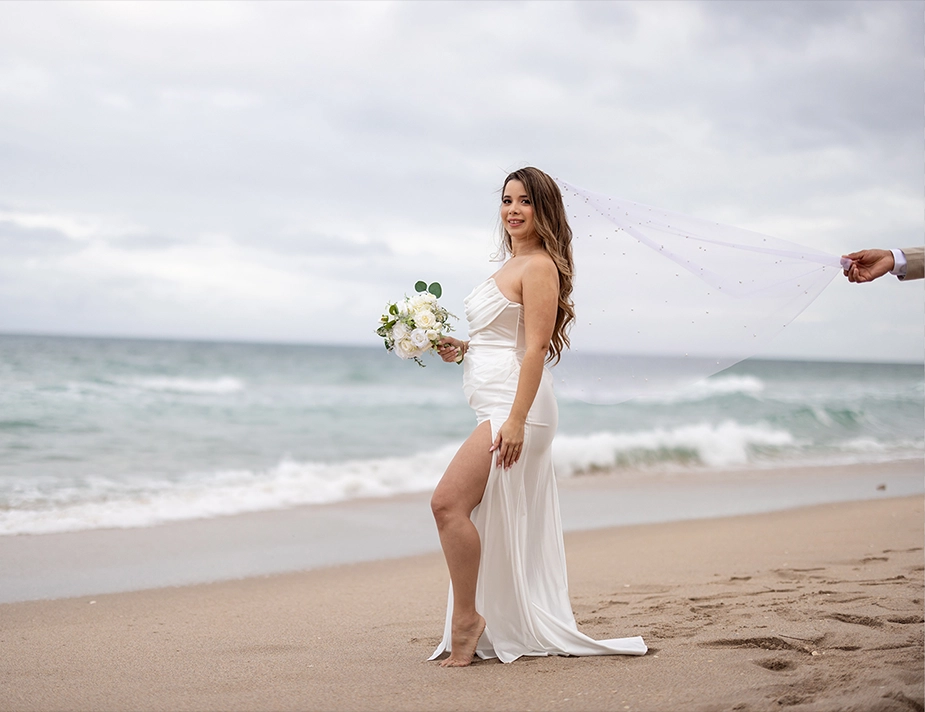
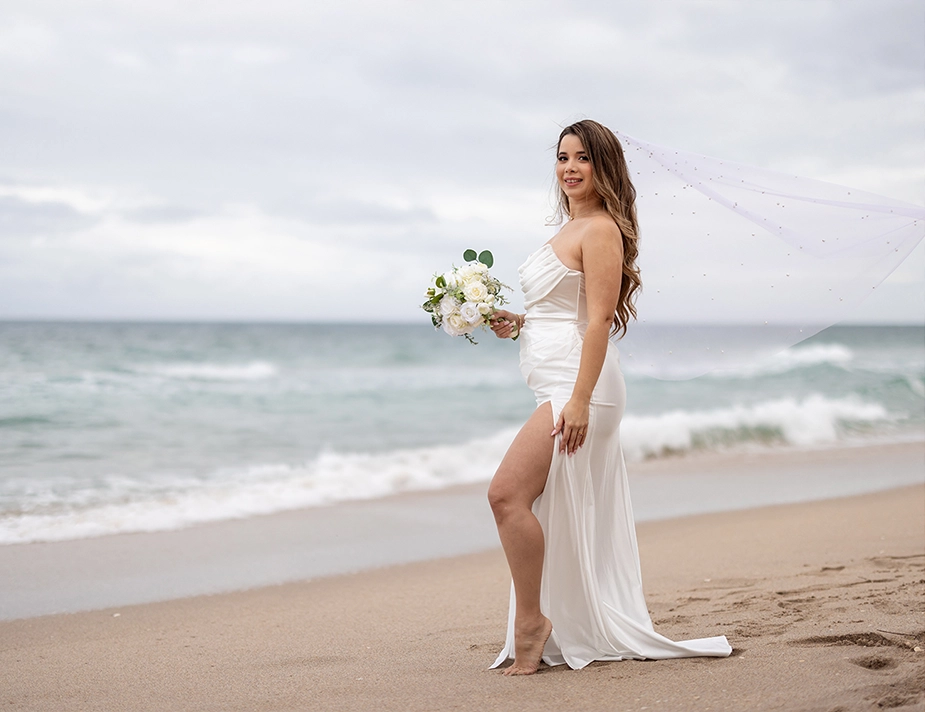
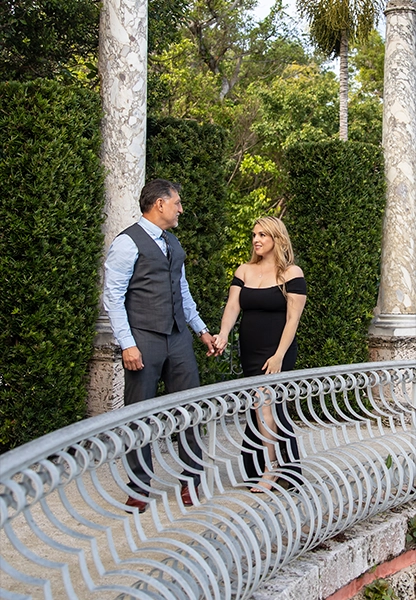
Lightroom Basic - Light - Before Lightroom Basic - Light - After

LR |

FAQ

LR focuses primarily on color correction and lighting adjustments. These edits are achieved using the basic menu, HSL, and noise reduction features in Lightroom.

In the LR Pro, in addition to what is offered in LR, additional menus are used, as well as brushes and radials if needed. This ensures the color and lighting of each photo is adjusted, and lighting defects are eliminated.
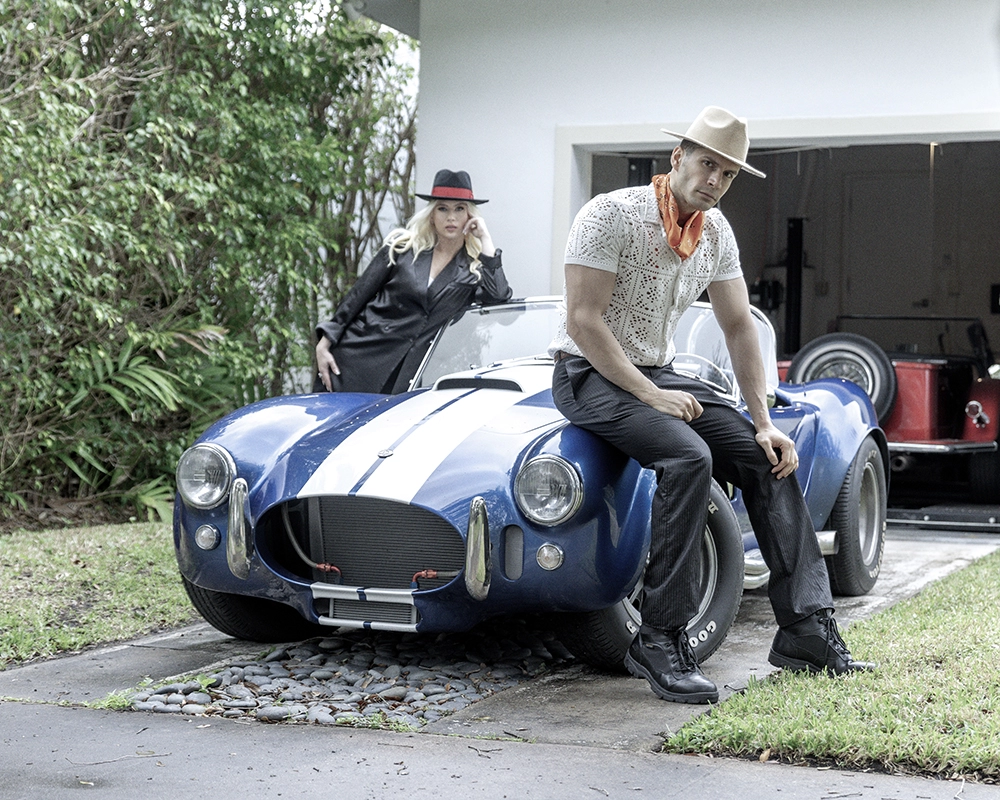
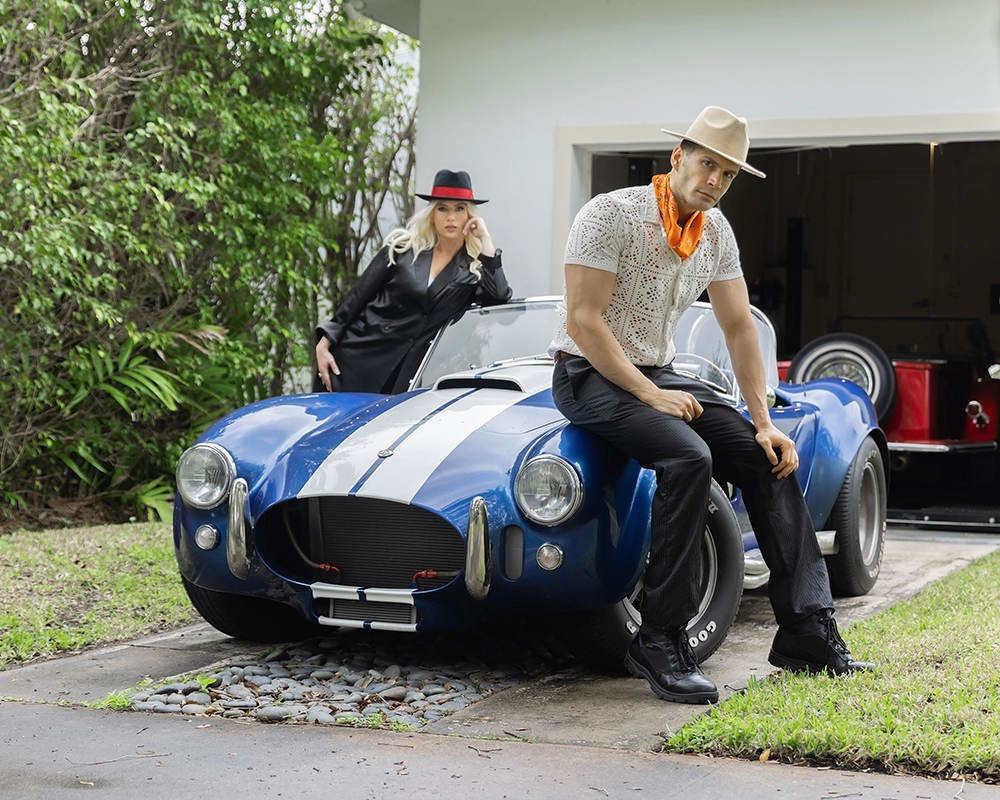
We will edit your catalog based on the color profiles we already use, or the ones you provide us with.

To make it easier for both submitting and receiving your photos, you may deliver us the photos in a Lightroom catalog. If you don’t have the time to do so, don’t worry, this problem can be solved with our Client Assistant service.

By having access to Pro Client Assistant, which is offered in our Diamond memberships, we will upload your catalog to an online gallery of your choice, which you will kindly provide.

Spot Removal

The Spot Removal add-on removes the small and distracting elements of the image. If Spot Removal leaves noticeable marks or interferes with other elements in the image, it is avoided.
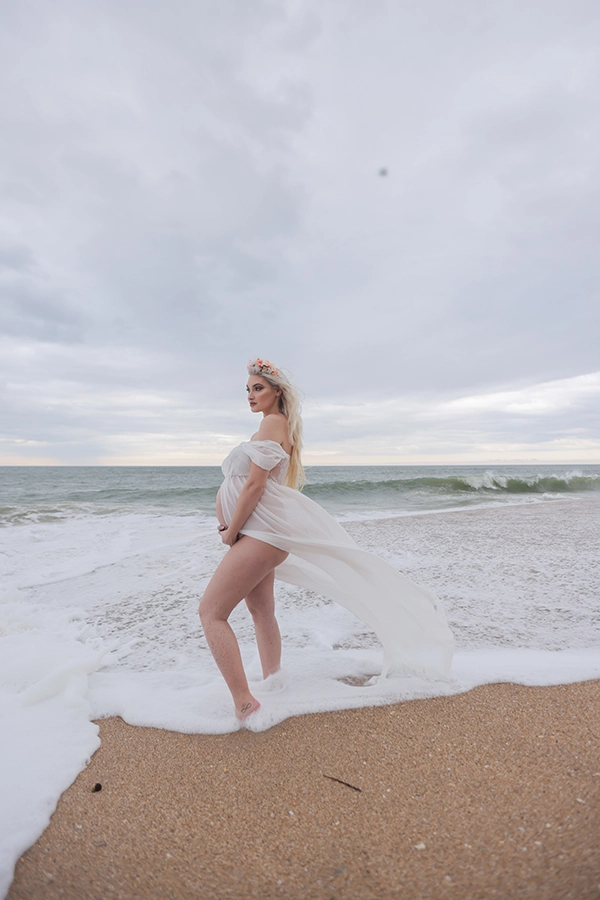
Lightroom Pro Spot Removal Before 1 Lightroom Pro Spot Removal After 1
Lightroom Pro Spot Removal Before 2 Lightroom Pro Spot Removal After 2
Lightroom Pro Spot Removal Before 3 Lightroom Pro Spot Removal After 3
Lightroom Pro Spot Removal Before 4 Lightroom Pro Spot Removal After 4

Color Profile(Presets)

The Preset add-on allows you to choose from a set of available presets to apply to your photos. Simply select a preset that suits your style and it will be applied to your catalog. These filters are designed to not alter other edits, but help unify your photos aesthetically.

Coastal Breeze

Lightroom Pro Preset Coastal Breeze Before Lightroom Pro Preset Coastal Breeze After

Mystic Meadows

Lightroom Pro Preset Mystic Meadows Before Lightroom Pro Preset Mystic Meadows After

Pastel Paradise

Lightroom Pro Preset Pastel Paradise Before Lightroom Pro Preset Pastel Paradise After
Enchanted Forest before Enchanted Forest after

Enchanted Forest

Black & White

Photoshop Basic Advanced Filter Black & White High Contrast Before 02 Photoshop Basic Advanced Filter Black & White High Contrast After 02

Autumn Whisper

Autumn Whisper before Autumn Whisper after

Masking

The Masking add-on allows for the usage of the masking tool. It enhances depth and beauty in any photo that is suitable for it, as long as the results are natural.
Lightroom Pro masking Before 01 Lightroom Pro masking After 01
Lightroom Pro masking Before 02 Lightroom Pro masking After 02

Cropping & Straightening

With the Crop & Straightening add-on, you can easily adjust any photo as needed. There’s no need to specify which photos beforehand, but if you have specific cropping guidelines, feel free to share them.
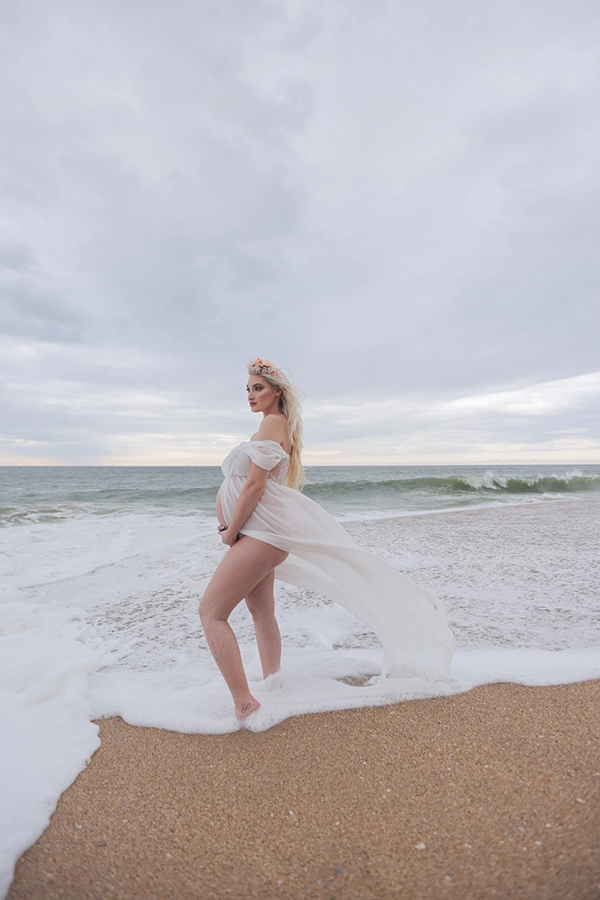
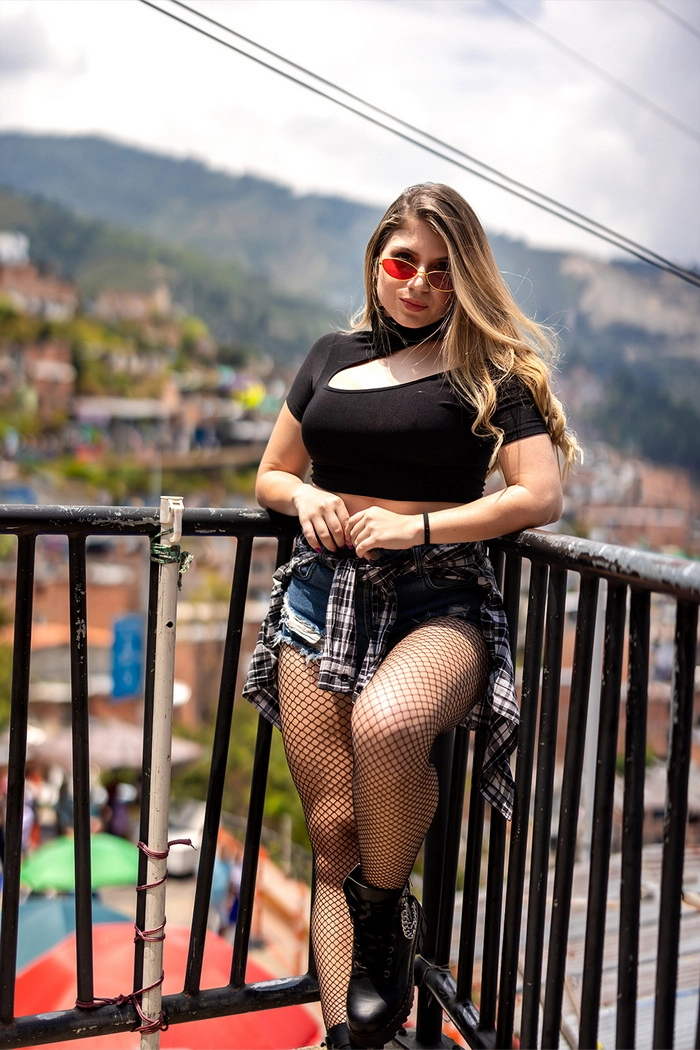
Lightroom Pro Crop & Straightening2 Before Crop & Straightening2 After
Lightroom Pro crop & straightening before 02 Lightroom Pro crop & straightening After 02
Lightroom Pro Crop & Straightening Before 1 Lightroom Pro Crop & Straightening After 1
Lightroom Pro Crop & Straightening Before 2 Lightroom Pro Crop & Straightening After 2