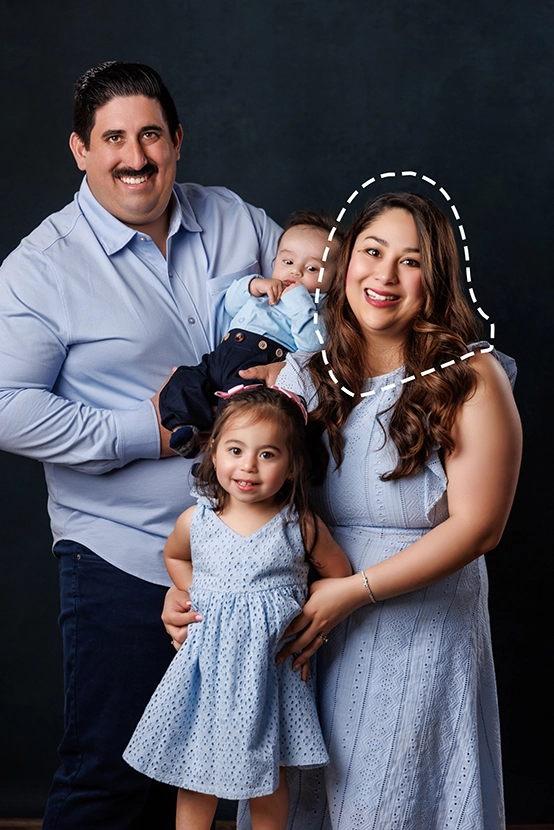
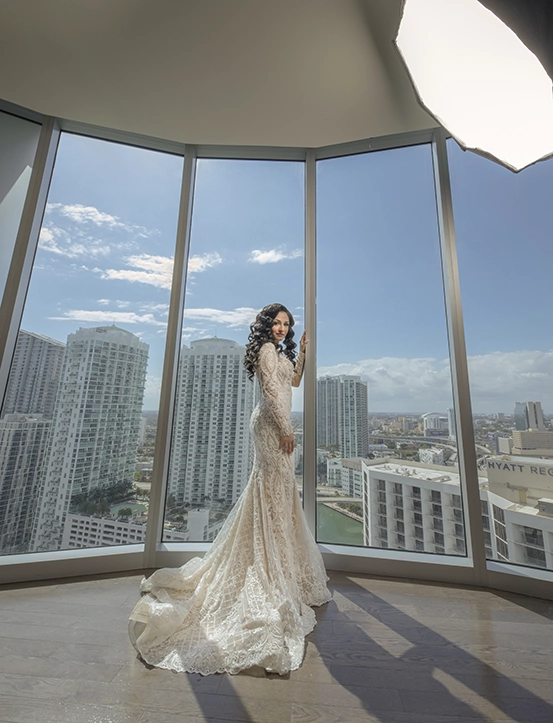
Bulk Edit

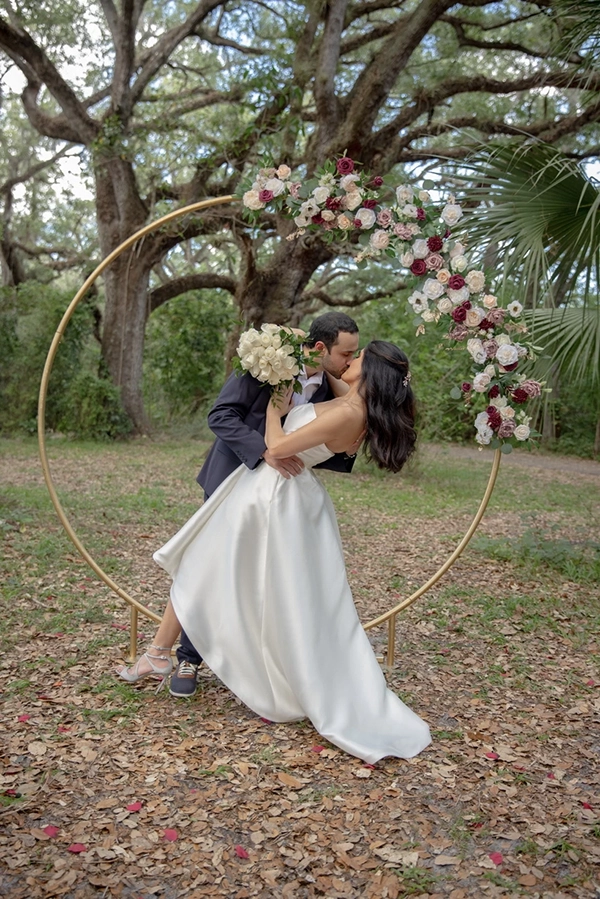
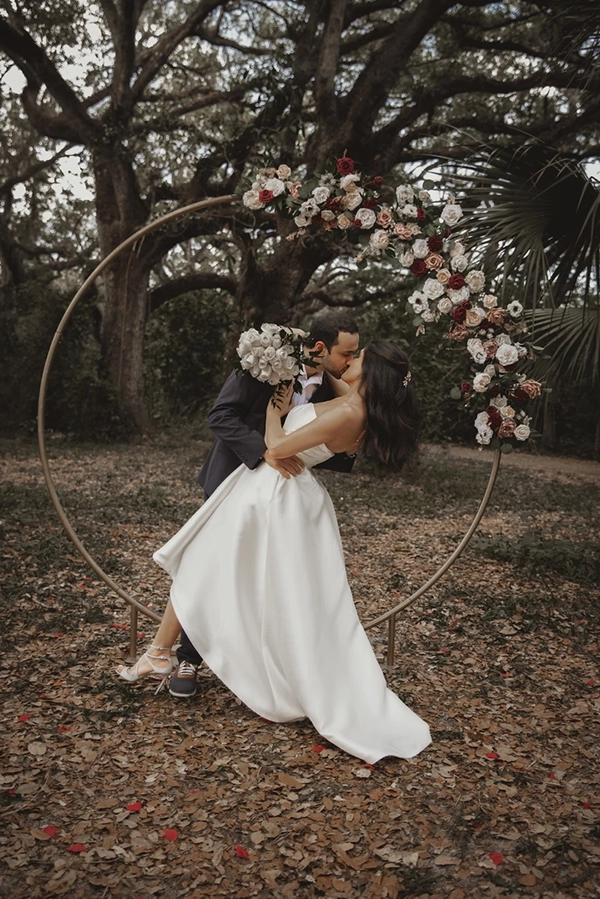
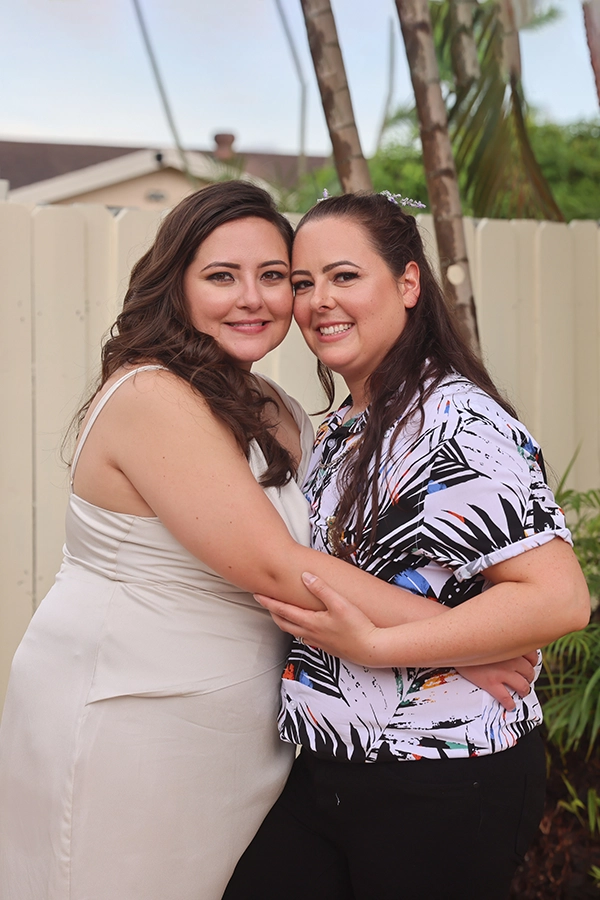
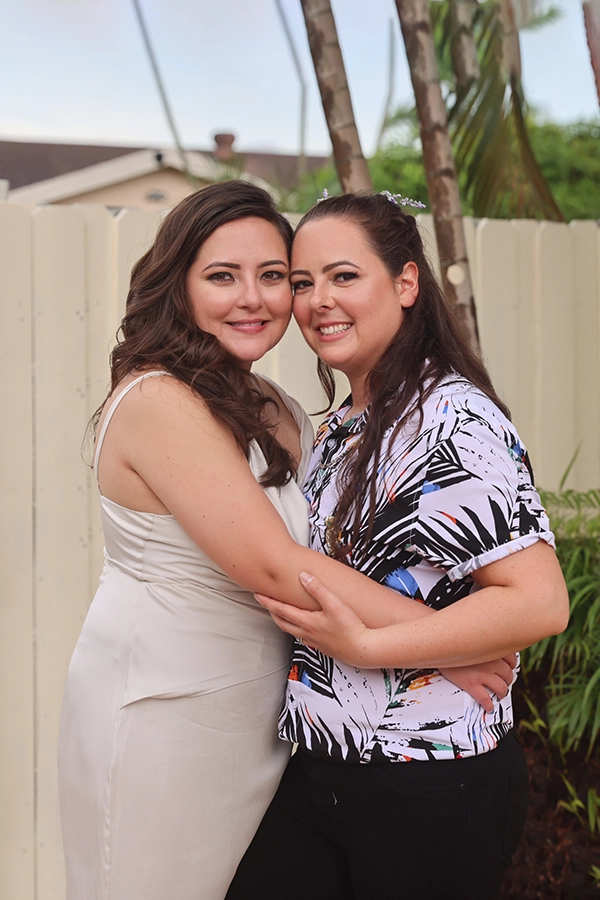
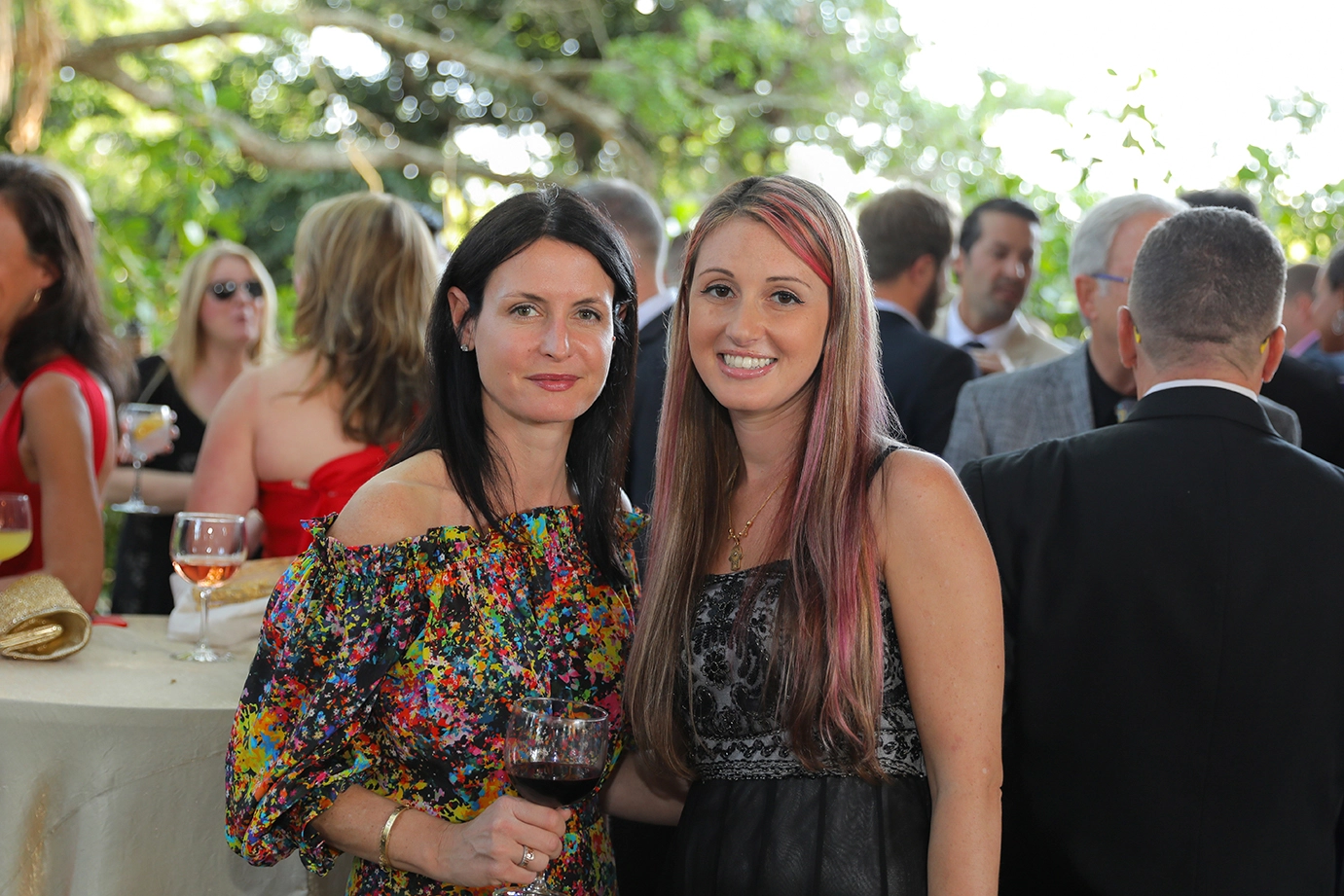
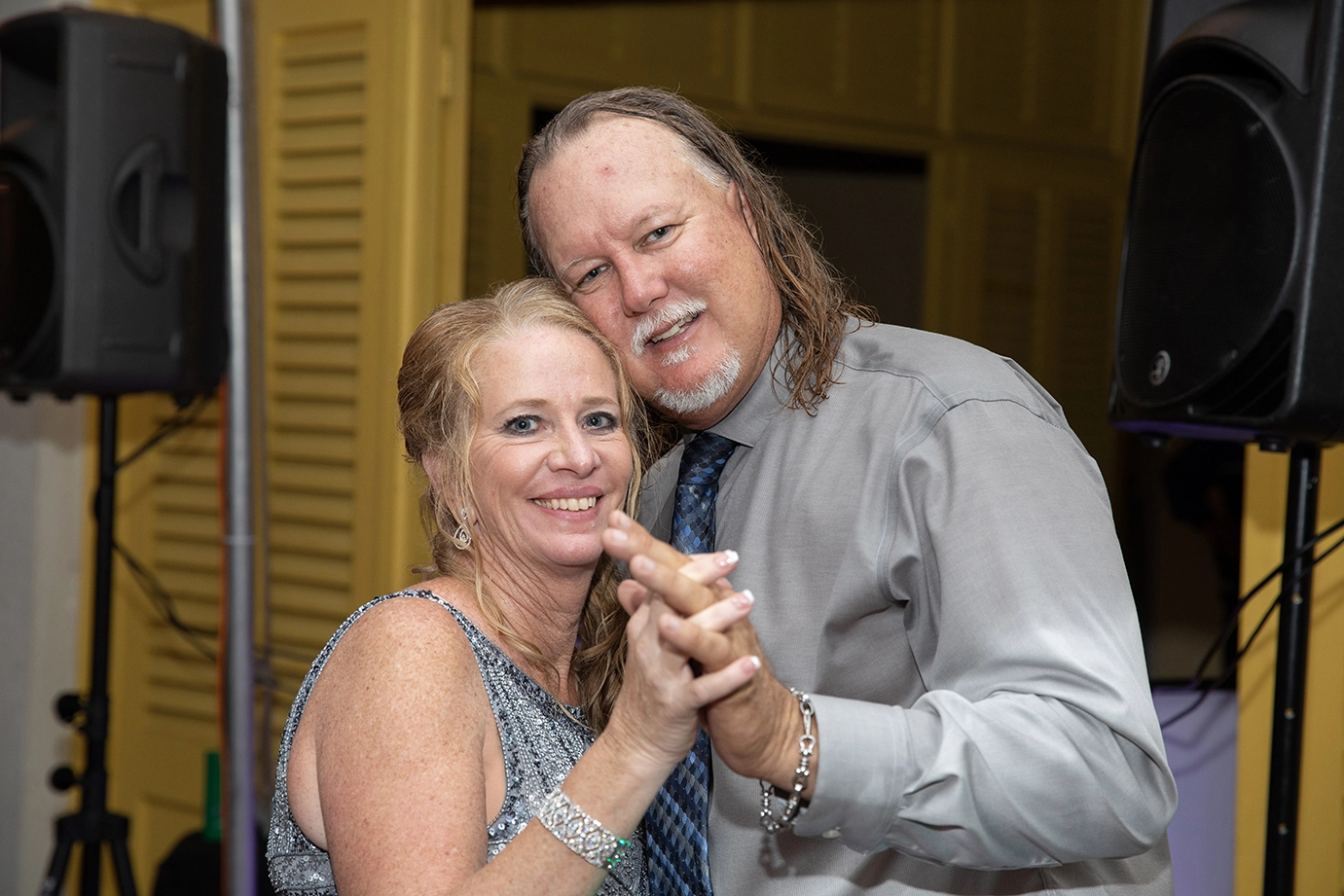
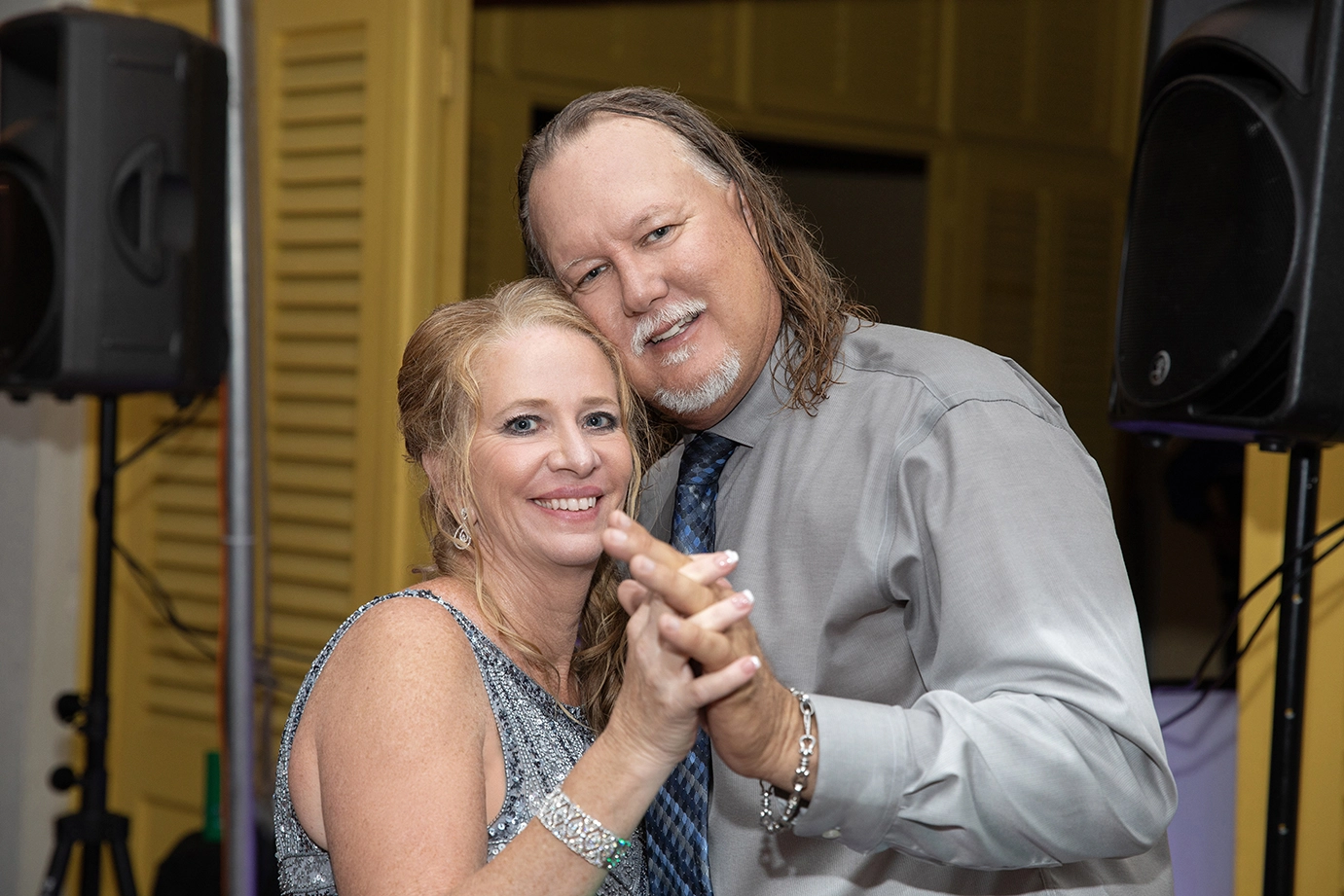
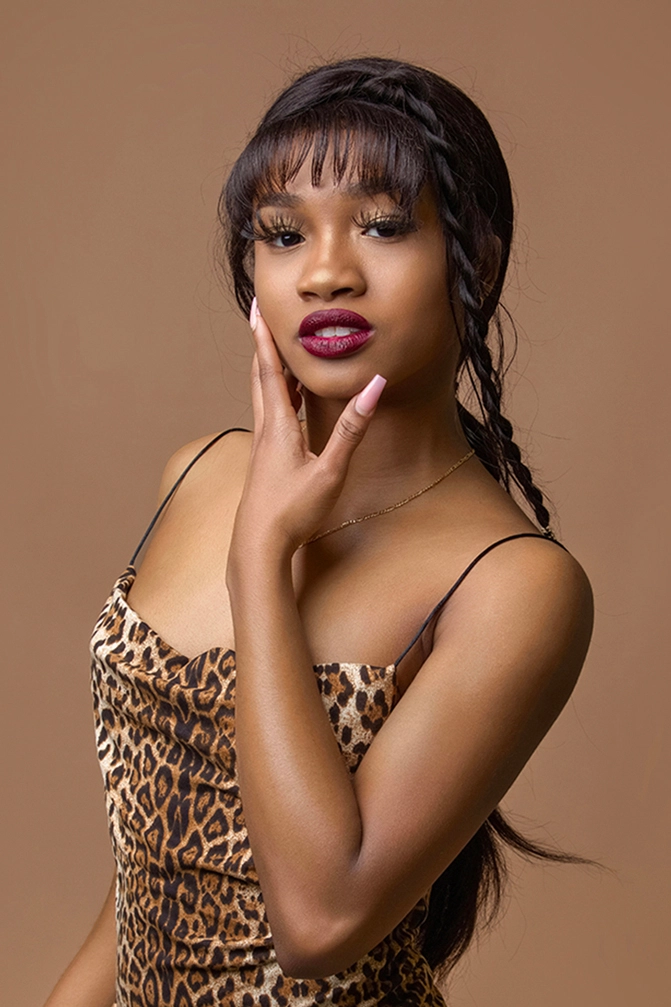
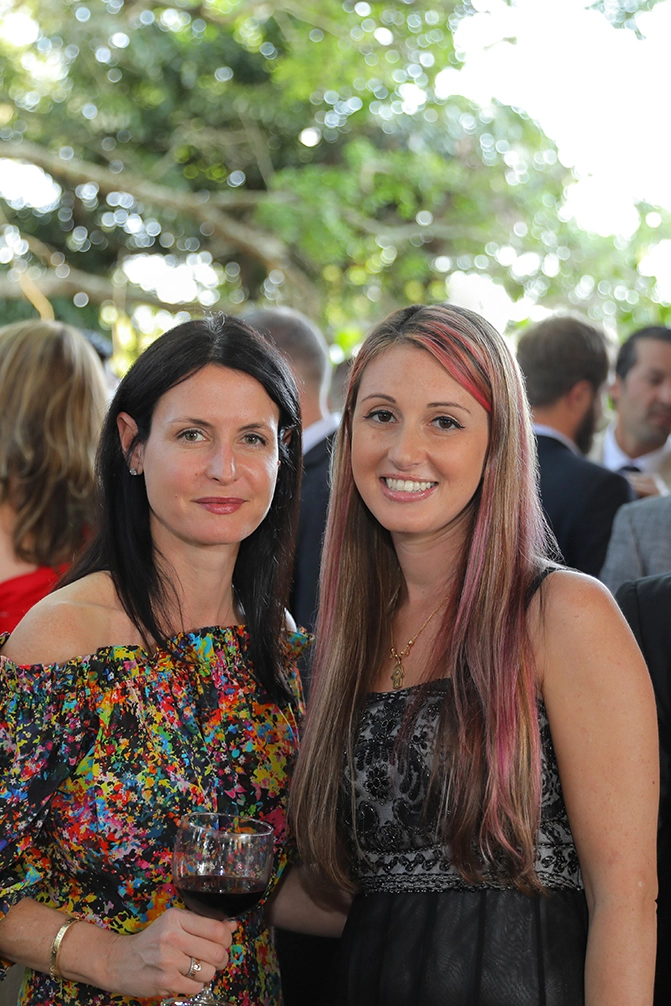
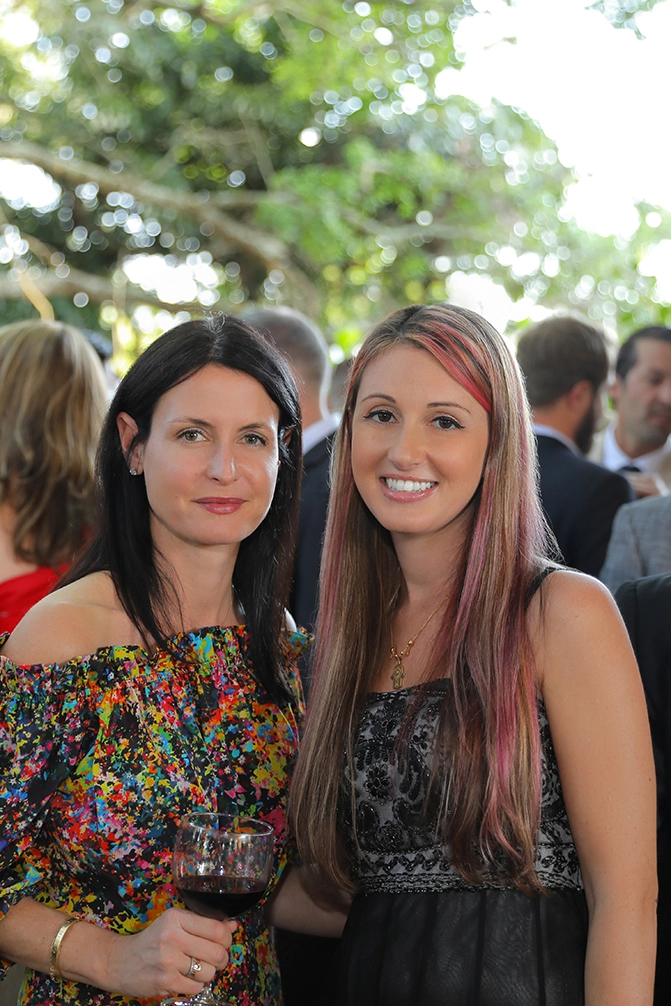
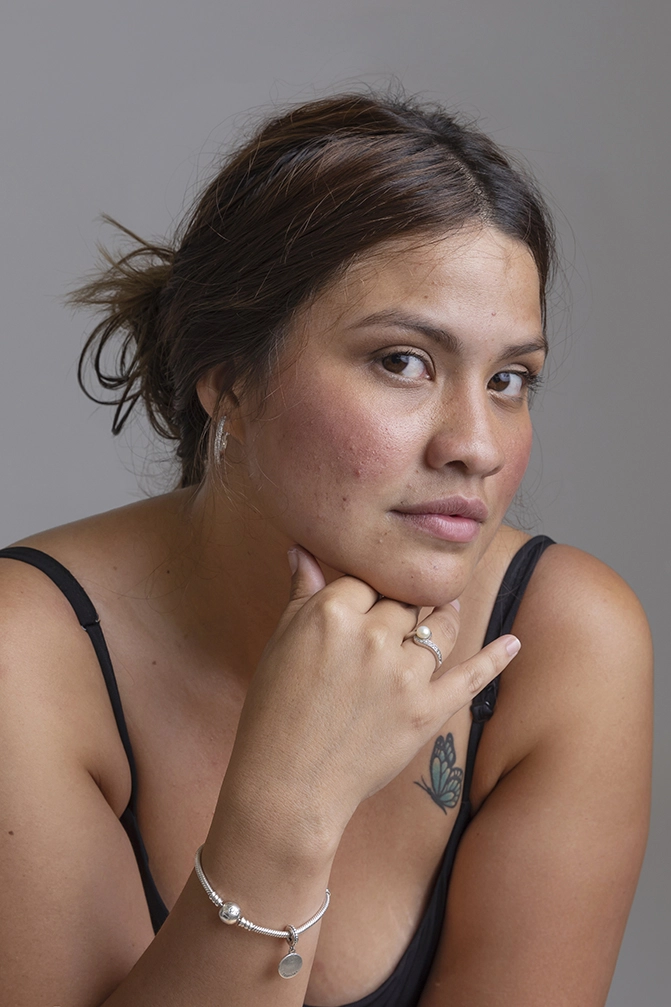
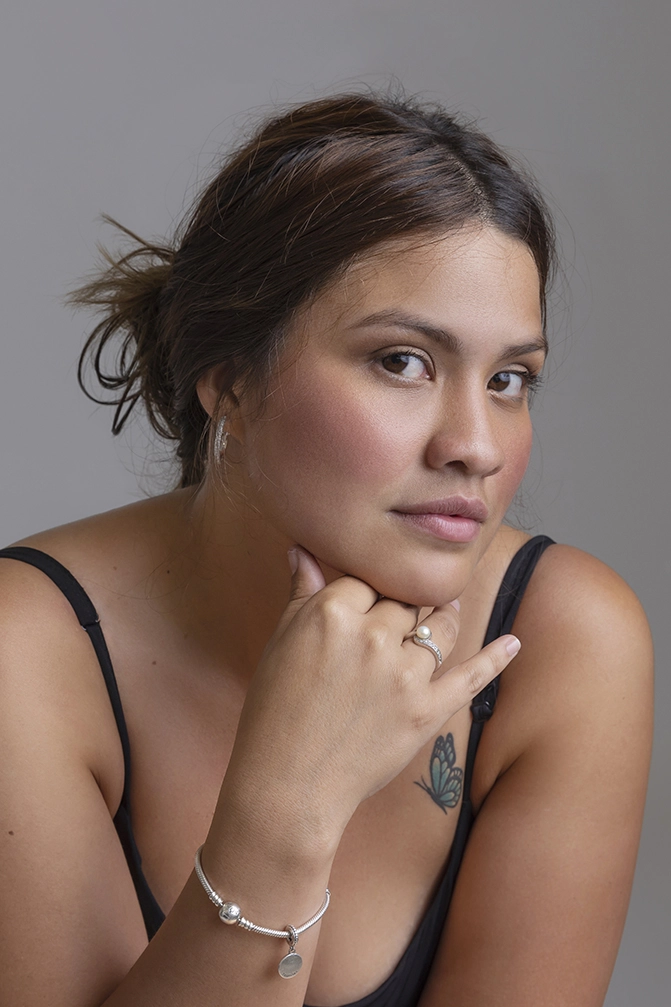
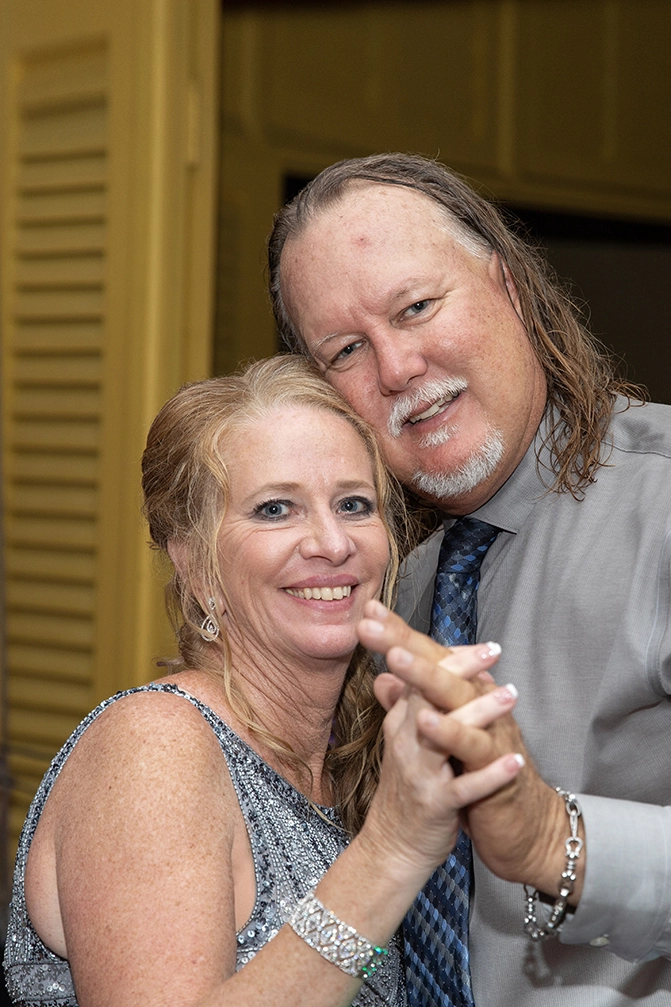
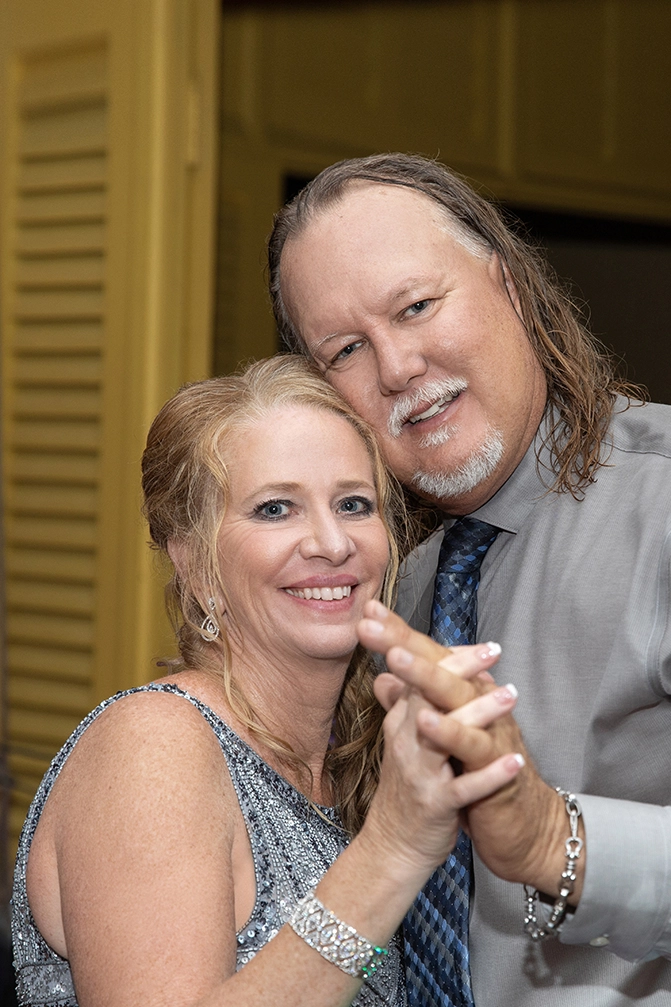
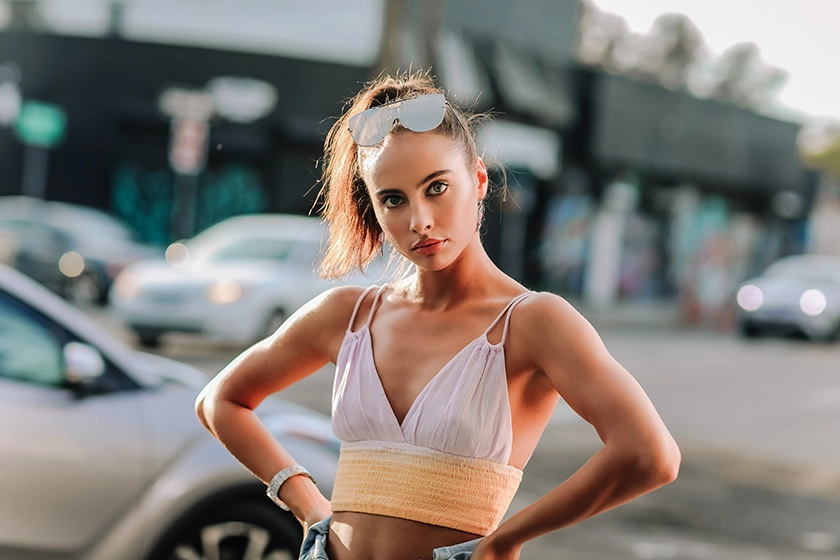
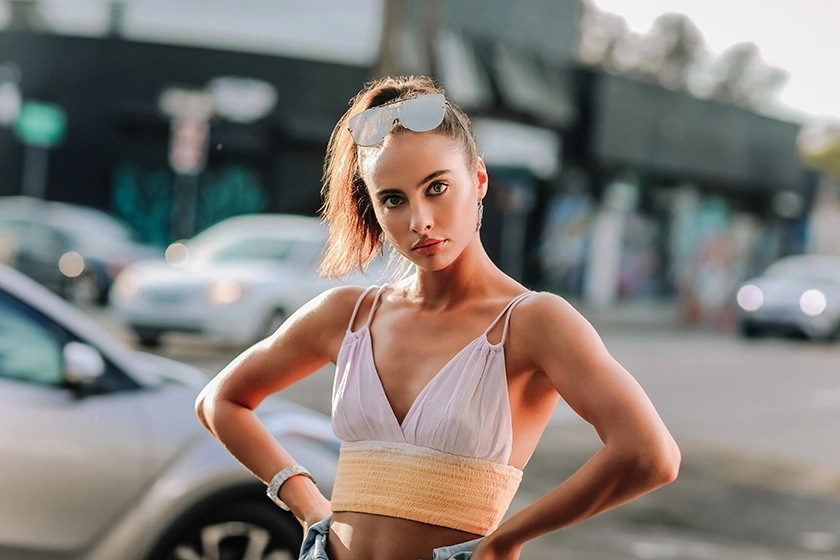
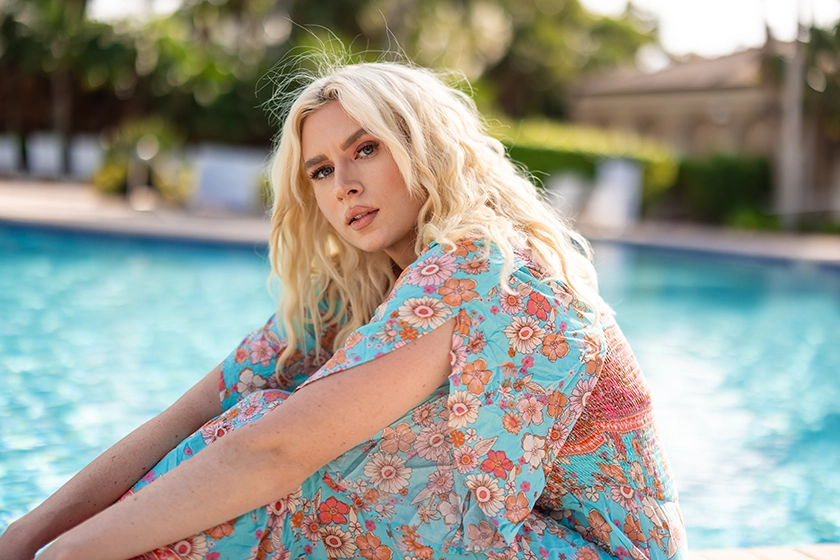
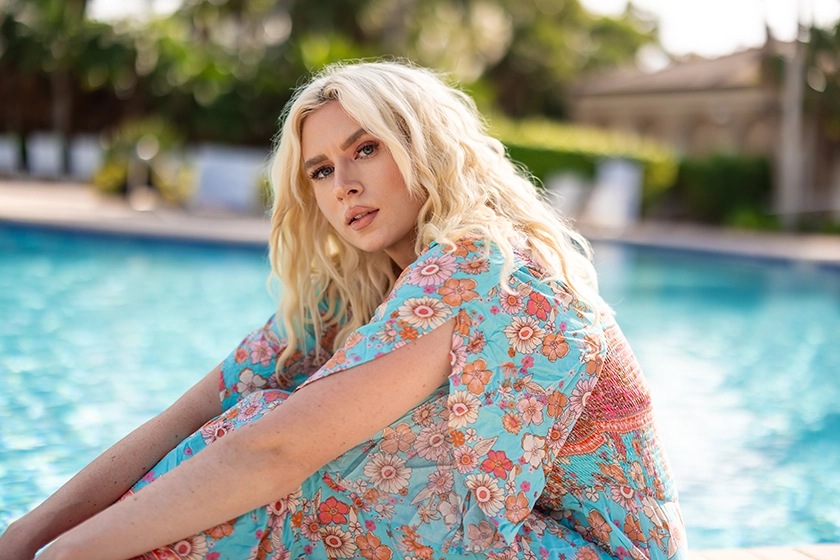
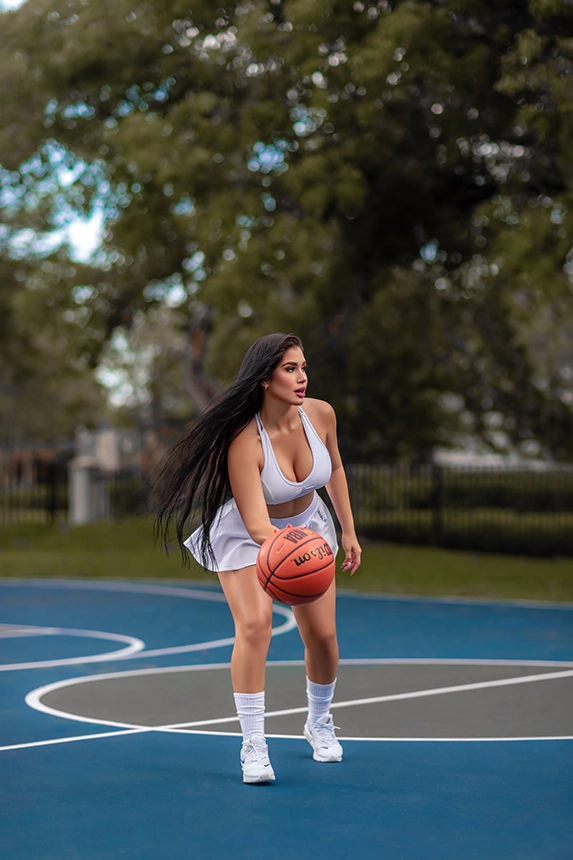
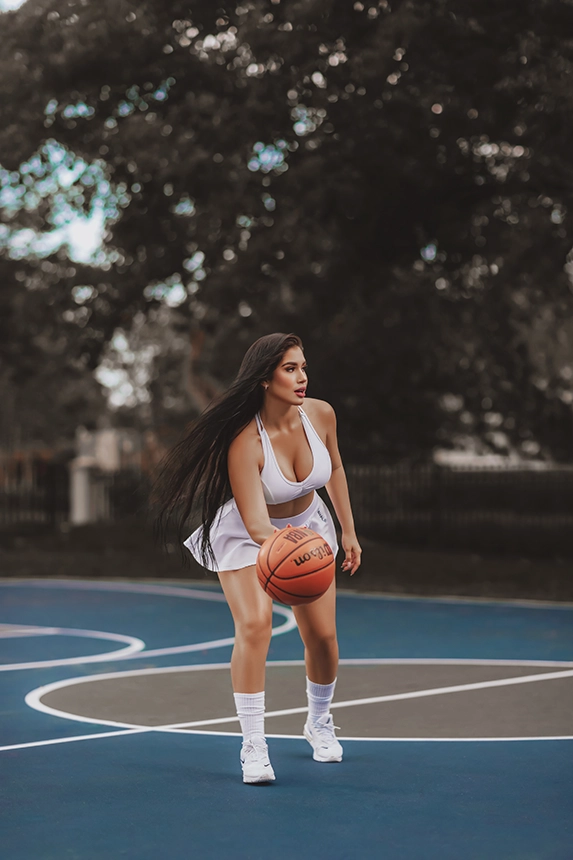
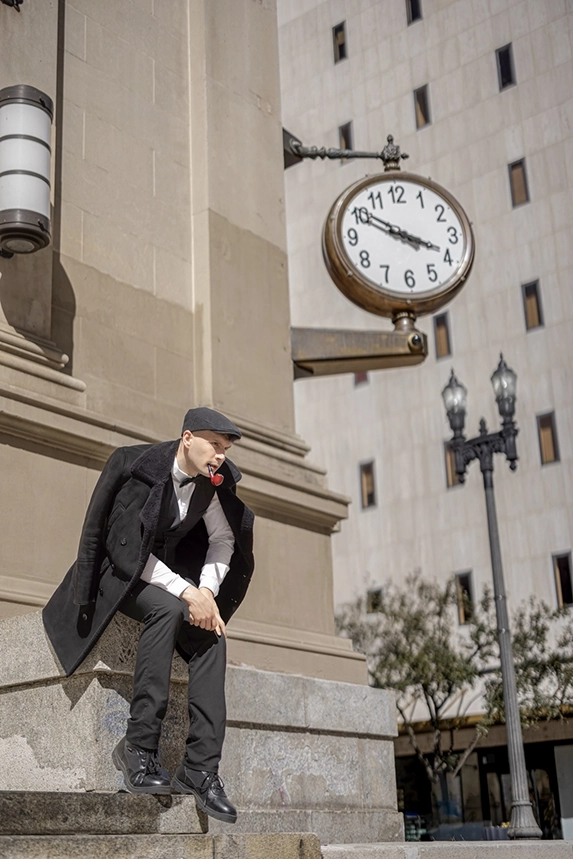
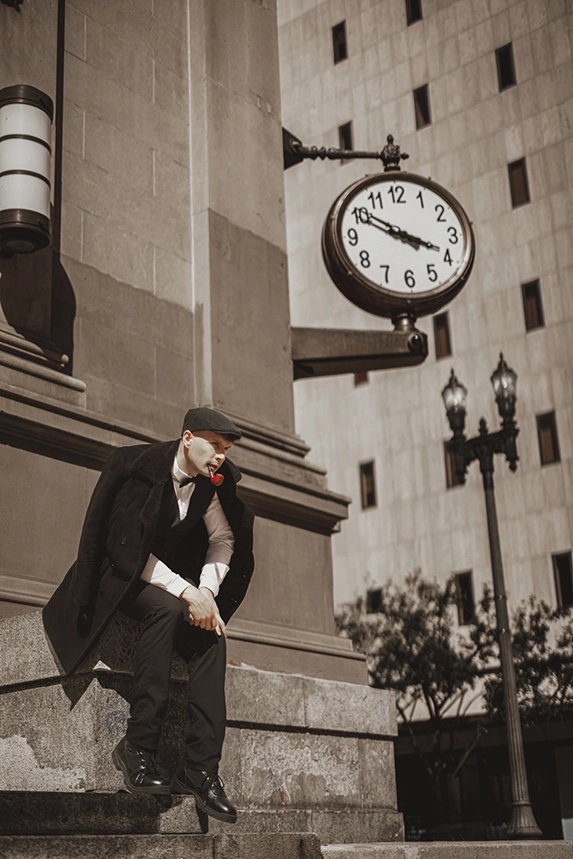
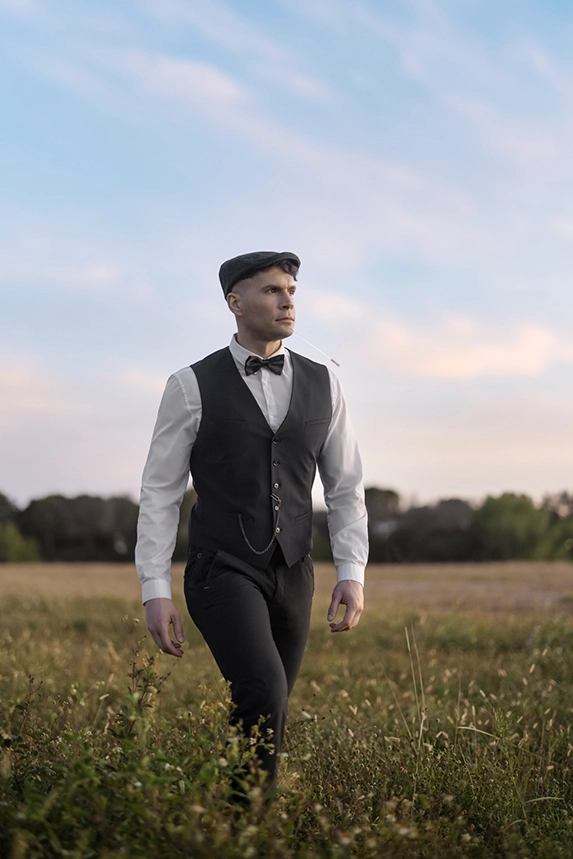
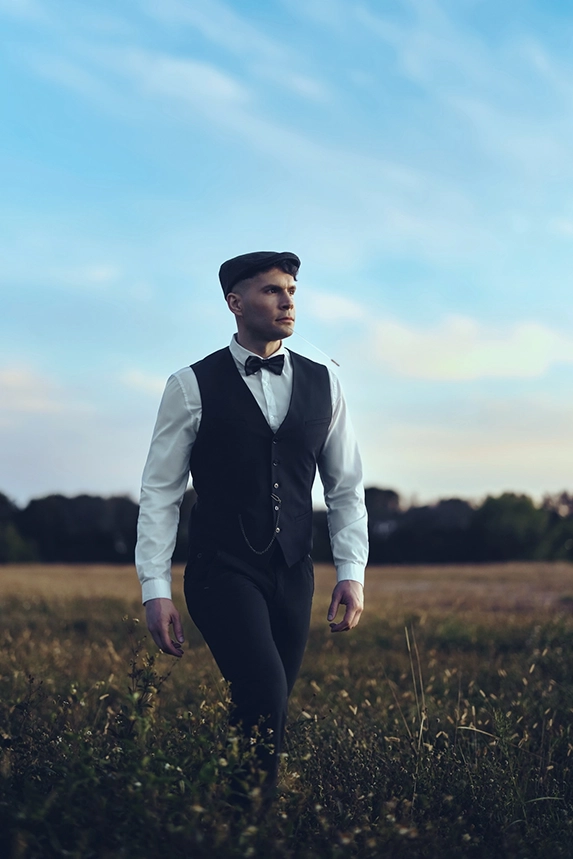
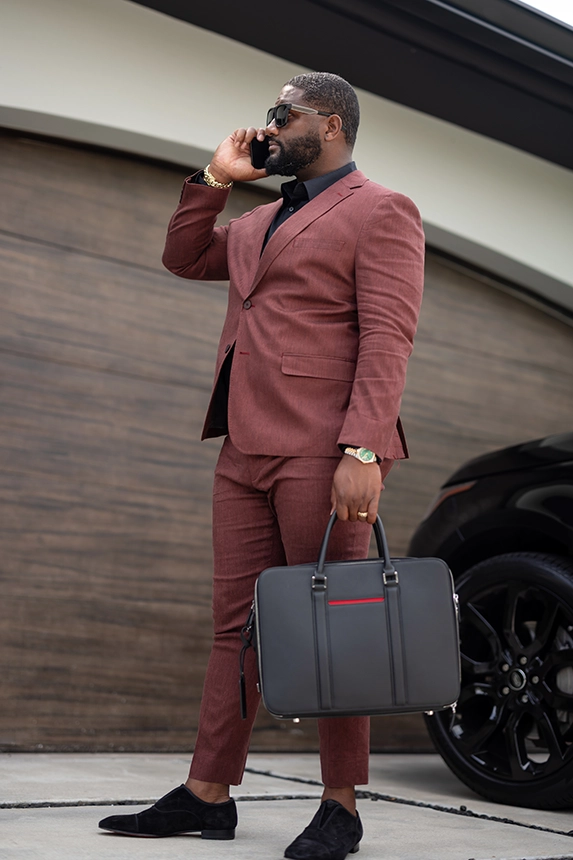
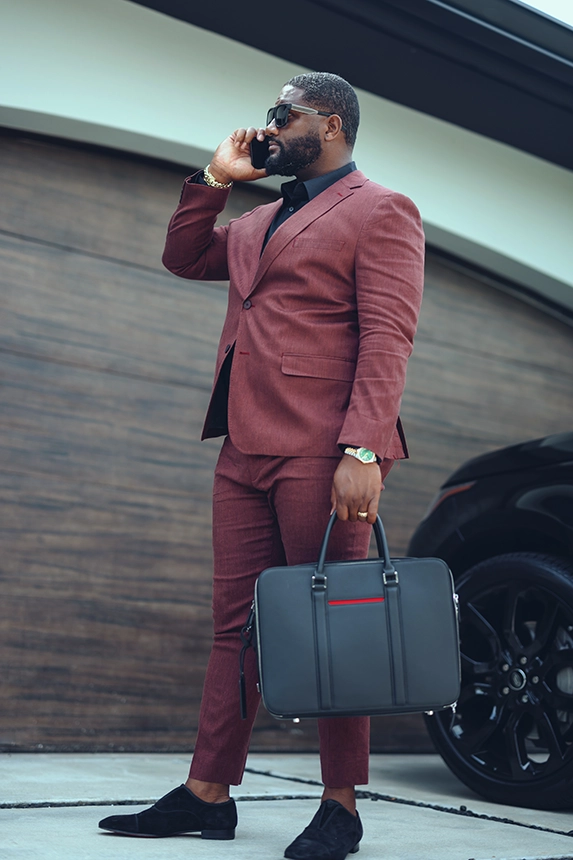
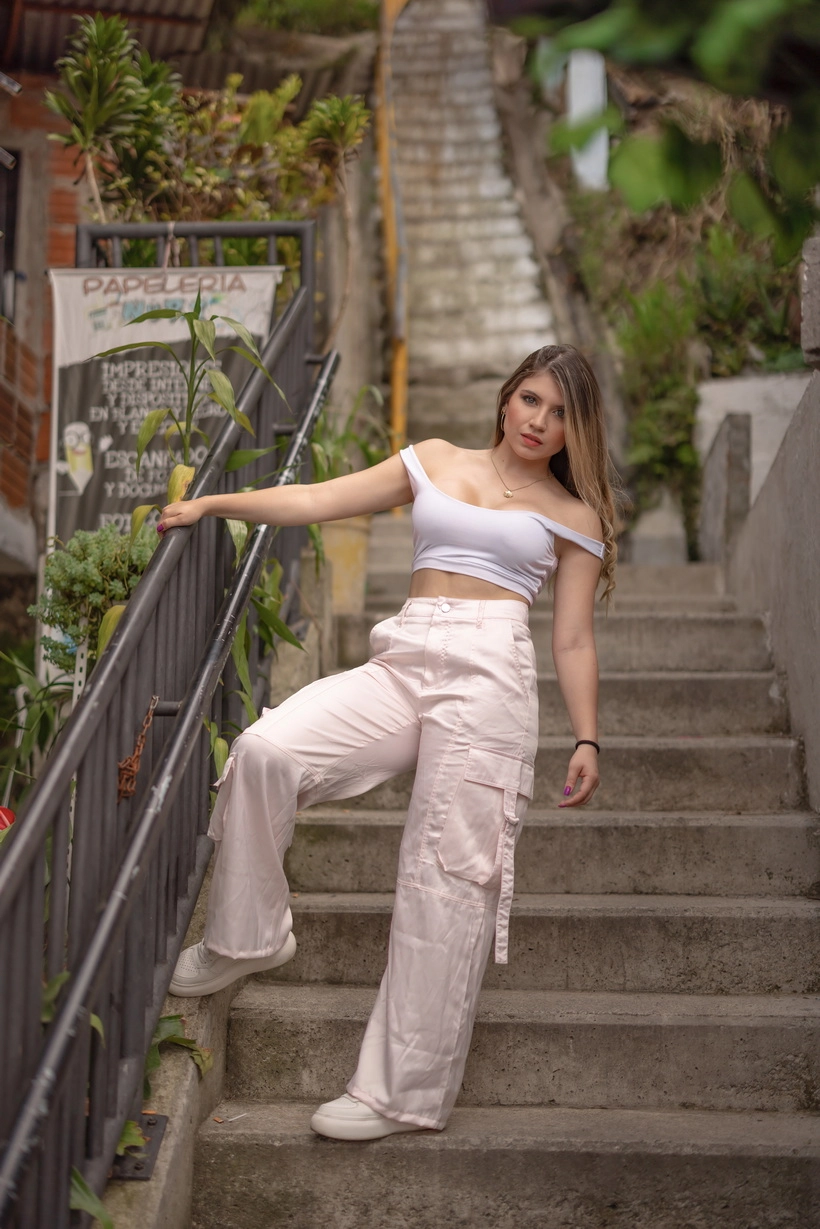
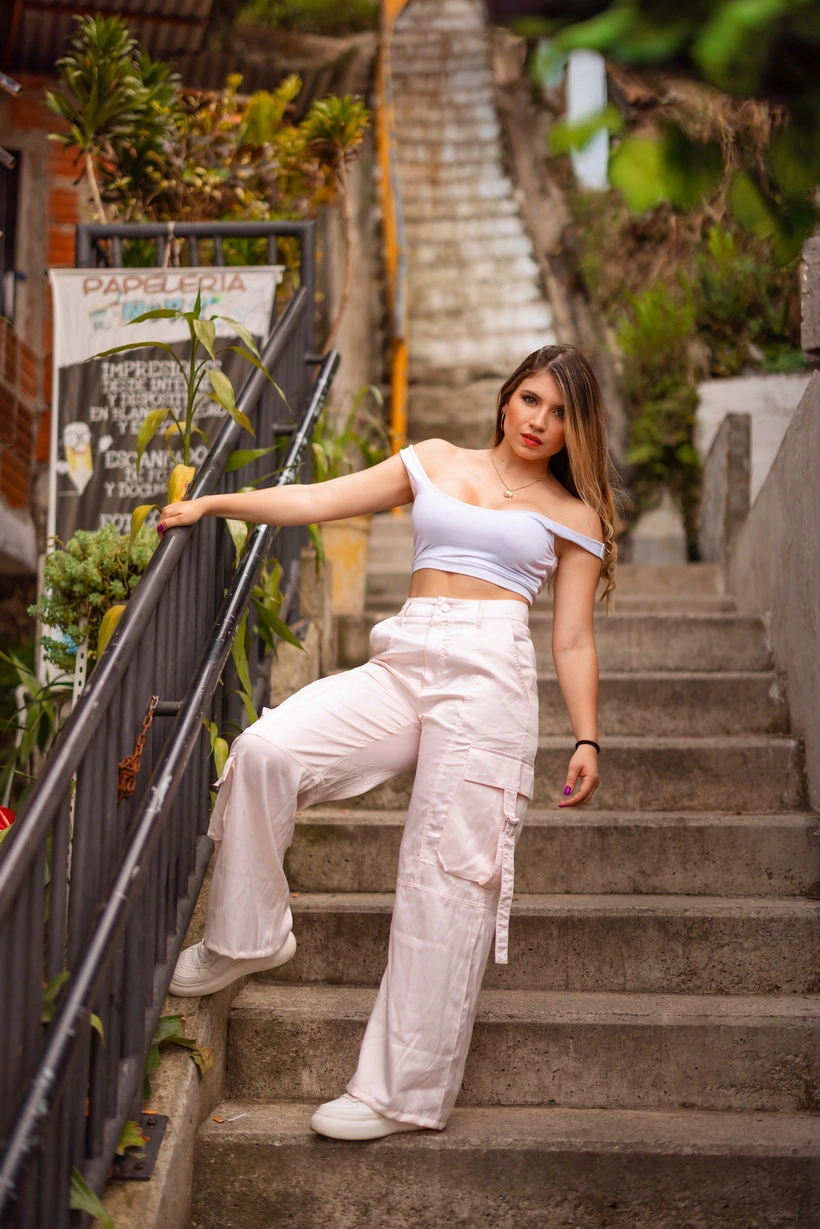
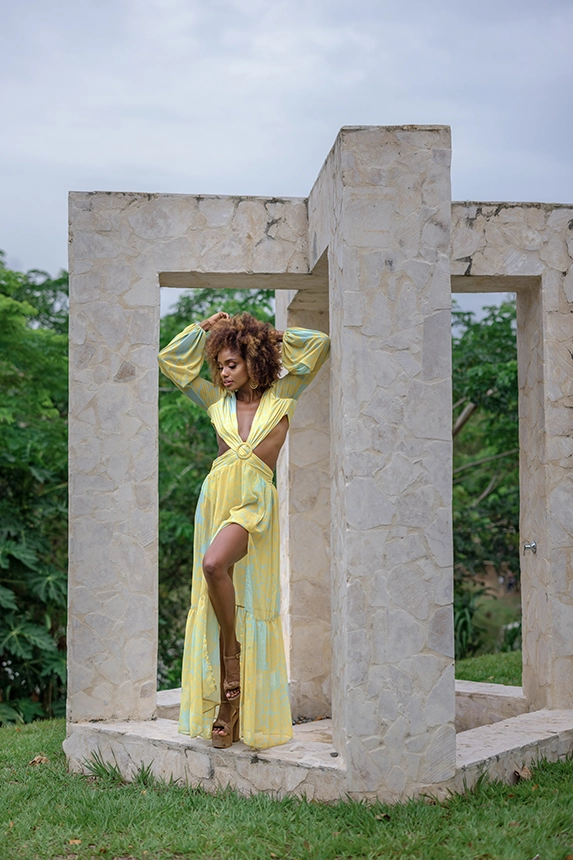
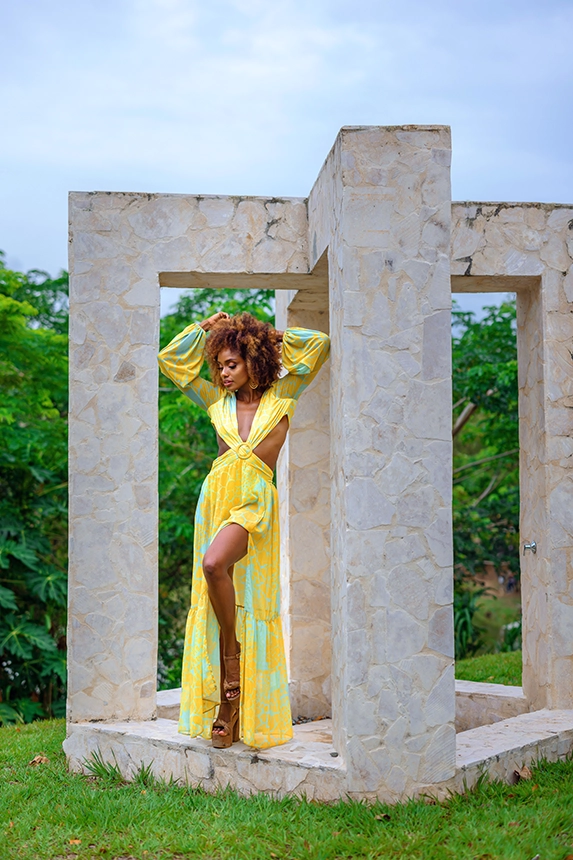
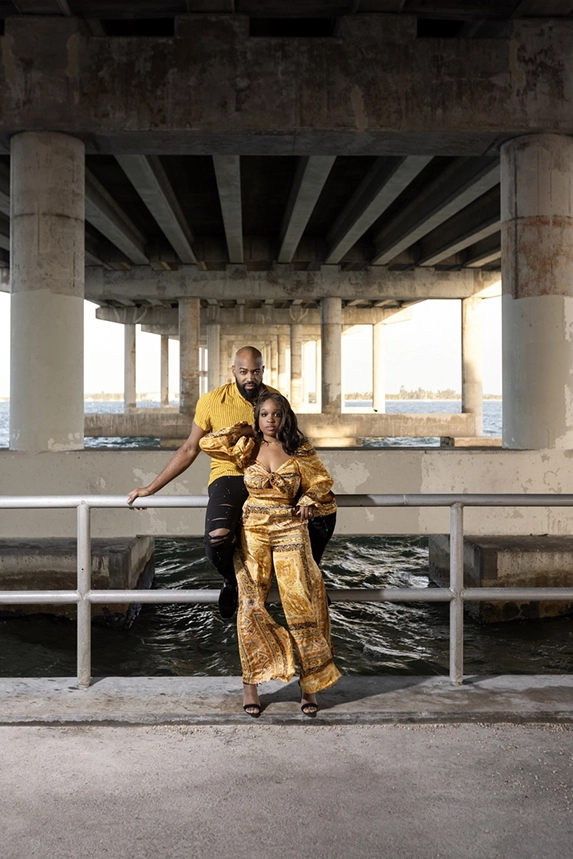
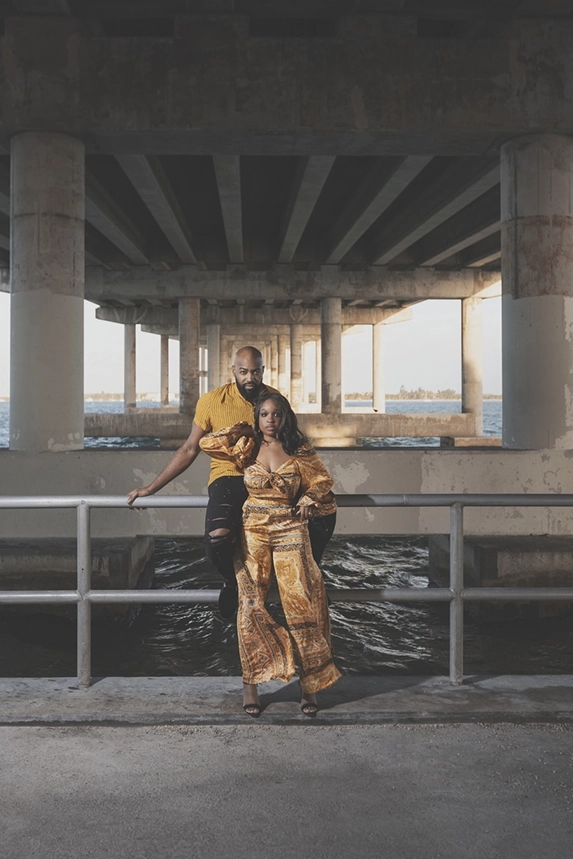
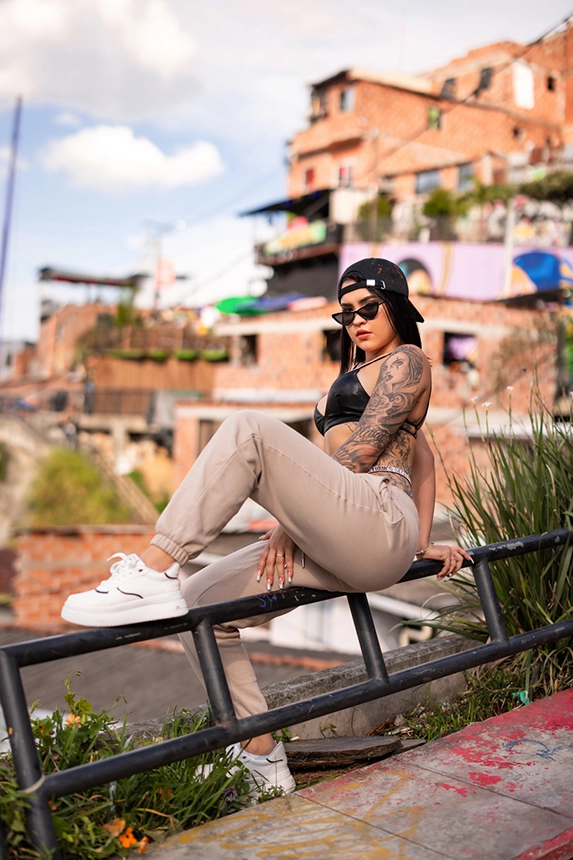
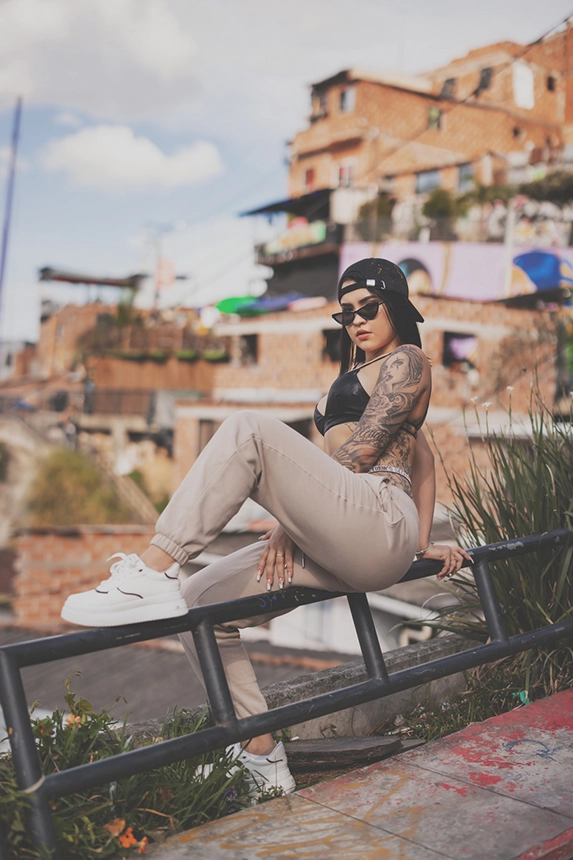
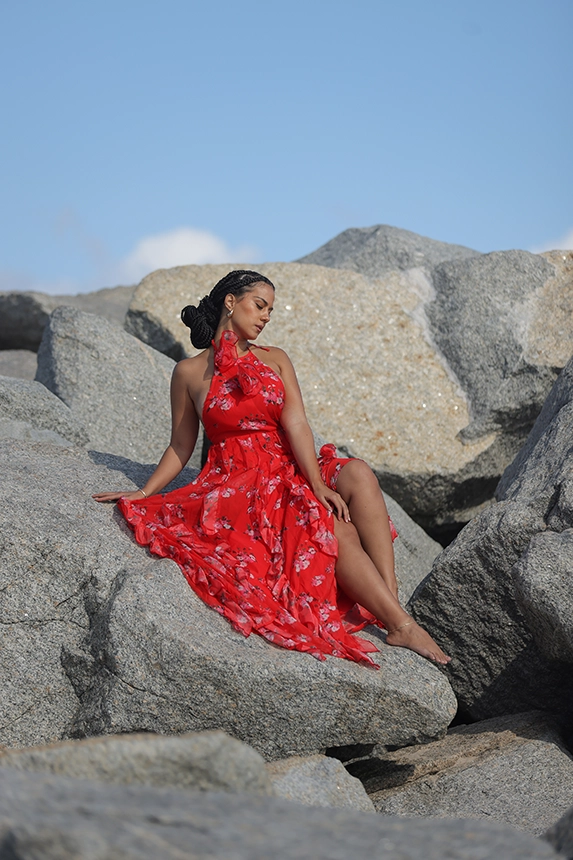
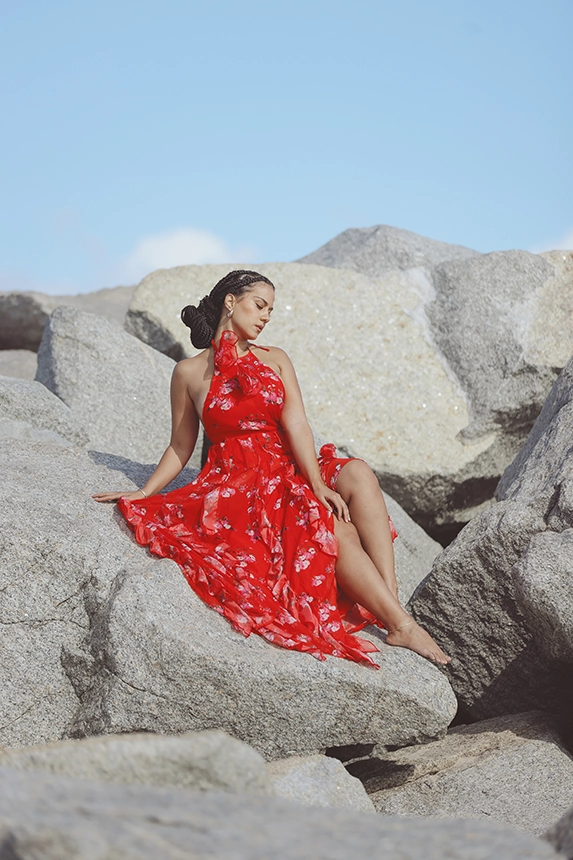
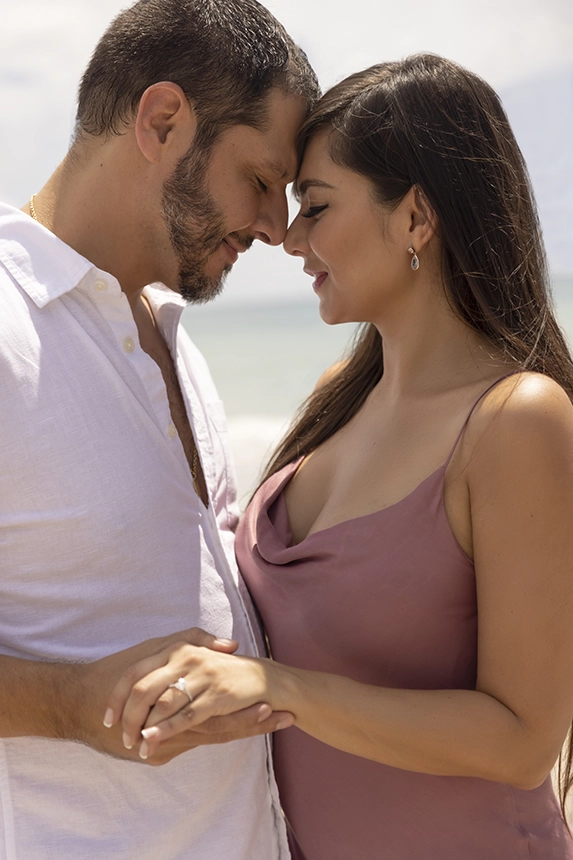
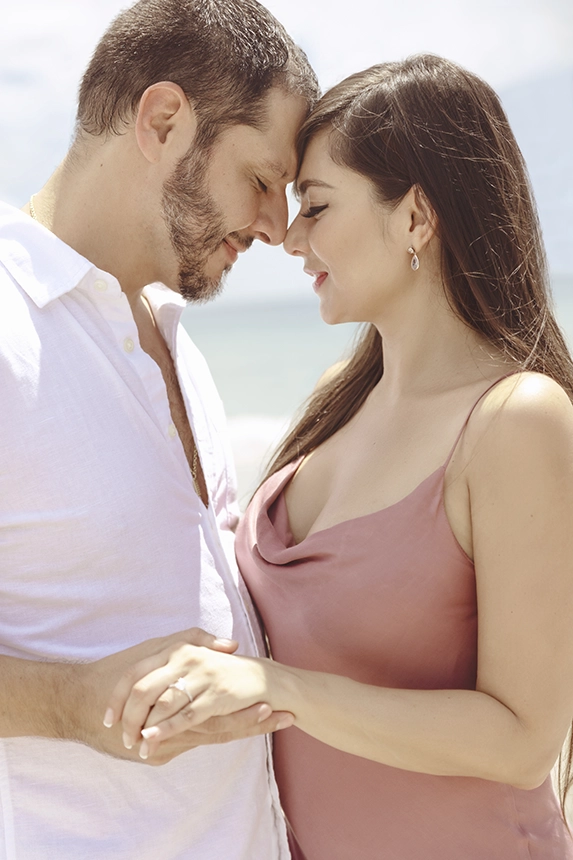
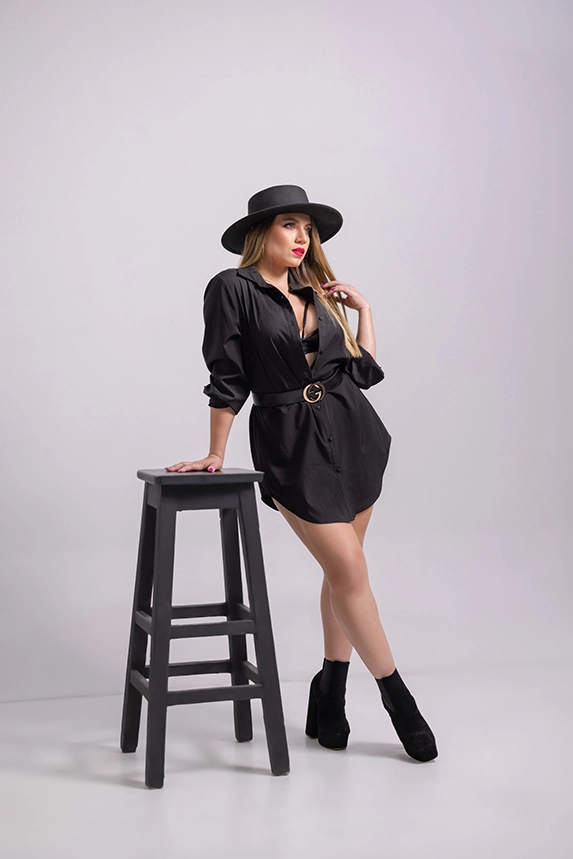
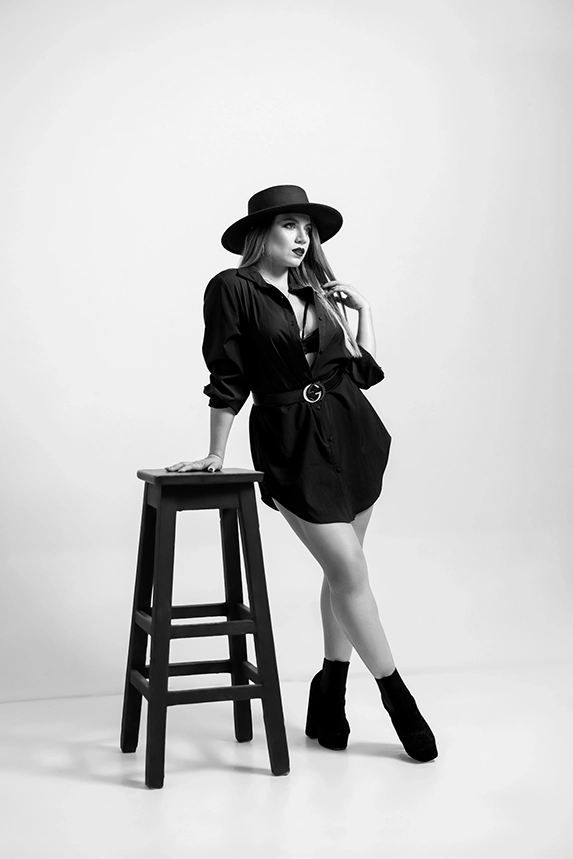
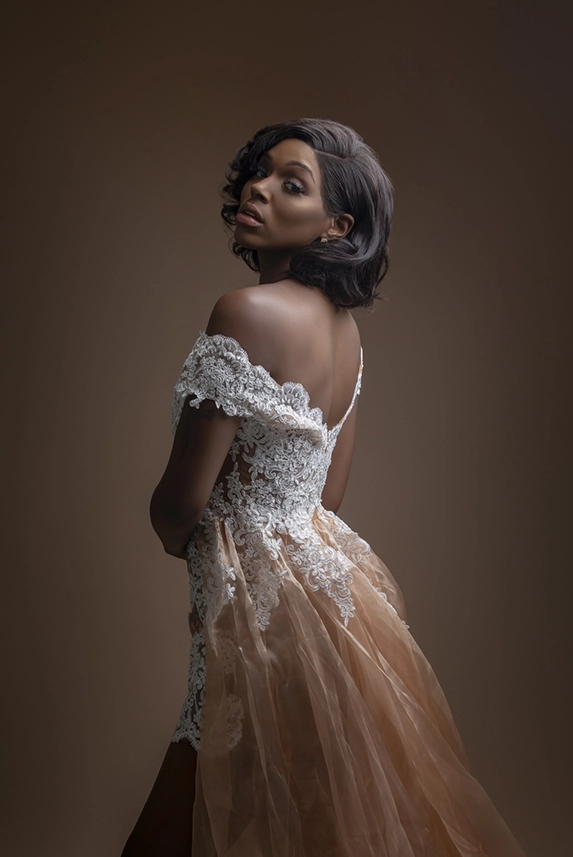
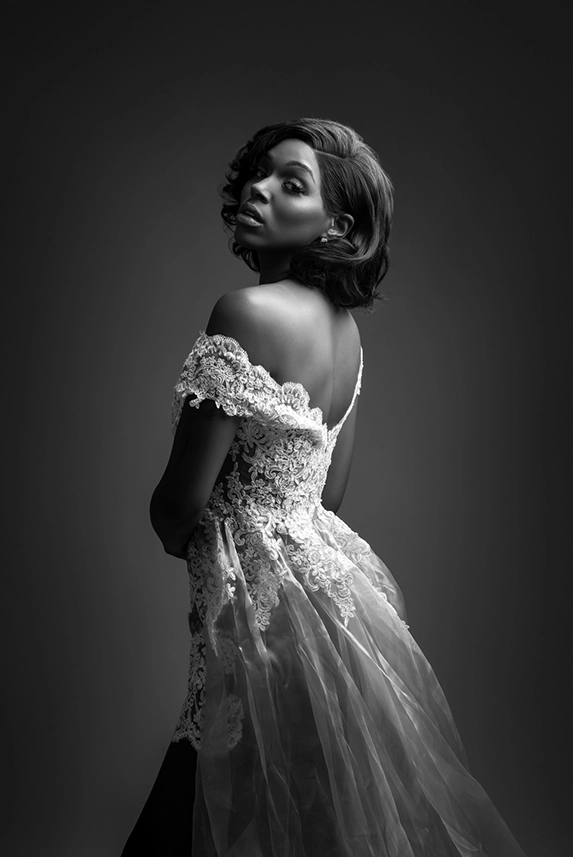
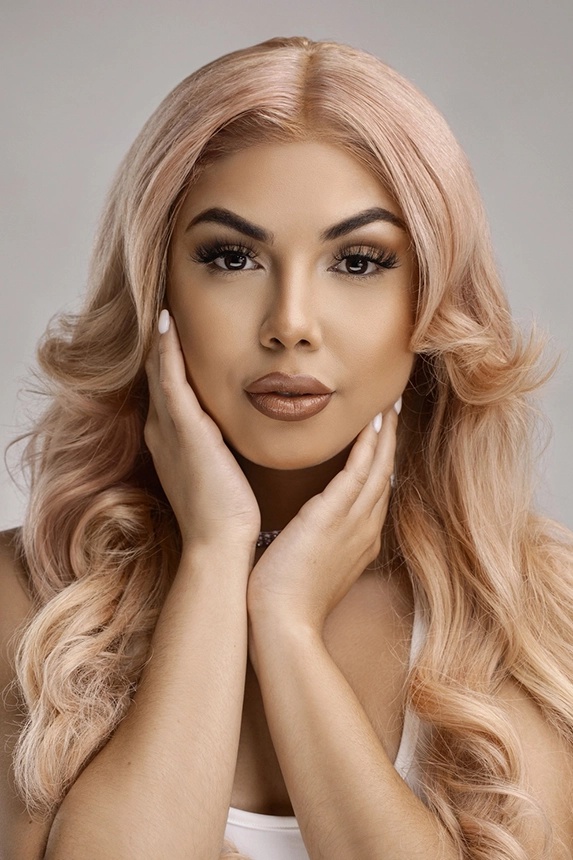
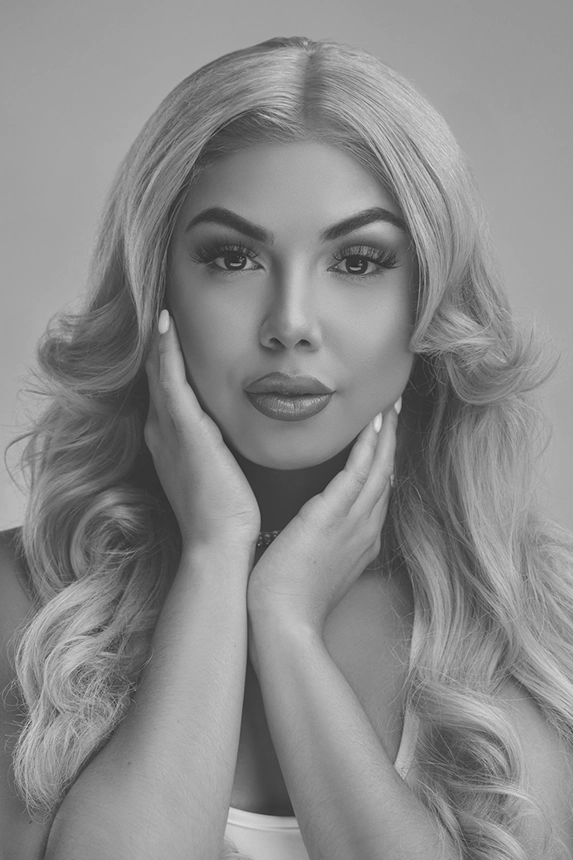
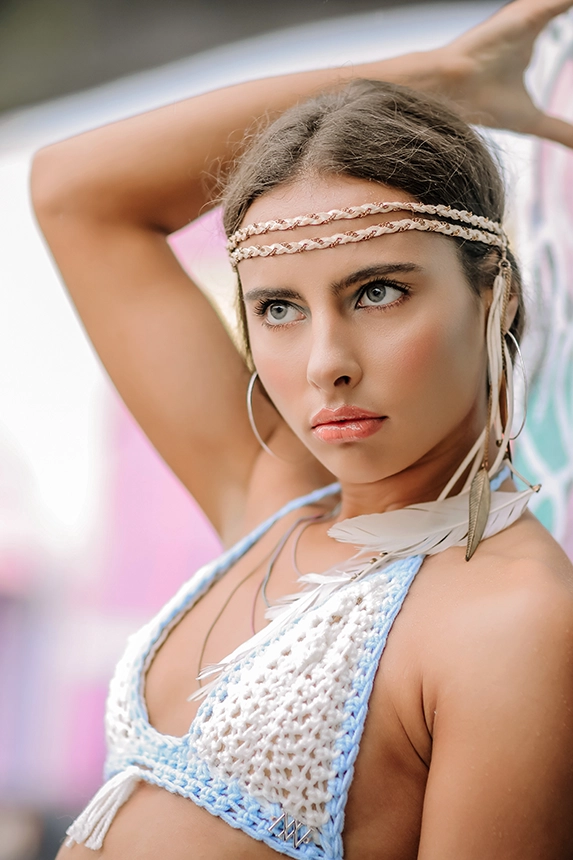
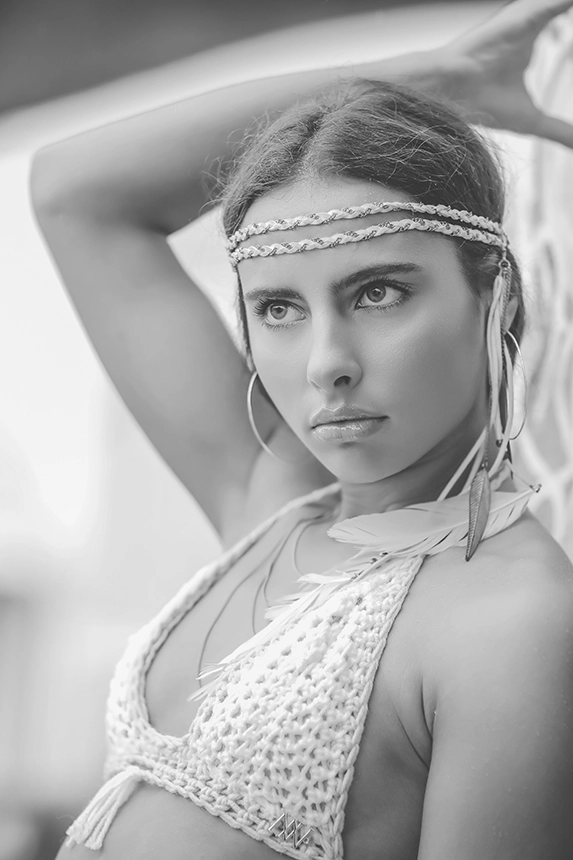
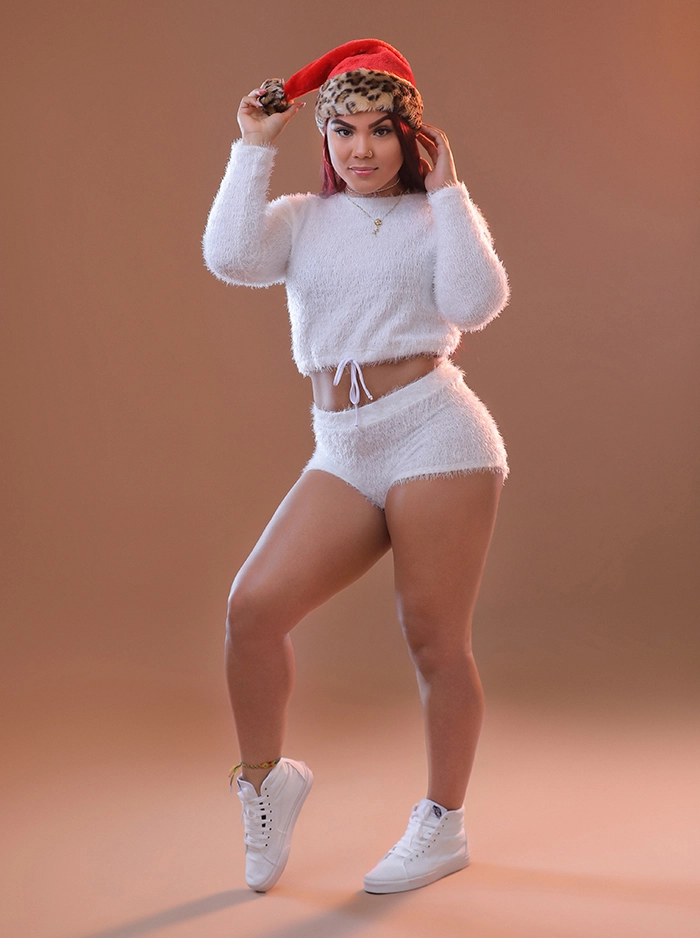
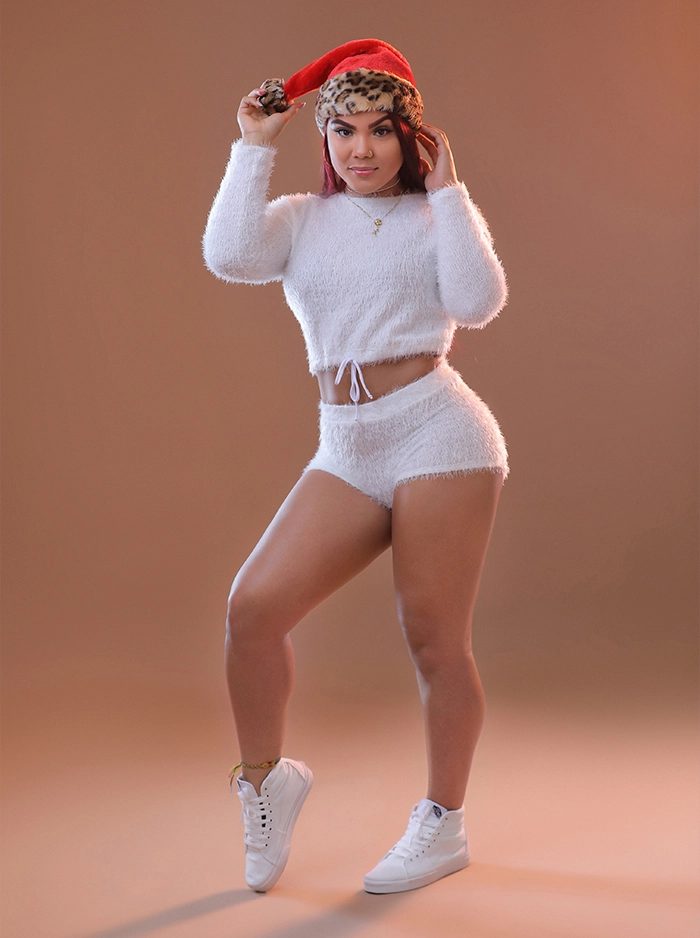
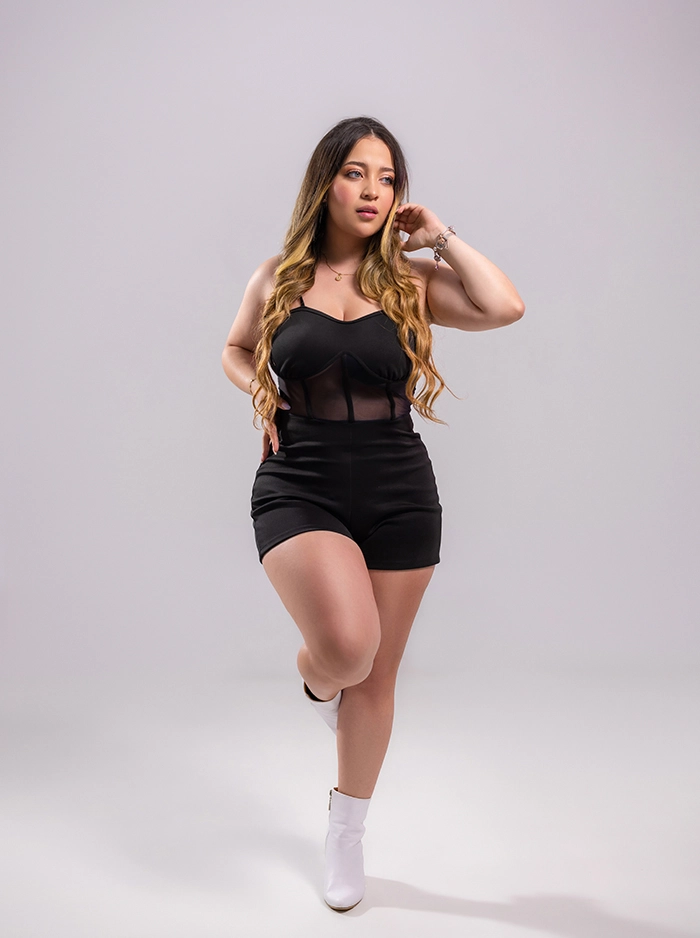
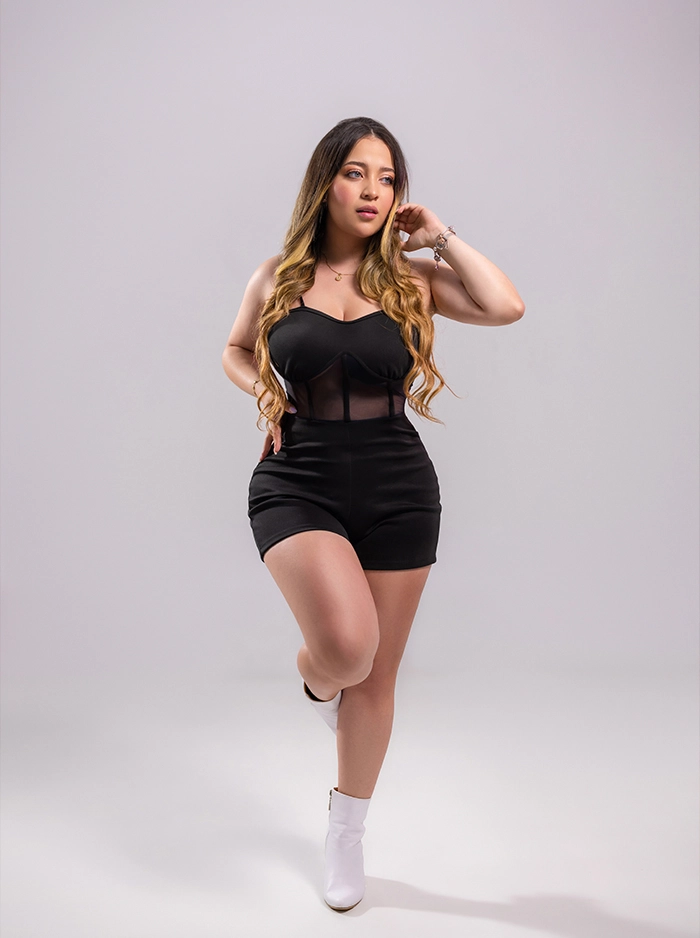
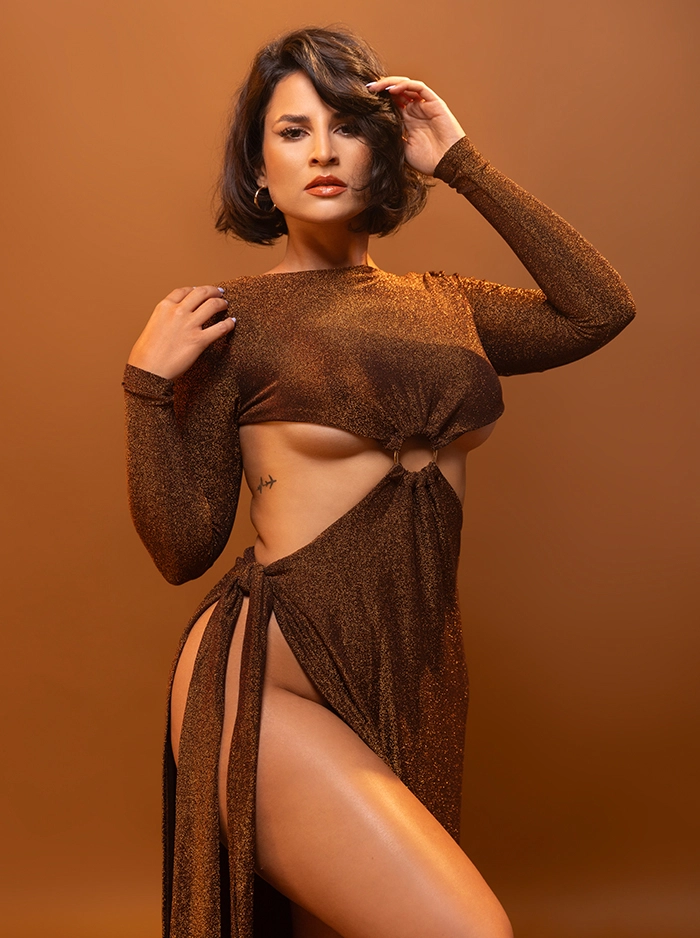
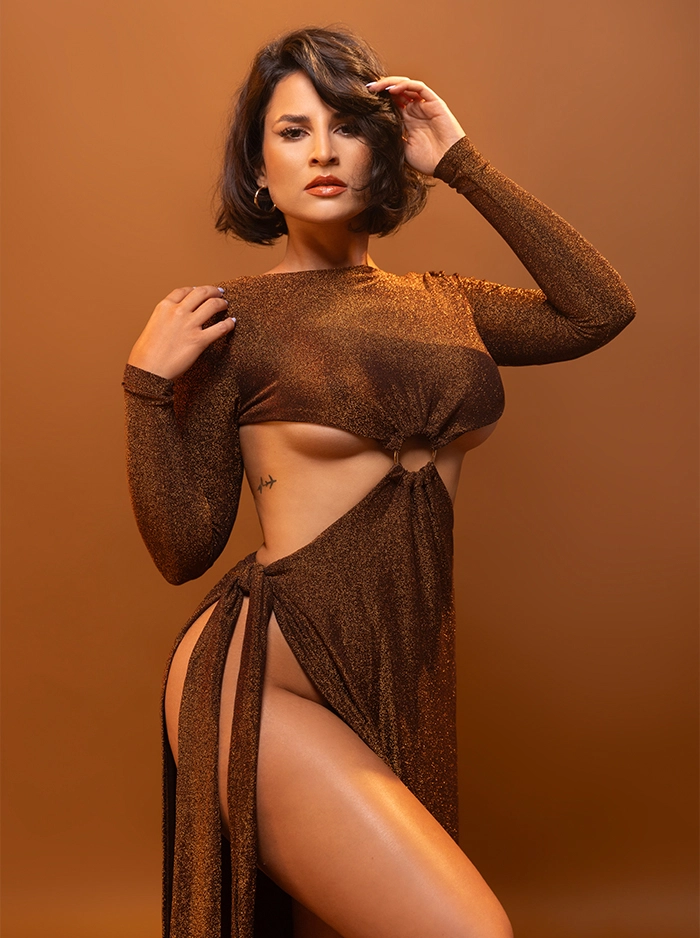
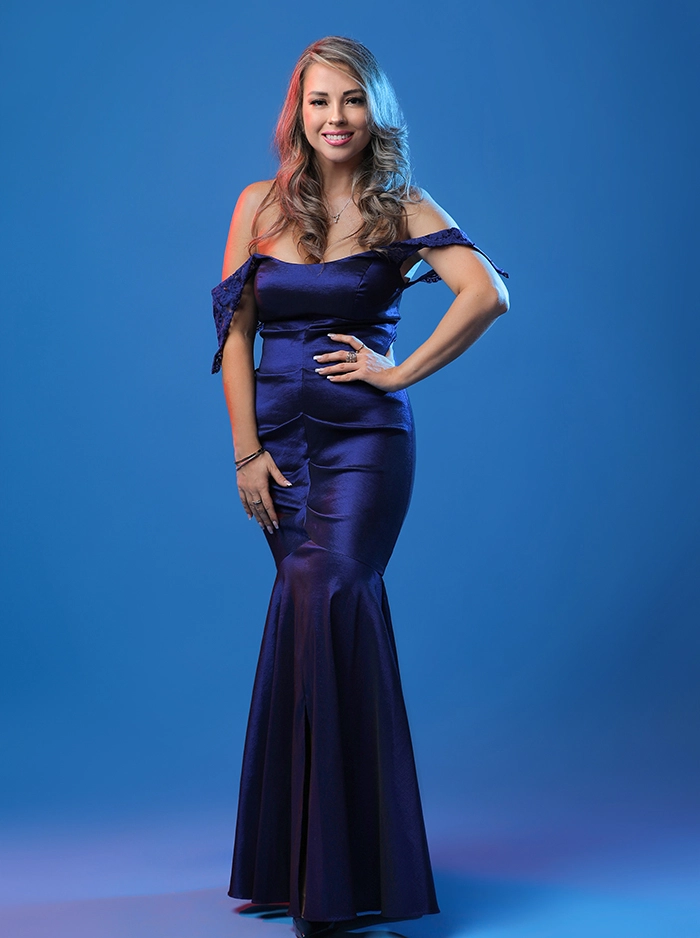
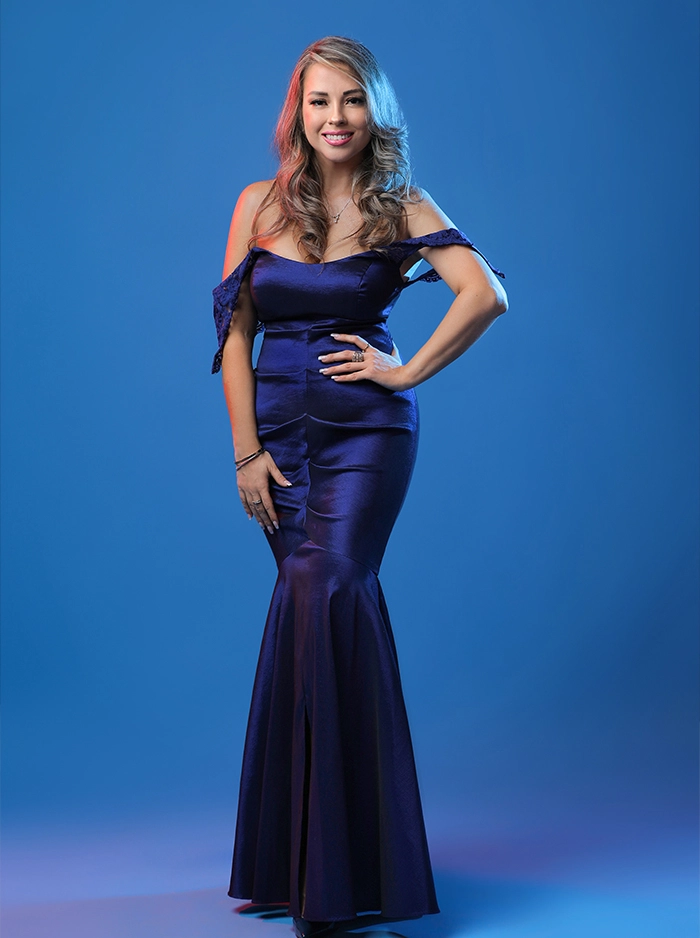
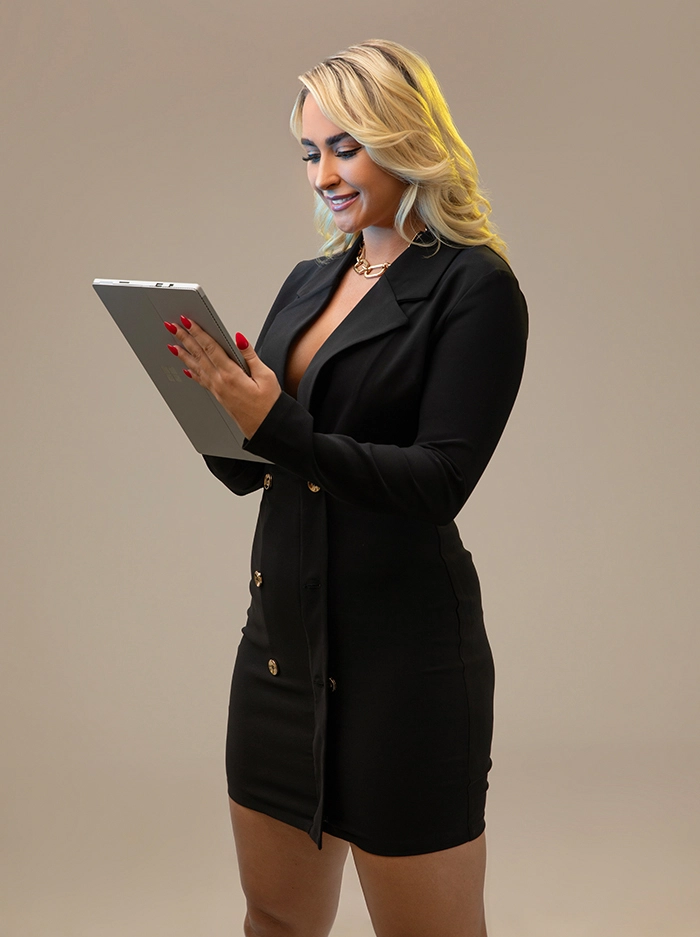
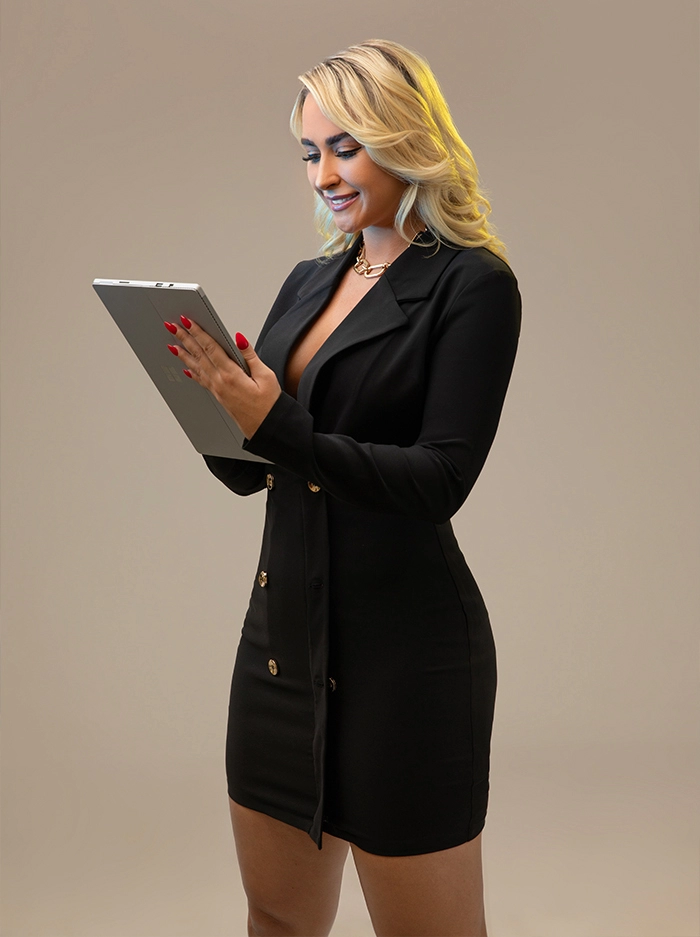
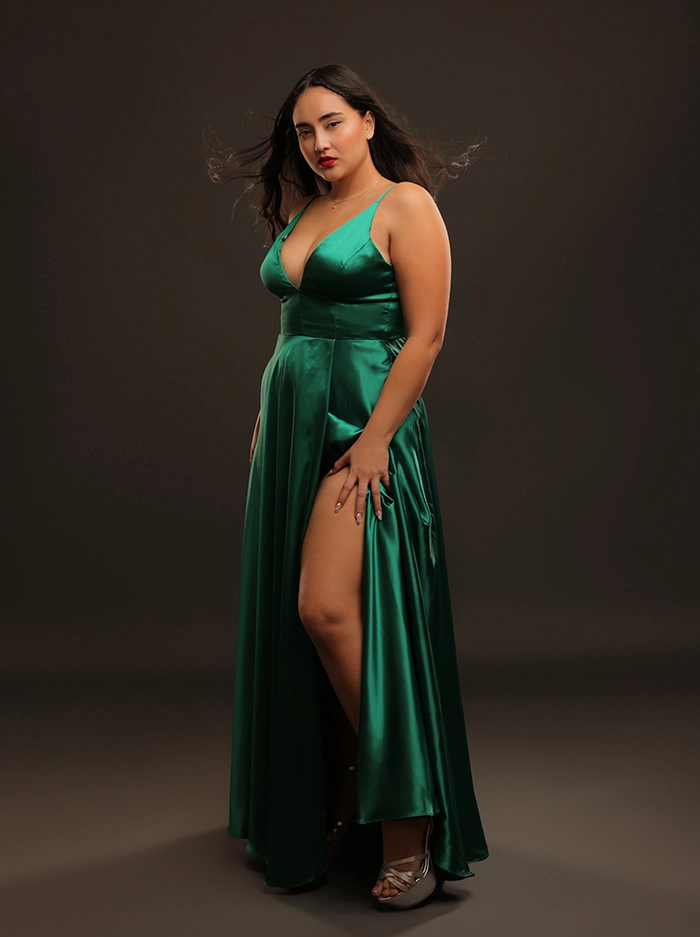
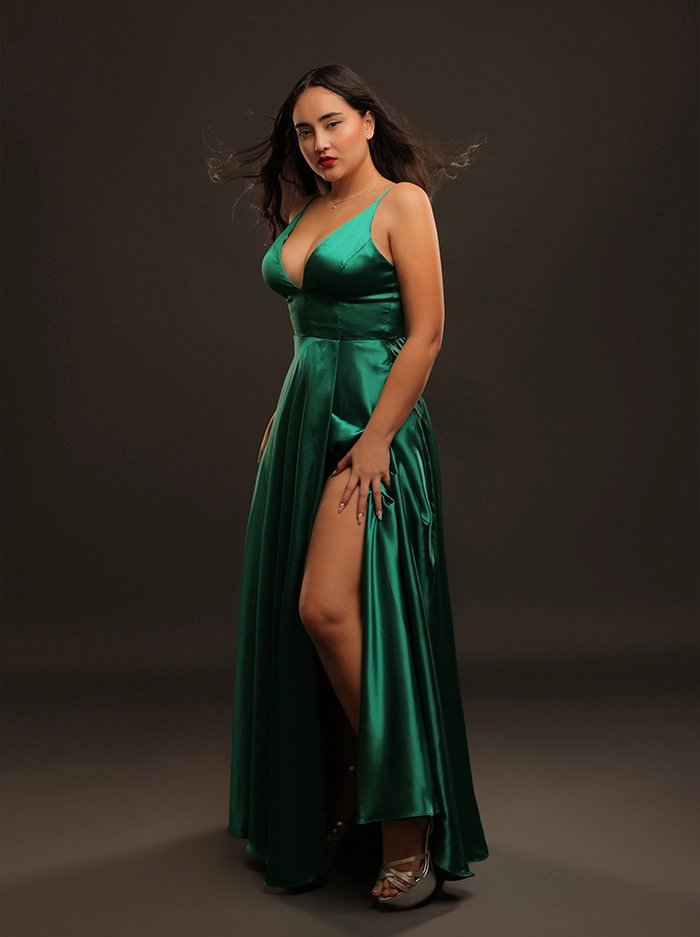
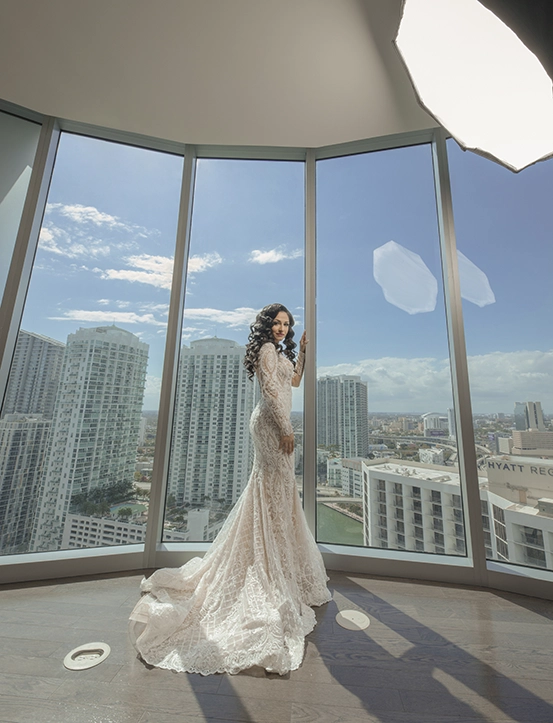
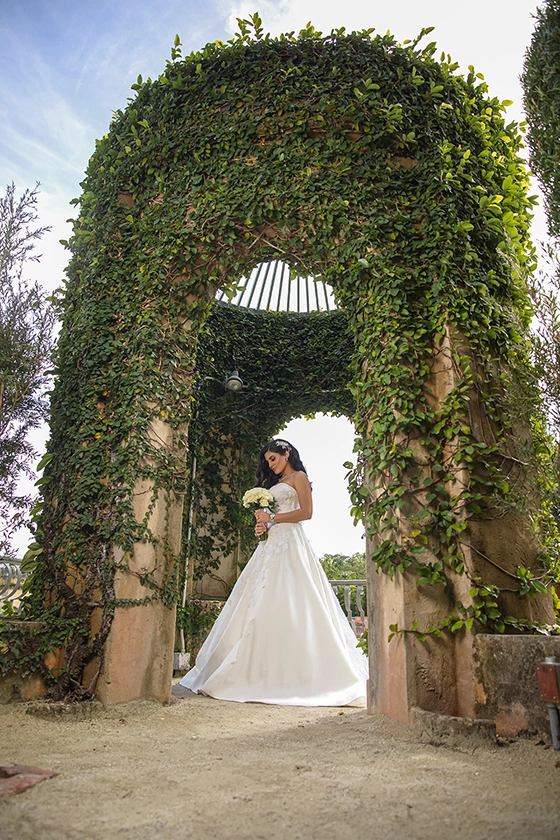
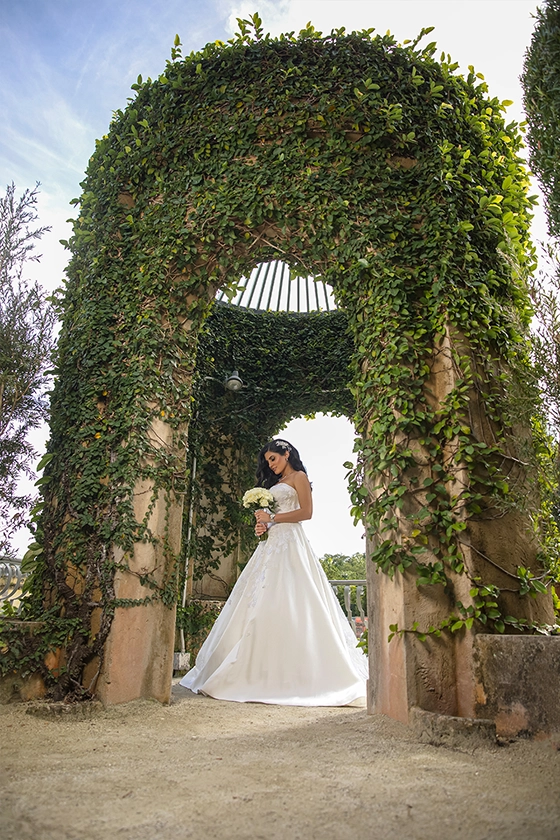
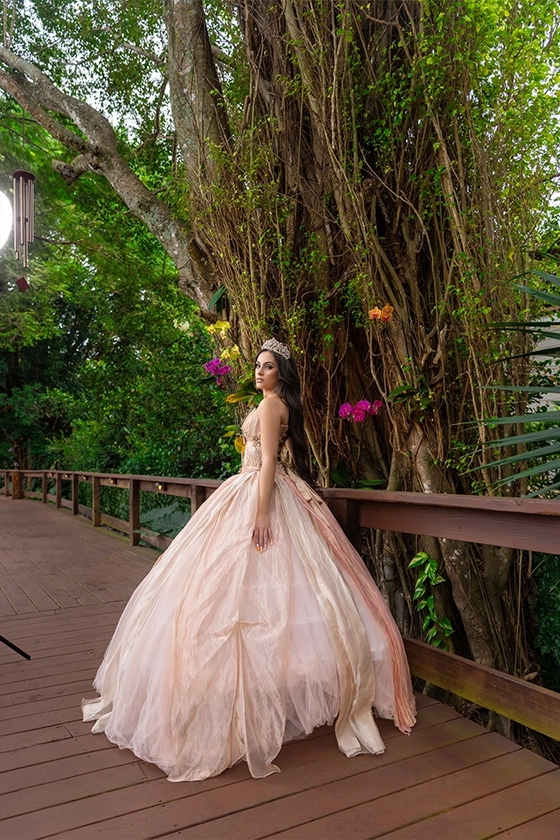
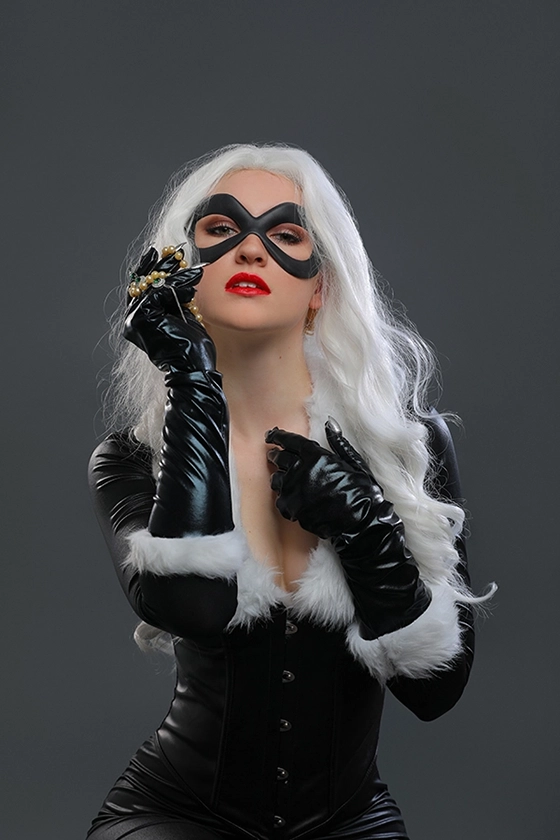
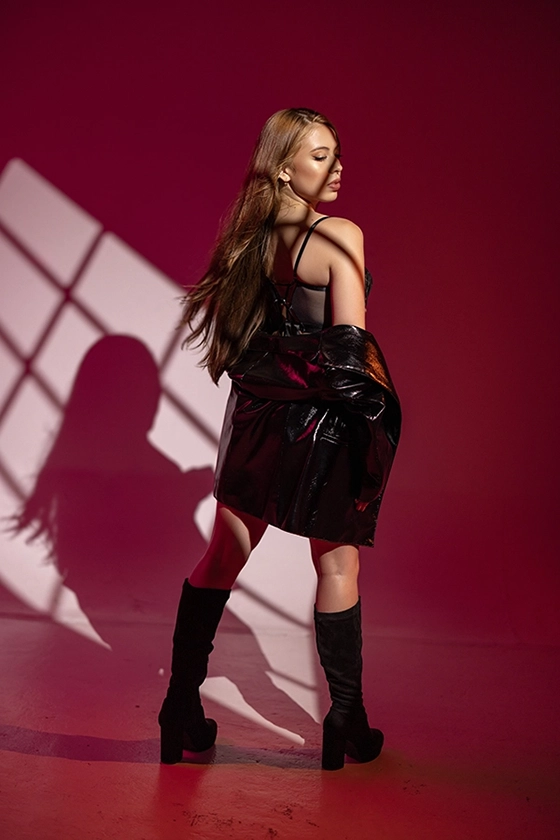
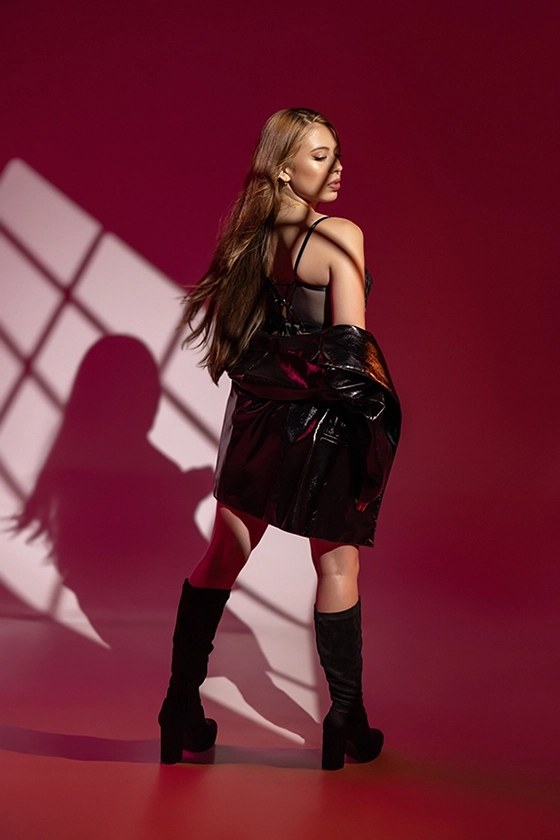
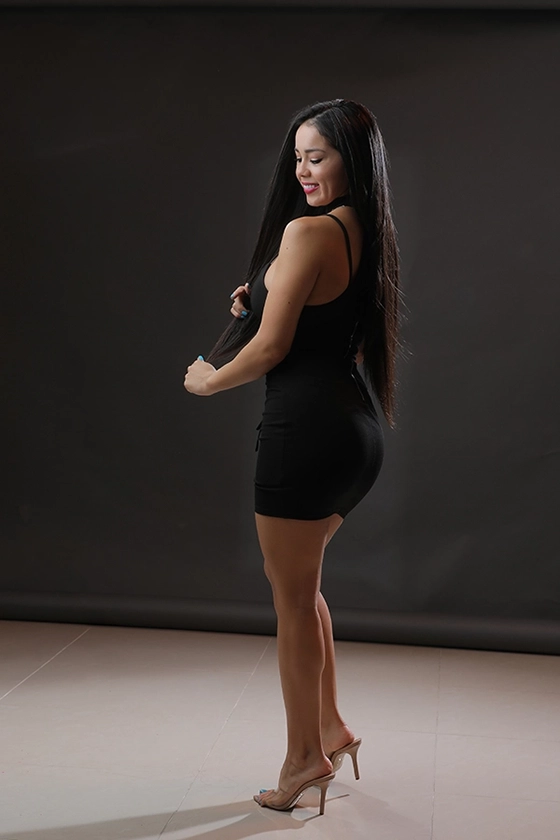
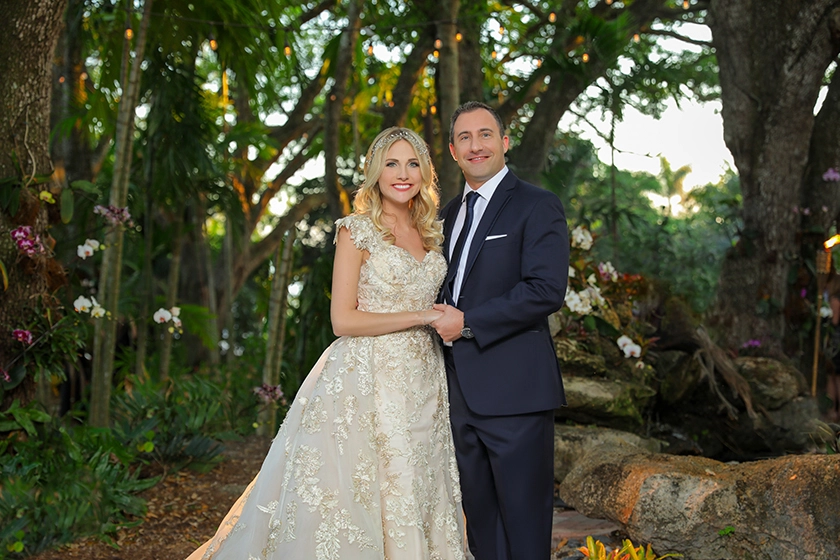
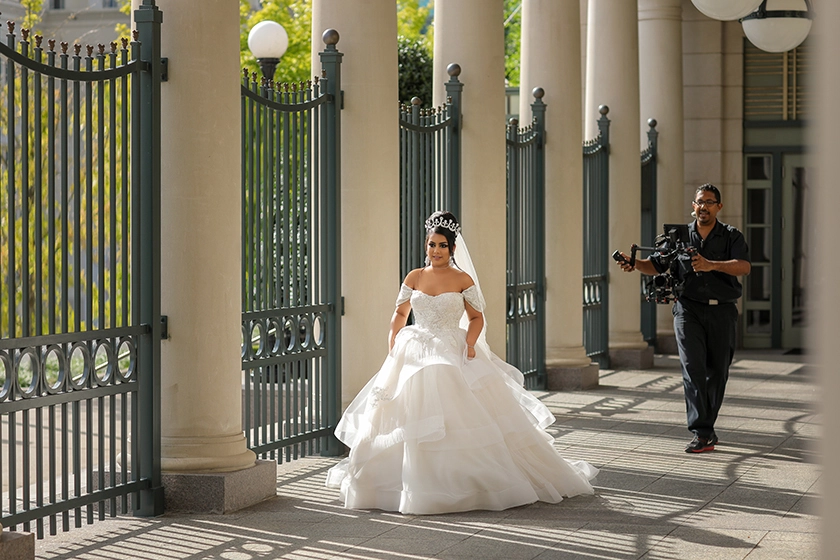
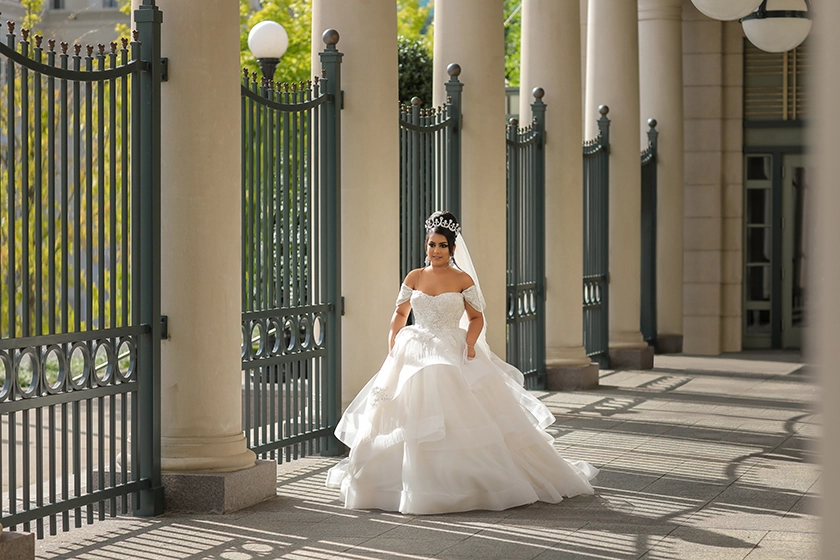
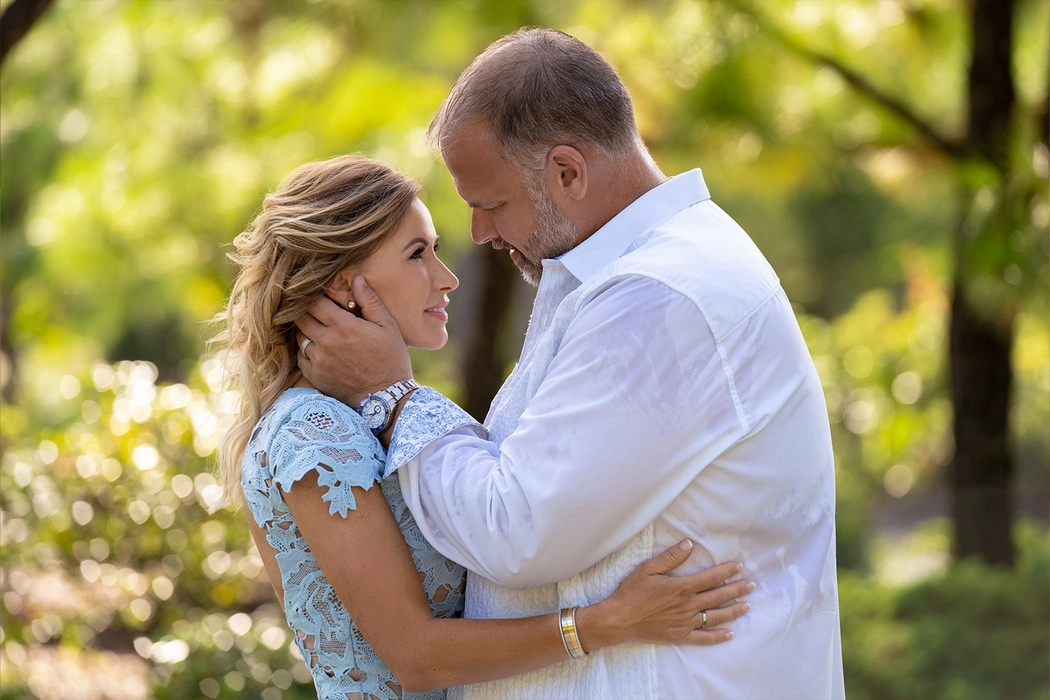
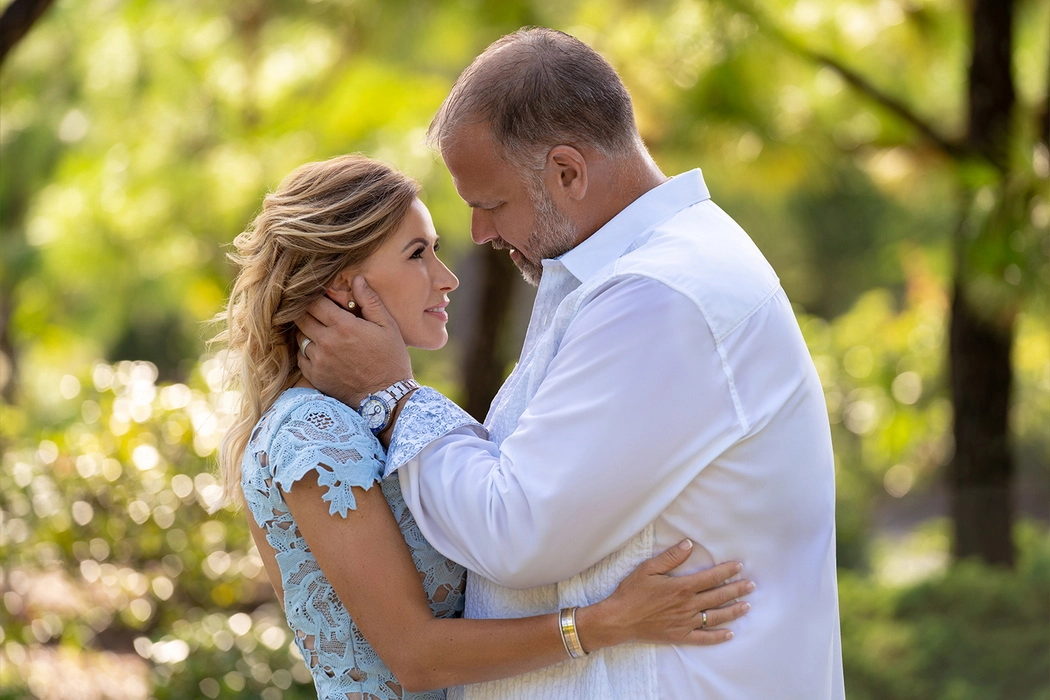
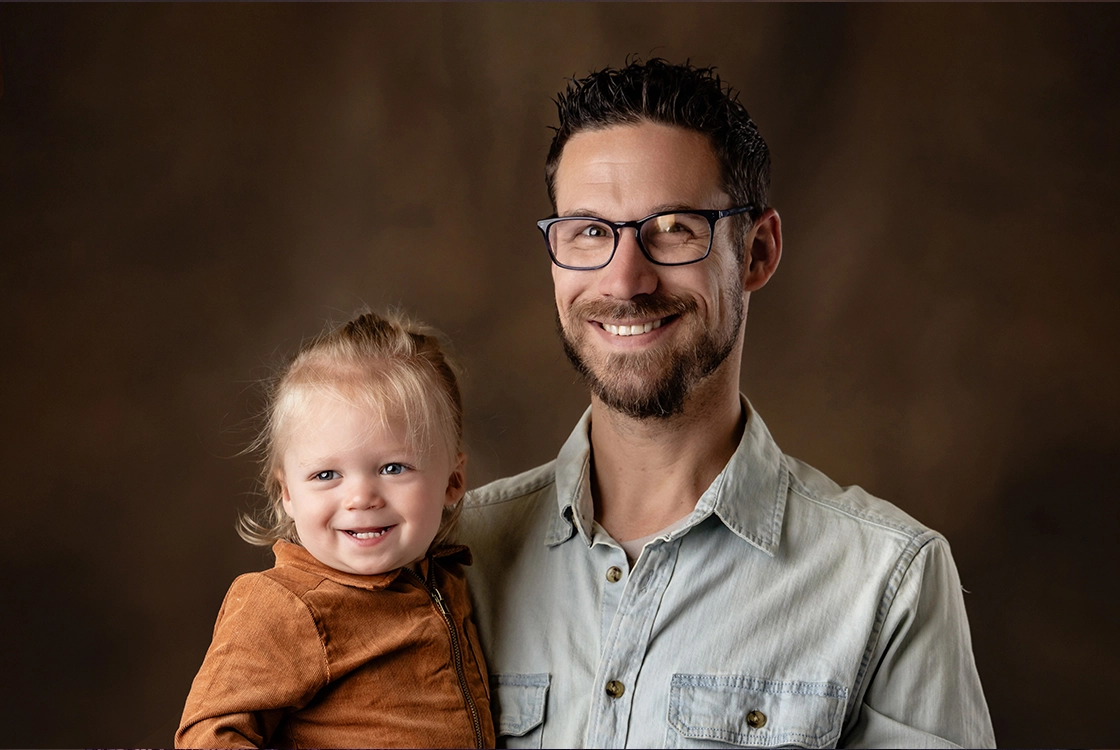
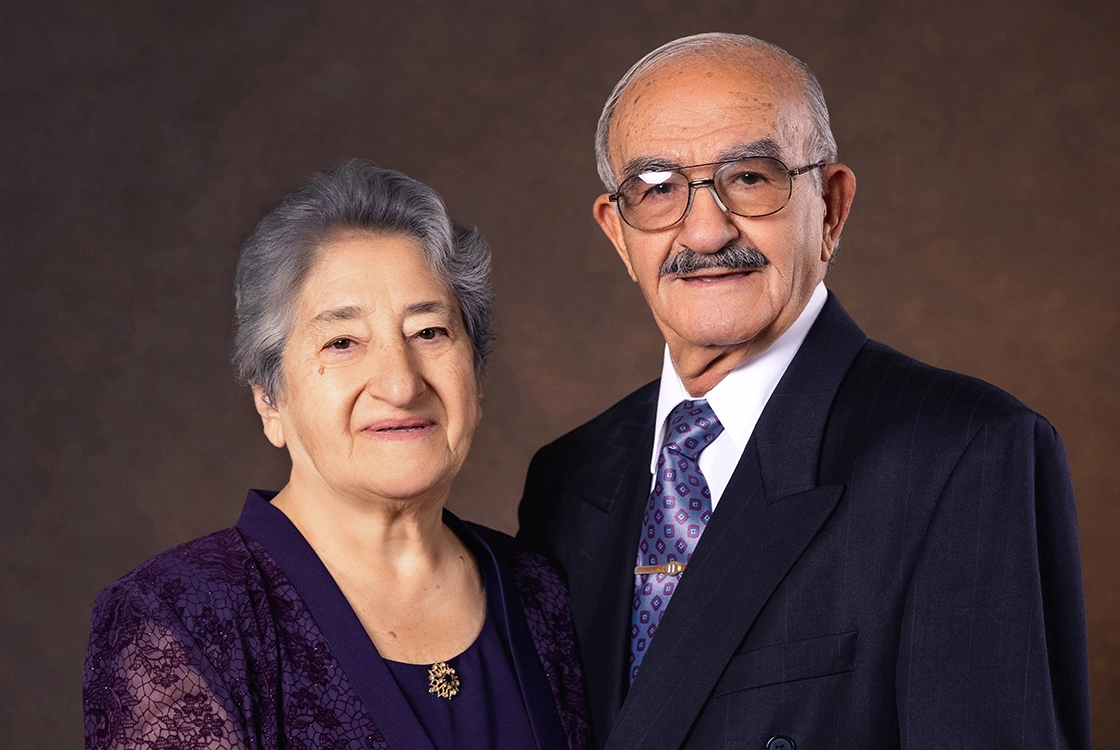
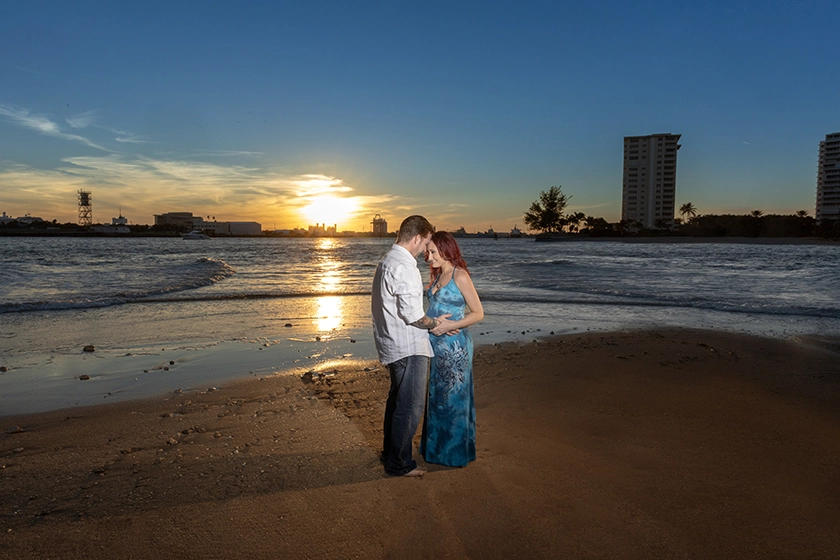
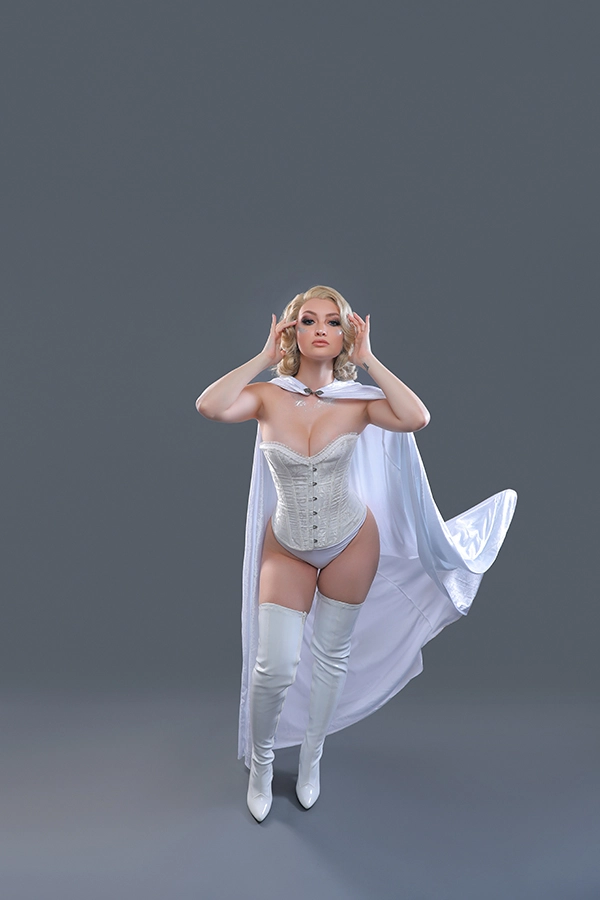
Bulk Edit gives you a fast and expert delivery for retouching a large number of photos. It provides an efficient and affordable solution to getting high quality retouching with a fast turnaround time. All photos edited using this service are done by professional editors.

No Membership

$1 | Per Image

Pro Membership

$0.8 | Per Image

Basic Membership

$0.9 | Per Image


The list below explains the differences between PS Basic and Bulk Edit

Bulk Edit

PS Basic

50

Minimum Submission Limit

No Limit

Changes Request

Skin Smoothing

Retouching

Skin Retouching

Remove Stray Hair

Distraction Removal

Color Correction

Fix Skin Color

Whiten Teeth

Liquify

A La Carte

We offer these a la carte options to support all of your requests and enhance your PS Basic and Bulk Edit service.

Photoshop Basic Al carte Minor removal Before 34 Photoshop Basic Al carte Major removal After 34

Minor Removal

$1

MR5_3119 Before Photoshop Basic Al carte Major removal Before 34

Major Removal

$3

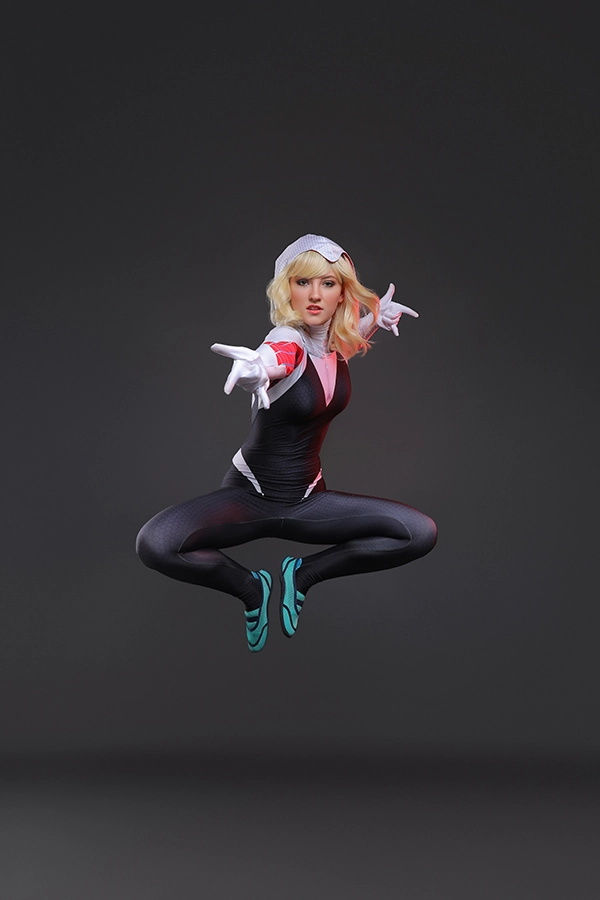
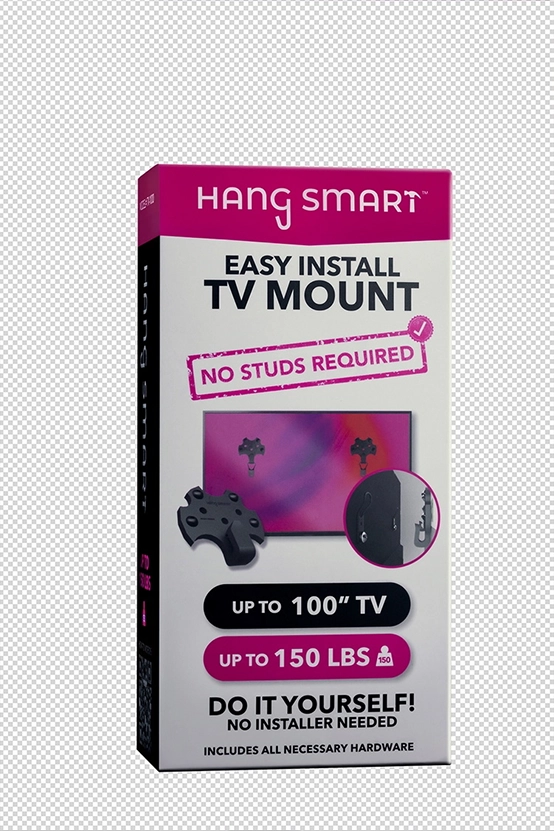
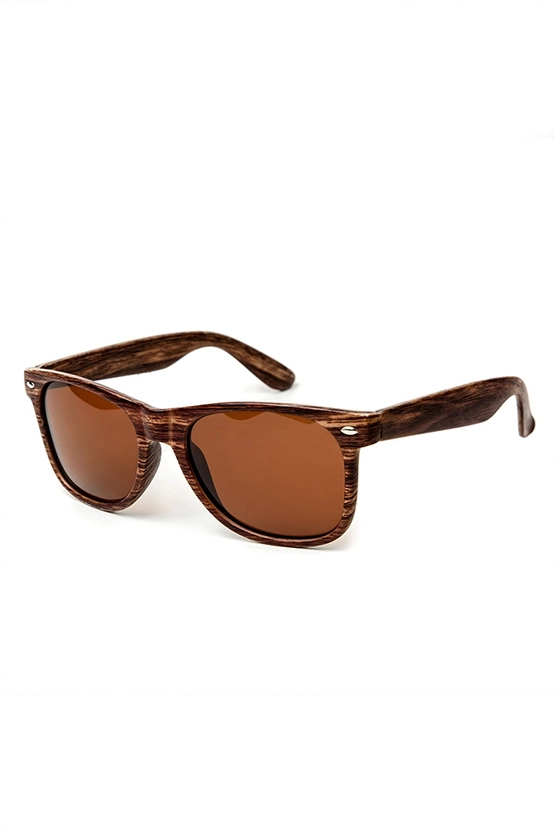
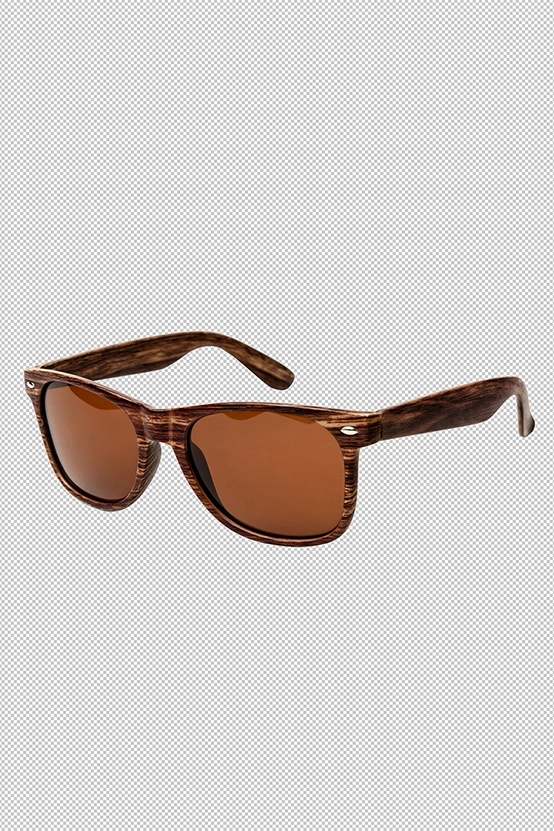
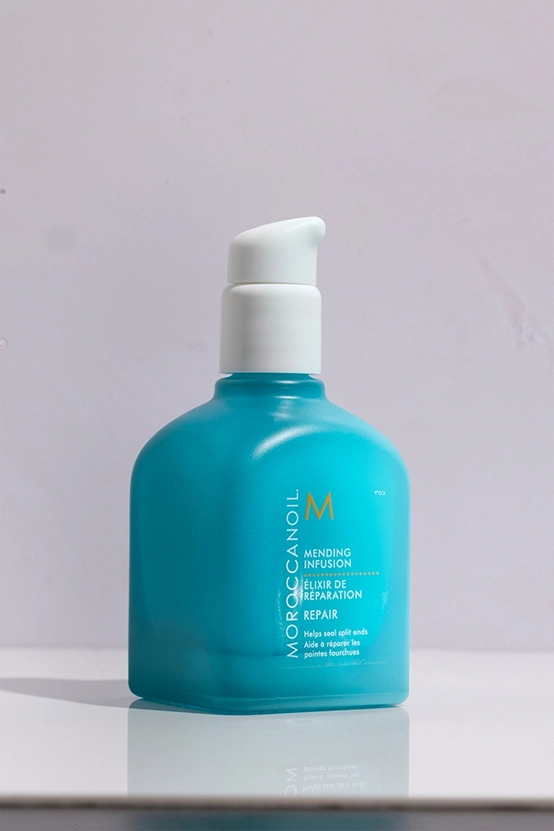
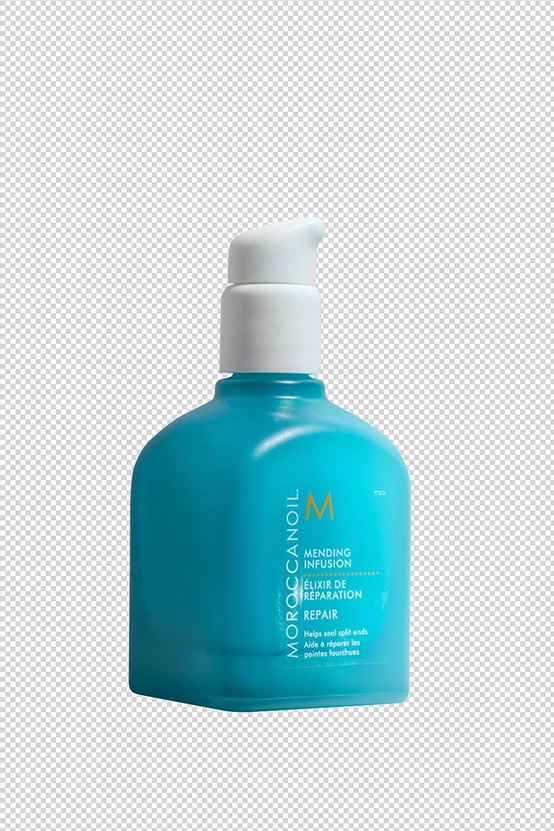
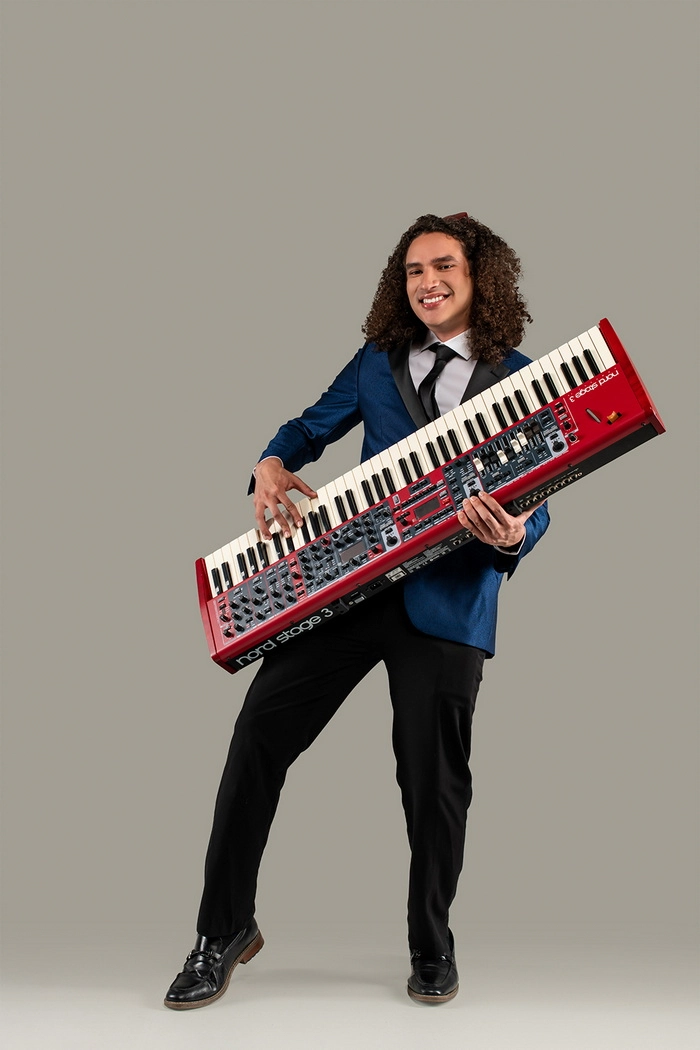
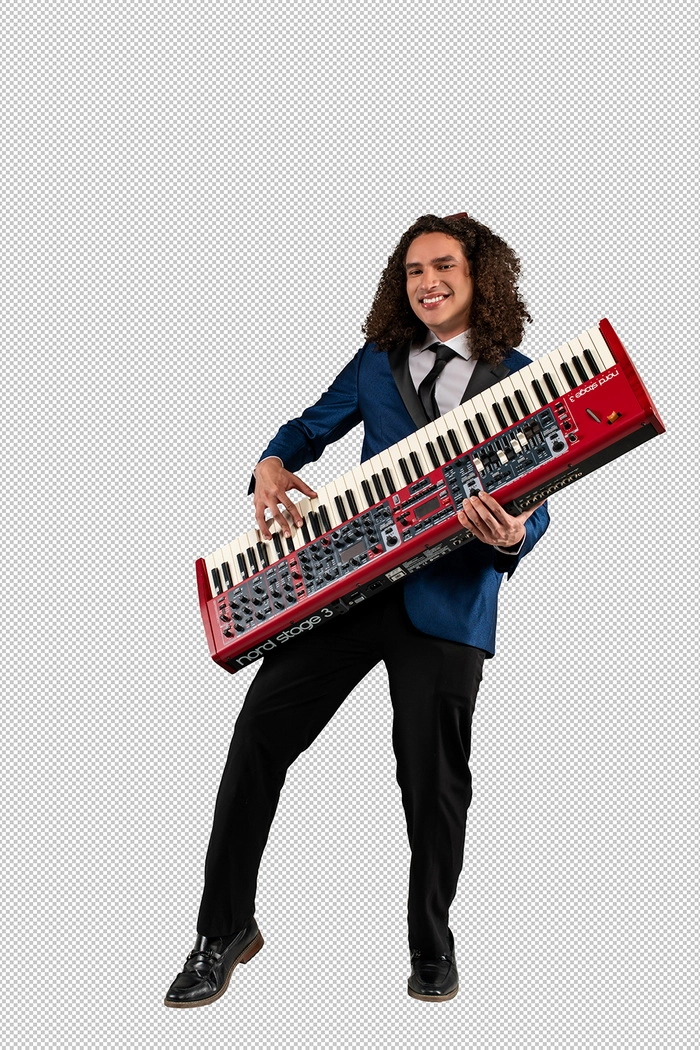
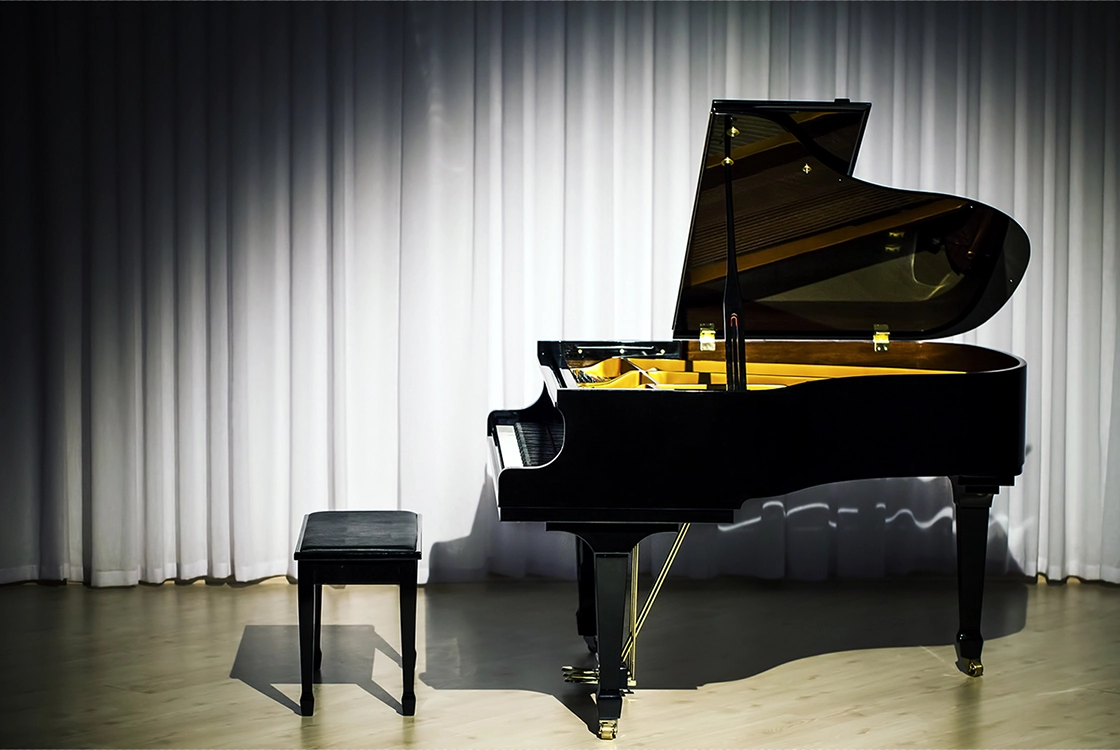
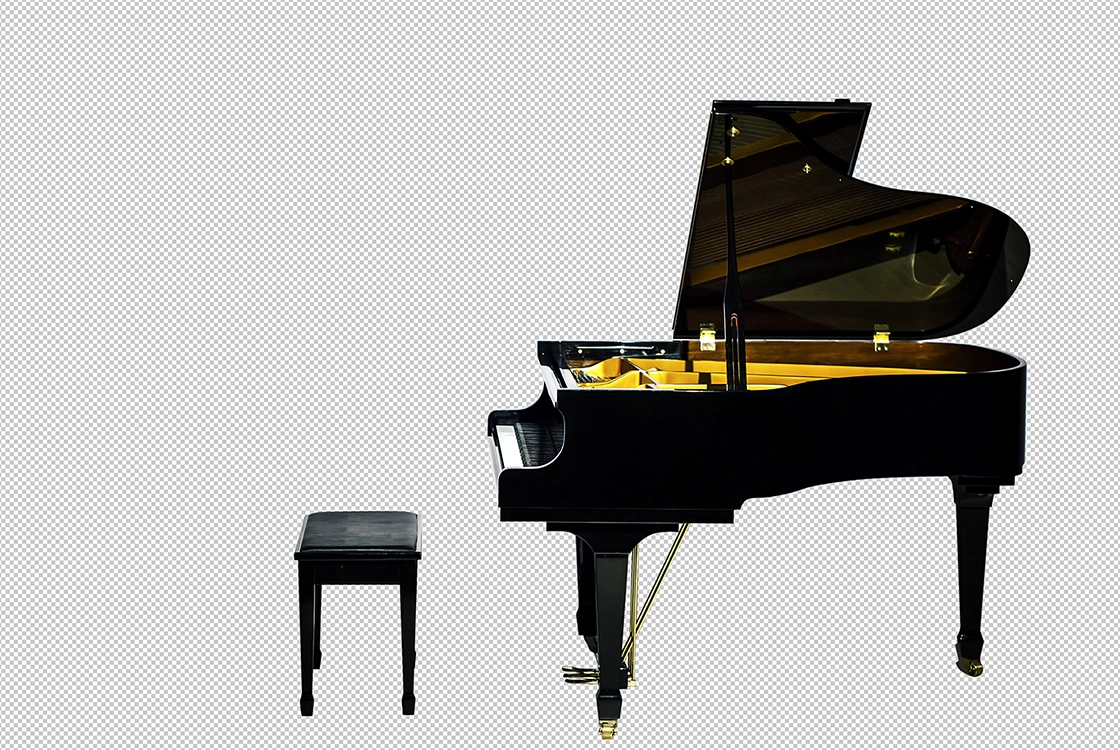
Photoshop Basic Al carte minor clipping path Before Photoshop Basic Al carte minor clipping path After

Minor Clipping Path

$1

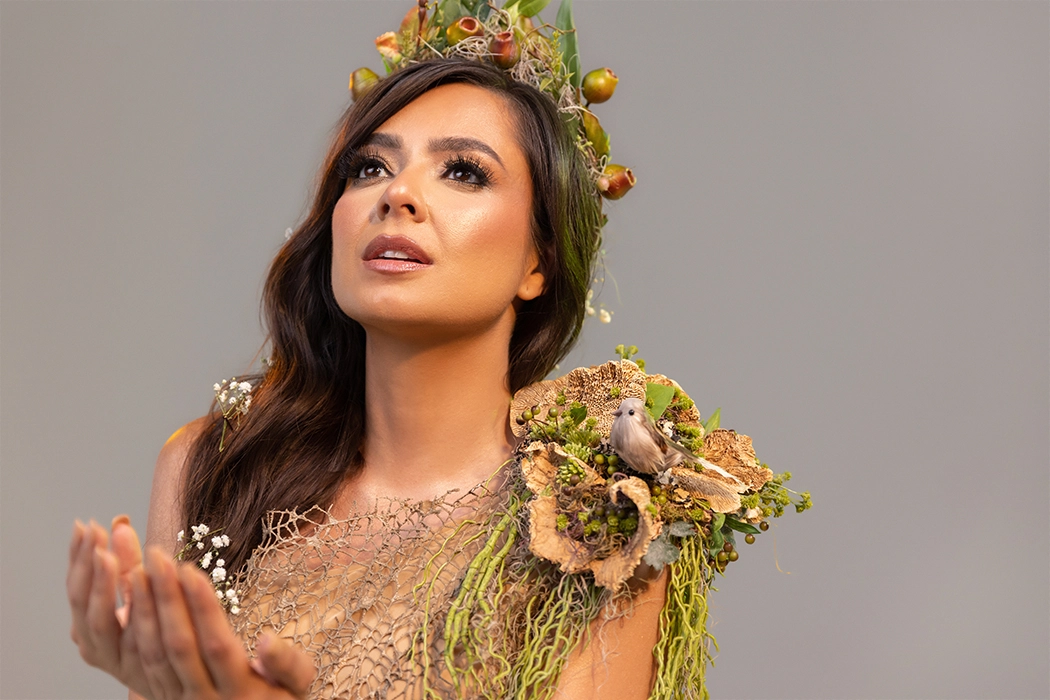
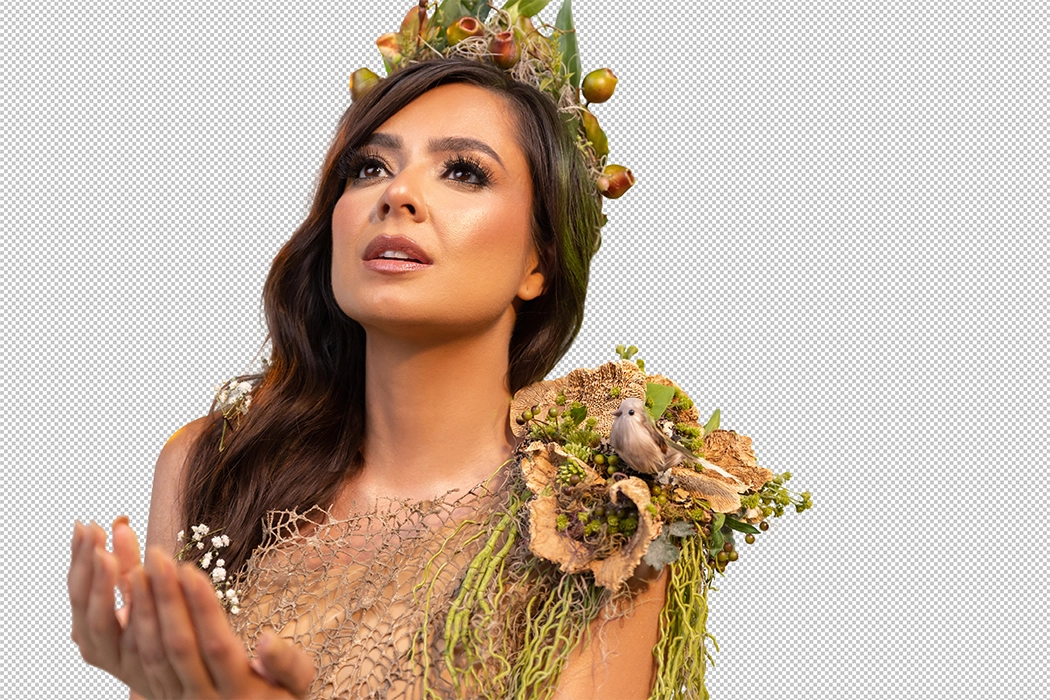
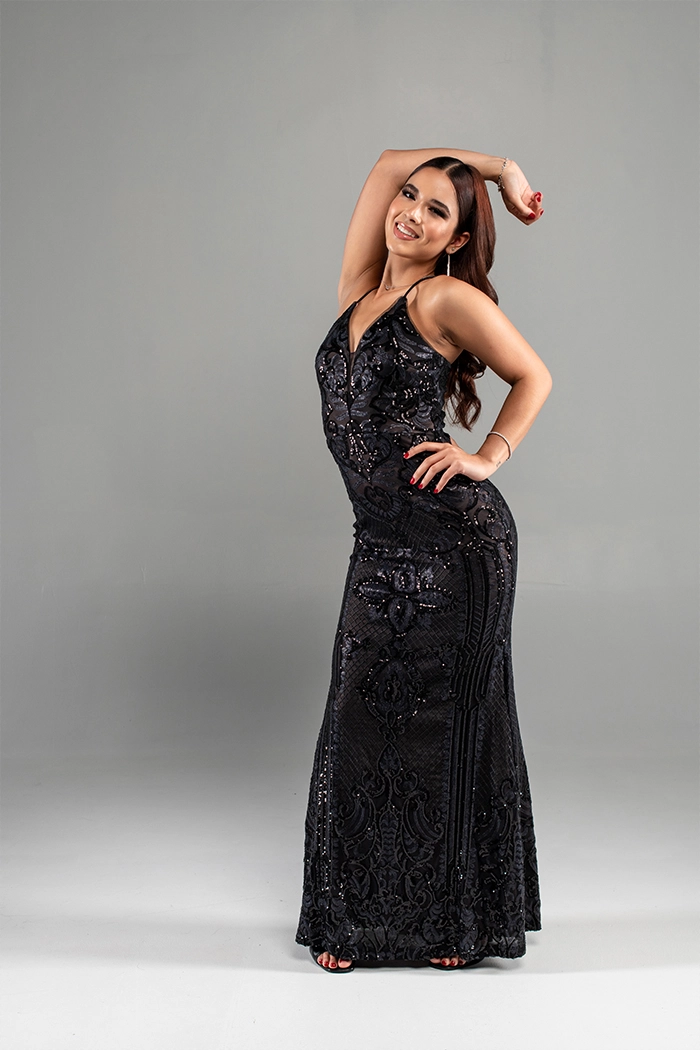
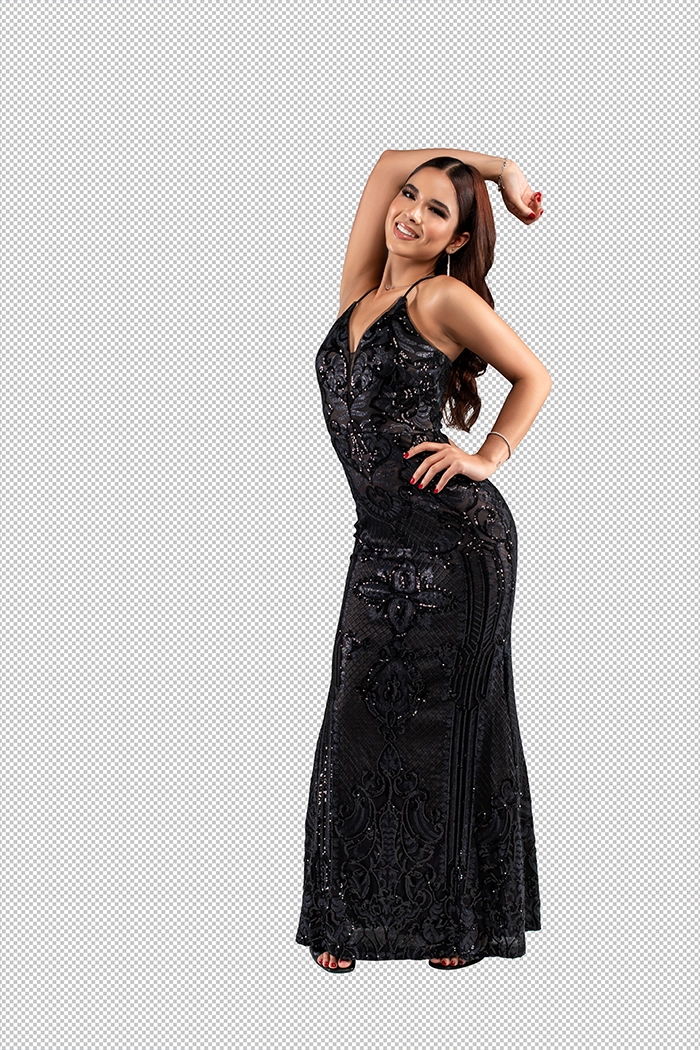
Photoshop Basic Al carte major clipping path Before Photoshop Basic Al carte major clipping path After

Major Clipping Path

$3

What We Do in Bulk Edit

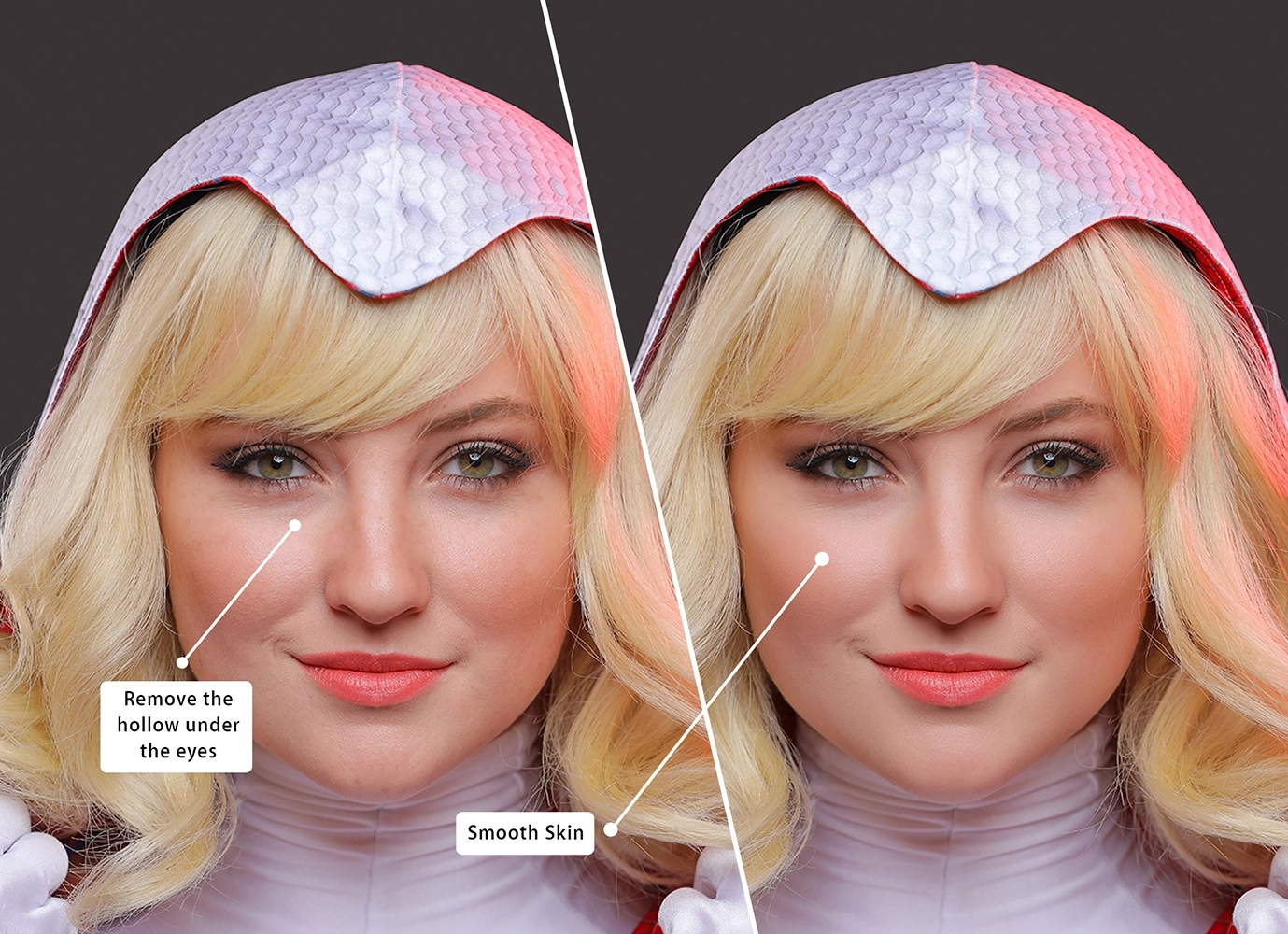
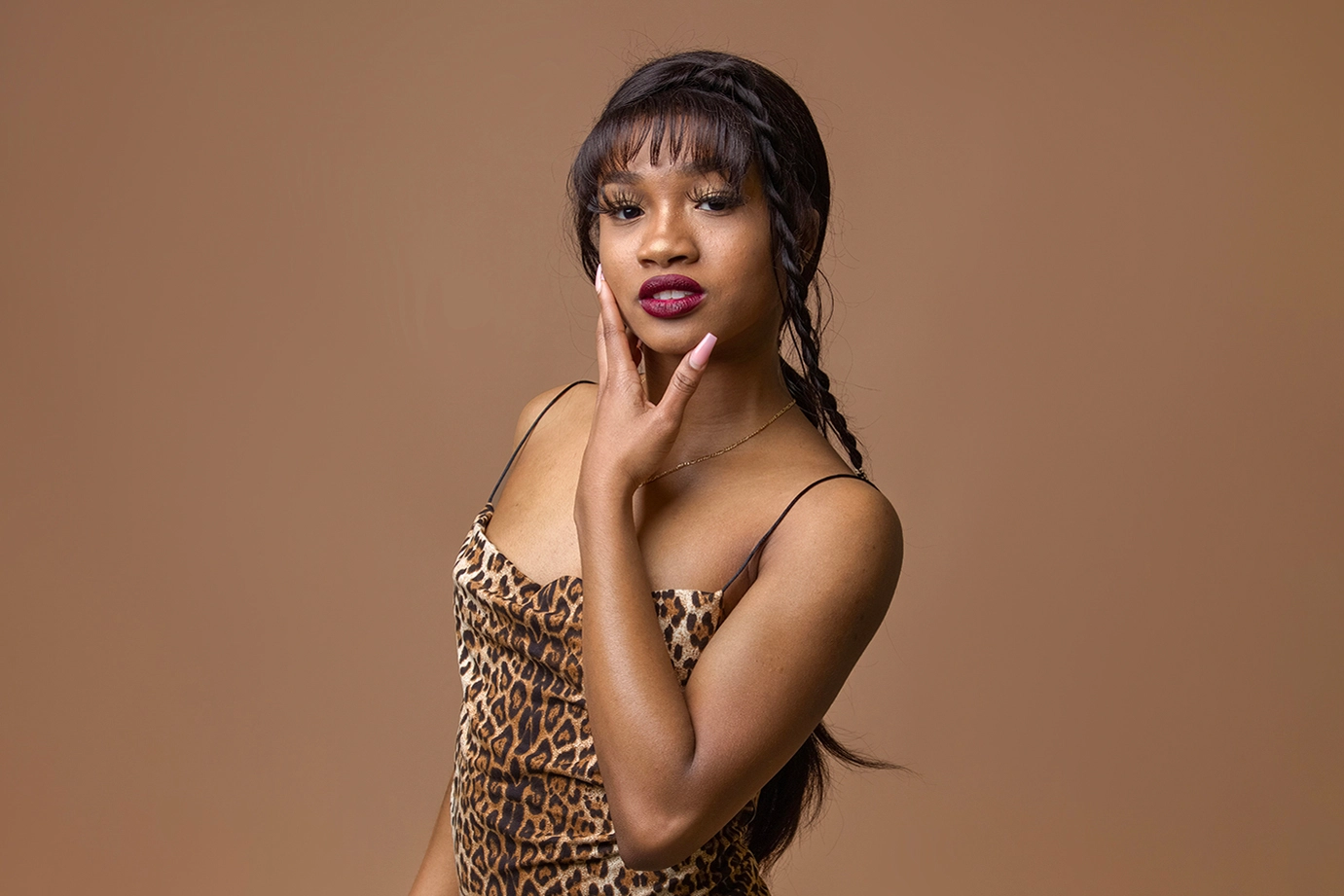
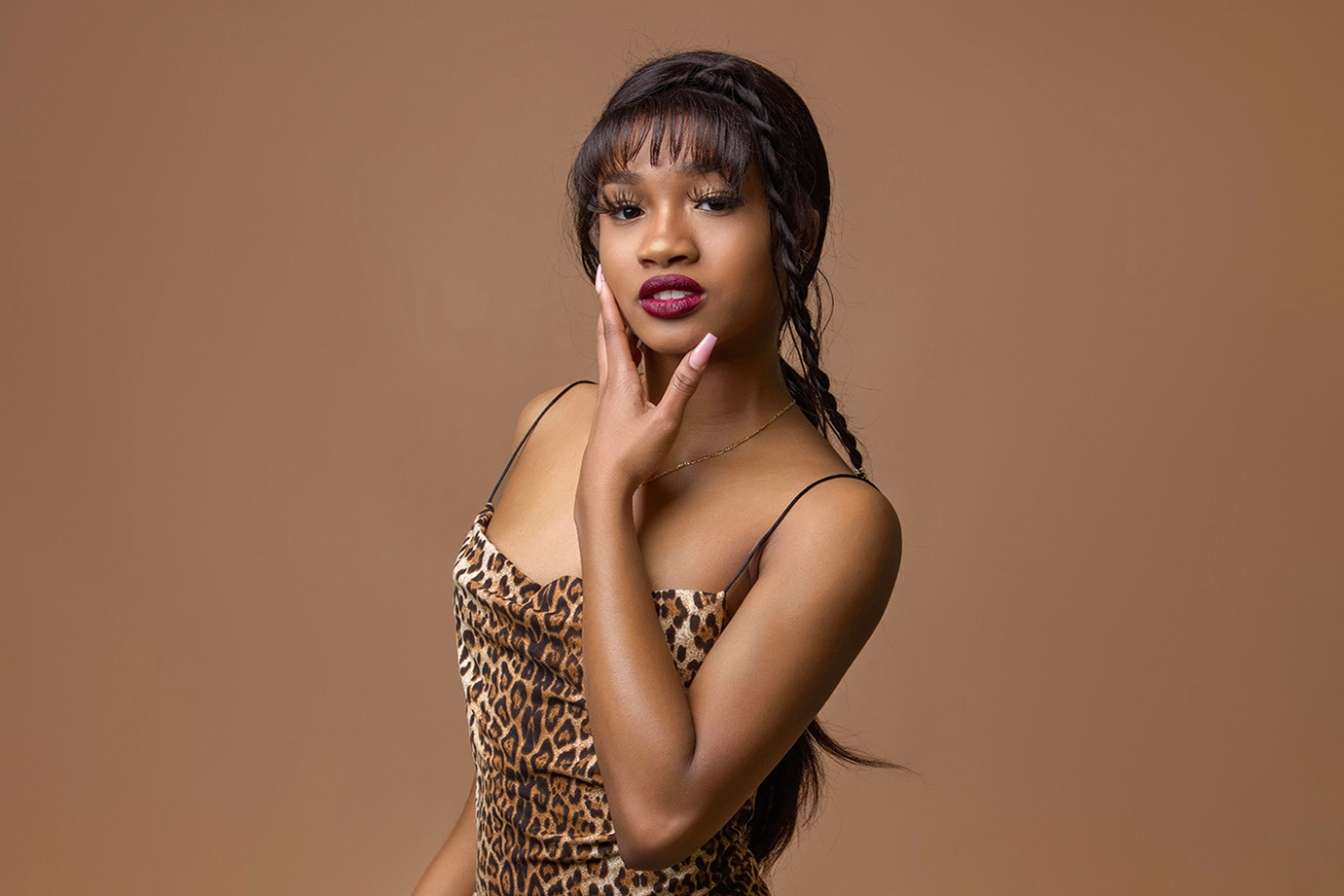
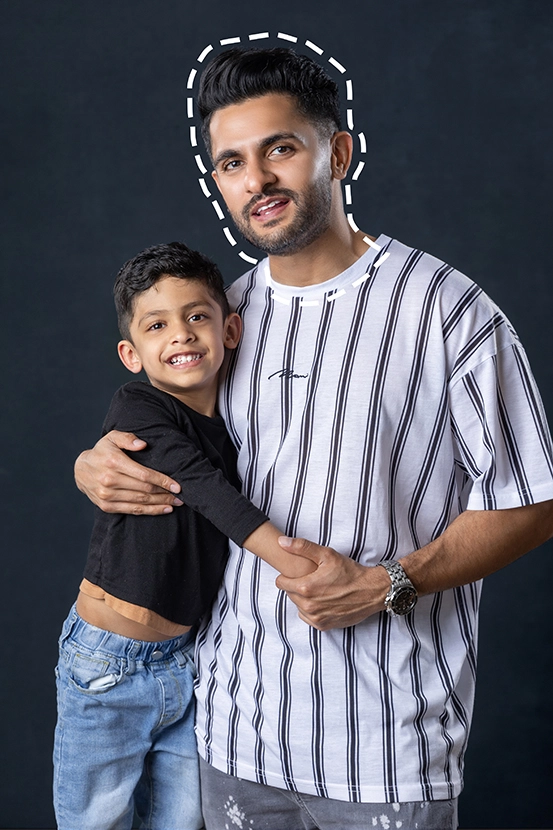
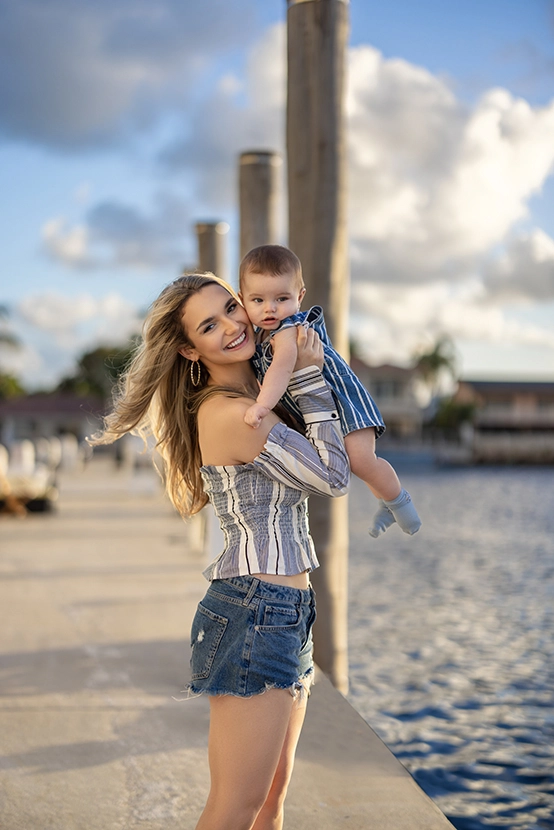
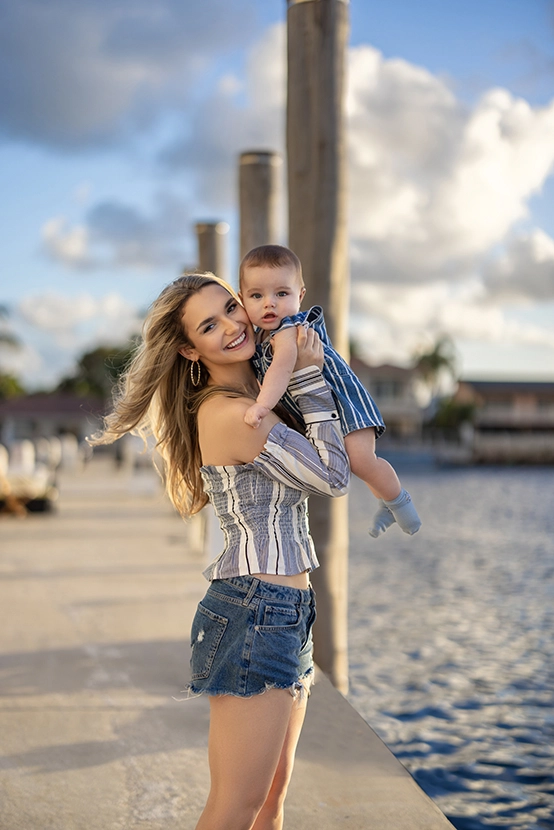
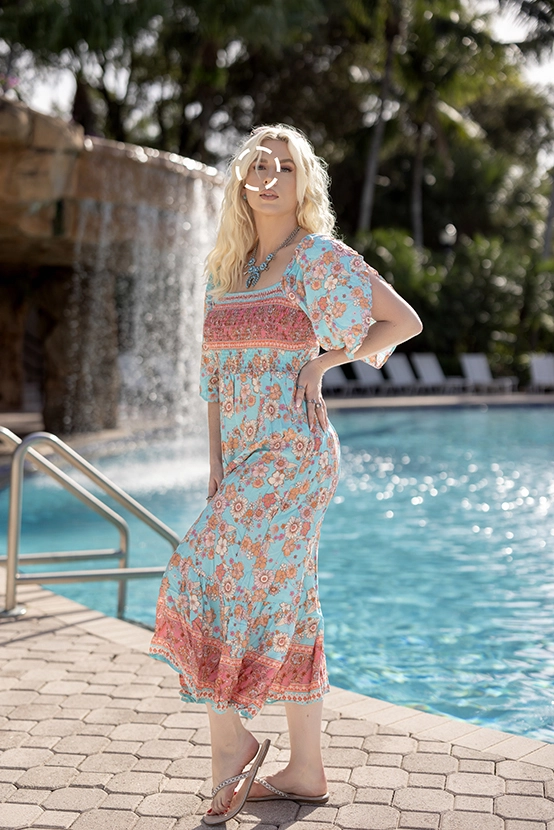
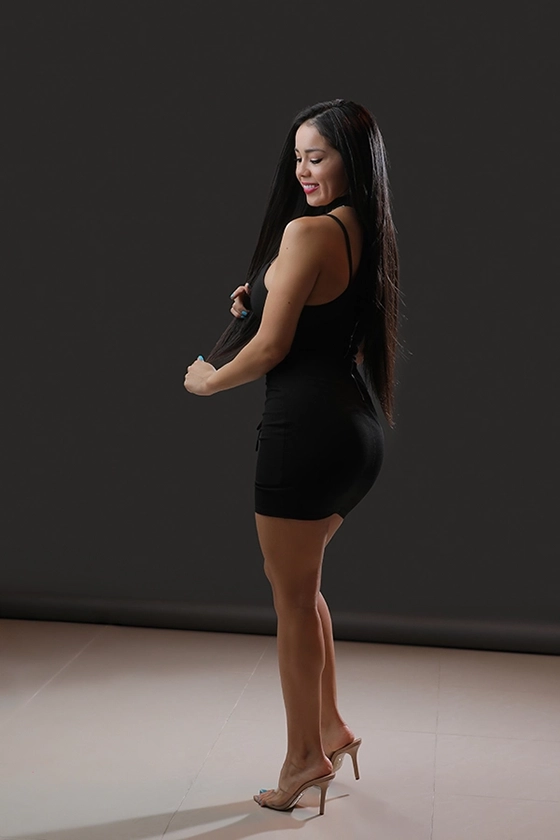
Skin Smoothing

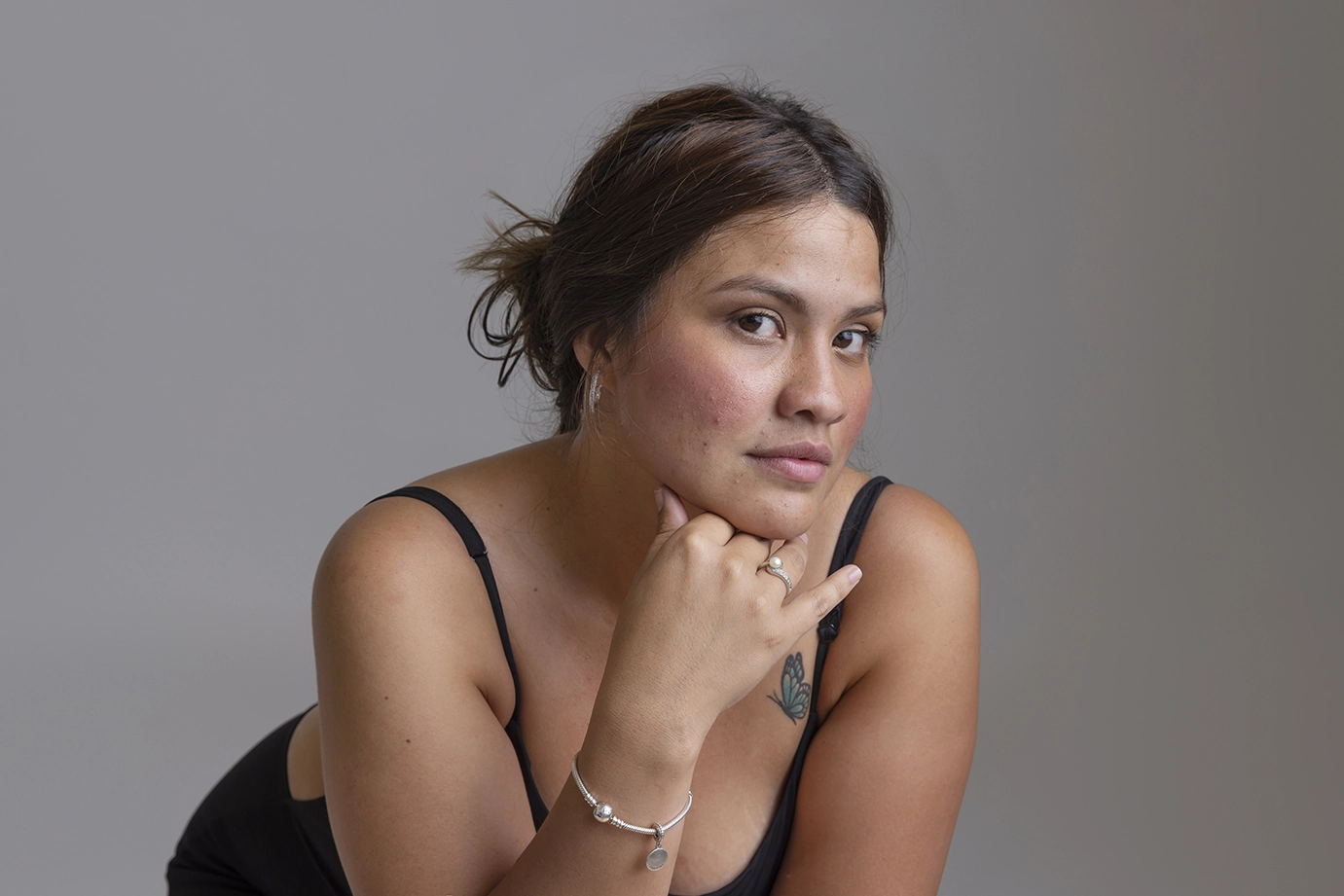
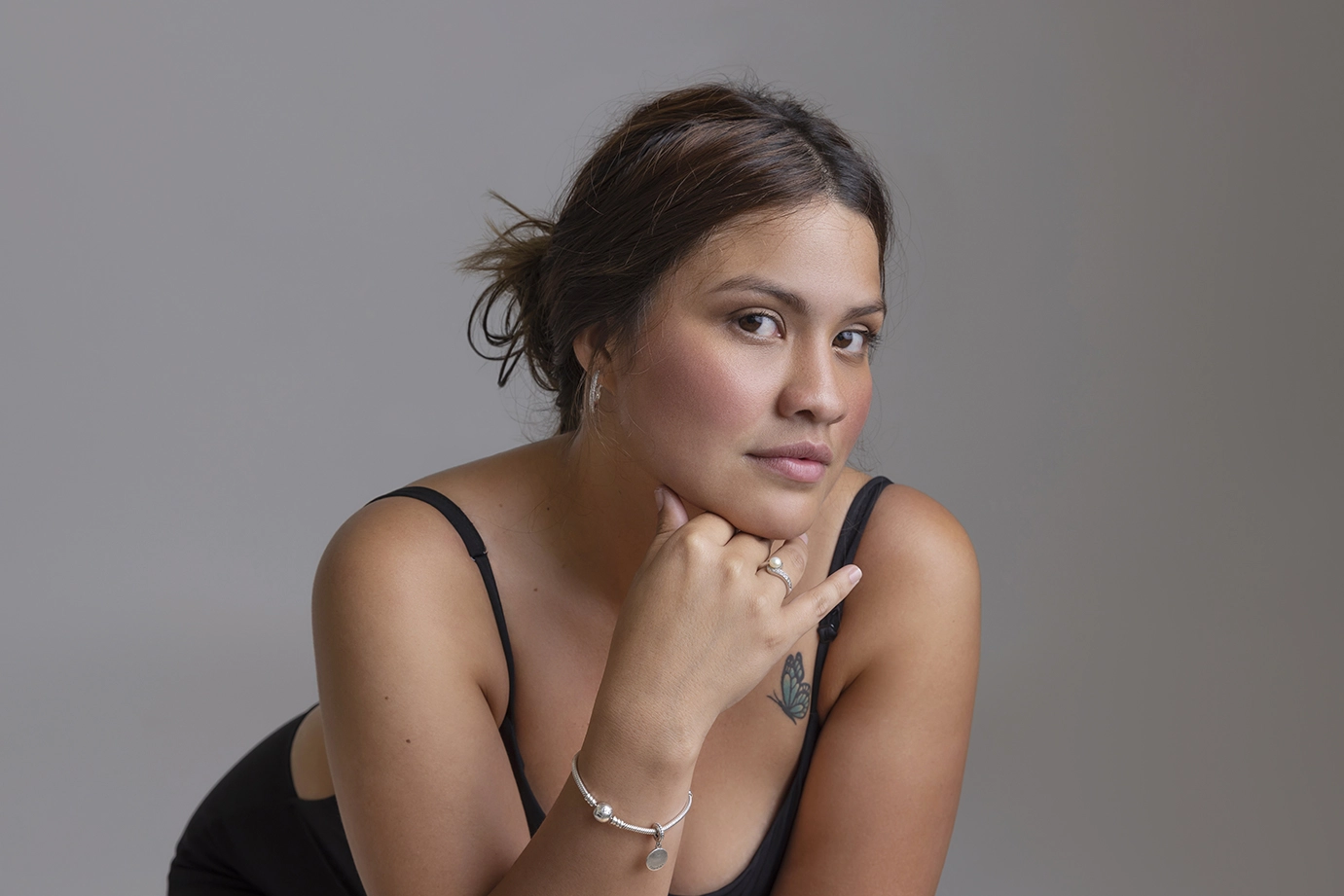
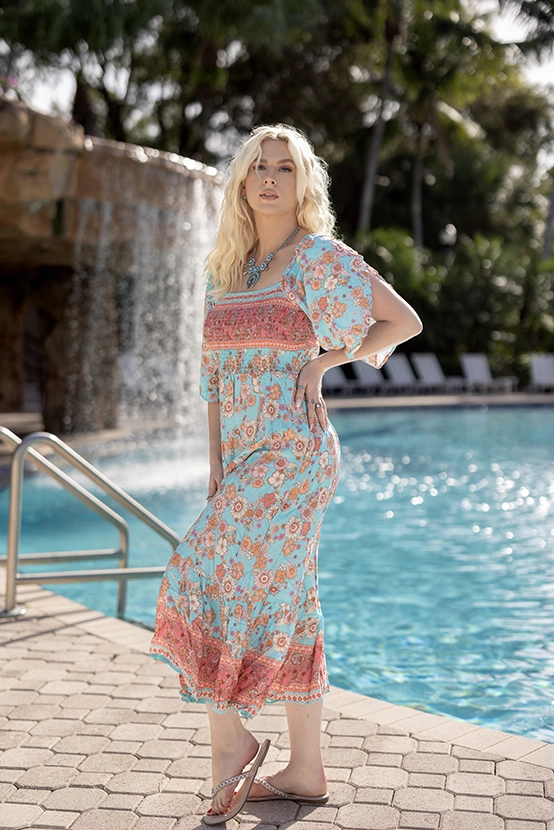
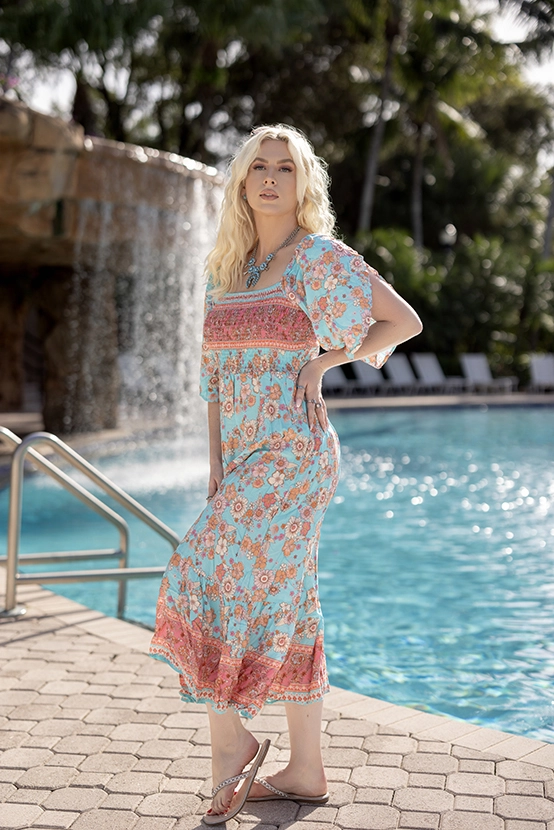
Skin Smoothing softens the appearance of skin by refining its texture. This polishes the skin tone and improves its overall look without losing essential details. The final result is a natural, flawless appearance that highlights the subject’s features, whilst maintaining a realistic quality. Skin Smoothing is particularly effective in beauty and fashion photoshoots, where a smooth and refined look is desired.
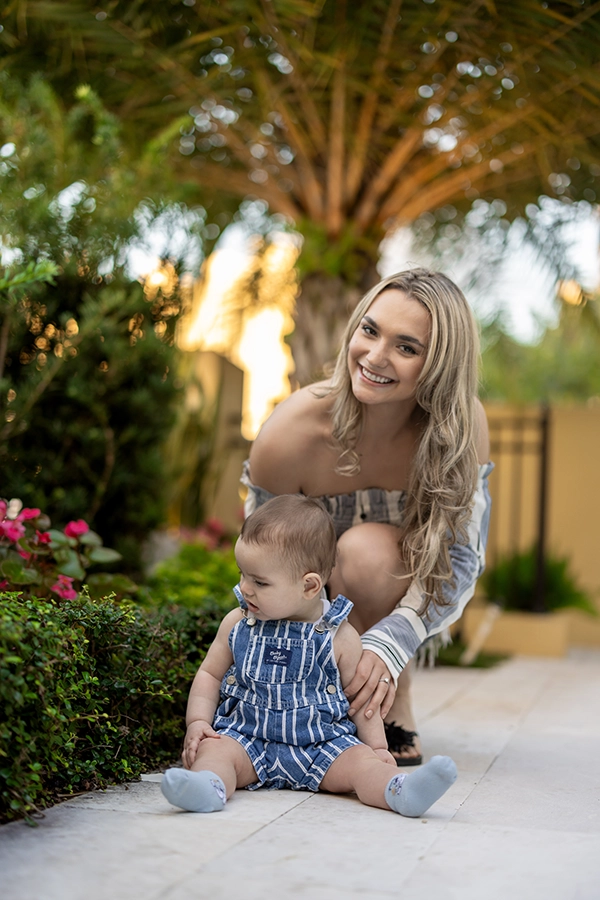
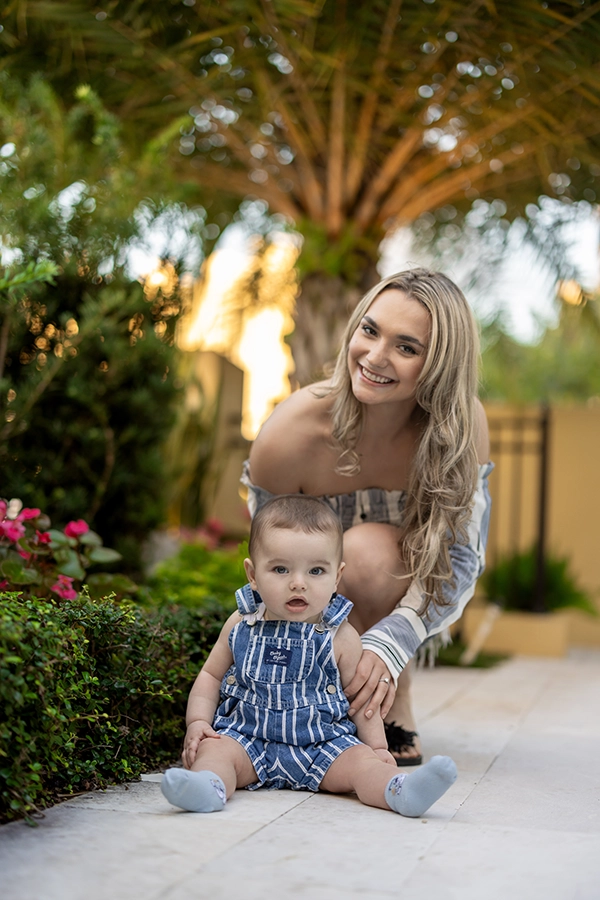
what we do in Bulk Edit Skin Smoothing

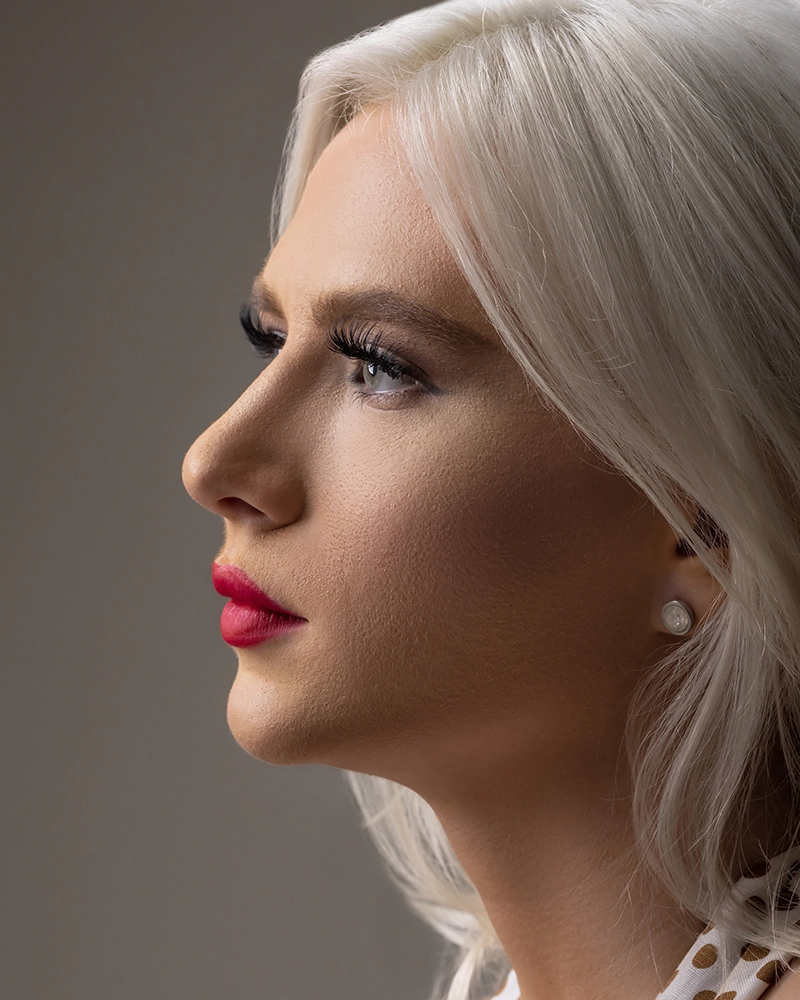
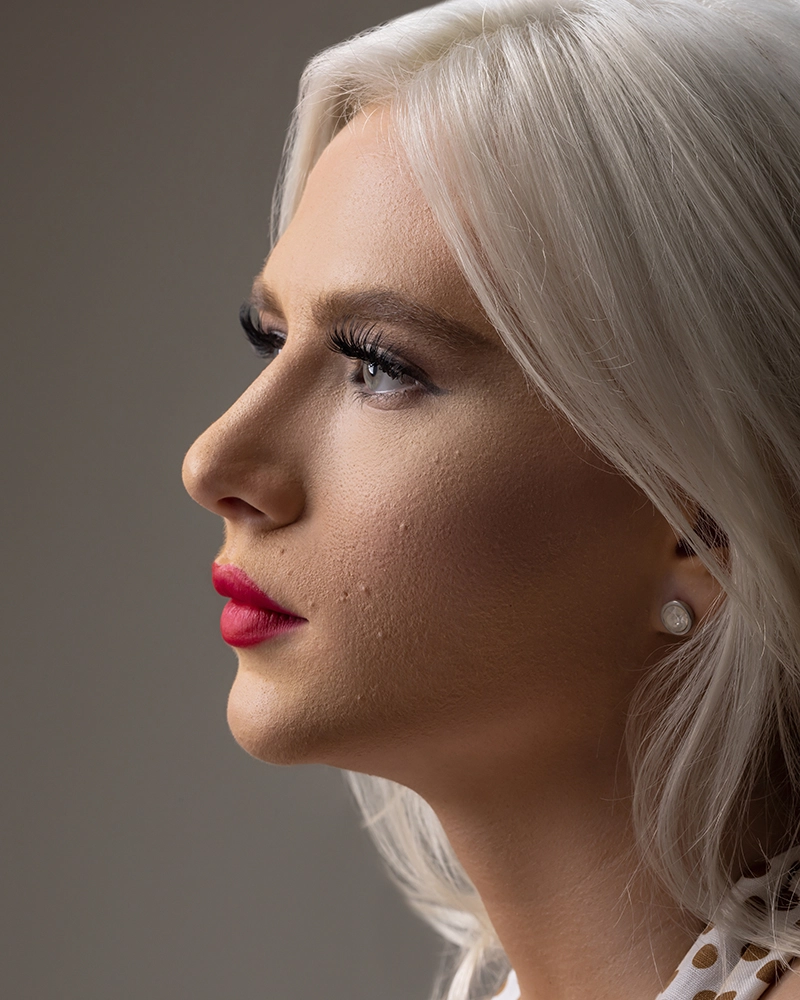
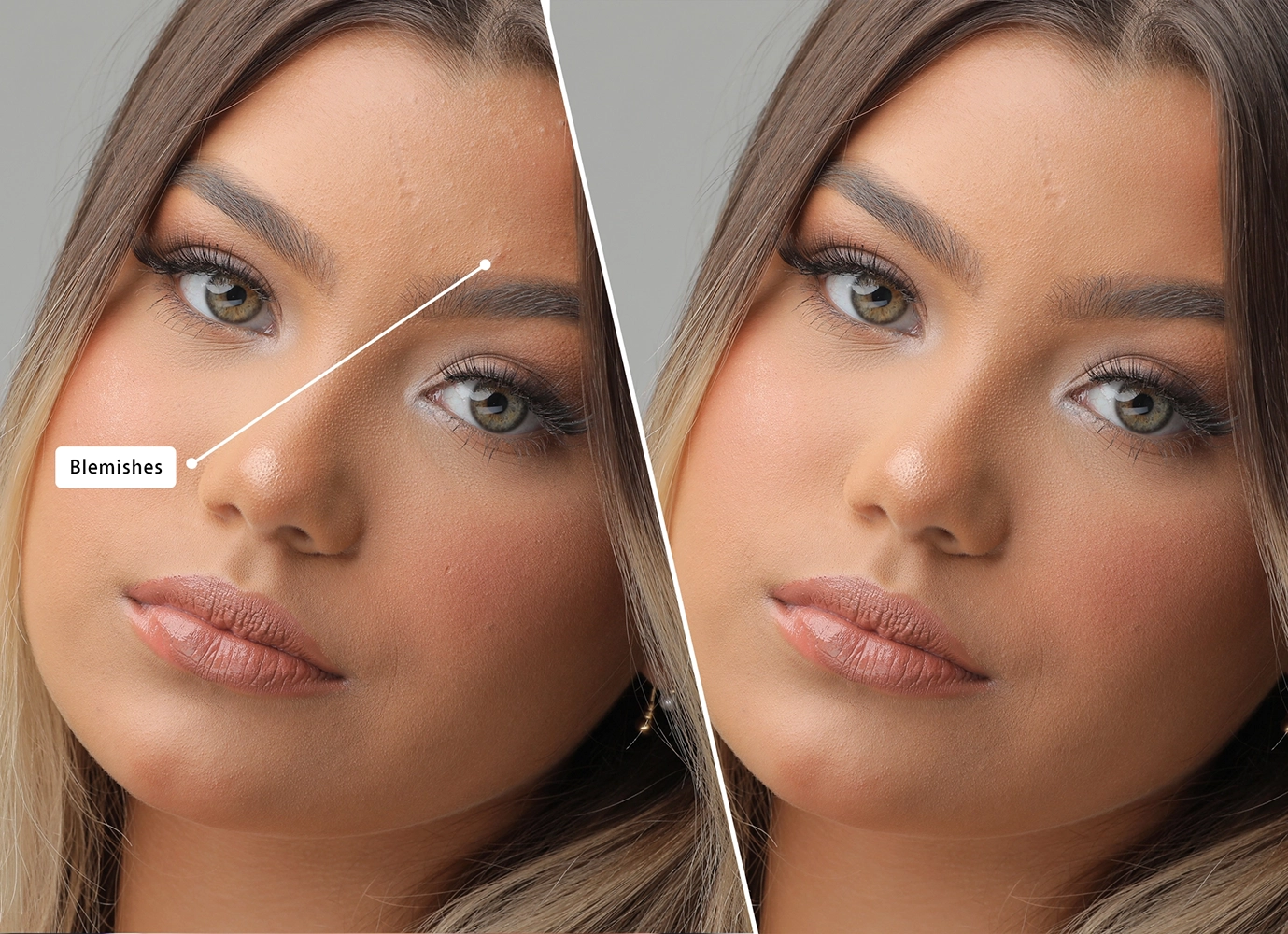
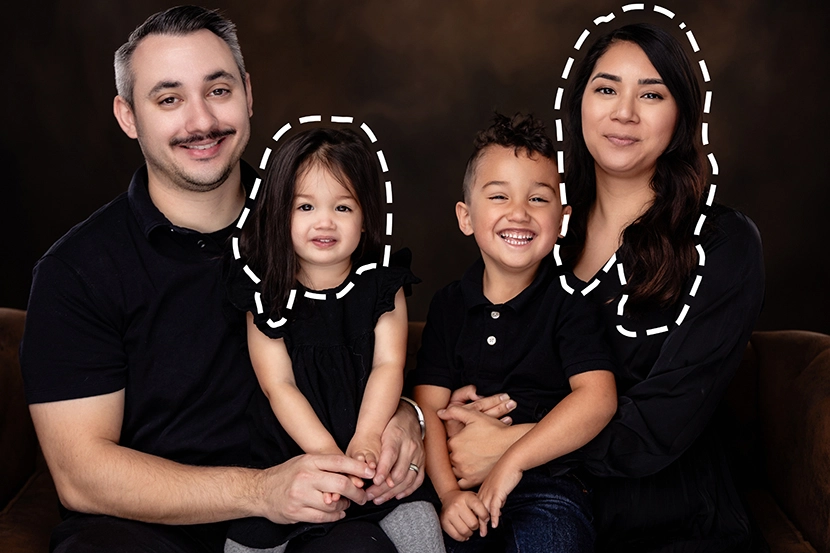
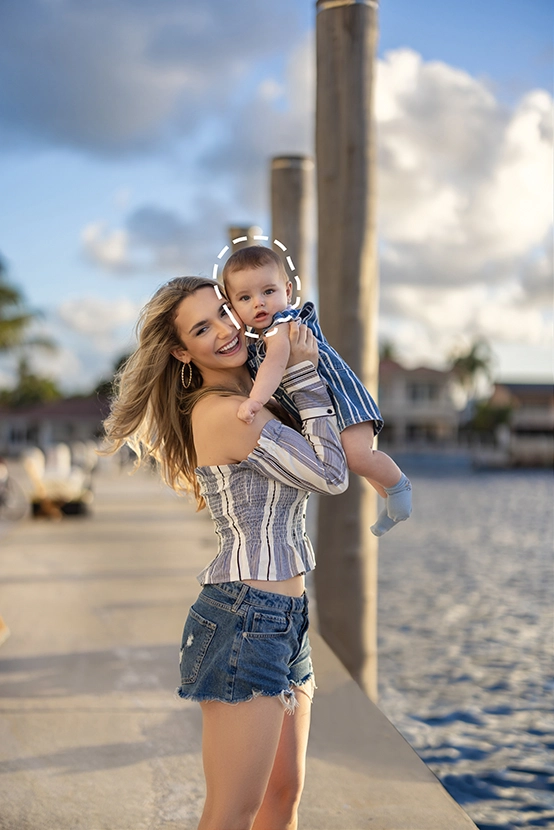
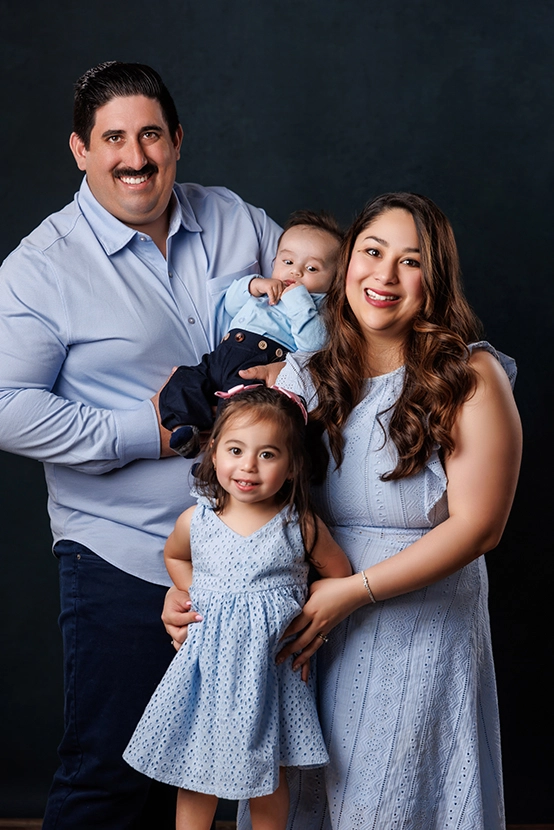
Remove Blemishes

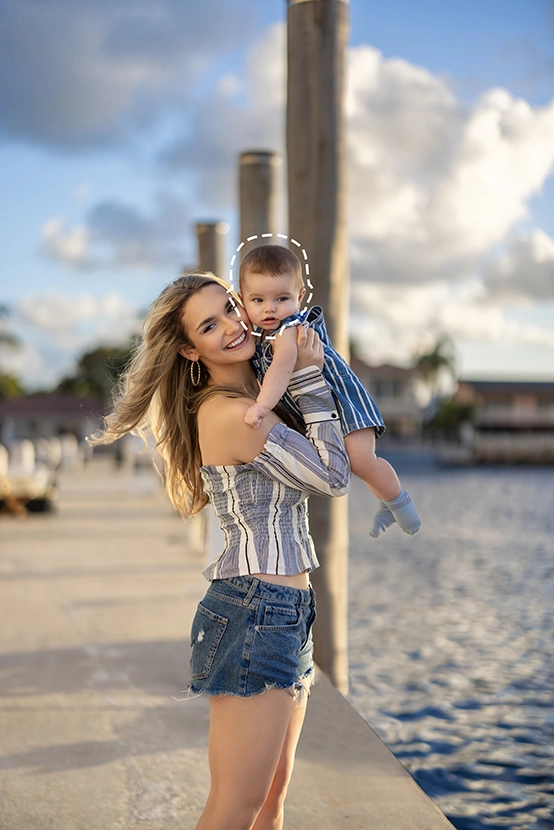
Remove Blemishes is designed to quickly and effectively eliminate small imperfections, such as pimples, spots, or scars. This creates a cleaner, more polished appearance while preserving the natural quality of the skin. It allows for removing any distractions without altering the subject’s unique features.
what we do in Bulk Edit Remove Blemishes

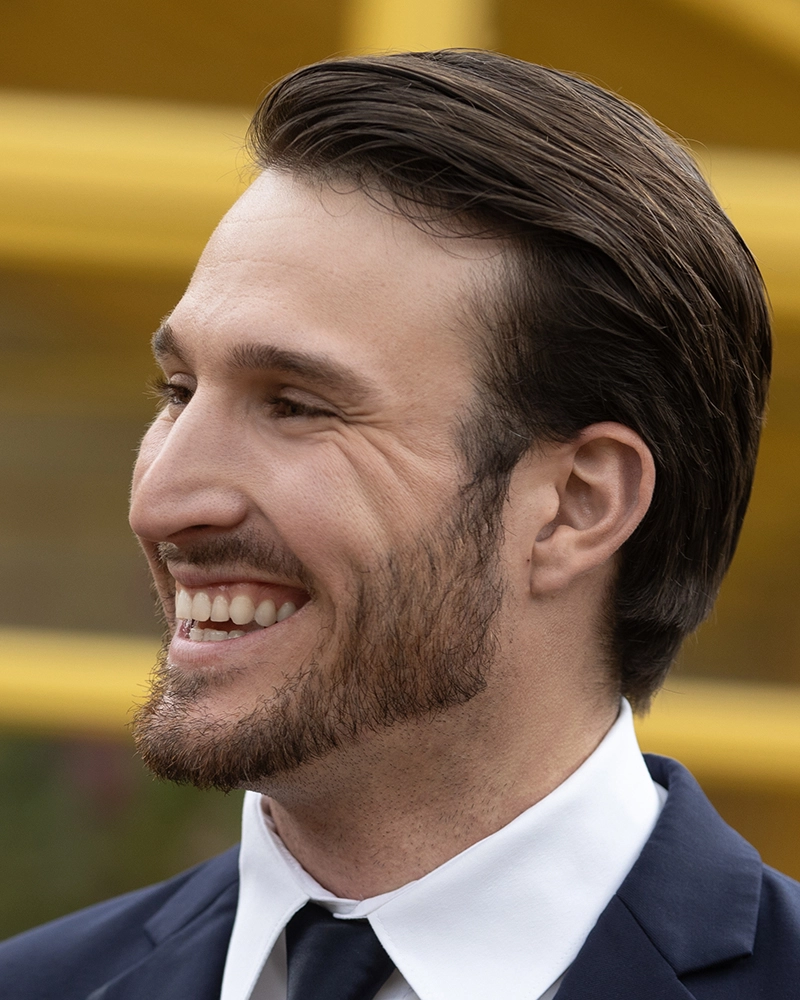
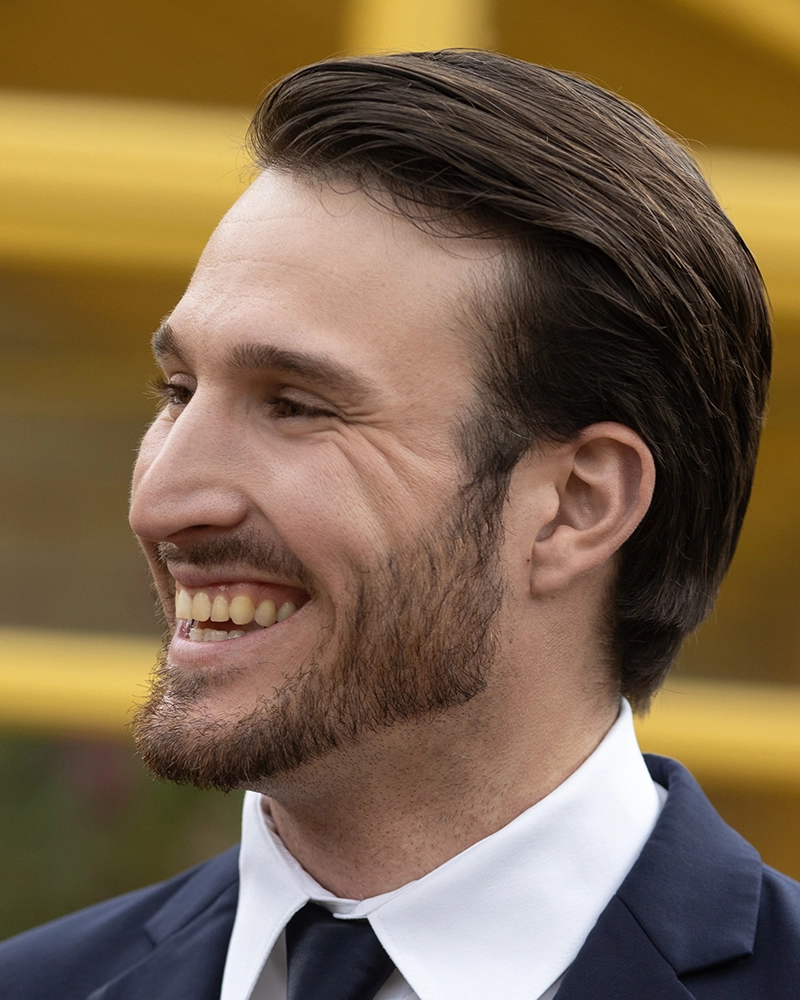
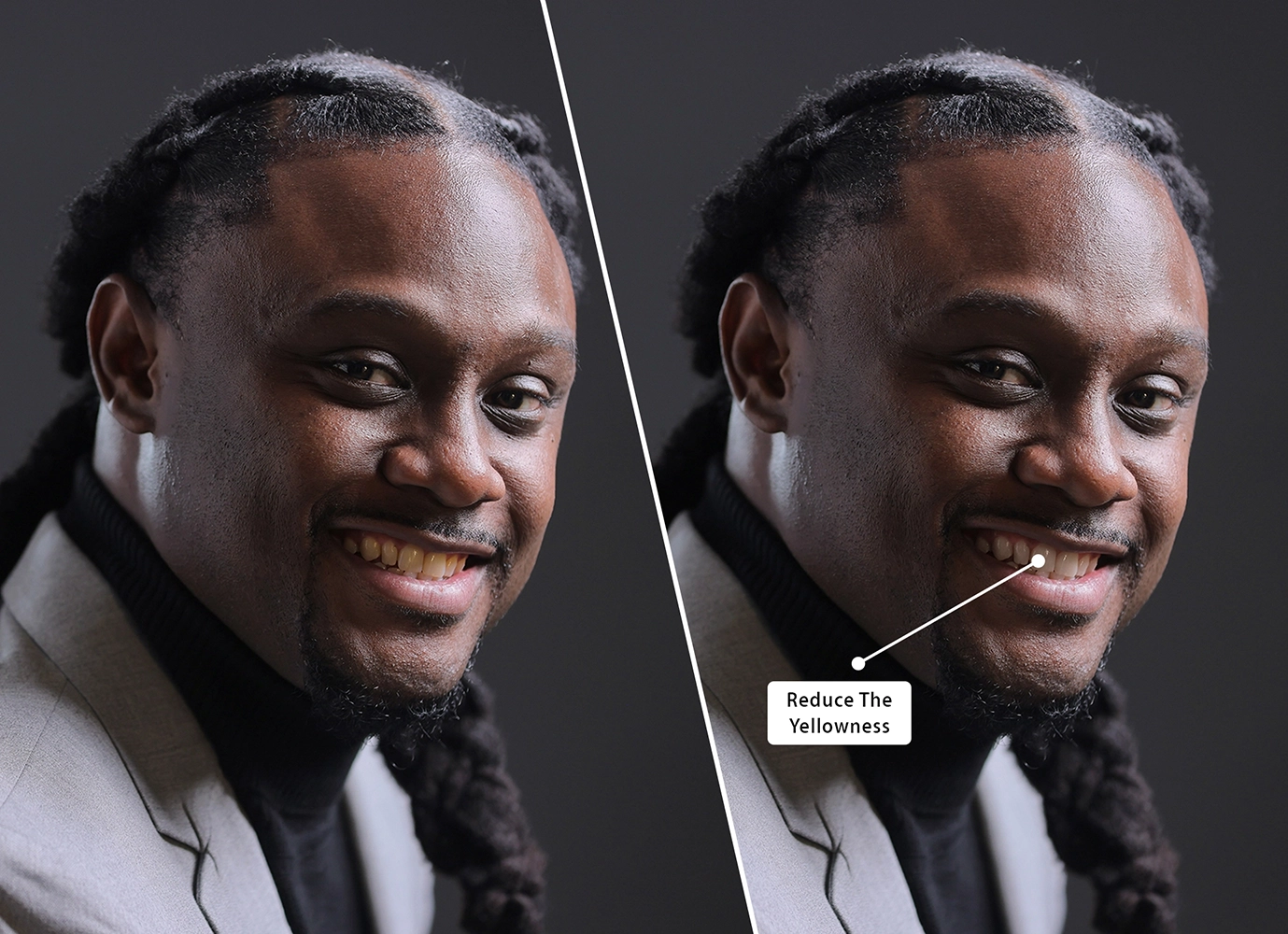
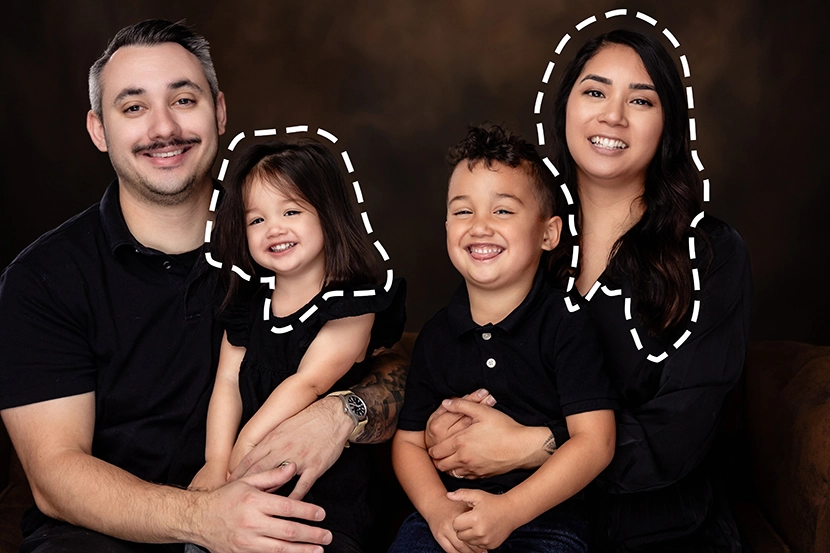
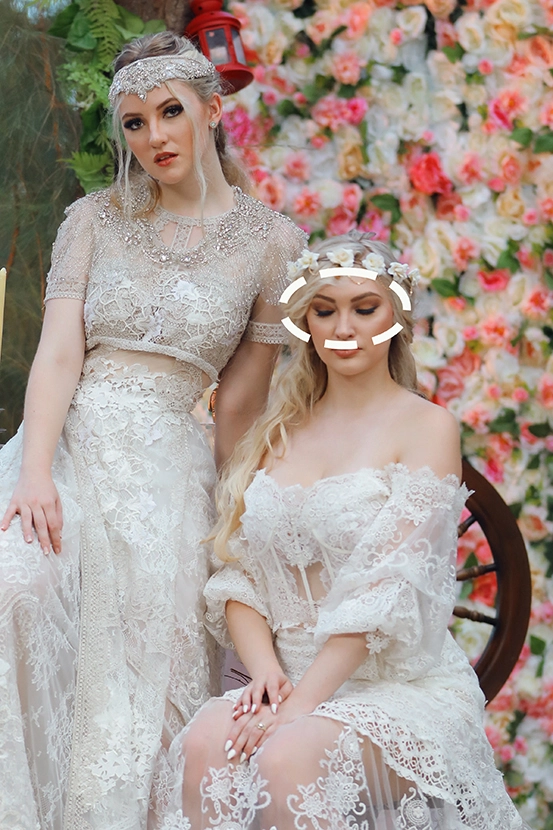
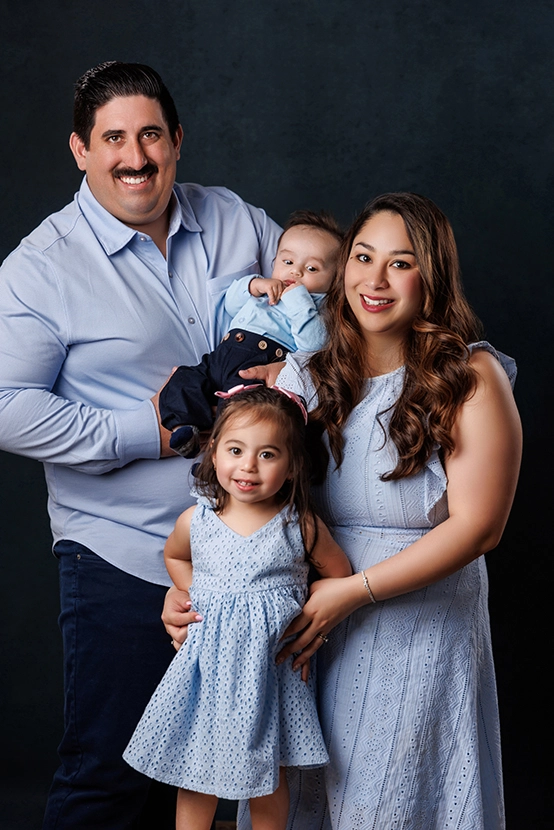
Whiten Teeth

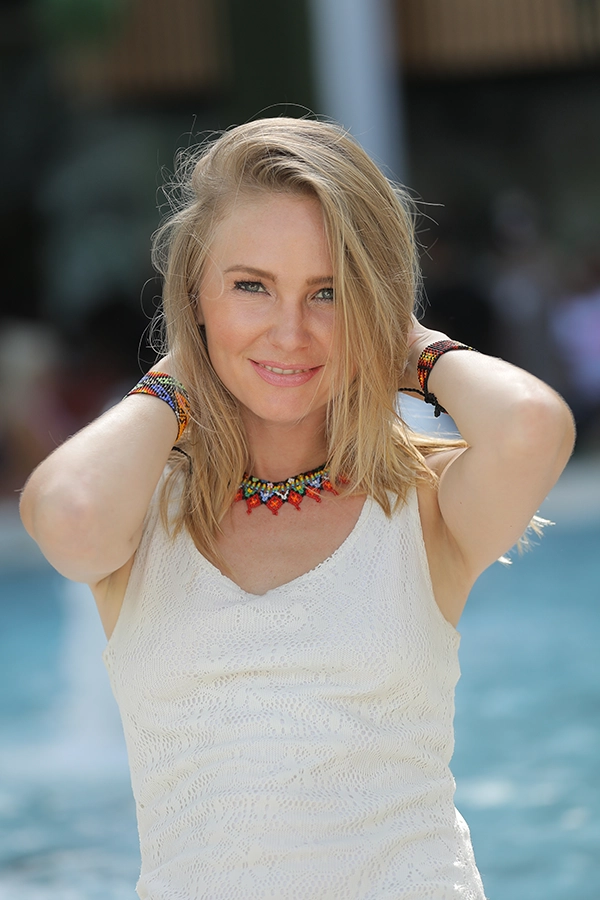
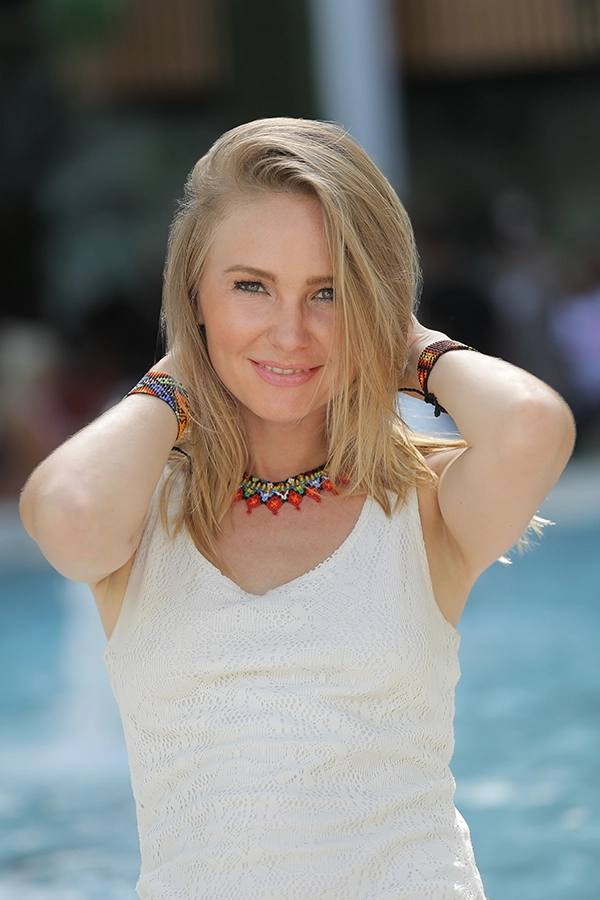
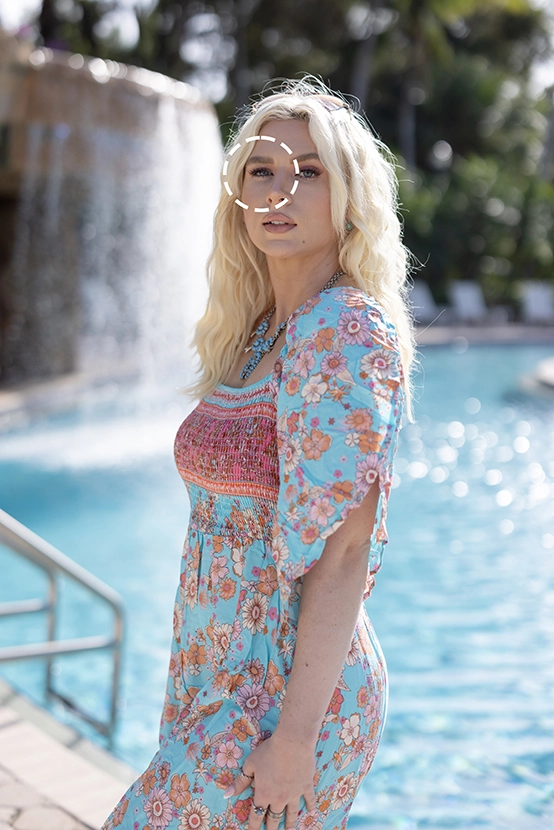
Whiten Teeth is used to brighten the appearance of teeth in photos, giving them a cleaner and shinier look. By subtly lightening the teeth, any yellow or dull tones are removed, while still appearing natural. A bright smile in portrait photography can improve the subject’s overall appeal significantly, making them bright and confident.
what we do in Bulk Edit Teeth Whitening

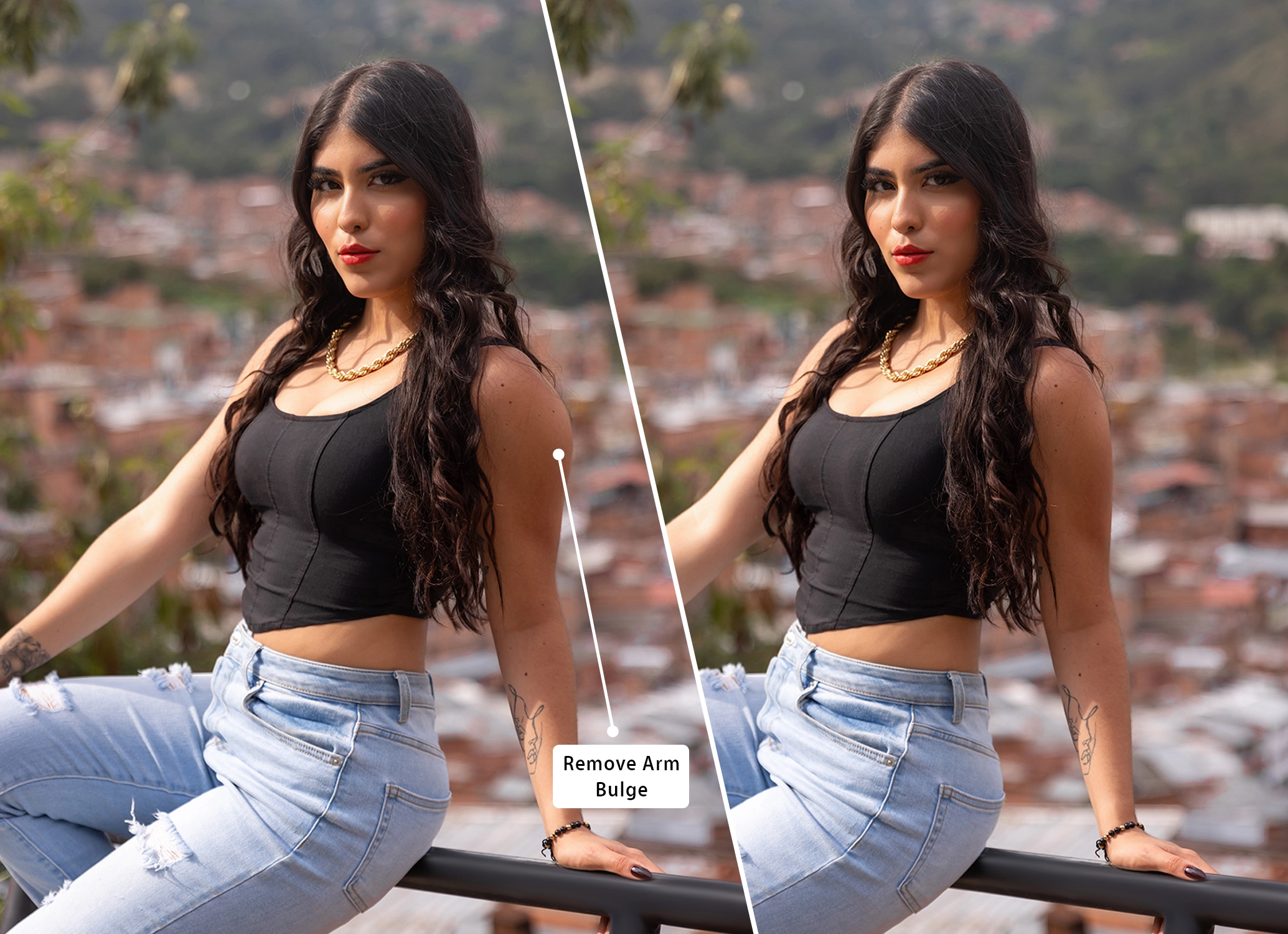
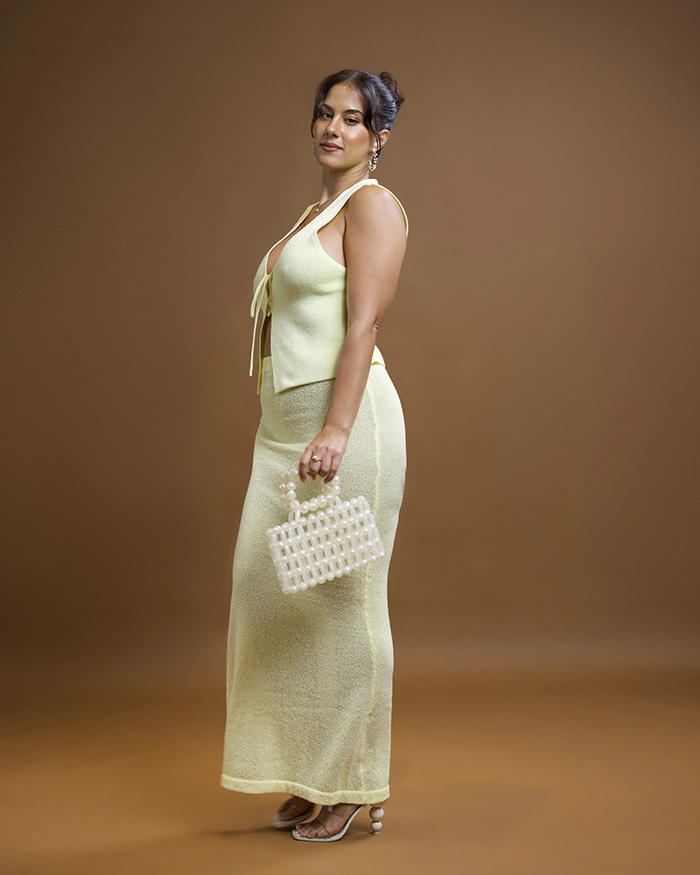
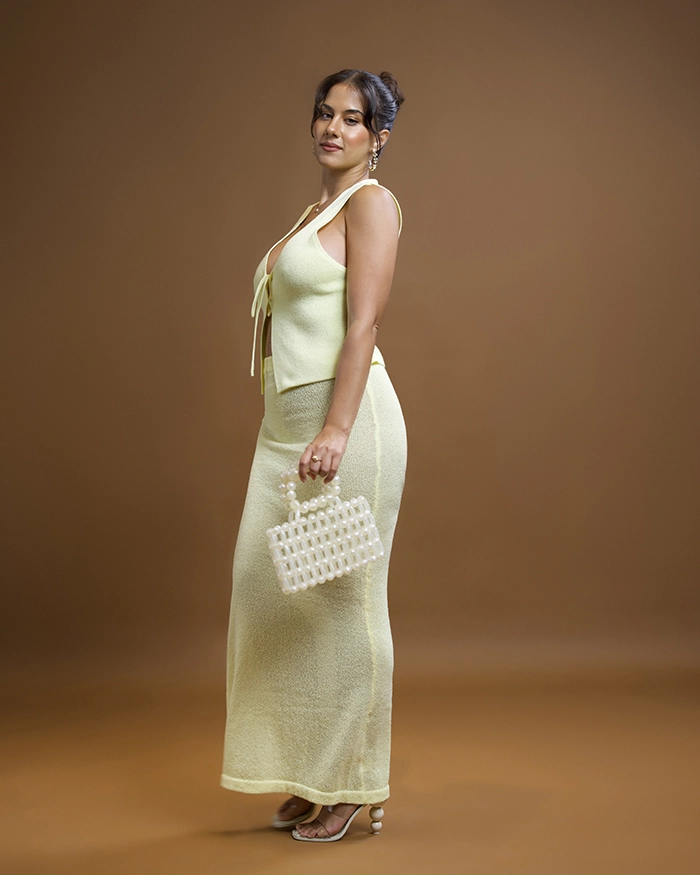
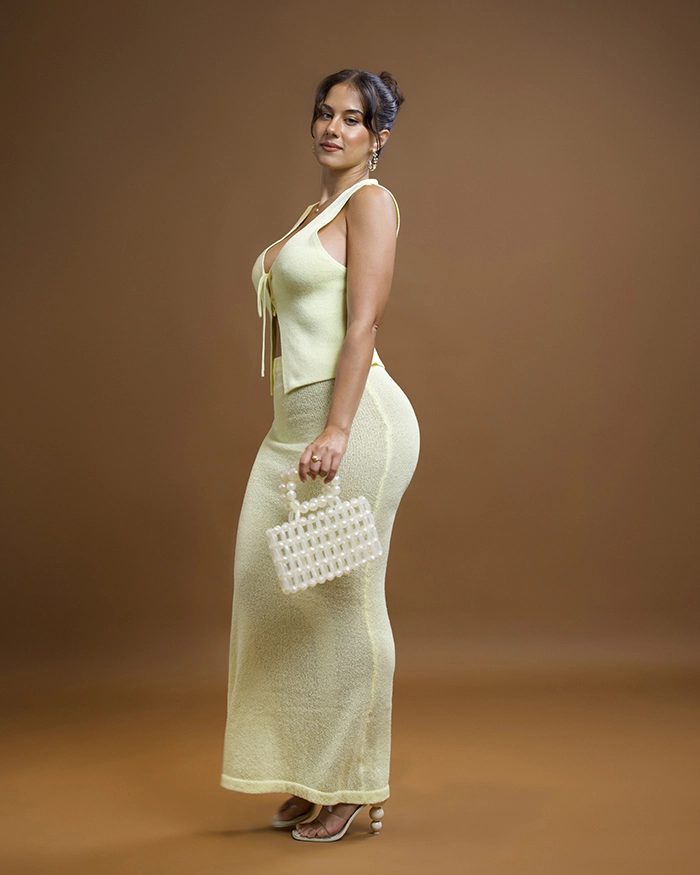
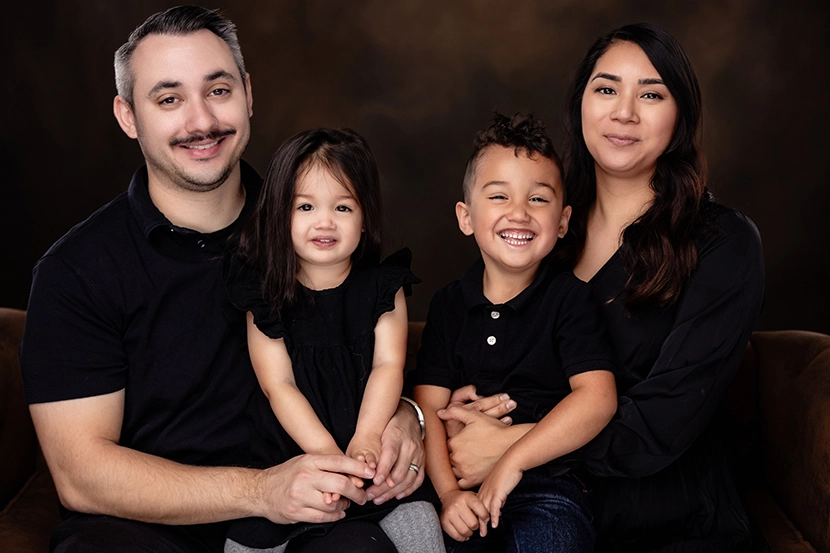
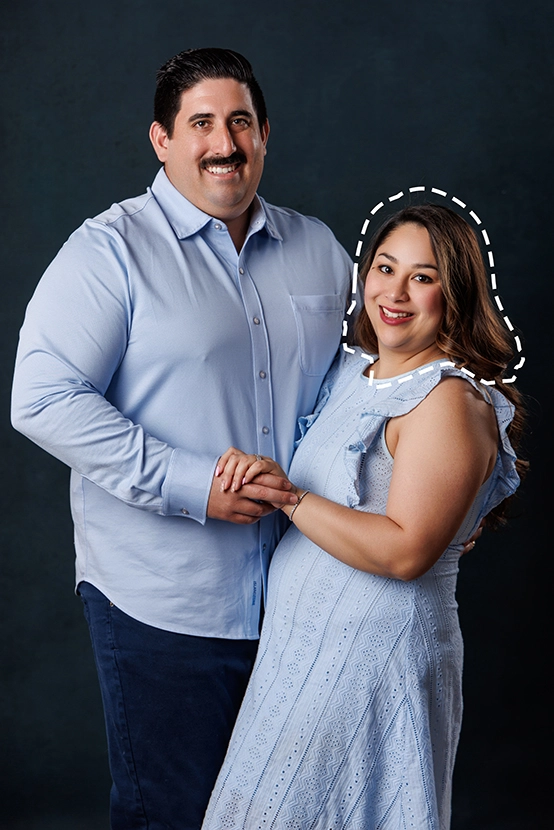
Liquify

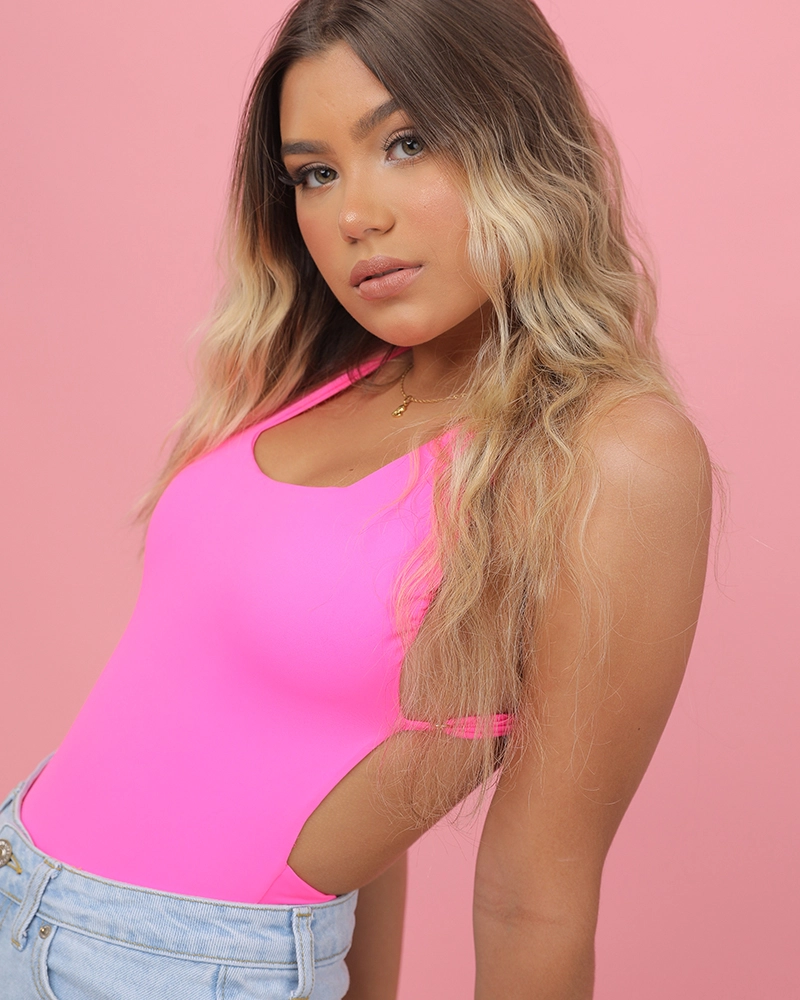
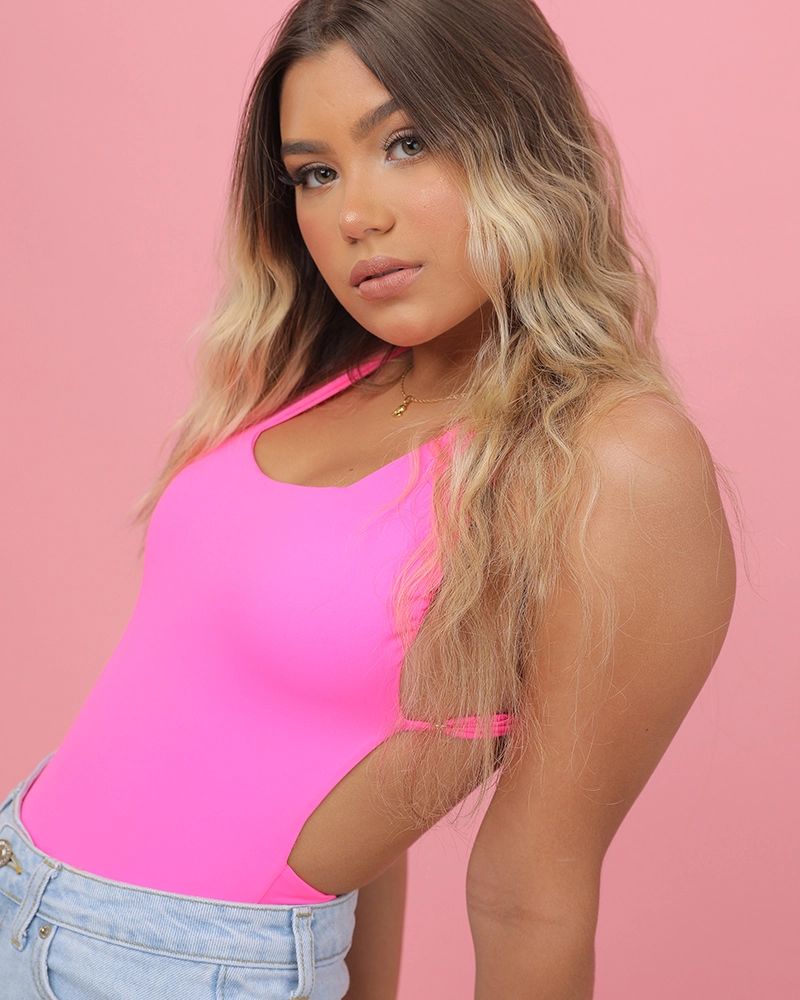
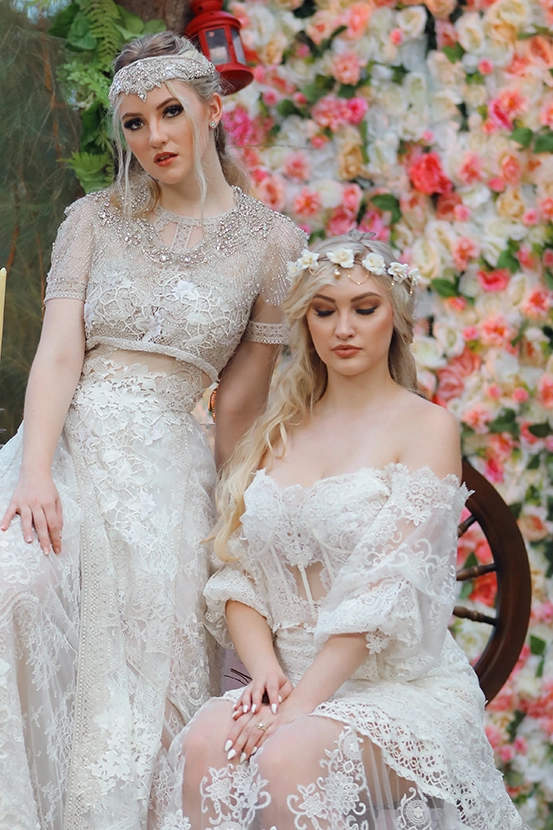
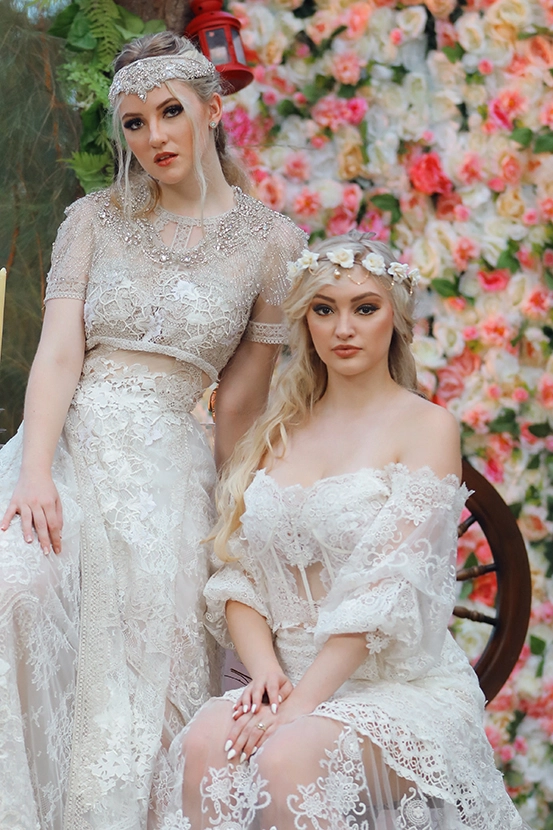
Liquify is used to reshape and smooth out areas of the body, such as sides, legs, and arms, by removing the appearance of fat or bumps. This adjustment refines the subject’s silhouette without significantly altering their overall body shape. When liquifying, we make sure the final image looks proportionate and maintains a realistic appearance.
what we do in Bulk Edit Liquify

See Some Bulk Edit Samples

Lightroom Basic - Light - Before Lightroom Basic - Light - After

Bulk Edit |

FAQ

If you need a cost-effective solution to apply a consistent and standard edit to a large volume of photos quickly, such that you’ll end up with a decent touch up across all of them, then the Bulk Edit service is suitable for you.

The minimum number of photos you can submit per order is 50.

We recommend submitting high-resolution JPEG files in your Bulk Edit submissions. Please note that color adjustments are not performed as part of the Bulk Edit service.

In the Bulk Edit service, we do not adjust the color and lighting of the photos. We recommend that you use the LR & LR Pro services if you require color adjustments along with bulk editing.

Although the features offered in Bulk Edit may resemble some of the edits provided by AI software, our Bulk Edits compete head to head with AI, and exceed the competition. Our editors will observe the touch up performed in each photo by hand, ensuring there will not be any inconsistencies throughout.
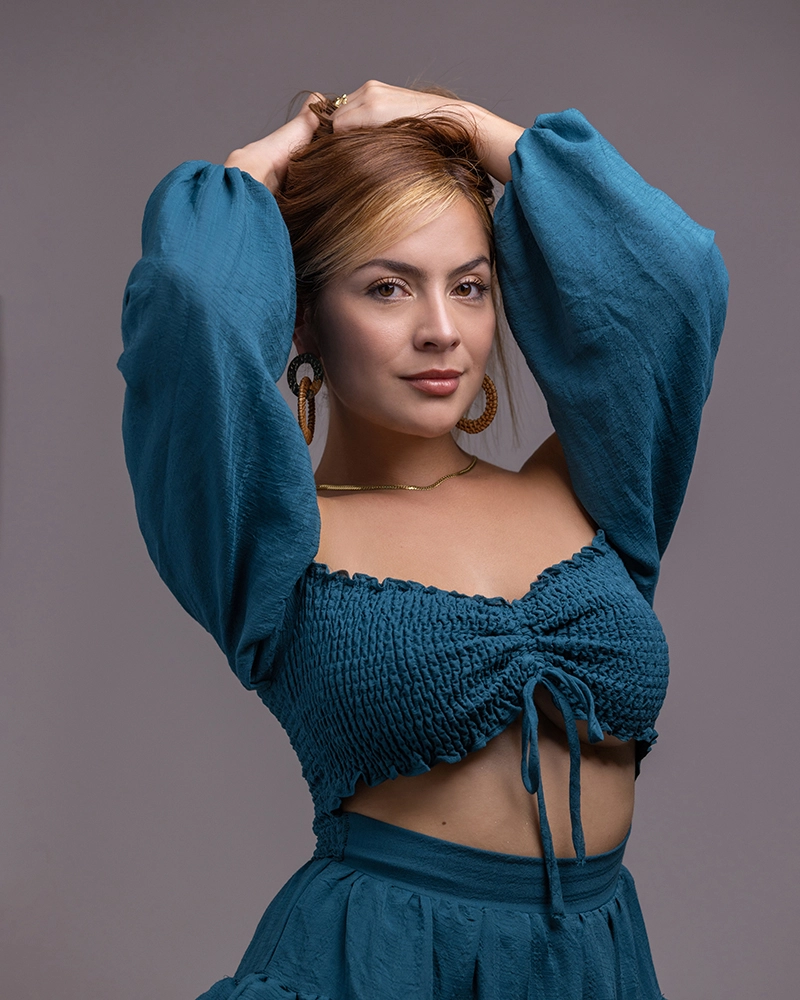
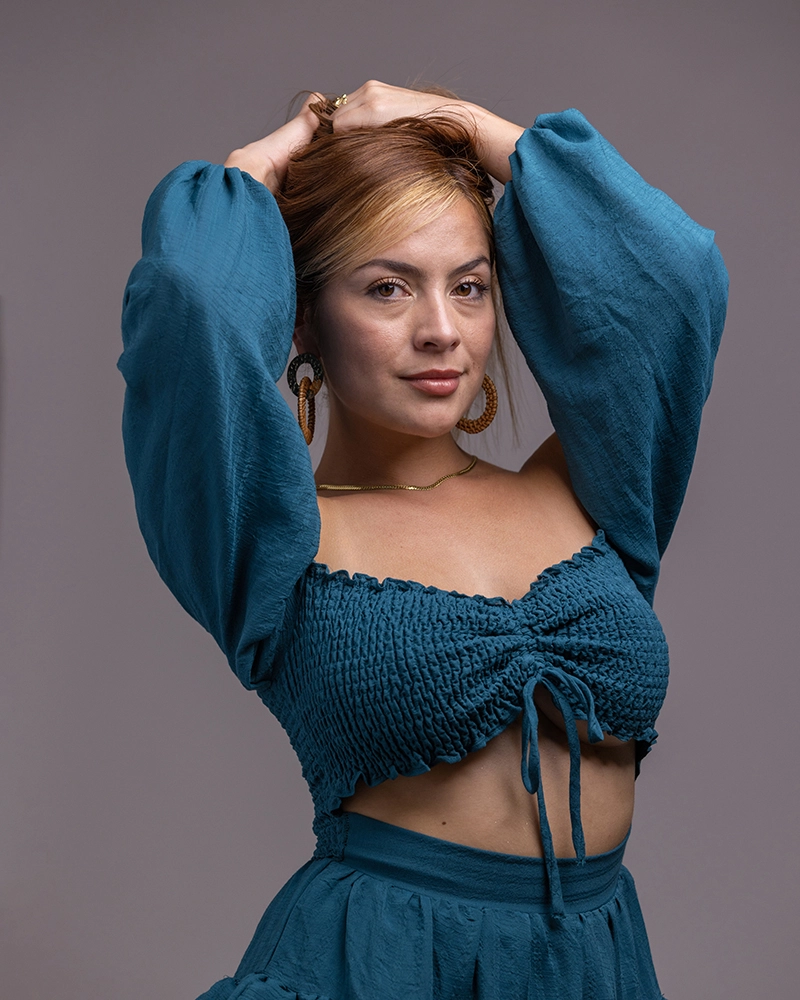
Stray Hair Removal

By choosing Stray Hair Removal, we will make sure any unnecessary or flying hair are removed, while making sure the subject looks clean and concise. 

MR1_2005 Before MR1_2005 After
MR5_0646 Before MR5_0646 After

Advanced Filter

The filters in the Advanced Filter add-on are a combination of tried and true adjustments that have been tested on many photos to become a professional and practical filter.
Take notice of the type of photography and lighting and choose the appropriate filter. For example, a “Light & Airy” filter may not be suitable for a photo taken in the evening or at night.The Difference Between Advanced Filter and Color Grading Advanced Filter is applied to the entire image. Color Grading, which is offered in the Creative Edit service, involves applying different colors and filters to create a cohesive and stylistic look according to the customer’s taste. It transforms the photo’s mood and appearance by manipulating color and light to achieve a desired effect.

Dramatic

Photoshop Basic Advanced Filter Dramatic Before 01 Photoshop Basic Advanced Filter Dramatic After 01
Photoshop Basic Advanced Filter Dramatic Before 02 Photoshop Basic Advanced Filter Dramatic After 02

Cinematic

Photoshop Basic Advanced Filter Cinematic Before 02 Photoshop Basic Advanced Filter Cinematic After 02
Photoshop Basic Advanced Filter Cinematic Before 01 Photoshop Basic Advanced Filter Cinematic After 01

Vivid

Photoshop Basic Advanced Filter Vivid Before 02 Photoshop Basic Advanced Filter Vivid After 02
Photoshop Basic Advanced Filter Vivid Before 01 Photoshop Basic Advanced Filter Vivid After 01

Moody

Photoshop Basic Advanced Filter Moody Before 02 Photoshop Basic Advanced Filter Moody After 02
Photoshop Basic Advanced Filter Moody Before 01 Photoshop Basic Advanced Filter Moody After 01

Light & Airy

Photoshop Basic Advanced Filter Light and Airy Before 01 Photoshop Basic Advanced Filter Light and Airy After 01
Photoshop Basic Advanced Filter Light and Airy Before 02 Photoshop Basic Advanced Filter Light and Airy After 02

B&W High Contrast

Photoshop Basic Advanced Filter Black & White High Contrast Before 01 Photoshop Basic Advanced Filter Black & White High Contrast After 01
Photoshop Basic Advanced Filter Black & White High Contrast Before 02 Photoshop Basic Advanced Filter Black & White High Contrast After 02

B&W Low Contrast

Photoshop Basic Advanced Filter Black & White Low Contrast Before 02 Photoshop Basic Advanced Filter Black & White Low Contrast After 02
Photoshop Basic Advanced Filter Black & White Low Contrast Before 01 Photoshop Basic Advanced Filter Black & White Low Contrast After 01

Extra Liquify

Normally, liquify is used to remove fat or smooth out protruding areas such as sides, legs, and arms without altering the overall body shape.
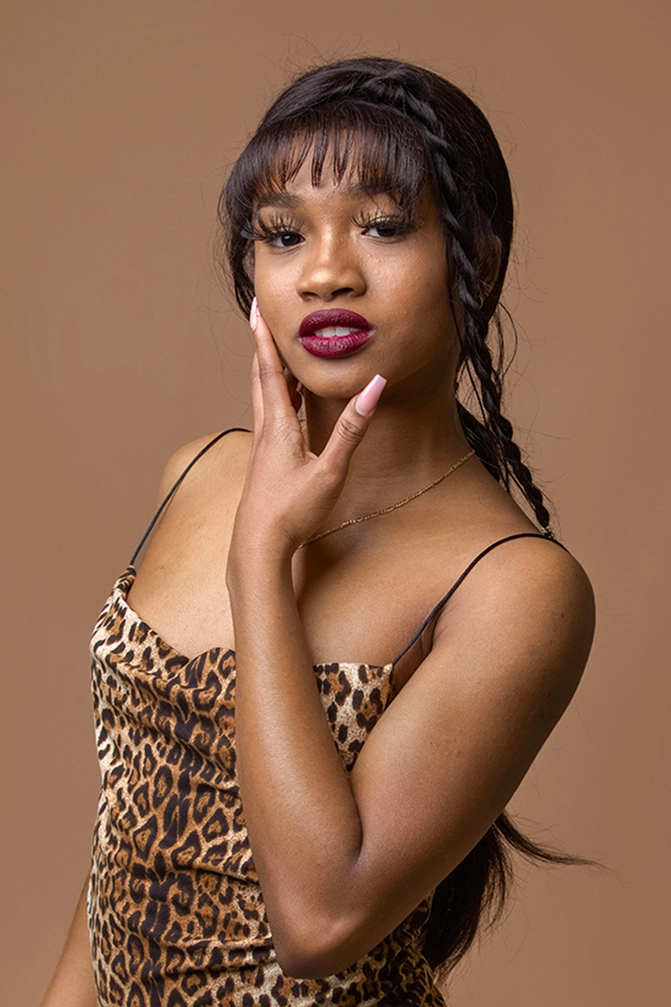
If you would like to change the shape of the body, face, or clothing, you may choose Extra Liquify. This may go beyond using normal liquify; as it may require cutting and/or adjusting parts of the body/clothing if necessary.

Photoshop Basic Body Shaping liquify 18 Photoshop Basic Body Shaping liquify 19
Photoshop Basic Body Shaping liquify 4 Photoshop Basic Body Shaping liquify 5
Photoshop Basic Body Shaping liquify 6 Photoshop Basic Body Shaping liquify 7
Photoshop Basic Body Shaping liquify 14 Photoshop Basic Body Shaping liquify 15
Photoshop Basic Body Shaping liquify 12 Photoshop Basic Body Shaping liquify 13
Photoshop Basic Body Shaping liquify 8 Photoshop Basic Body Shaping liquify 9

What's different with Extra Liquify?

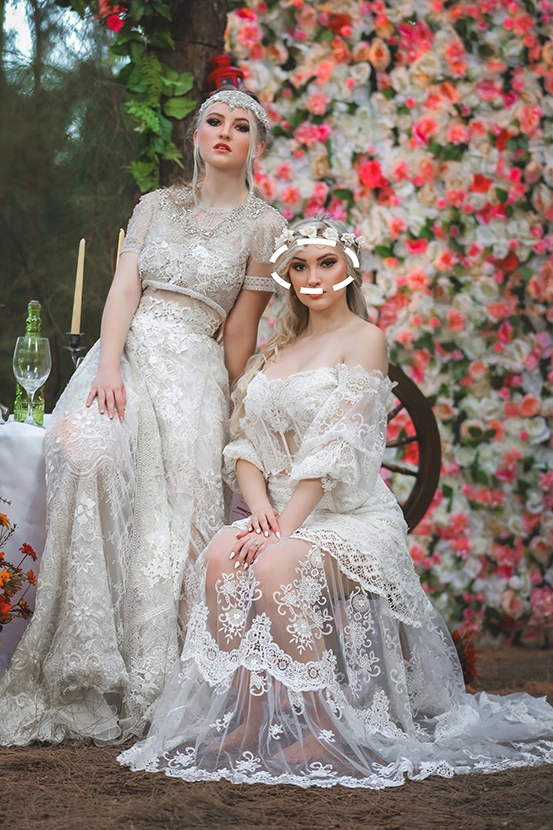
Extra Liquify can involve more extensive changes such as narrowing the waist, slimming, or reshaping the entire body. It also addresses issues like dissatisfaction with clothing placement or changes to the shape of the face.
Note that if significant modifications to body parts or clothing are needed, these cannot be accomplished within this service. We have provided various examples to illustrate these differences, but please reach out if you have any questions.

Photoshop Basic Al carte Liquefy and Body Shaping 01 Photoshop Basic Al carte Liquefy and Body Shaping 03

Liquify

Photoshop Basic Al carte Liquefy and Body Shaping 03 Photoshop Basic Al carte Liquefy and Body Shaping 02

Liquify | Extra Liquify

Photoshop Basic Al carte Liquefy and Body Shaping 01 Photoshop Basic Al carte Liquefy and Body Shaping 02

Extra Liquify

Swap | Object

Swap involves the placement of body parts such as eyes, hands, or the head using the helper images you provide. Swapping can only be done with the images you supply. If you need to move a subject completely from one photo to another, consider choosing the Creative Edit service.
Photoshop Head Swap eyes swap 01 Photoshop Head Swap eyes swap 04

Helper

Photoshop Head Swap eyes swap 03

Main Image

Photoshop Head Swap eyes swap 02
If Swap needs to be performed multiple times in one photo, each Swap must be requested separately. For example, if you need to replace one subject’s head with a different photo and another subject’s eyes with yet another photo, you should request two Swaps. Similarly, if you need to perform Swap on both the eyes and hands of a single subject, you should request two Swaps

Helper

Photoshop Head Swap eyes swap 26

Main Image

Photoshop Head Swap eyes swap 27
Photoshop Head Swap eyes swap 25 Photoshop Head Swap eyes swap 28
Photoshop Head Swap eyes swap 05 Photoshop Head Swap eyes swap 08

Helper

Photoshop Head Swap eyes swap 07

Main Image

Photoshop Head Swap eyes swap 06
Photoshop Head Swap eyes swap 09 Photoshop Head Swap eyes swap 12

Helper

Photoshop Head Swap eyes swap 11

Main Image

Photoshop Head Swap eyes swap 10
Photoshop Head Swap eyes swap 17 Photoshop Head Swap eyes swap 20

Helper

Photoshop Head Swap eyes swap 19

Main Image

Photoshop Head Swap eyes swap 18
Photoshop Head Swap eyes swap 21 Photoshop Head Swap eyes swap 24

Helper

Photoshop Head Swap eyes swap 23

Main Image

Photoshop Head Swap eyes swap 22

Minor Removal

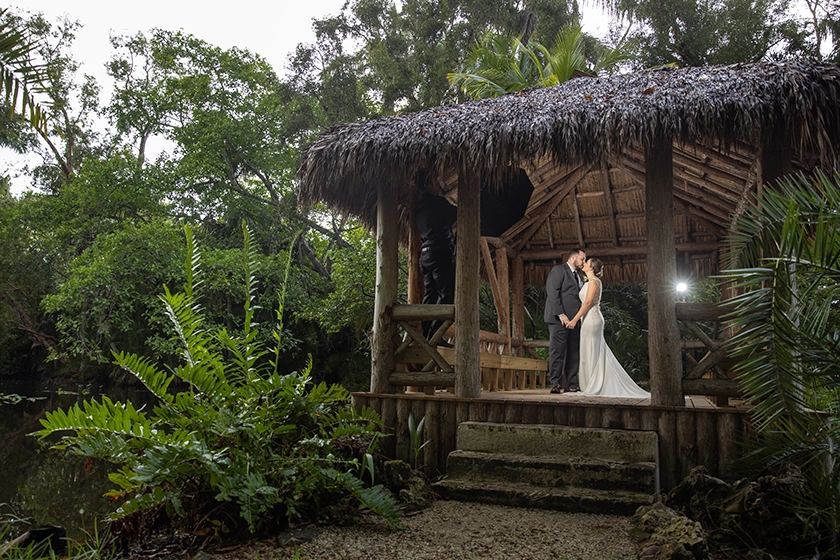
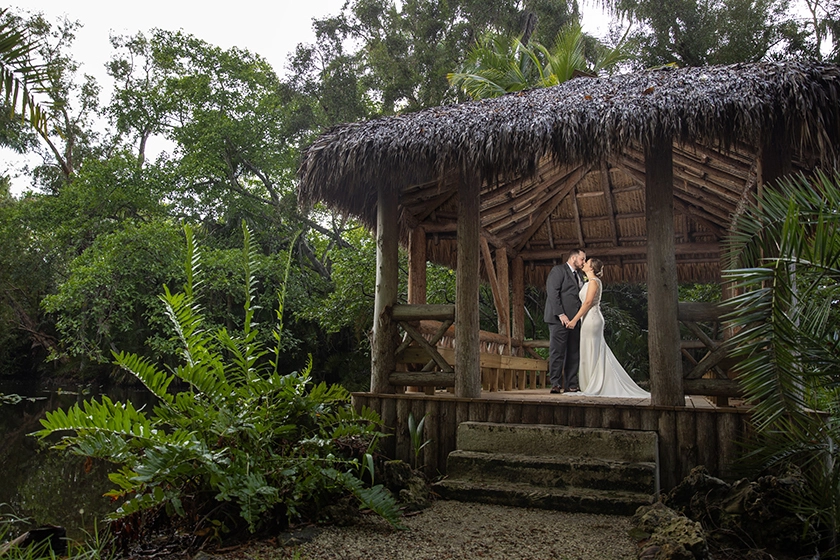
Minor Removal is used for distractions such as dry leaves and branches, switches and sockets, dirty spots on the camera lens, and other similar elements.

The Difference Among Three Types of Removal

Major Removal

Photoshop Basic Al carte Before Photoshop Basic Al carte Major Removal

Minor Removal

Photoshop Basic Al carte Before Photoshop Basic Al carte Minor Removal

Distraction Removal

Photoshop Basic Al carte Before Photoshop Basic Al carte Distraction Removal
Photoshop Basic Al carte Minor removal Before 46 Photoshop Basic Al carte Minor removal After 46
Photoshop distraction removal 33 Photoshop distraction removal 34
Photoshop Basic Al carte Minor removal Before 44 Photoshop Basic Al carte Minor removal After 44
Photoshop distraction removal 15 Photoshop distraction removal 16
Photoshop Basic Al carte Minor removal Before 45 Photoshop Basic Al carte Minor removal After 45
Photoshop distraction removal 29 Photoshop distraction removal 30
Photoshop distraction removal 25 Photoshop distraction removal 26
Photoshop distraction removal 27 Photoshop distraction removal 28

Major Removal

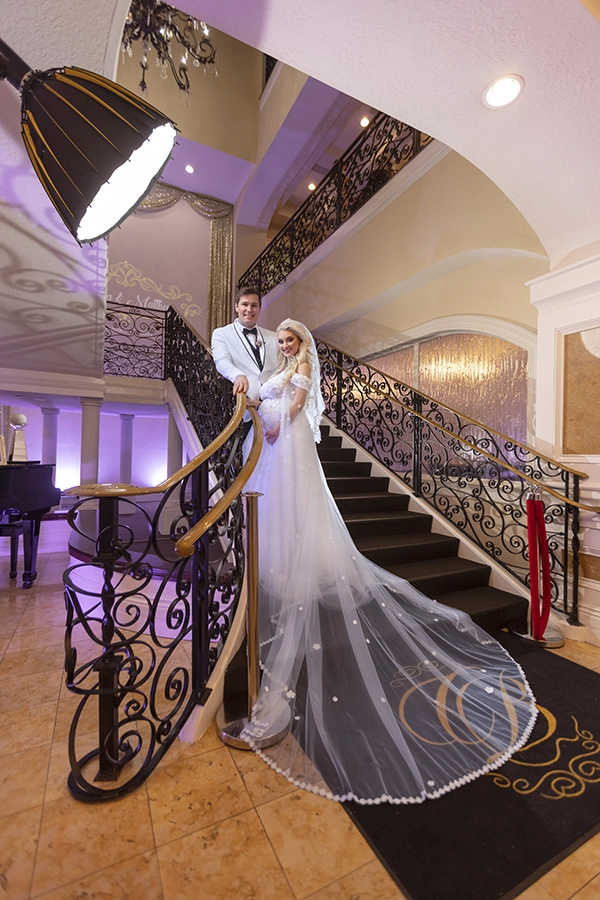
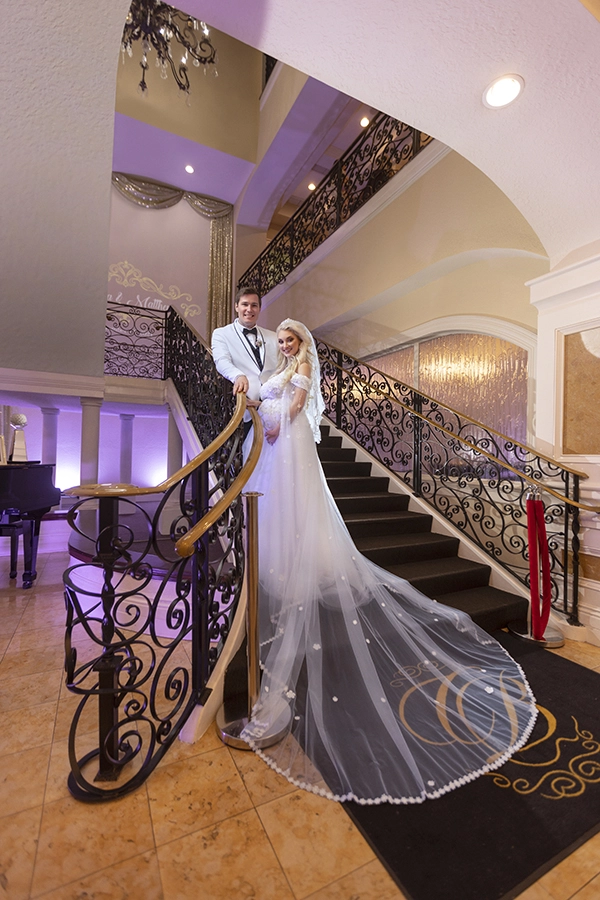
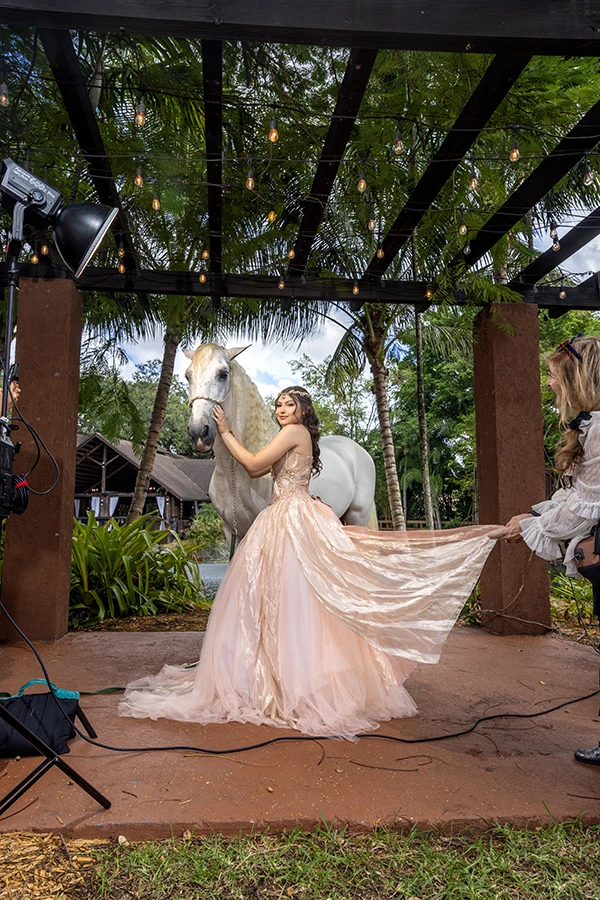
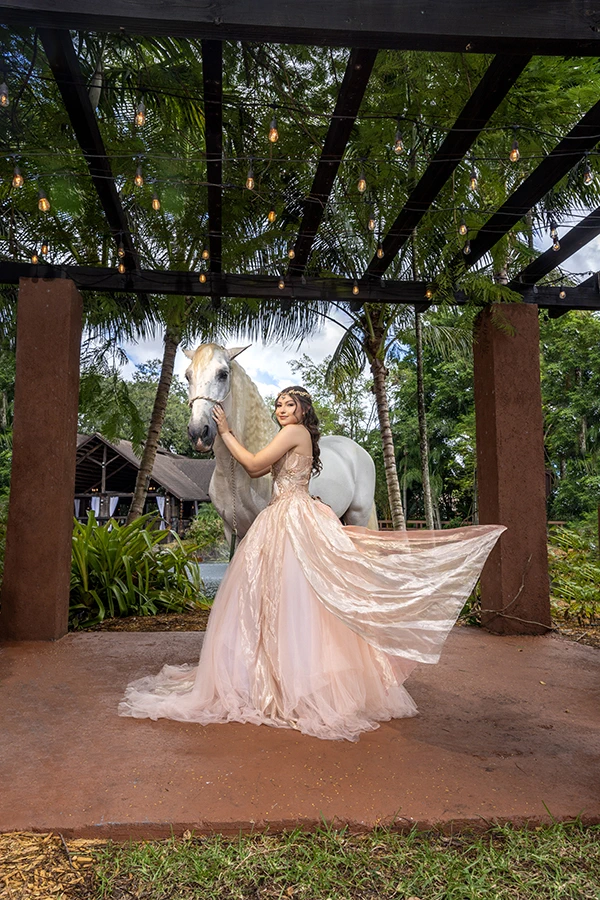
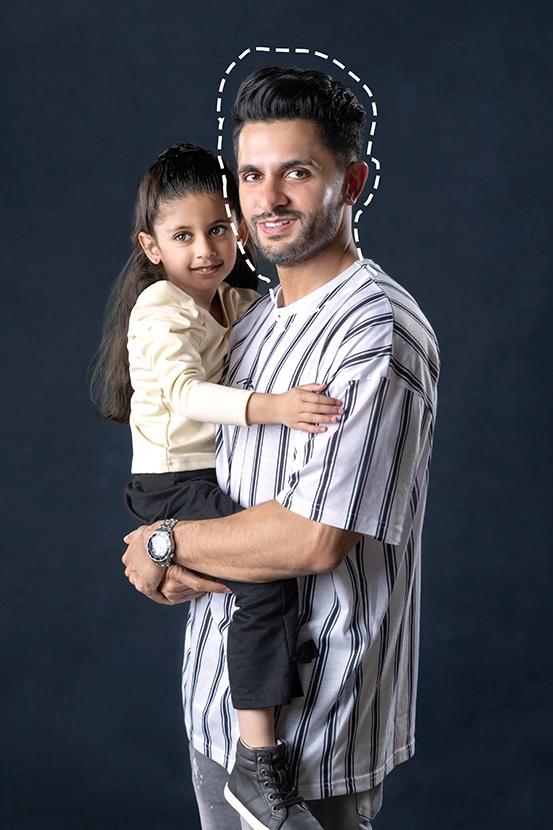
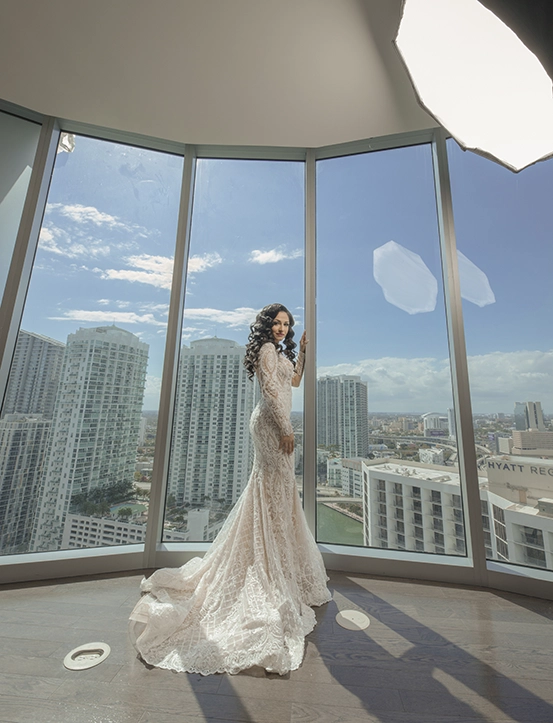
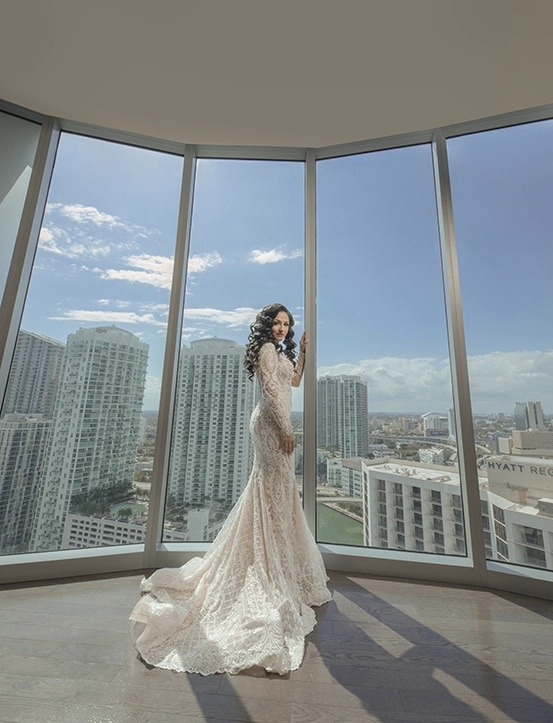
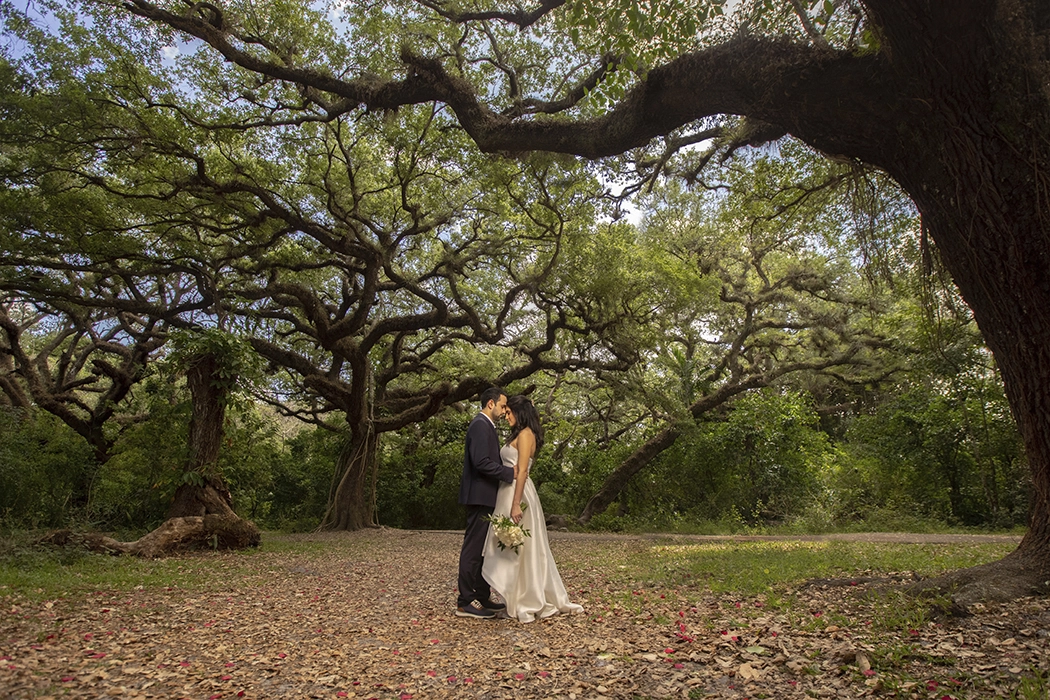
Major Removal involves removing elements that cover a significant portion of the image. This often requires reconstructing parts of the image to ensure a seamless result.
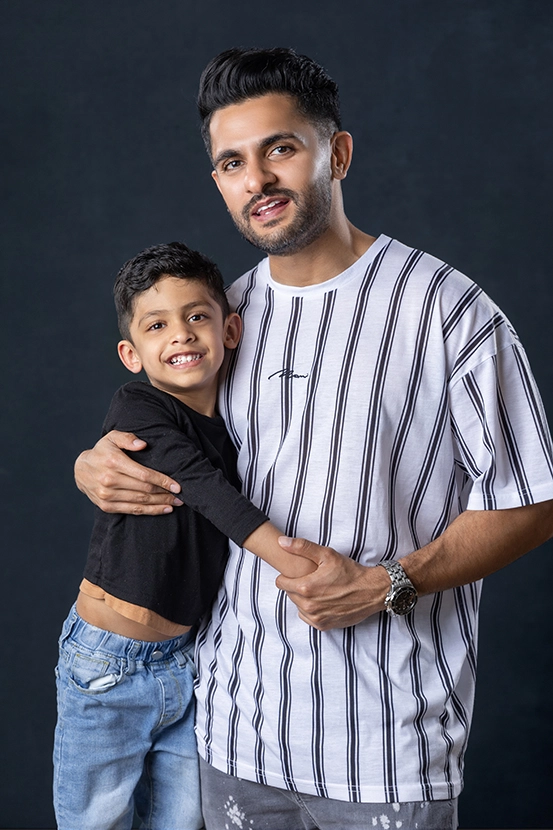
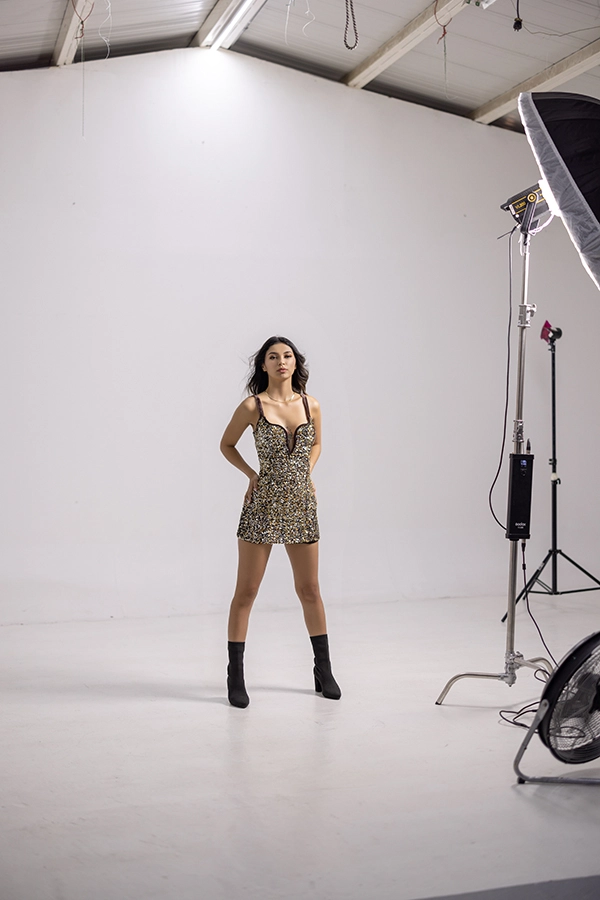
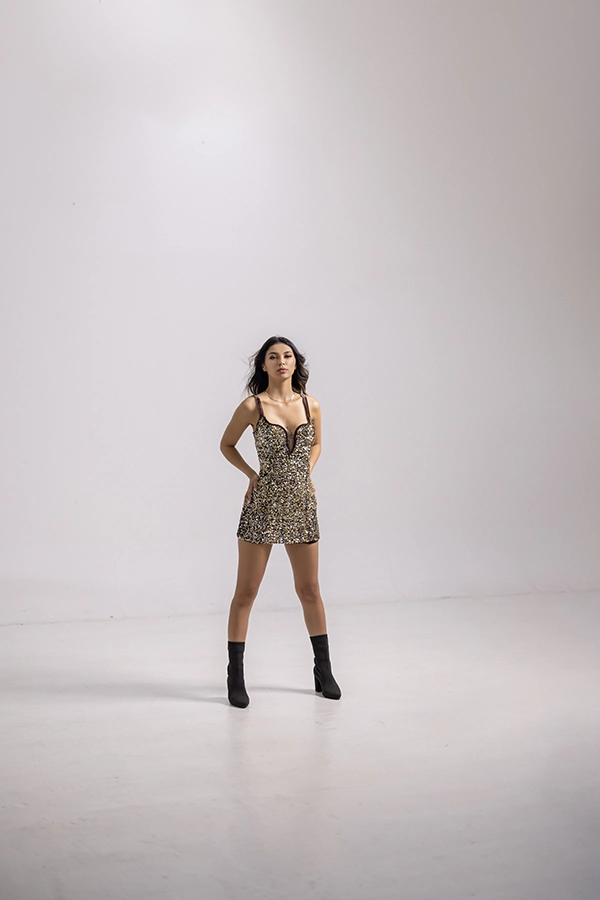
Photoshop Basic Al carte Major removal before 39 Photoshop Basic Al carte Major removal After 40
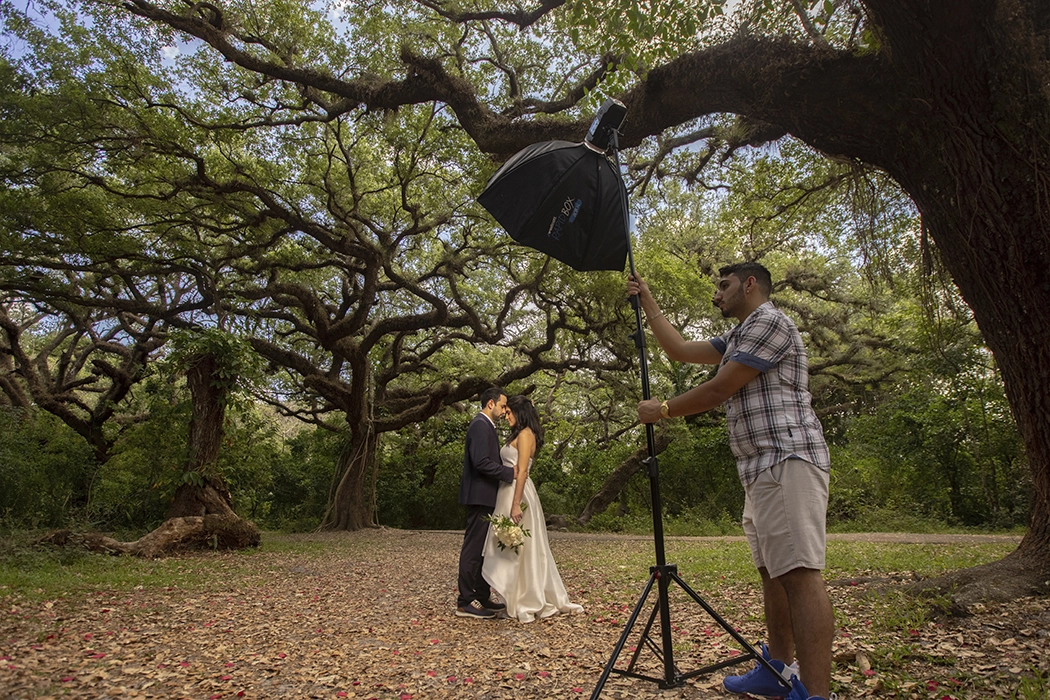
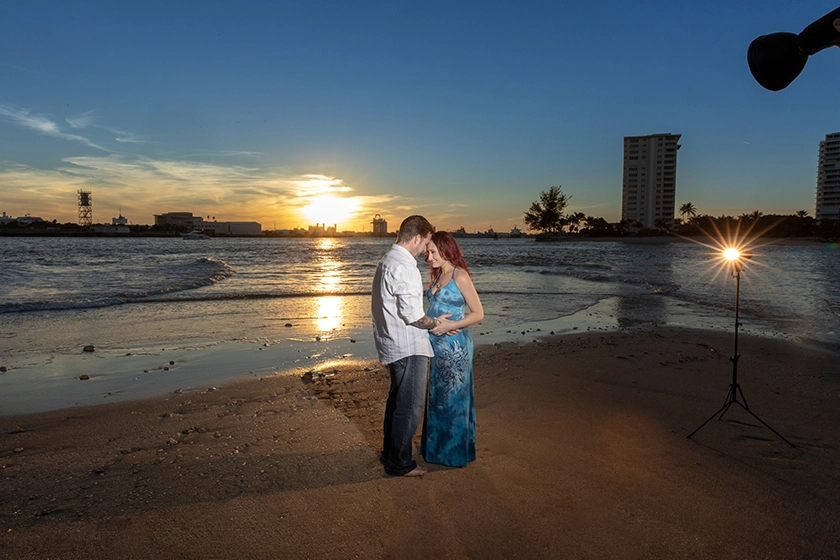
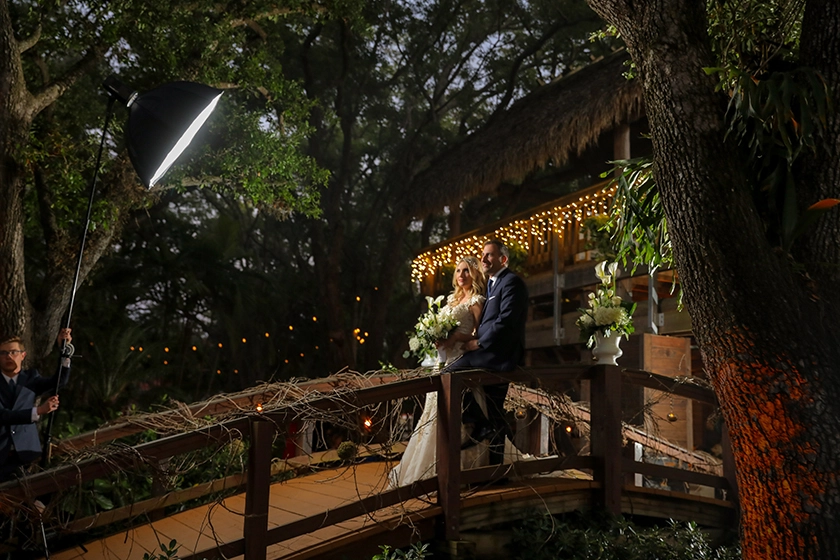
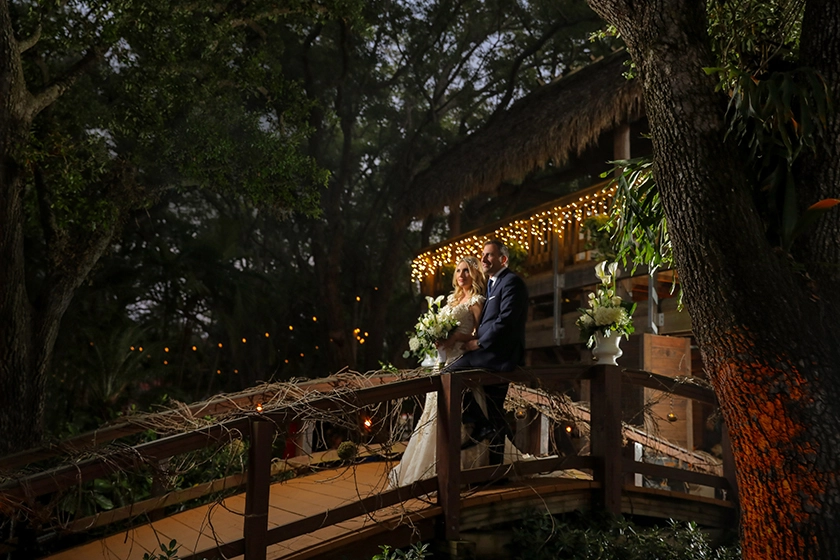
The most frequent cases of Major Removal are lighting equipment, people, cars, or buildings. In said cases, providing a plate shot helps achieve a cleaner result. However, not all of these are necessarily considered major removals; it depends on the size and placement.
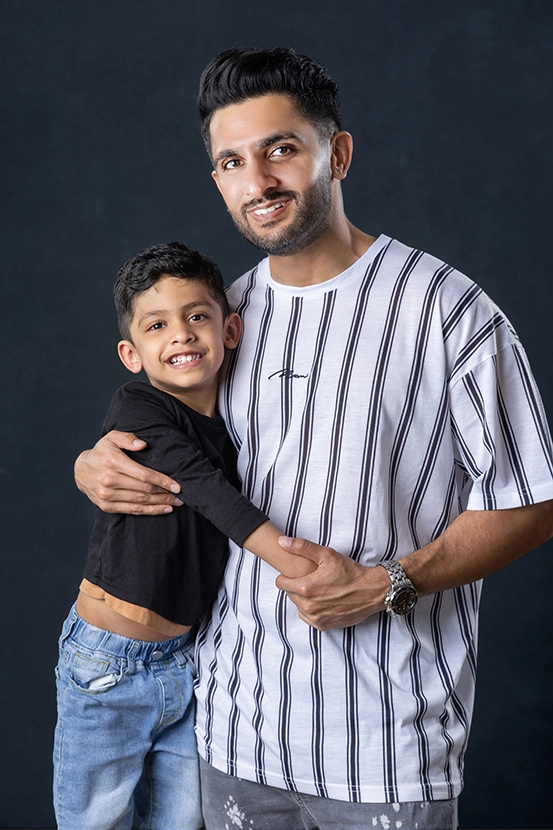
The Difference Among Three Types of Removal

Major Removal

Photoshop Basic Al carte Before Photoshop Basic Al carte Major Removal

Minor Removal

Photoshop Basic Al carte Before Photoshop Basic Al carte Minor Removal

Distraction Removal

Photoshop Basic Al carte Before Photoshop Basic Al carte Distraction Removal

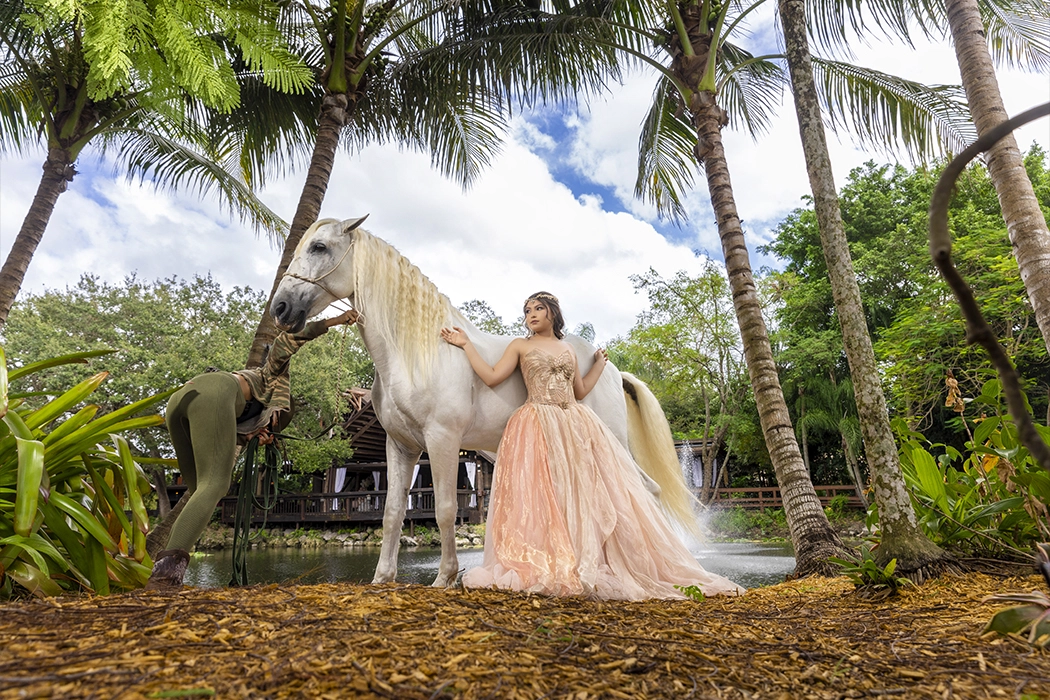
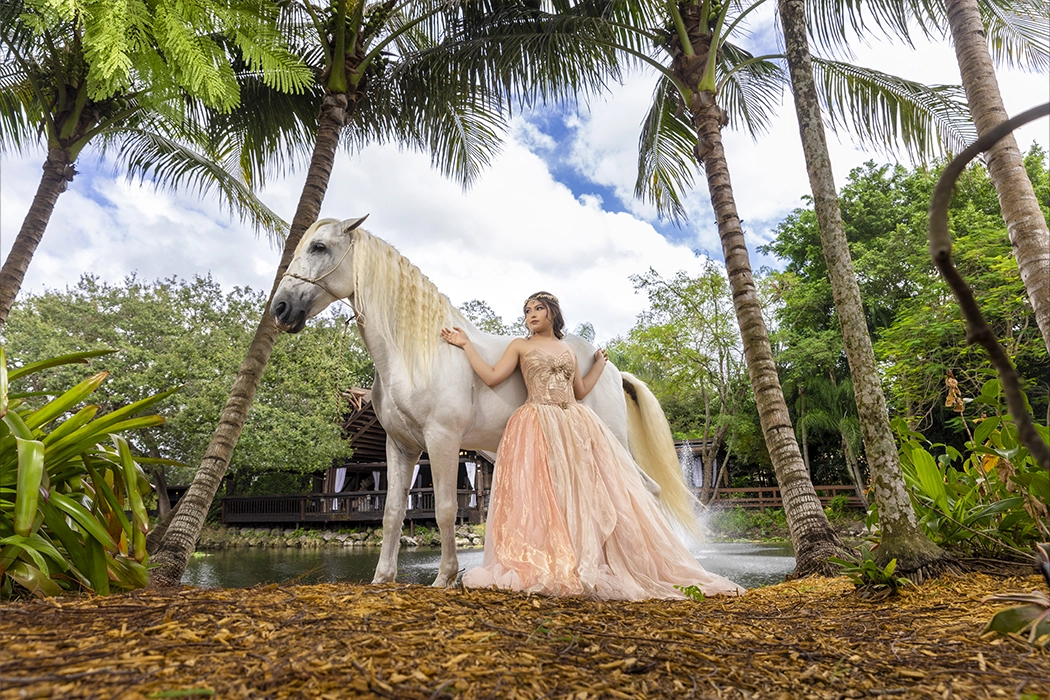
Involves removing large elements that cover significant portions of the image, such as lighting equipment, people, cars, or buildings. A plate shot can help achieve a cleaner result.

Photoshop Basic Al carte Major removal Before 43 Photoshop Basic Al carte Major removal After 43
Photoshop photographer equipment assistant removal 33 Photoshop photographer equipment assistant removal 34
Photoshop Basic Al carte Major removal Before 42 Photoshop Basic Al carte Major removal After 42
Photoshop Basic Al carte Major removal Before 44 Photoshop Basic Al carte Major removal After 44
Photoshop photographer equipment assistant removal 13 Photoshop photographer equipment assistant removal 14
Focuses on removing distractions from the main subject of the photo. For example, dealing with wrinkles or large stains on clothing, particularly if the fabric has a special texture, is considered part of this process. However, if the removal involves creating parts of clothing or the body, you should consider the Creative Edit service.

What about the reflection of light in glasses?

If the reflection is small, it can be handled with Major Removal. If it covers a large part of the eye, consider using the Swap feature.

Swap

Photoshop photographer equipment assistant removal 17 Photoshop photographer equipment assistant removal 18

Major Removal

Photoshop photographer equipment assistant removal 19 Photoshop photographer equipment assistant removal 20

More Major Removal Samples

Photoshop photographer equipment assistant removal 37 Photoshop photographer equipment assistant removal 38
Photoshop Basic Al carte Major removal Before 35 Photoshop Basic Al carte Major removal After 35
Photoshop Basic Al carte Major removal before 41 Photoshop Basic Al carte Major removal After 41
Photoshop photographer equipment assistant removal 31 Photoshop photographer equipment assistant removal 32
Photoshop photographer equipment assistant removal 27 Photoshop photographer equipment assistant removal 28
Photoshop photographer equipment assistant removal 29 Photoshop photographer equipment assistant removal 30

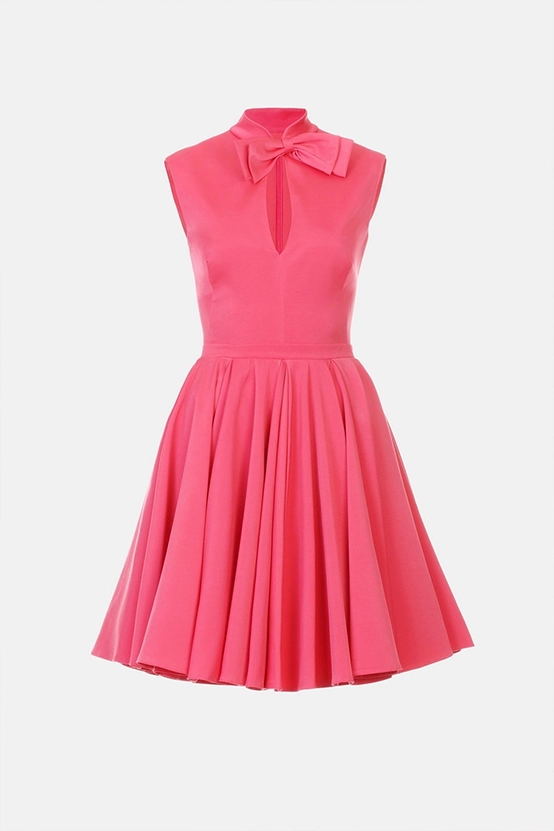
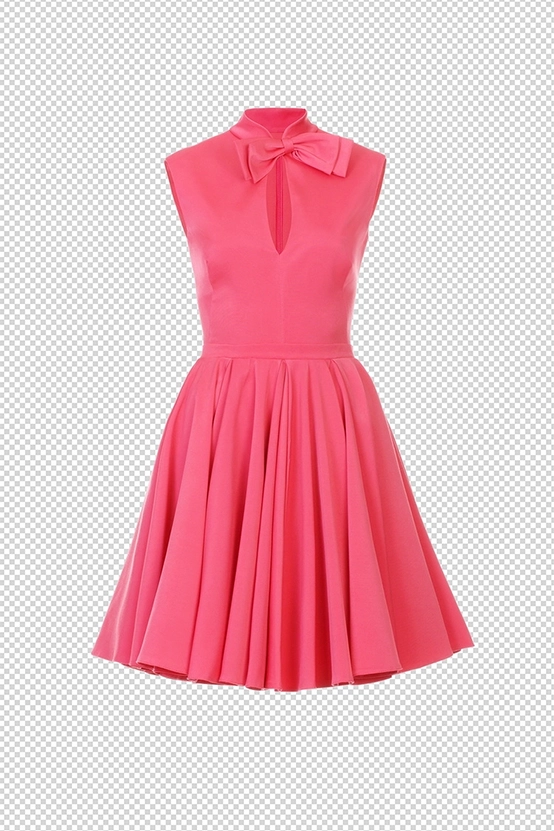
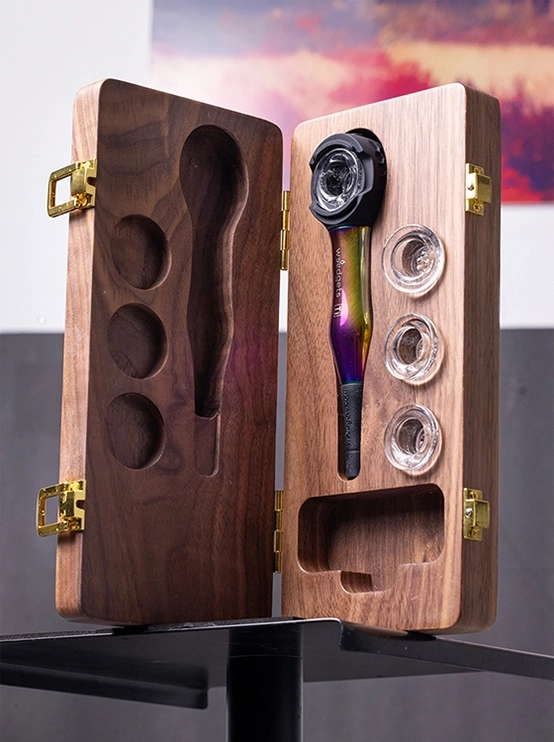
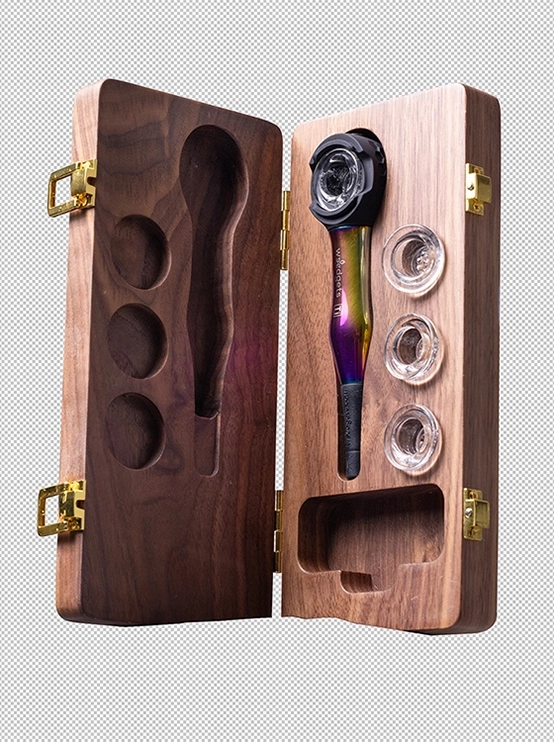
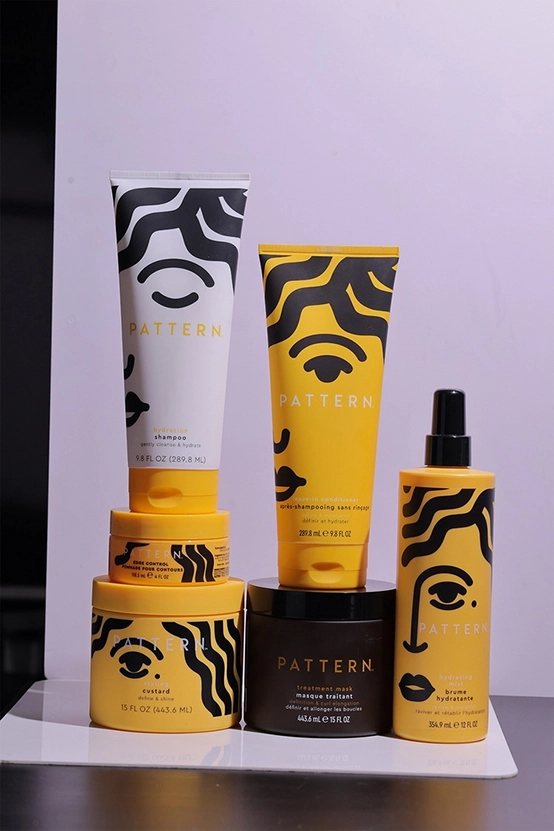
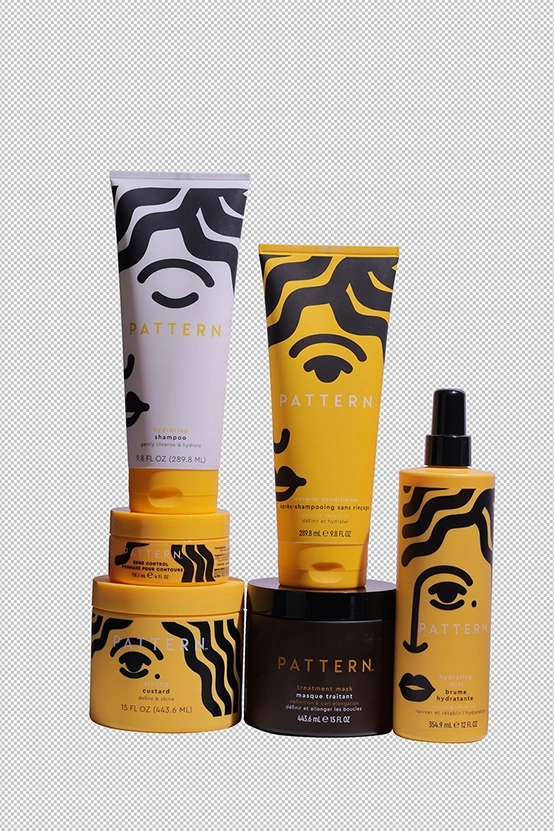
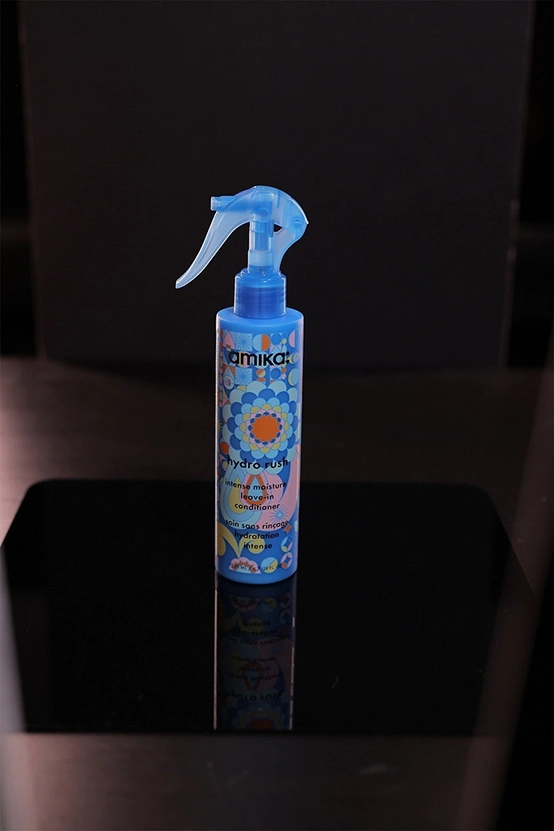
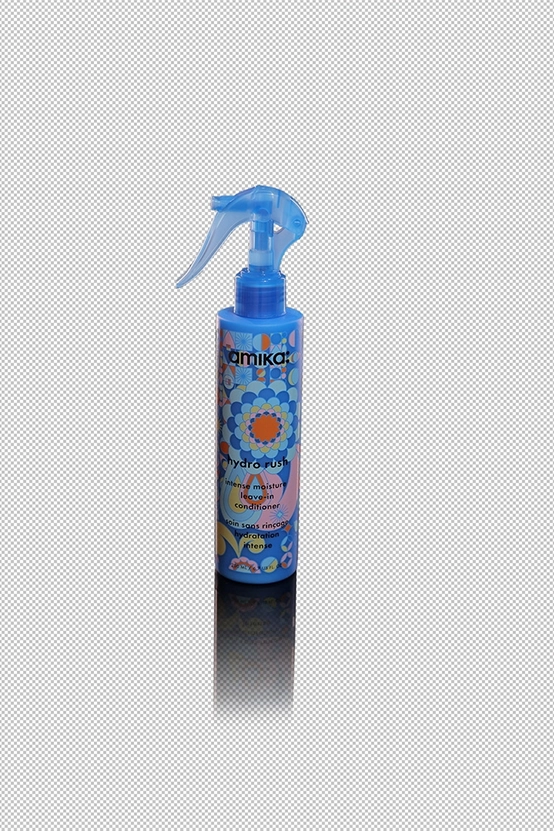
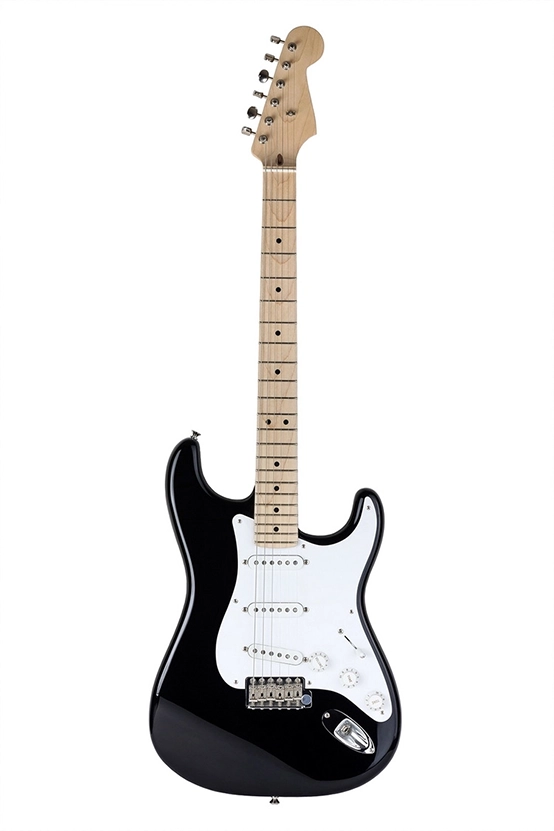
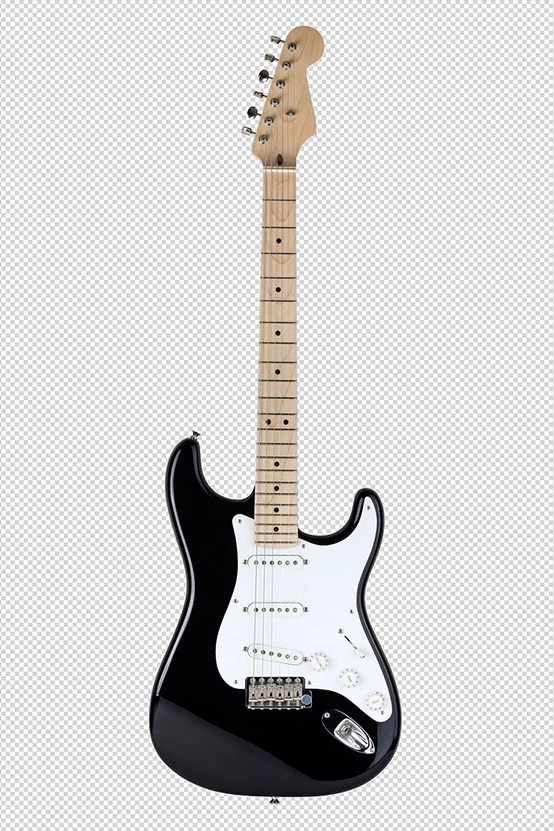
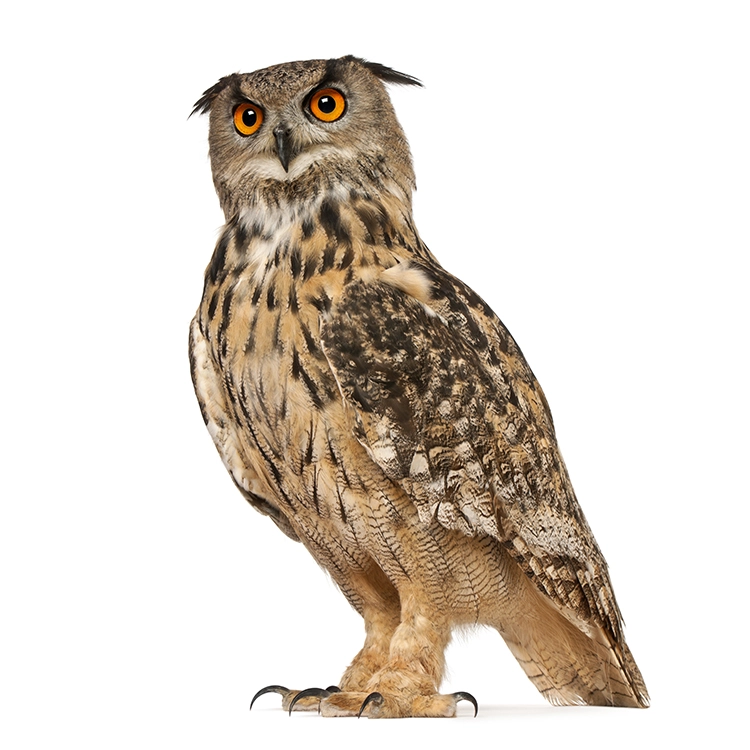
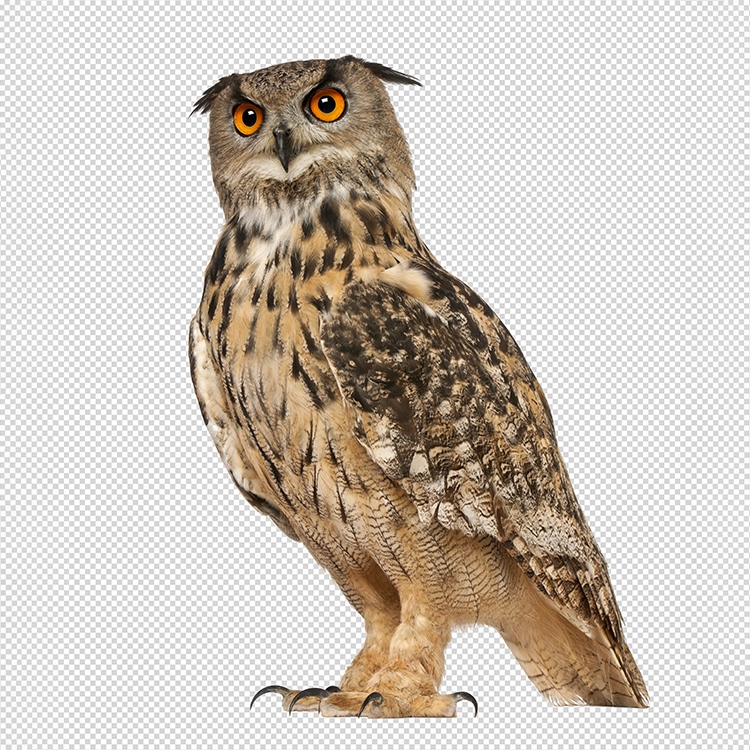
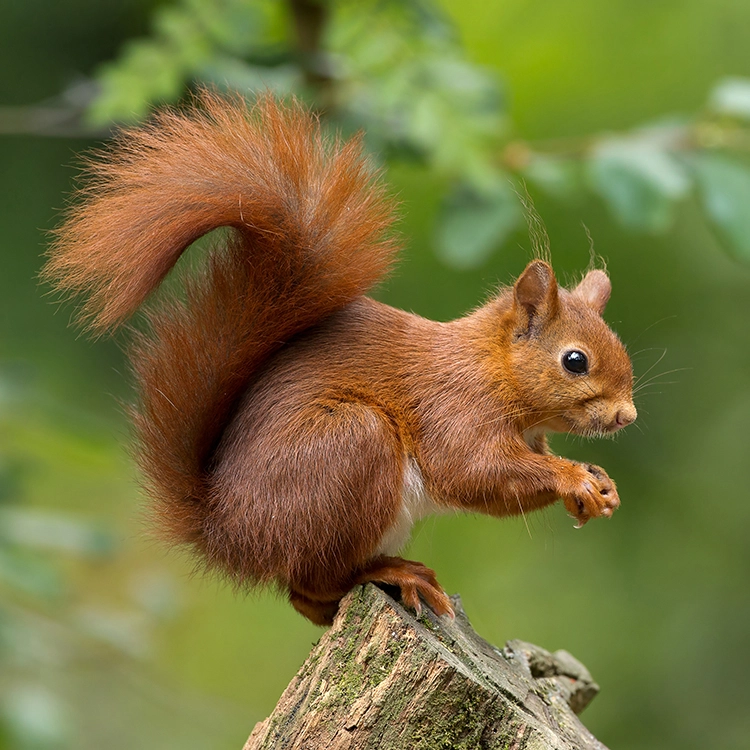
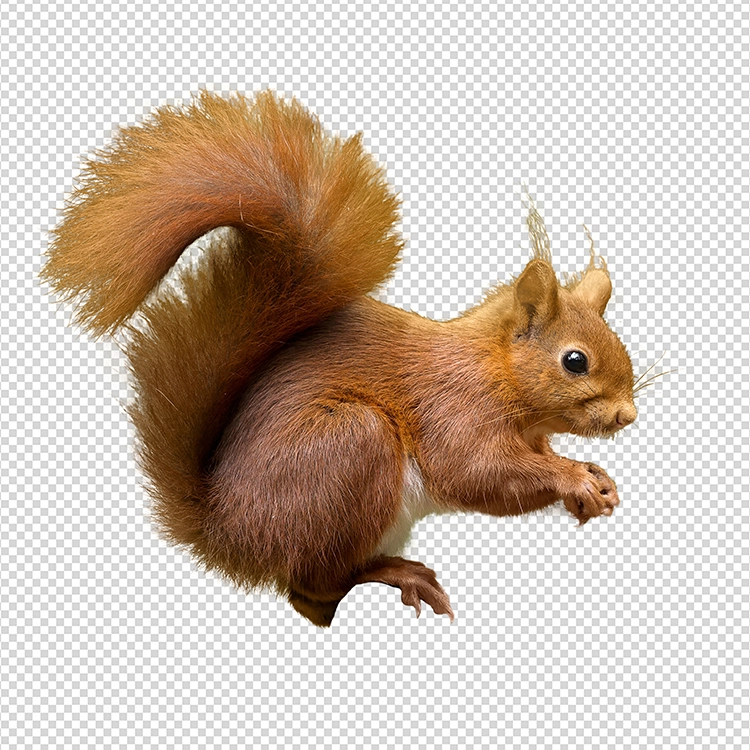
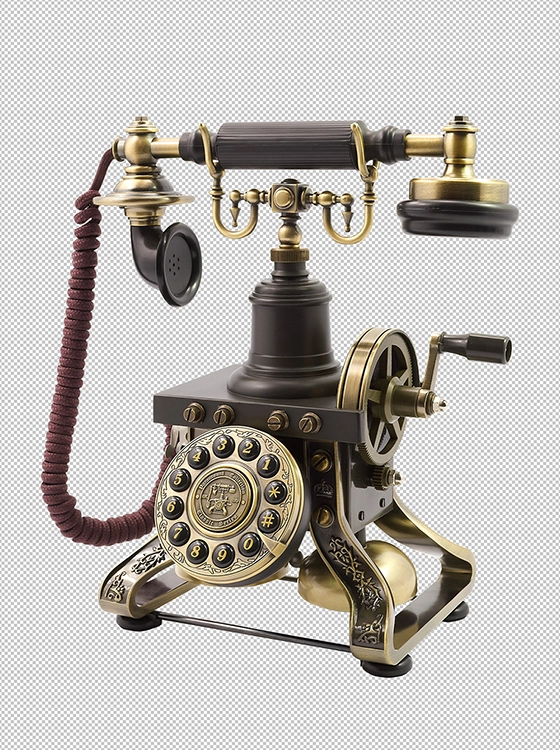
Minor Clipping Path

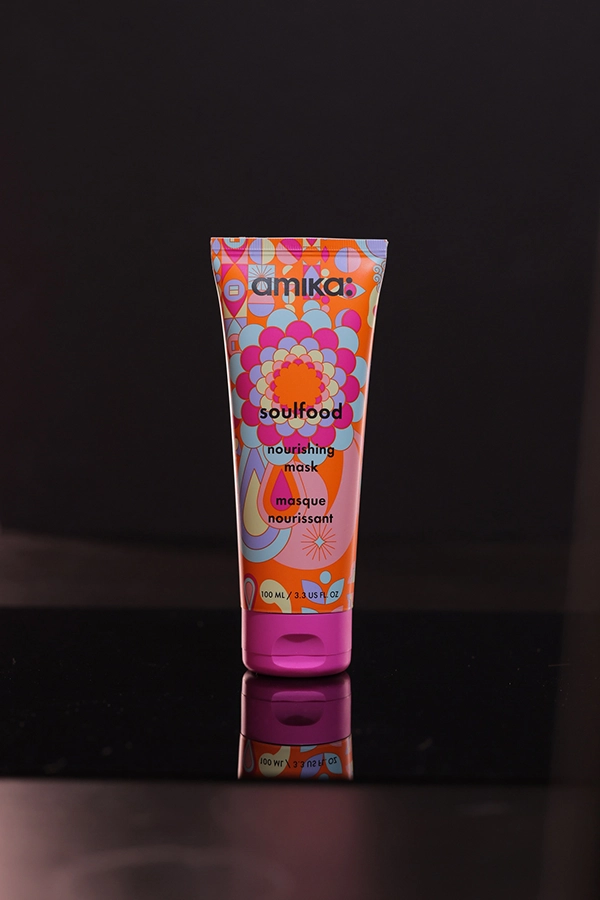
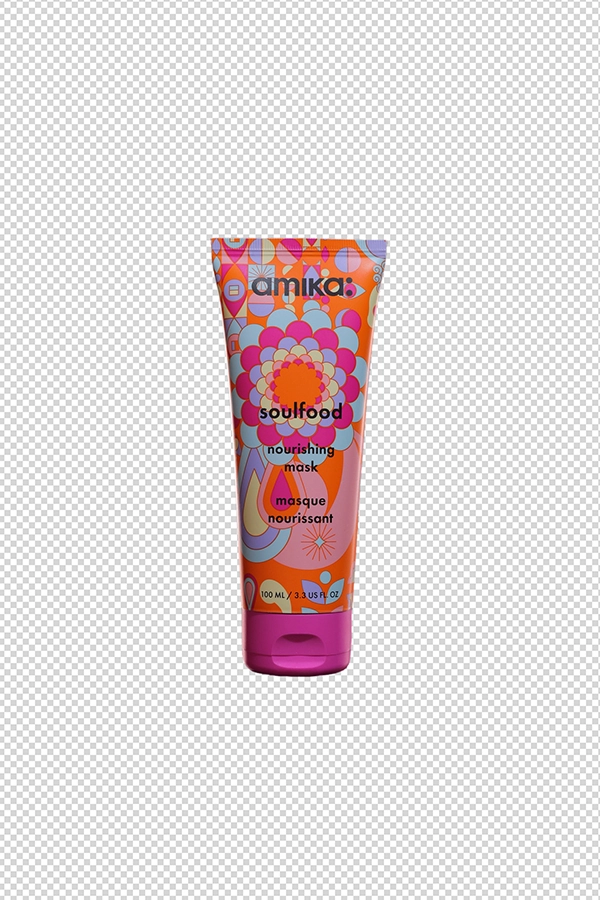
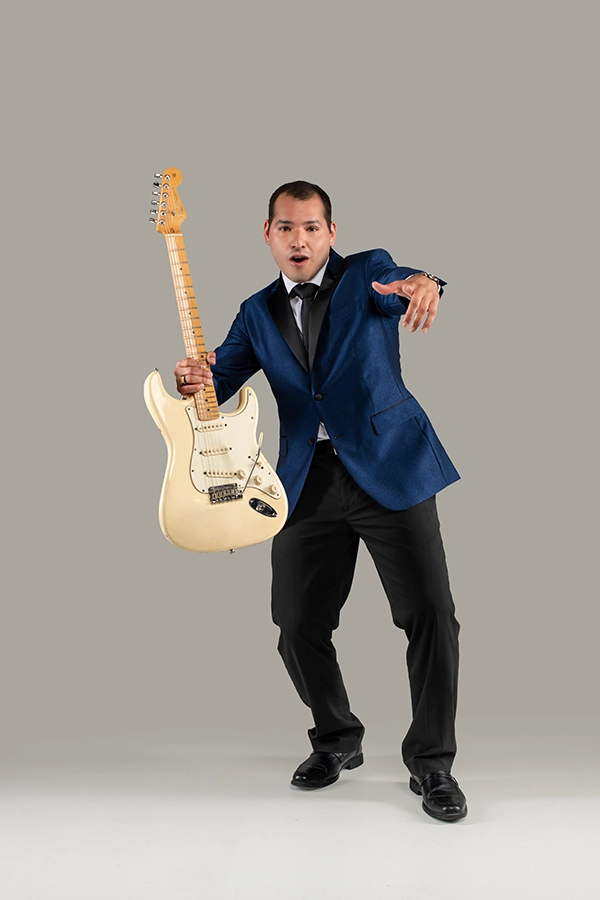
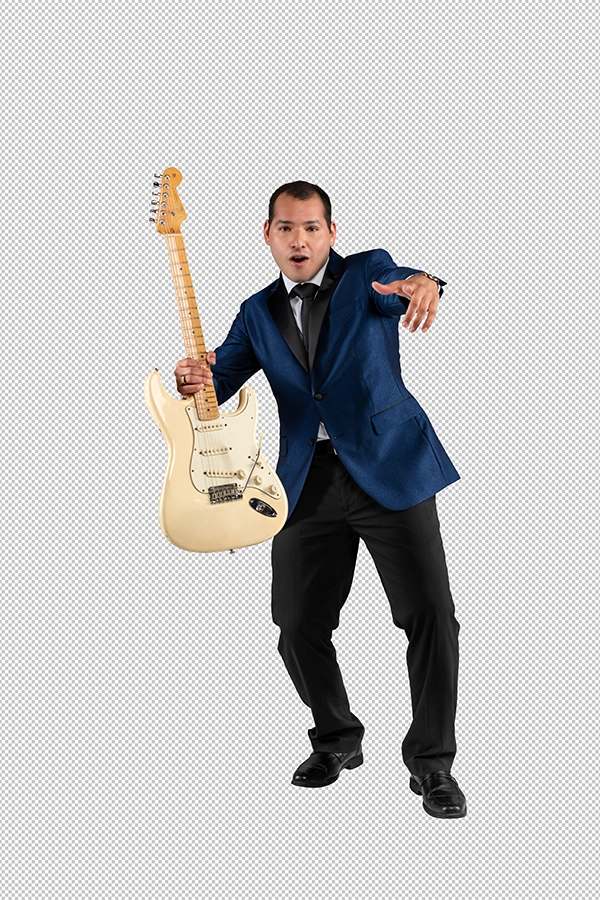
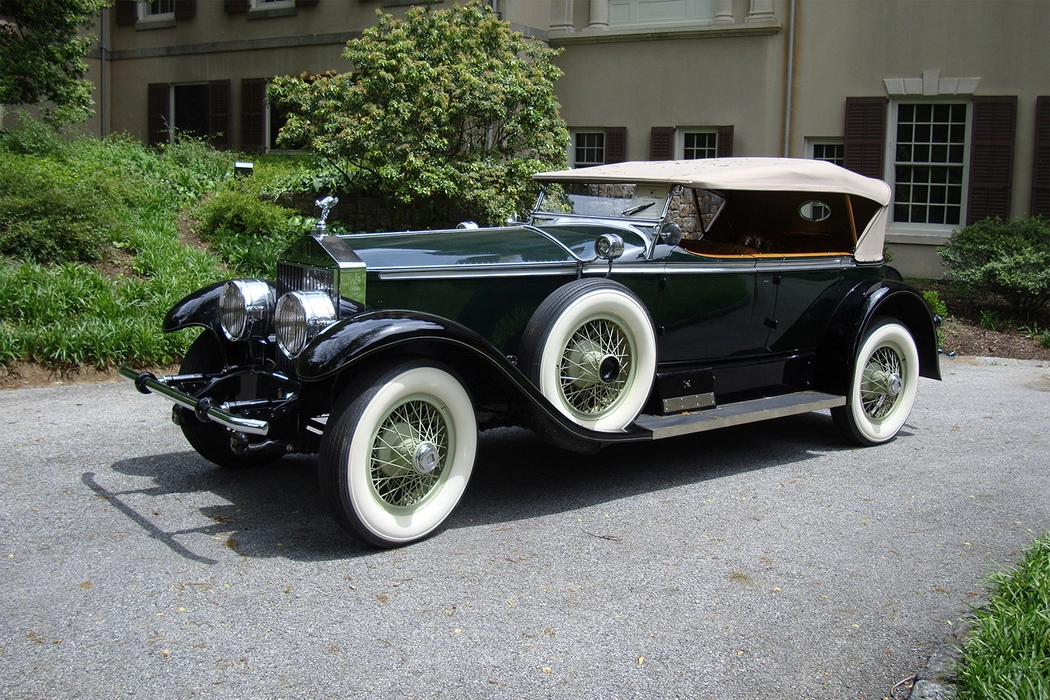
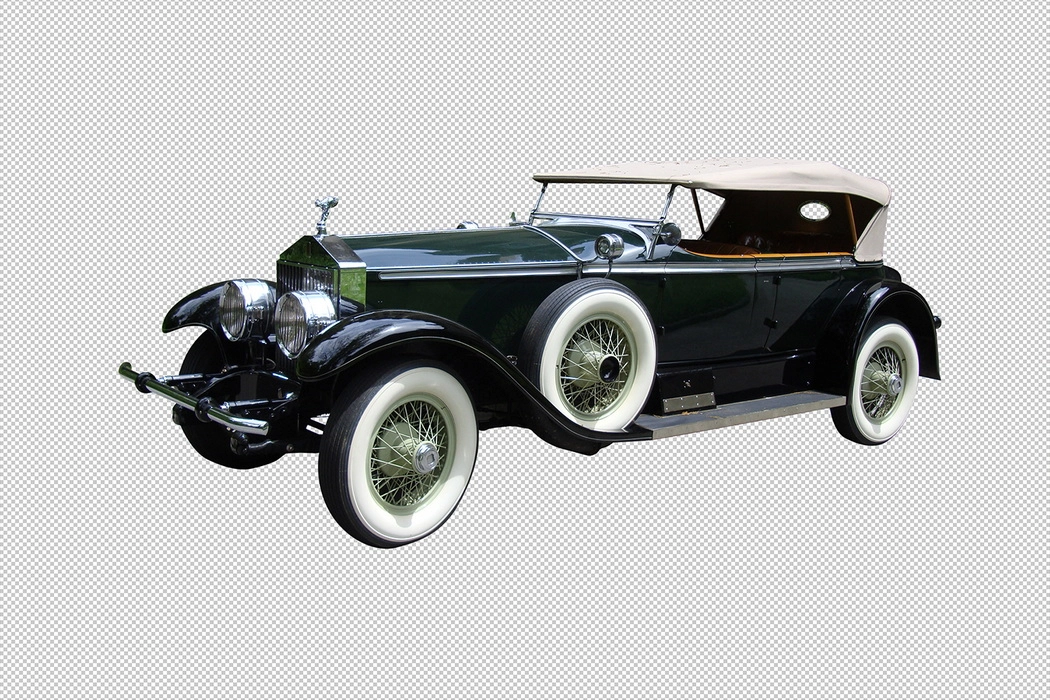
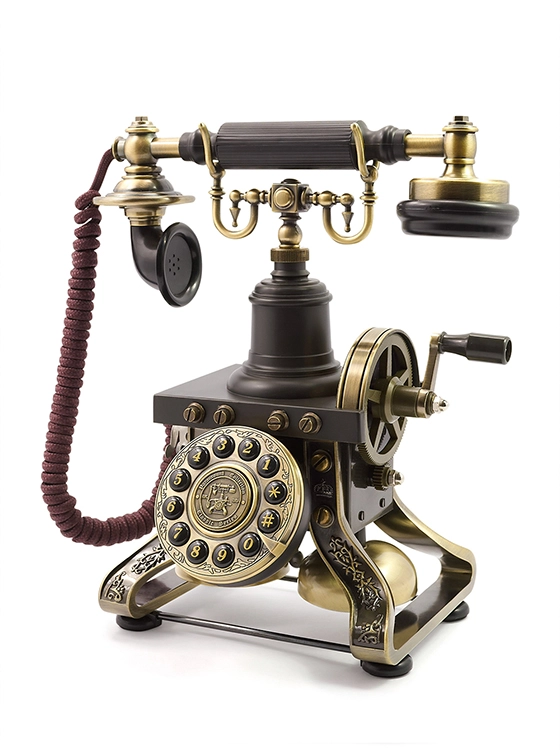
Minor Clipping Path is used for objects that require minimal cutting.
Photoshop PNG transparent Minor Clipping Path 21 Photoshop PNG transparent Minor Clipping Path 22
Photoshop PNG transparent Minor Clipping Path 3 Photoshop PNG transparent Minor Clipping Path 4
Photoshop PNG transparent Minor Clipping Path 5 Photoshop PNG transparent Minor Clipping Path 6
Photoshop PNG transparent Minor Clipping Path 7 Photoshop PNG transparent Minor Clipping Path 8
Photoshop PNG transparent Minor Clipping Path 19 Photoshop PNG transparent Minor Clipping Path 20
Photoshop PNG transparent Minor Clipping Path 11 Photoshop PNG transparent Minor Clipping Path 12
Photoshop PNG transparent Minor Clipping Path 17 Photoshop PNG transparent Minor Clipping Path 18
Photoshop PNG transparent Minor Clipping Path 13 Photoshop PNG transparent Minor Clipping Path 14
Photoshop PNG transparent Minor Clipping Path 9 Photoshop PNG transparent Minor Clipping Path 10
Photoshop PNG transparent Minor Clipping Path 1 Photoshop PNG transparent Minor Clipping Path 2
Photoshop PNG transparent Minor Clipping Path 15 Photoshop PNG transparent Minor Clipping Path 16

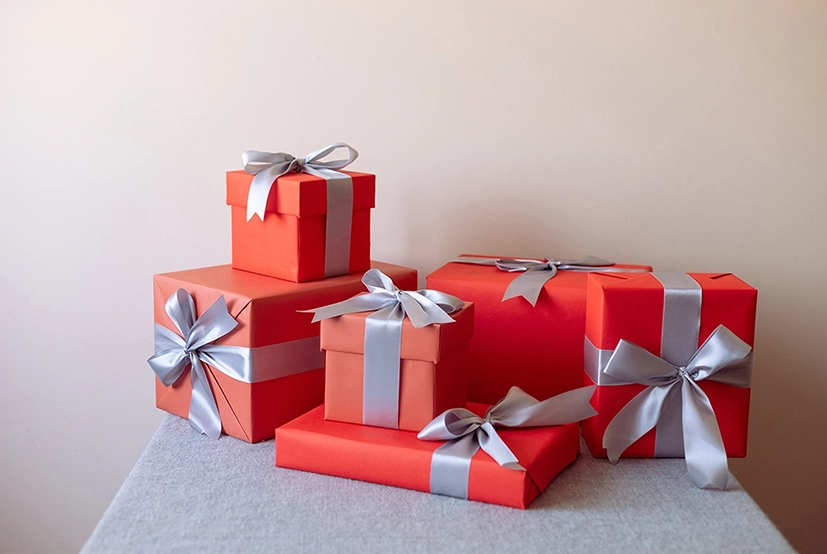
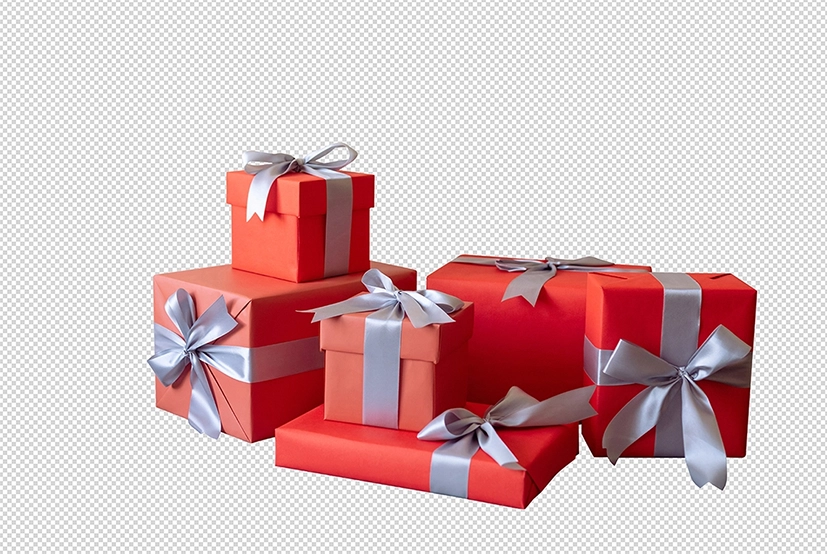
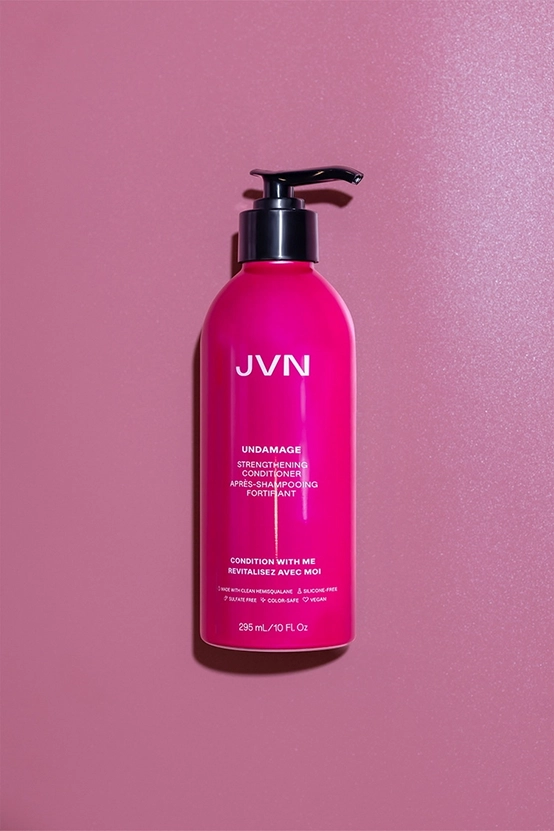
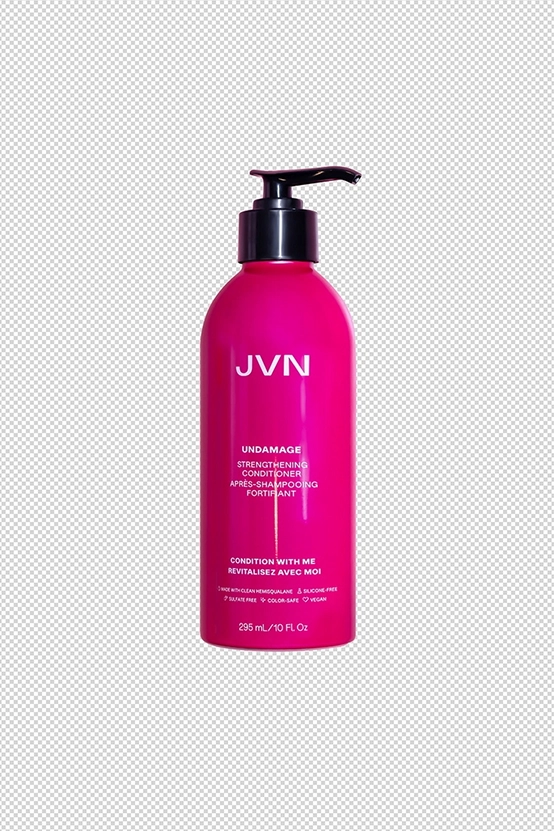
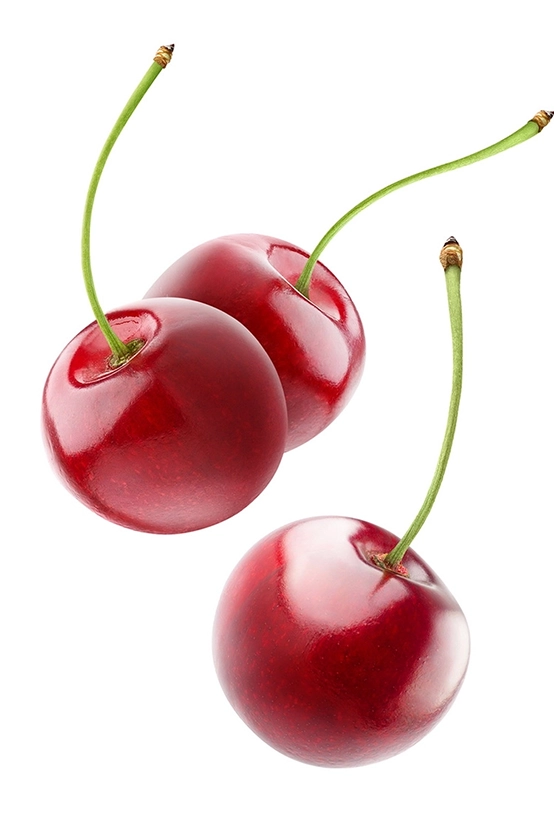
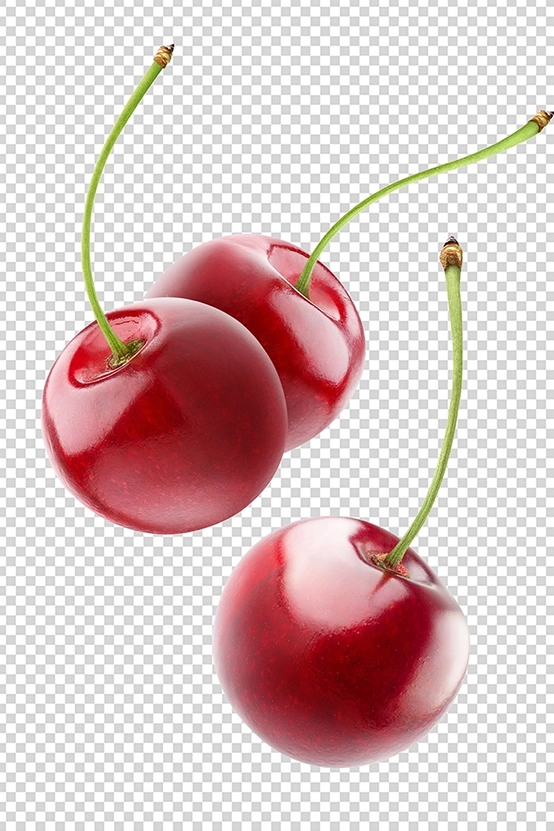
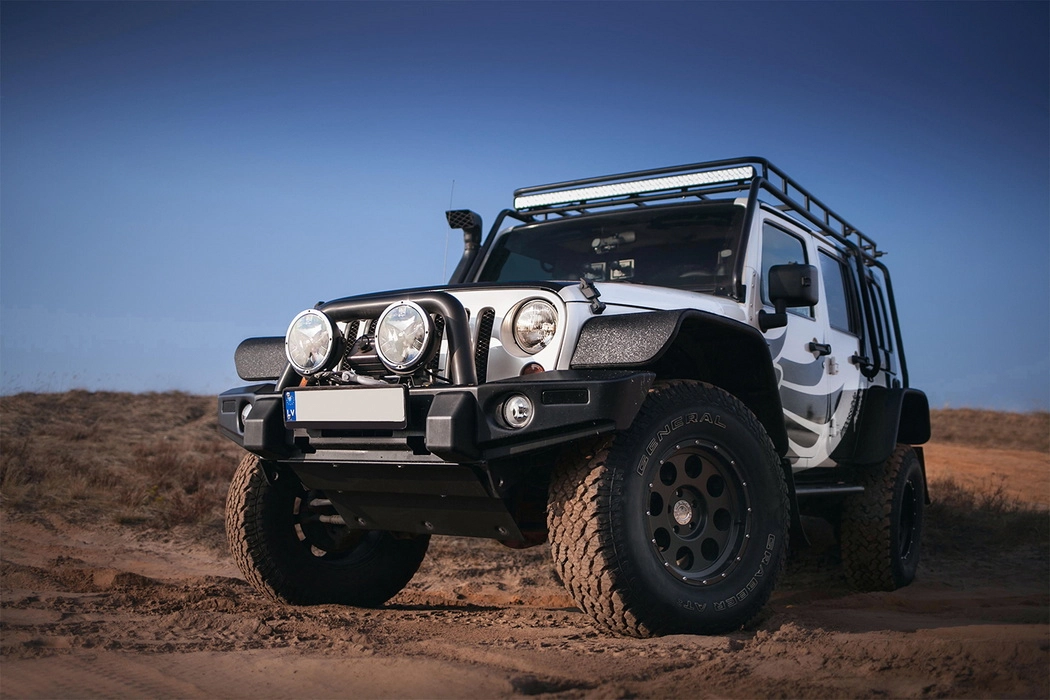
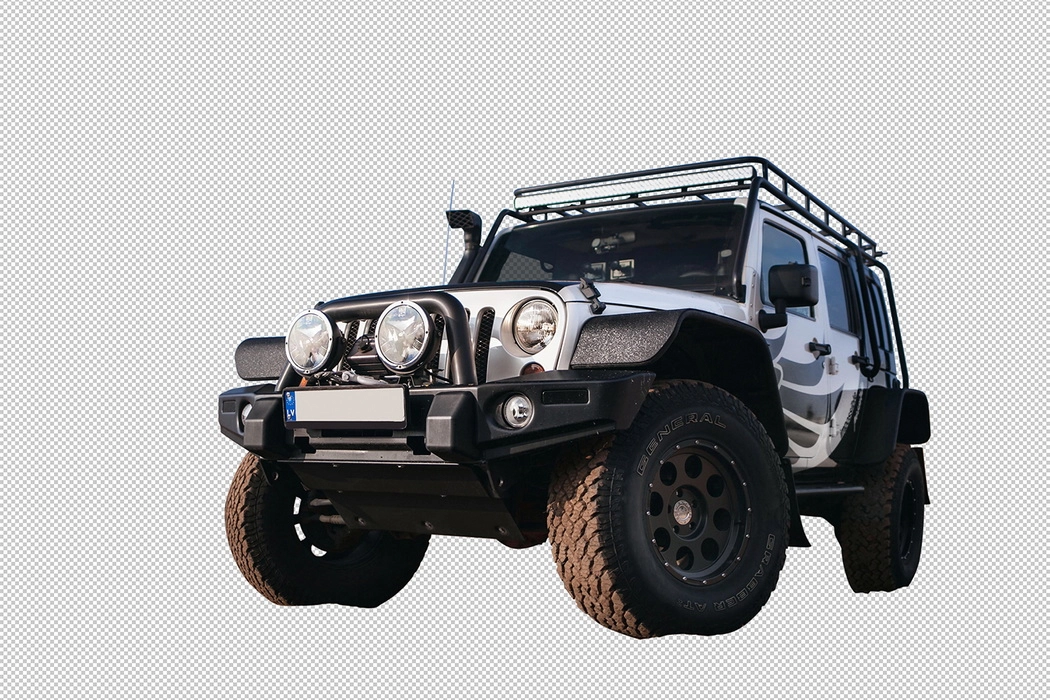
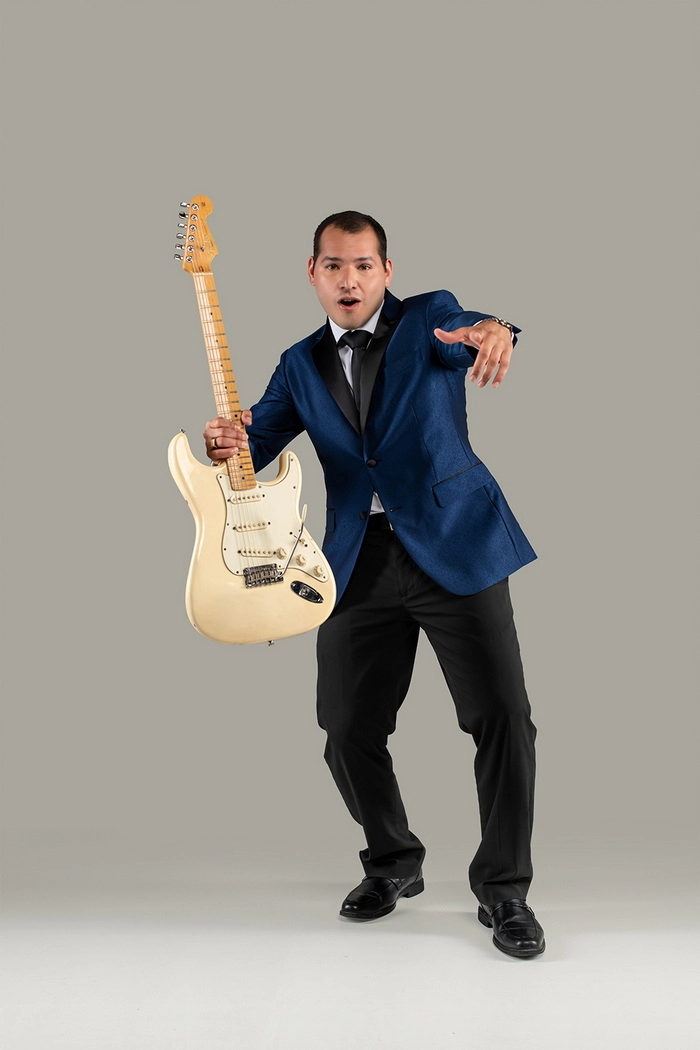
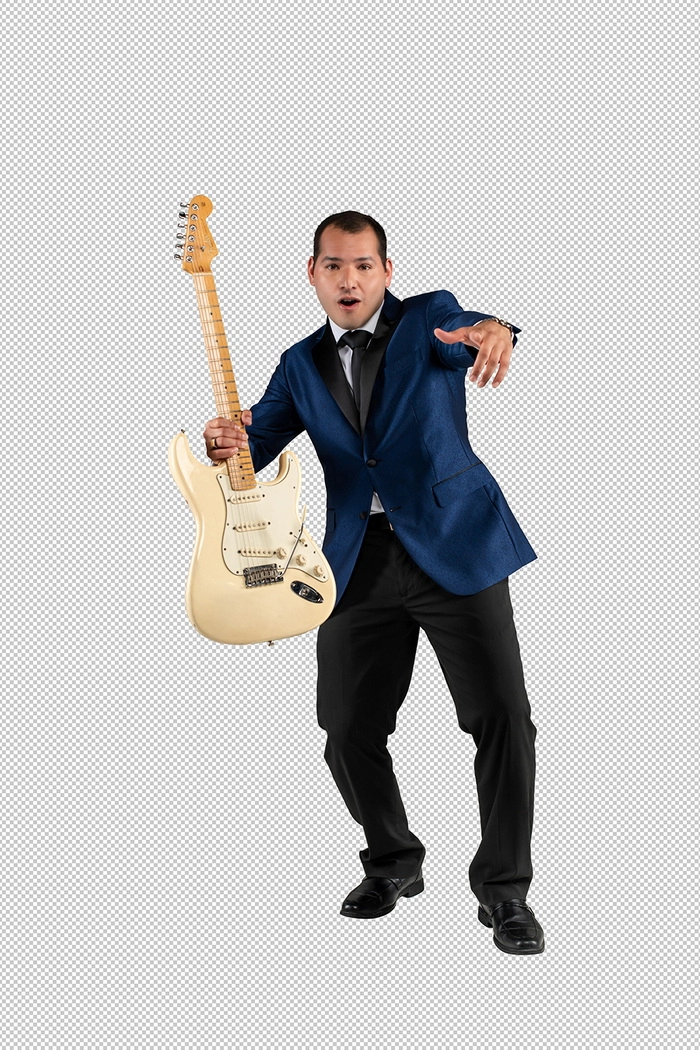
Major Clipping Path

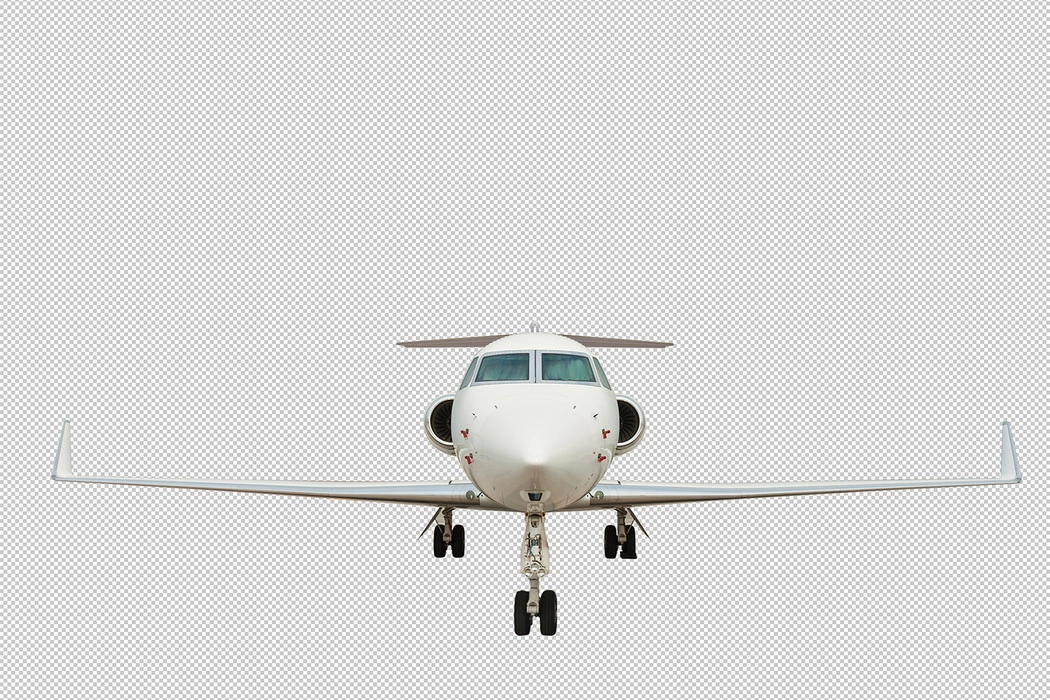
Major Clipping Path involves extensive cutting, such as for objects with many edges. It also includes cases where there is a significant difference in color and contrast between the subject and the background.

Photoshop PNG transparent Major Clipping Path 15 Photoshop PNG transparent Major Clipping Path 16
Photoshop PNG transparent Major Clipping Path 9 Photoshop PNG transparent Major Clipping Path 10
Photoshop PNG transparent Major Clipping Path 7 Photoshop PNG transparent Major Clipping Path 8
Photoshop PNG transparent Major Clipping Path 3 Photoshop PNG transparent Major Clipping Path 4
Photoshop PNG transparent Major Clipping Path 20 Photoshop PNG transparent Major Clipping Path 19
Photoshop PNG transparent Major Clipping Path 21 Photoshop PNG transparent Major Clipping Path 22
Photoshop PNG transparent Major Clipping Path 17 Photoshop PNG transparent Major Clipping Path 18
Photoshop PNG transparent Major Clipping Path 13 Photoshop PNG transparent Major Clipping Path 14
Photoshop PNG transparent Major Clipping Path 11 Photoshop PNG transparent Major Clipping Path 12
Photoshop PNG transparent Major Clipping Path 1 Photoshop PNG transparent Major Clipping Path 2
Photoshop PNG transparent Major Clipping Path 5 Photoshop PNG transparent Major Clipping Path 6